- 1Windows10 Docker 容器使用,每个步骤作者亲测,细节记录最全教程_win10系统的容器
- 2⭐算法入门⭐《递推 - 二维》简单01 —— LeetCode 118. 杨辉三角_二维递推
- 3springboot014校园管理系统的设计与实现_基于springboot的班级管理系统的设计与实现
- 4Java MongoDB:(十三)MongoDB 的文档操作-Limit 函数与 Skip 函数_java集成mongo分页查询的skip和limit有什么区别
- 5Matlab常用求解数学规划模型代码_matlab数学模型代码
- 6基于树莓派4B与STM32的UART串口通信实验(代码开源)_树莓派4b串口波特率
- 7【图论·习题】走廊泼水节(Kruscal算法逆推)
- 8力扣hot100 柱状图中最大的矩形 单调栈
- 9MSB 和 LSB_spi msb
- 10Spring-Boot导入配置文件与取值
Linux Ubuntu 20.04安装UHD和GNU Radio_uhd查询版本
赞
踩
一、说明
本文使用Ubuntu 20.04系统。采用二进制包的方式安装UHD与GNU Radio。
为防止出现问题,要先安装UHD,再安装GNU Radio。
二、更换国内下载源
如果网速不好,会出现类似于Failed to fetch、Connection failed的错误,导致安装失败。
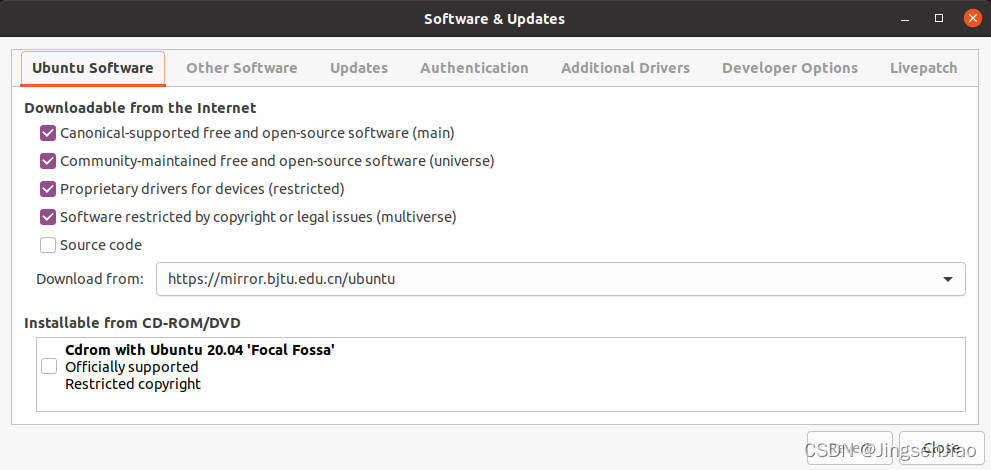
1、打开Ubuntu系统的Software & Updates应用:
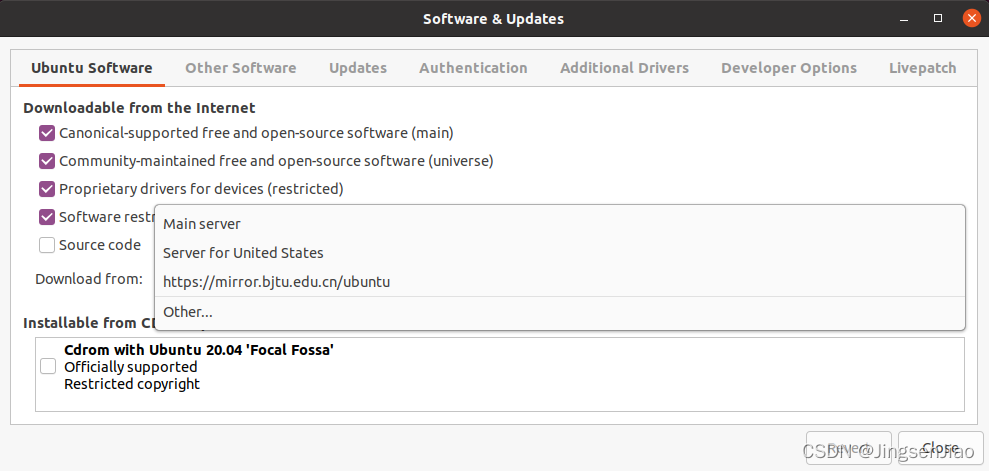
2、在Download from:下拉框中选择Other:
3、找到China,选择合适的下载源,例如mirror.bjtu.edu.cn,这是北京交通大学的下载源。
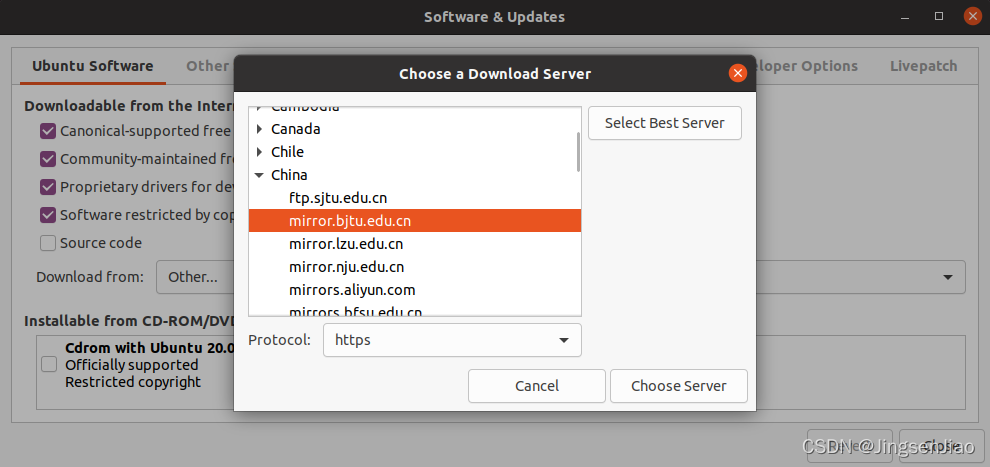
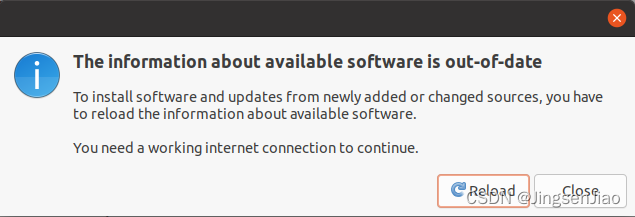
4、关闭Software & Updates应用后,点击Reload。
三、安装UHD
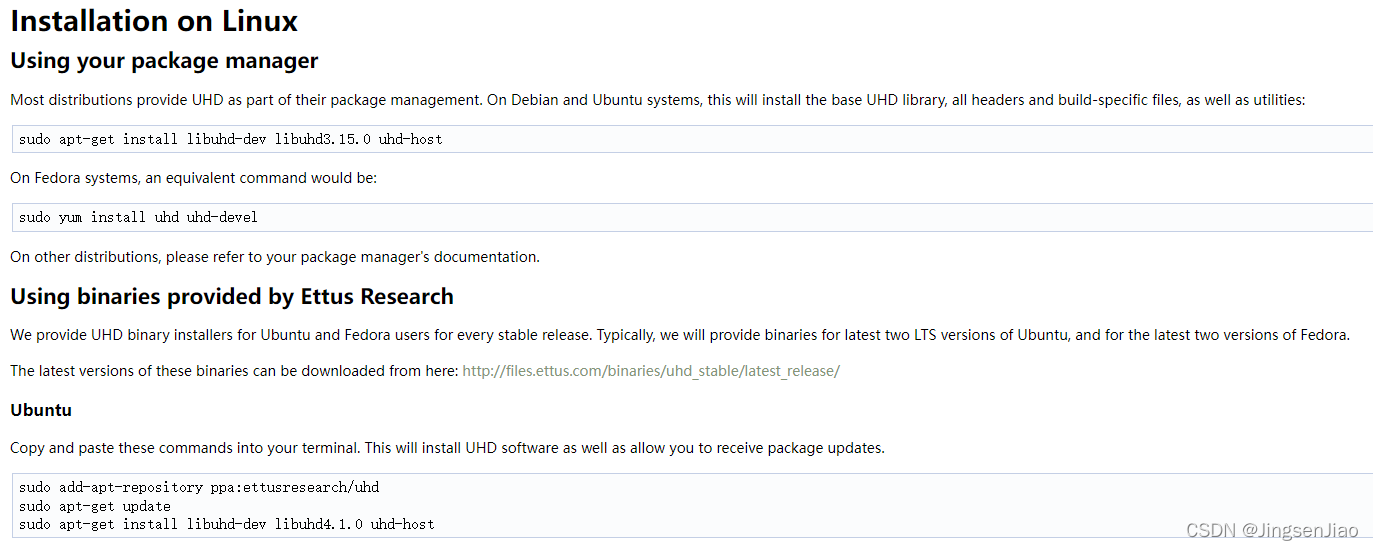
官方安装教程:https://files.ettus.com/manual/page_install.html
1、查找所需的UHD版本
Ettus Research官网:https://www.ettus.com/
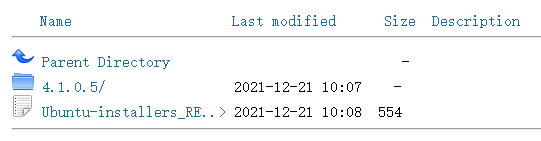
打开如下网址,可以查找UHD历史发行版本:https://files.ettus.com/binaries/uhd_stable/

打开latest_stable文件夹,可以看到当前最新稳定版是4.1.0.5。
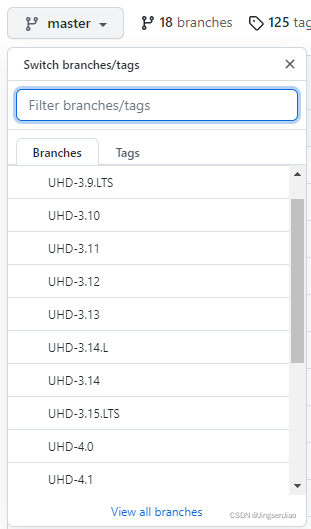
在UHD的GitHub分支中查看哪些版本是长期支持(LTS)的:
https://github.com/EttusResearch/uhd
2、使用Ubuntu PPA安装UHD
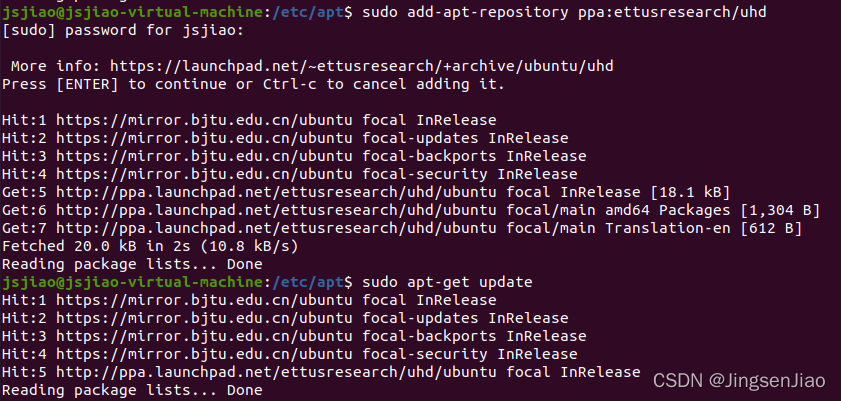
在Ubuntu终端中输入以下命令:
sudo add-apt-repository ppa:ettusresearch/uhd
sudo apt-get update
sudo apt-get install libuhd-dev libuhd4.1.0 uhd-host
- 1
- 2
- 3
其中第3行的libuhd的版本可以根据需要更改,如改为libuhd3.15.0,这里我安装4.1.0版本。

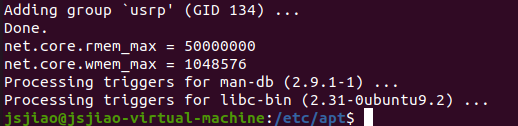
install命令执行结束:
3、安装UHD FPGA镜像
参考官方文档:https://kb.ettus.com/Building_and_Installing_the_USRP_Open-Source_Toolchain_(UHD_and_GNU_Radio)_on_Linux#Downloading_the_UHD_FPGA_Images
在Ubuntu终端中输入以下命令:
sudo uhd_images_downloader
- 1
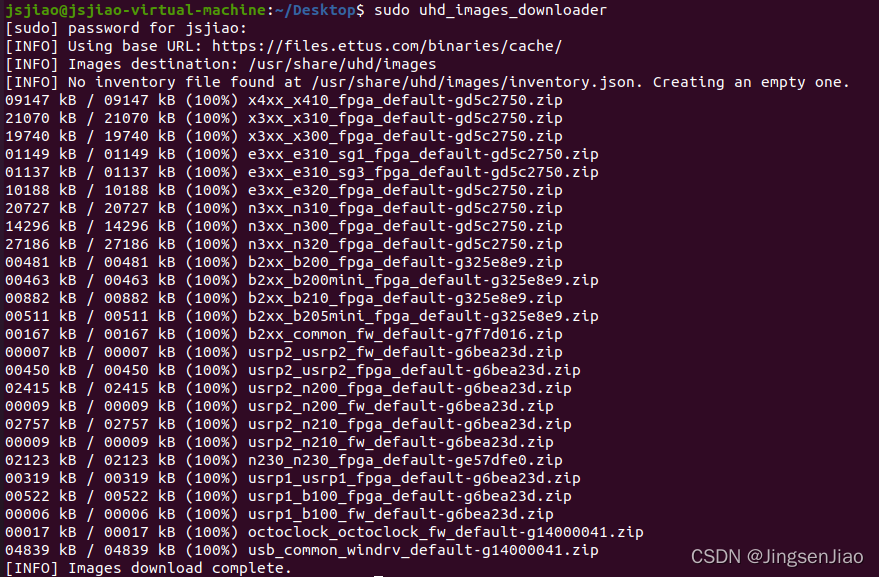
可以选择自行指定其他镜像,参考:https://files.ettus.com/manual/page_usrp_b200.html

如果在运行UHD命令或GNU Radio的时候遇到FPGA固件版本冲突的问题,可以去如下网址下载其他版本的固件,然后在下载好的固件所在的文件夹路径中打开Ubuntu终端,重新运行UHD命令或运行gnuradio-companion。
UHD FPGA固件下载:https://files.ettus.com/binaries/images/
4、设置UHD镜像环境变量
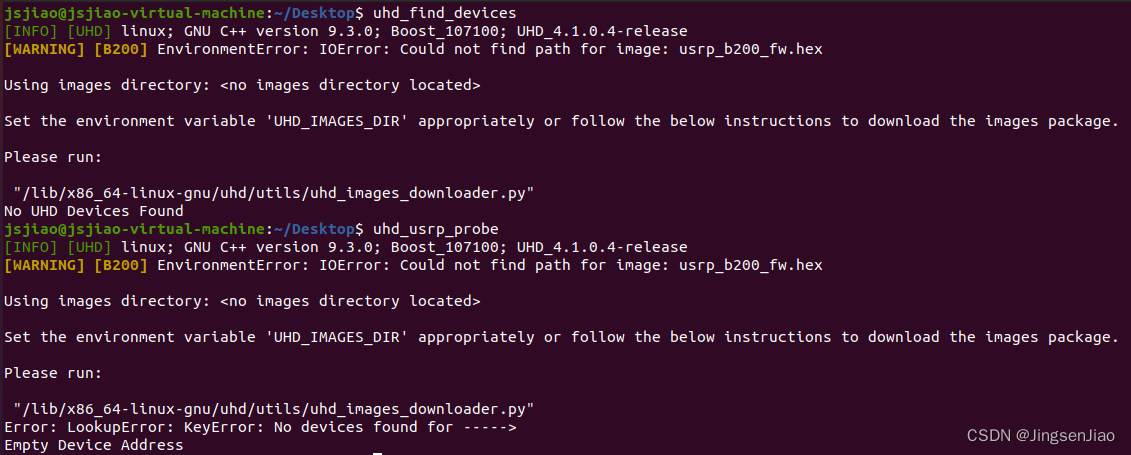
初次使用USRP时,需要在Ubuntu中设置环境变量UHD_IMAGES_DIR。如果不设置,则当执行uhd_find_devices或uhd_usrp_probe命令后,出现下图中的错误,提示找不到UHD镜像的路径,并且让我们正确地设置环境变量UHD_IMAGES_DIR或下载镜像包。在已经下载好镜像包的情况下,只需要设置环境变量UHD_IMAGES_DIR。
/etc/profile文件是系统默认的bash shell的第一启动文件。其中就涉及到了系统环境变量的读取文件。所以,可以直接打开/etc/profile文件,使用export命令在文件中添加系统环境变量。
这个文件的特点是:系统中所有用户登录时都会执行这个启动文件。所以,里面添加的所有环境变量对系统中的所有用户有效。
使用以下命令打开/etc/profile文件:
sudo gedit /etc/profile
- 1
打开后在文件最后面添加以下语句:
export UHD_IMAGES_DIR=/usr/share/uhd/images
- 1
保存退出,然后在bash中执行source /etc/profile命令使其生效,如果没有对全局生效,则重新登录,或者重启系统。
四、安装GNU Radio
官方安装教程:https://wiki.gnuradio.org/index.php?title=InstallingGR
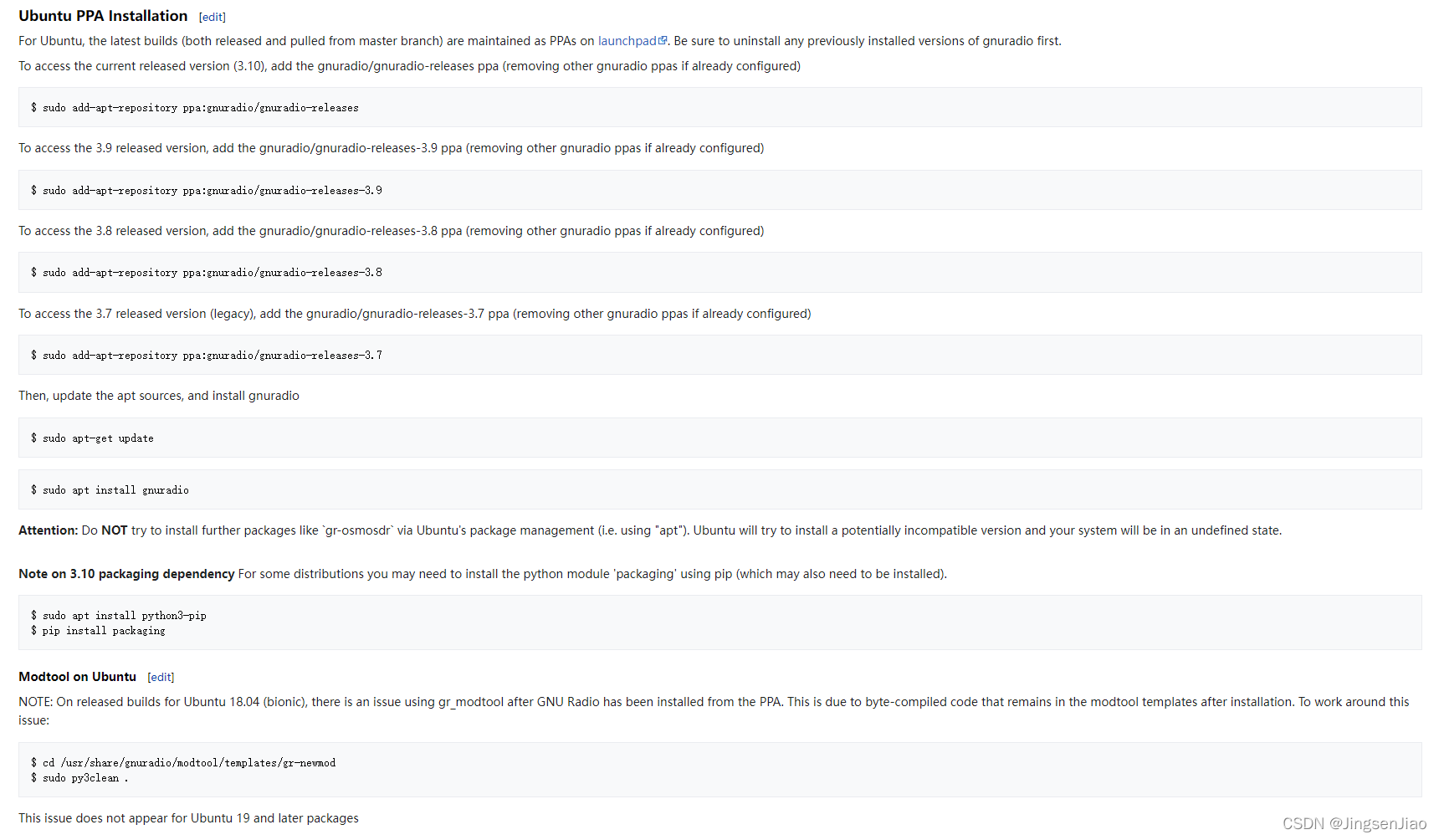
1、查找所需的GNU Radio版本
GNU Radio官网:https://www.gnuradio.org/
GNU Radio的GitHub源码:https://github.com/gnuradio/gnuradio
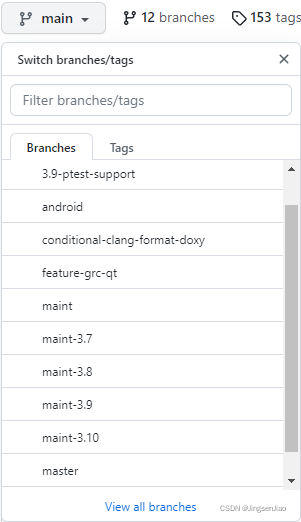
压缩包:https://www.gnuradio.org/releases/gnuradio/
2、使用Ubuntu PPA安装GNU Radio
在Ubuntu终端中输入以下命令:
sudo add-apt-repository ppa:gnuradio/gnuradio-releases
sudo apt-get update
sudo apt install gnuradio
- 1
- 2
- 3
其中第1行命令可以指定版本,如:
sudo add-apt-repository ppa:gnuradio/gnuradio-releases-3.9
sudo add-apt-repository ppa:gnuradio/gnuradio-releases-3.8
sudo add-apt-repository ppa:gnuradio/gnuradio-releases-3.7
- 1
- 2
- 3
若不指定,则默认最新版本。
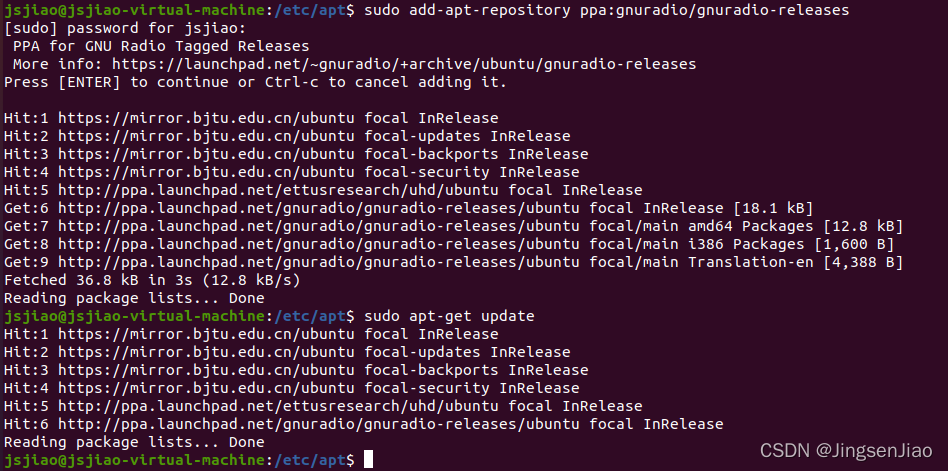

install命令执行结束:
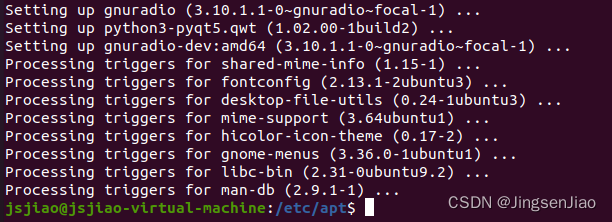
3、安装完成
在终端中输入gnuradio-companion可以打开GNU Radio的GUI界面:

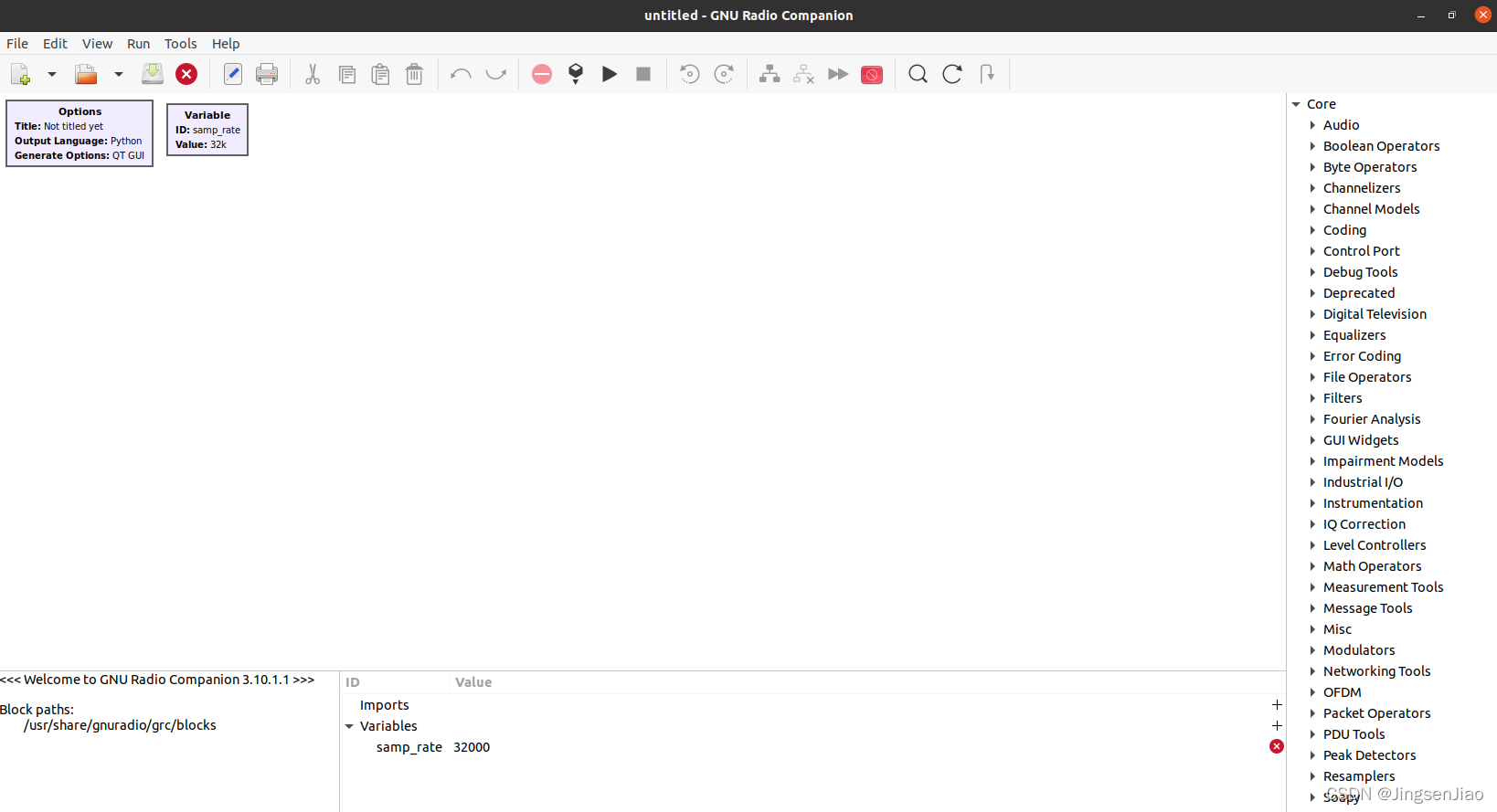
4、注意事项(来源于官方文档)
(1) 不要试图通过Ubuntu的软件包管理(即使用“apt”)安装更多的软件包,比如gr-osmosdr。Ubuntu将尝试安装一个可能不兼容的版本,您的系统将处于未定义状态。
(2) 3.10 packaging依赖。对于某些发行版,可能需要使用pip(这也可能需要安装)安装python模块packaging。
sudo apt install python3-pip
pip install packaging
- 1
- 2
(3) 在Ubuntu18.04(bionic)发布的版本中,在从PPA安装GNU Radio后,使用gr_modtool时出现问题。这是由于字节编译的代码在安装后仍保留在modtool模板中。要解决这个问题:
cd /usr/share/gnuradio/modtool/templates/gr-newmod
sudo py3clean .
- 1
- 2
Ubuntu 19及更高版本的软件包不会出现这个问题。
五、使用UHD
1、配置USB
此步骤仅适用于使用USB连接到主机的设备,如B200、B210和B200mini。
参考官方文档:https://kb.ettus.com/Building_and_Installing_the_USRP_Open-Source_Toolchain_(UHD_and_GNU_Radio)_on_Linux#Configuring_USB
以下命令安装udev规则,以便非root用户可以访问USRP设备。此设置应立即生效,无需重新启动或注销/登录。运行这些命令时,确保没有通过USB连接USRP设备。
On Linux, udev handles USB plug and unplug events. The following commands install a udev rule so that non-root users may access the device. This step is only necessary for devices that use USB to connect to the host computer, such as the B200, B210, and B200mini. This setting should take effect immediately and does not require a reboot or logout/login. Be sure that no USRP device is connected via USB when running these commands.
cd /usr/lib/uhd/utils
sudo cp uhd-usrp.rules /etc/udev/rules.d/
sudo udevadm control --reload-rules
sudo udevadm trigger
- 1
- 2
- 3
- 4
2、配置以太网
参考官方文档:https://kb.ettus.com/Building_and_Installing_the_USRP_Open-Source_Toolchain_(UHD_and_GNU_Radio)_on_Linux#Configuring_Ethernet
对于使用以太网连接到主机计算机的USRP设备,如N200、N210、X300、X310,为系统设置192.168.10.1的静态IP地址,子网掩码为255.255.255.0。USRP的默认IP地址为192.168.10.2,掩码为255.255.255.0。应该使用图形化网络管理器来设置IP地址。如果使用ifconfig从命令行设置IP地址,Network Manager可能会覆盖这些设置。
3、连接USRP
参考官方文档:https://kb.ettus.com/Building_and_Installing_the_USRP_Open-Source_Toolchain_(UHD_and_GNU_Radio)_on_Linux#Connect_the_USRP
The installation of UHD and GNU Radio should now be complete. At this point, connect the USRP to the host computer.
- If the interface is Ethernet, then open a terminal window, and try to ping the USRP with “ping 192.168.10.2”. The USRP should respond to the ping requests.
- If the interface is USB, then open a terminal window, and run
"lsusb". You should see the USRP listed on the USB bus with a VID of2500and PID of0020,0021,0022, for B200, B210, B200mini, respectively. - Also try running
"uhd_find_devices"and"uhd_usrp_probe".
4、USRP相关资料
https://files.ettus.com/manual/
https://files.ettus.com/manual/page_usrp_b200.html
https://kb.ettus.com/B200/B210/B200mini/B205mini_Getting_Started_Guides
https://kb.ettus.com/Verifying_the_Operation_of_the_USRP_Using_UHD_and_GNU_Radio