- 1项目搭建+swagger2+dozer+validator+xss_swagger validator
- 2字符串相关的45个函数_串的所有函数
- 3链表_两两交换链表中的节点_swap语句交换链表节点
- 4git合并多次提交为一次提交
- 5【LeetCode】排序精选12题
- 6SpringSecurity实战(陈木鑫)读书笔记_spring security 实战 + pdf
- 7Codeforces Round #698 (Div. 2), problem: (B) Nezzar and Lucky Number_b. broken keyboardtime limit per test1 secondmemor
- 8windows 自制后台运行进程、exe开机自启动服务_windows 的bash脚本后台启动exe
- 9C# 常用的正则表达式_c# 邮箱正则表达式
- 10Django restframework permission 权限_"rest_framework.permissions\" does not define a \"
【Unity3D】Unity 游戏画面帧更新 ( 游戏帧相关概念 | MonoBehaviour#Update() 帧更新方法 | 帧更新时间统计 | 设置游戏更新帧率 )_unity update刷新频率
赞
踩
一、 游戏帧相关概念
游戏画面由 连续的 帧 Frame 组成 ;
游戏画面的 刷新频率 称为 帧率 FrameRate ;
常见的 游戏帧率 相关参数是 FPS , 是 Frame Per Second 的缩写 , 表示 每秒更新多少帧 ;
FPS 一般要达到 60 fps , 果 FPS 很低 , 游戏画面就会很卡 ;
二、 MonoBehaviour#Update() 帧更新方法
在 Unity 的 C# 脚本中的 MonoBehaviour#Update() 方法 就是 帧更新 的方法 , 每次 更新 画面帧 时 , 都会 调用该方法 , 也就是一秒钟调用几十次到一百多次 ;
在 Unity 游戏中 , 如果要 更新 游戏物体 GameObject 的位置 , 就可以在 Update 方法中更新 游戏物体 GameObject 的坐标 ;
using System.Collections;
using System.Collections.Generic;
using UnityEngine;

public class BehaviourScript : MonoBehaviour
{
    // Start is called before the first frame update
    void Start()
    {
    }

    // Update is called once per frame
    void Update()
    {

    }
}

- 1
- 2
- 3
- 4
- 5
- 6
- 7
- 8
- 9
- 10
- 11
- 12
- 13
- 14
- 15
- 16
- 17
在上述代码的 Update 方法中添加
Debug.Log("C# 脚本 Update 函数调用 , 游戏帧更新 ");
- 1
代码 , 然后查看日志打印情况 ;
完整代码如下 :
using System.Collections;
using System.Collections.Generic;
using UnityEngine;

public class BehaviourScript : MonoBehaviour
{
    // Start is called before the first frame update
    void Start()
    {
        // 打印日志
        Debug.Log("Unity 脚本入口 , 启动加载时调用");

        // 获取当前组件附着的 游戏物体 GameObject
        GameObject gameObject = this.gameObject;

        // 获取当前组件附着的 游戏物体 GameObject 名称
        string name = gameObject.name;
        Debug.Log("C# 脚本附着游戏物体的名称 : " + name);

        // 获取当前组件附着的 游戏物体 GameObject 的 Transform 组件
        Transform transform = gameObject.transform;

        // 获取 Transform 组件的 位置 , 旋转量 , 缩放倍数
        Debug.Log("C# 脚本附着游戏物体的 Transform 组件数据 位置 : " + transform.position
            + " , 旋转量 : " + transform.rotation + " , 缩放倍数 : " + transform.localScale);

        // 将 当前组件附着的 游戏物体 GameObject 移动到 (4.0f, 4.0f, 4.0f) 坐标位置
        this.transform.localPosition = new Vector3(4.0f, 4.0f, 4.0f);
    }

    // Update is called once per frame
    void Update()
    {
        Debug.Log("C# 脚本 Update 函数调用 , 游戏帧更新 ");
    }
}
- 1
- 2
- 3
- 4
- 5
- 6
- 7
- 8
- 9
- 10
- 11
- 12
- 13
- 14
- 15
- 16
- 17
- 18
- 19
- 20
- 21
- 22
- 23
- 24
- 25
- 26
- 27
- 28
- 29
- 30
- 31
- 32
- 33
- 34
- 35
- 36
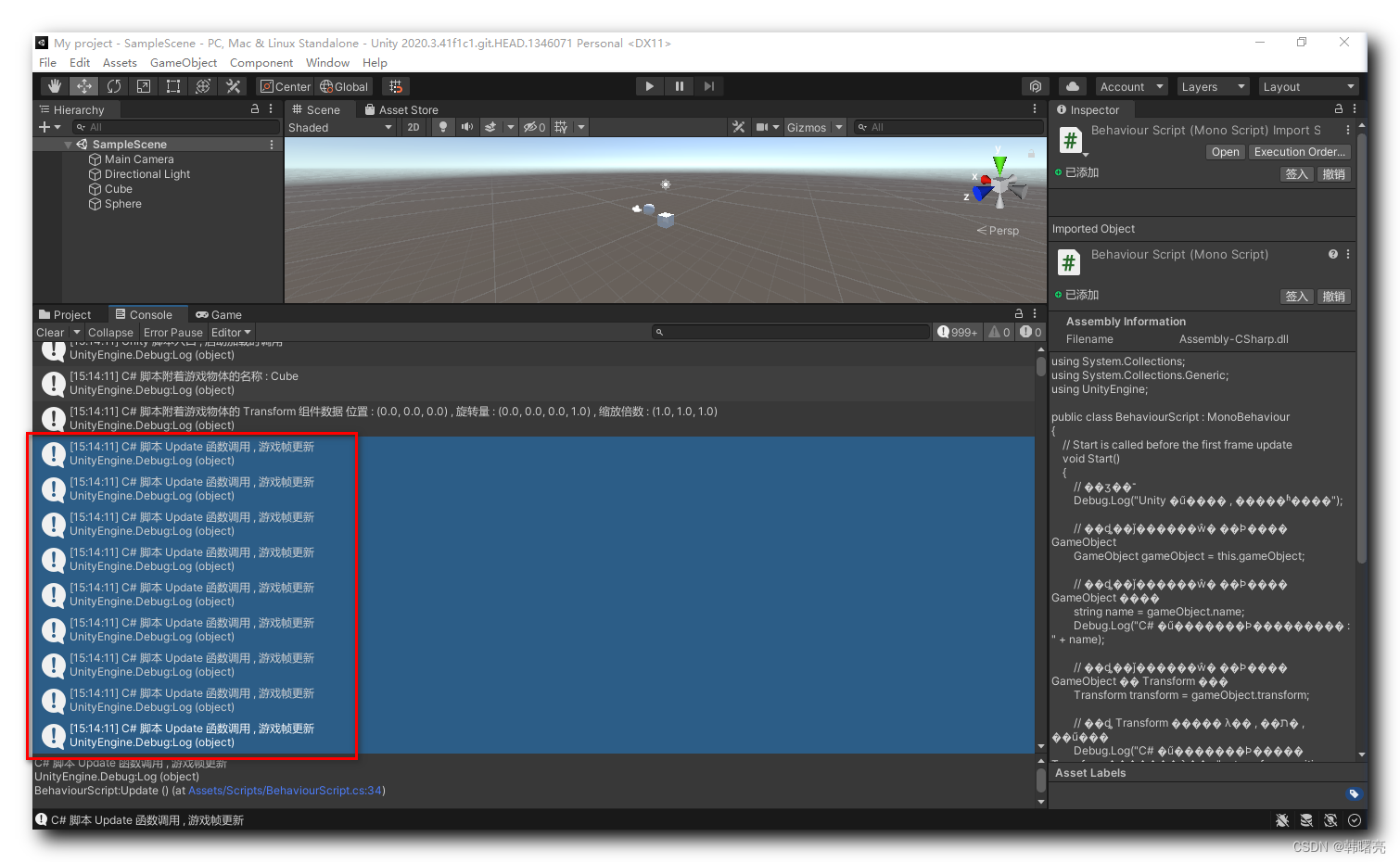
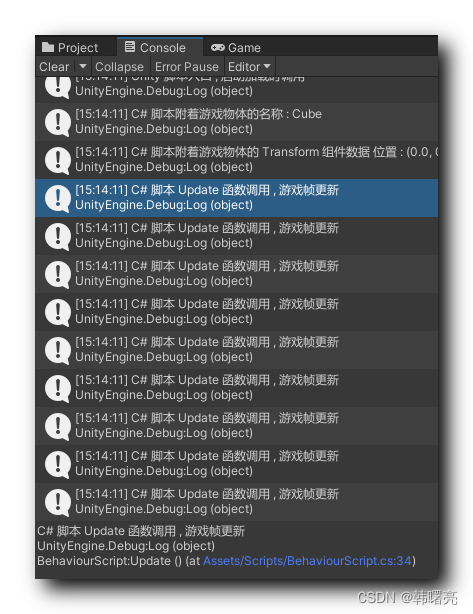
执行过程中 , 打印日志统计 999+ , 打印了很多数据 ;
三、 帧更新时间统计
在 MonoBehaviour#Update() 帧更新方法 中执行
Debug.Log("C# 脚本 Update 函数调用 , 游戏帧更新 ");
- 1
代码 , 打印日志 , 日志的时间力度为秒 , 但是游戏的帧率一般是 每秒 几十帧 , 一秒钟就会调用几十次 MonoBehaviour#Update() 帧更新方法 , 这里需要更细的时间统计力度 ;
Unity 中 C# 脚本中获取时间 : 下面的 时间单位是秒 , 类型是 float 类型 ;
- 获取游戏时间 : 游戏的绝对时间 , 使用
Time.time获取 ; - 获取更新时间差 : 获取 本次更新与上一次更新的时间差 , 使用
Time.deltaTime获取 ;
Unity 中游戏运行的帧率是不确定的 , 如果画面渲染内容较多 , 场景复杂 , 则帧更新需要更长的时间进行渲染 ;
代码示例 :
using System.Collections;
using System.Collections.Generic;
using UnityEngine;

public class BehaviourScript : MonoBehaviour
{
    // Start is called before the first frame update
    void Start()
    {
        // 打印日志
        Debug.Log("Unity 脚本入口 , 启动加载时调用");

        // 获取当前组件附着的 游戏物体 GameObject
        GameObject gameObject = this.gameObject;

        // 获取当前组件附着的 游戏物体 GameObject 名称
        string name = gameObject.name;
        Debug.Log("C# 脚本附着游戏物体的名称 : " + name);

        // 获取当前组件附着的 游戏物体 GameObject 的 Transform 组件
        Transform transform = gameObject.transform;

        // 获取 Transform 组件的 位置 , 旋转量 , 缩放倍数
        Debug.Log("C# 脚本附着游戏物体的 Transform 组件数据 位置 : " + transform.position
            + " , 旋转量 : " + transform.rotation + " , 缩放倍数 : " + transform.localScale);

        // 将 当前组件附着的 游戏物体 GameObject 移动到 (4.0f, 4.0f, 4.0f) 坐标位置
        this.transform.localPosition = new Vector3(4.0f, 4.0f, 4.0f);
    }

    // Update is called once per frame
    void Update()
    {
        Debug.Log("C# 脚本 Update 函数调用 , 游戏帧更新 , 当前游戏时间 : " + Time.time + " , 本次更新距离上次更新时间差 : " + Time.deltaTime);
    }
}
- 1
- 2
- 3
- 4
- 5
- 6
- 7
- 8
- 9
- 10
- 11
- 12
- 13
- 14
- 15
- 16
- 17
- 18
- 19
- 20
- 21
- 22
- 23
- 24
- 25
- 26
- 27
- 28
- 29
- 30
- 31
- 32
- 33
- 34
- 35
- 36
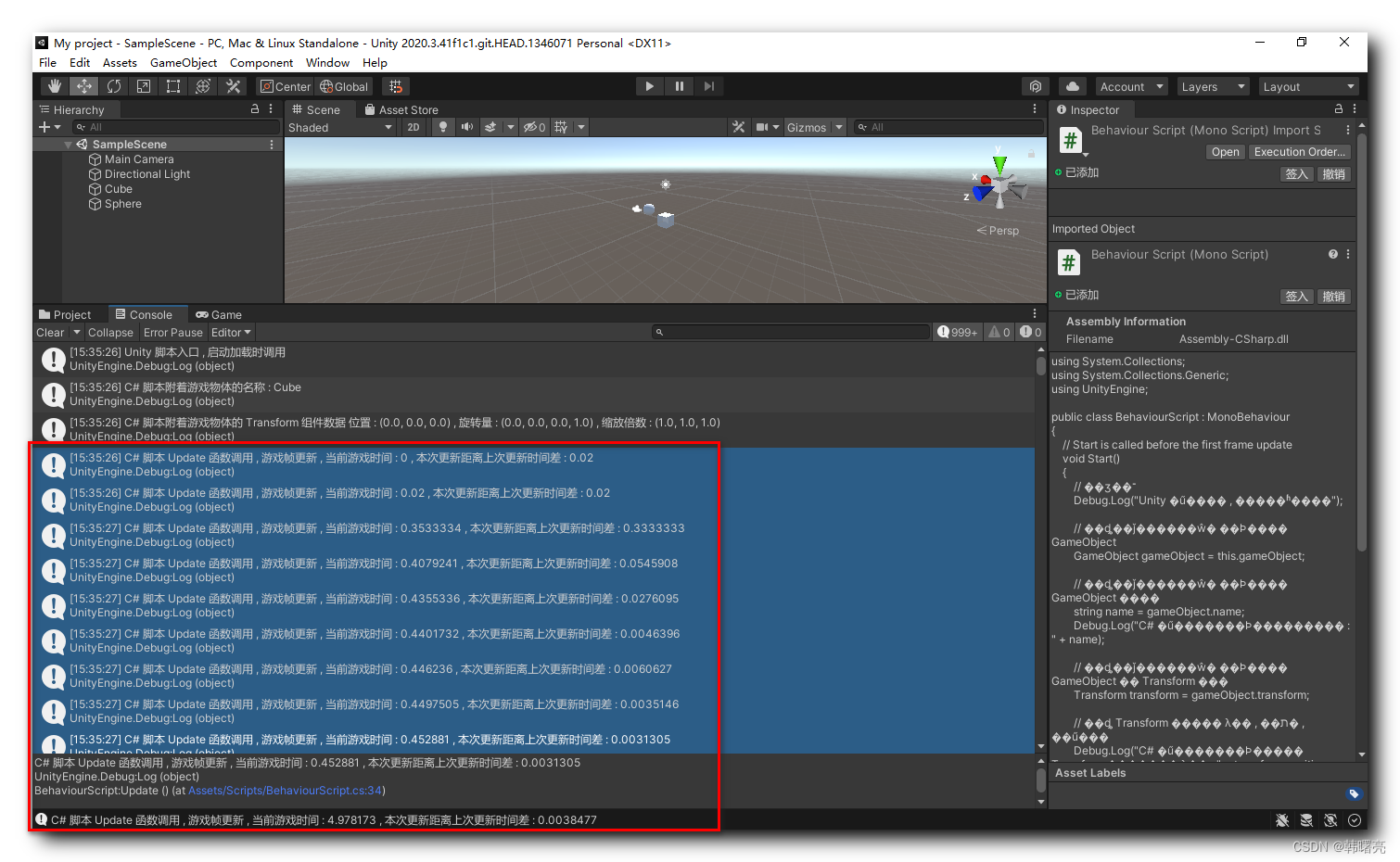
执行结果 : 每一帧的间隔从几毫秒到几百毫秒 , 大部分在个位数毫秒值间隔 ; 这个与操作系统时间片分配有关 , 没有办法精准控制 ;
四、 设置游戏更新帧率
在 Unity 中 无法精准的控制 游戏画面 的帧率 , 但是可以使用
Application.targetFrameRate = 5;
- 1
代码 , 为游戏画面更新 , 设置一个帧率 5 fps , Unity 会尽量按照该帧率进行更新 , 但是不保证严格按照该帧率进行更新 , 该设置只是给一个建议值或者近似值 , 不是精确值 ;
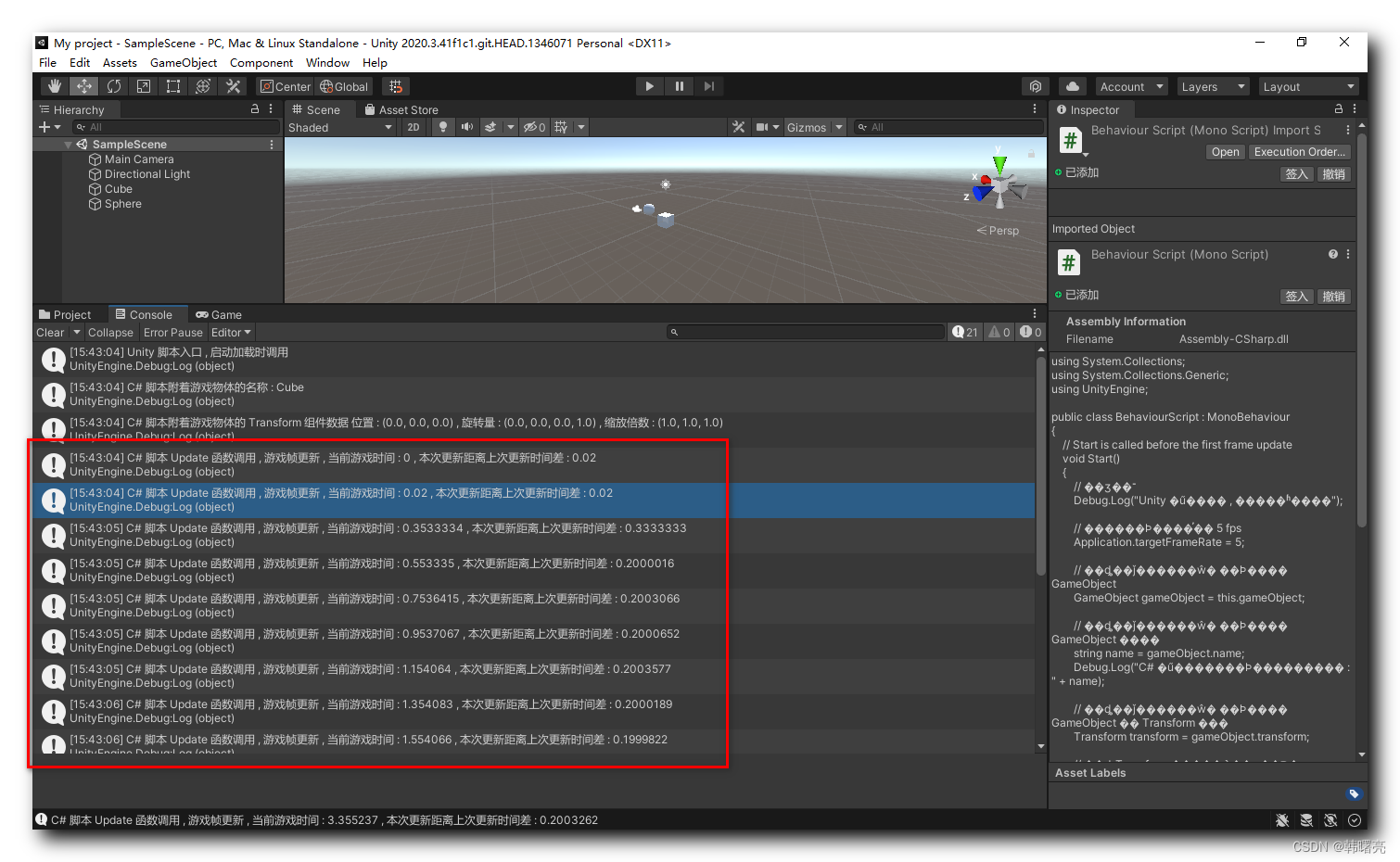
上述 5 fps , 一秒钟更新 5 次 , 更新间隔 200 ms ;
完整代码示例 :
using System.Collections;
using System.Collections.Generic;
using UnityEngine;

public class BehaviourScript : MonoBehaviour
{
    // Start is called before the first frame update
    void Start()
    {
        // 打印日志
        Debug.Log("Unity 脚本入口 , 启动加载时调用");

        // 设置游戏更新帧率 5 fps
        Application.targetFrameRate = 5;

        // 获取当前组件附着的 游戏物体 GameObject
        GameObject gameObject = this.gameObject;

        // 获取当前组件附着的 游戏物体 GameObject 名称
        string name = gameObject.name;
        Debug.Log("C# 脚本附着游戏物体的名称 : " + name);

        // 获取当前组件附着的 游戏物体 GameObject 的 Transform 组件
        Transform transform = gameObject.transform;

        // 获取 Transform 组件的 位置 , 旋转量 , 缩放倍数
        Debug.Log("C# 脚本附着游戏物体的 Transform 组件数据 位置 : " + transform.position
            + " , 旋转量 : " + transform.rotation + " , 缩放倍数 : " + transform.localScale);

        // 将 当前组件附着的 游戏物体 GameObject 移动到 (4.0f, 4.0f, 4.0f) 坐标位置
        this.transform.localPosition = new Vector3(4.0f, 4.0f, 4.0f);

    }

    // Update is called once per frame
    void Update()
    {
        Debug.Log("C# 脚本 Update 函数调用 , 游戏帧更新 , 当前游戏时间 : " + Time.time + " , 本次更新距离上次更新时间差 : " + Time.deltaTime);
    }
}
- 1
- 2
- 3
- 4
- 5
- 6
- 7
- 8
- 9
- 10
- 11
- 12
- 13
- 14
- 15
- 16
- 17
- 18
- 19
- 20
- 21
- 22
- 23
- 24
- 25
- 26
- 27
- 28
- 29
- 30
- 31
- 32
- 33
- 34
- 35
- 36
- 37
- 38
- 39
- 40
执行结果 : 在游戏画面更新时 , 大致按照 5 fps 的帧率进行更新 , 也就是间隔 200 ms , 这个间隔不是精确值 , 而是一个近似值 , 可能是 0.2000016 秒 , 也可能是 0.1999822 秒 ;