- 1AlexNet 学习笔记_alexnet准确率一般为多少正常
- 2python多进程(multiprocessing)(map)_multiprocessing map
- 3linux中在当前目录下找出占用空间最大的前10大文件
- 4opencv图像分割_open cv 切黑白图
- 5docker容器命令和dockerfile文件 以及docker-compose.yml文件的使用_docker run后面的命令怎样放到docker-compose.yml中执行
- 6碎片笔记|AIGC核心技术综述_aigc相关产品
- 7【UE4】如何获取/下载虚幻4(Unreal Engine4)源码
- 8Docker镜像的分层结构
- 9数字化转型的目标、方向和核心因素
- 10电脑怎么查看连接过的WIFI密码(测试环境win11,win10也能用)_win10怎么查看已连接过的wifi
热红外相机图片与可见光图片配准教程_红外可见光配准
赞
踩
一、前言
图像配准是一种图像处理技术,用于将多个场景对齐到单个集成图像中。在这篇文章中,我将讨论如何在可见光及其相应的热图像上应用图像配准。在继续该过程之前,让我们看看什么是热图像及其属性。
二、热红外数据介绍
热图像本质上通常是灰度图像:黑色物体是冷的,白色物体是热的,灰色的深度表示两者之间的差异。 然而,一些热像仪会为图像添加颜色,以帮助用户识别不同温度下的物体。

图1 左图为可见光;有图为热红外图像
上面两个图像是可见的,它是对应的热图像,你可以看到热图像有点被裁剪掉了。 这是因为在热图像中并没有捕获整个场景,而是将额外的细节作为元数据存储在热图像中。
因此,为了执行配准,我们要做的是找出可见图像的哪一部分出现在热图像中,然后对图像的该部分应用配准。
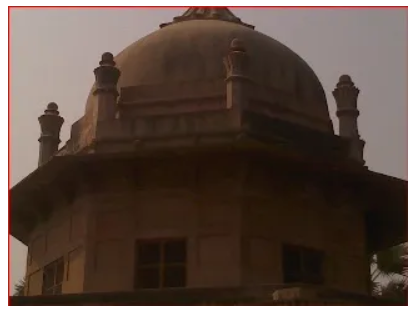
图2 .与热图像匹配后裁剪的可见图像
为了执行上述操作,基本上包含两张图像,一张参考图像和另一张要匹配的图像。 因此,下面的算法会找出参考图像的哪一部分出现在第二张图像中,并为您提供匹配图像部分的位置。
现在我们知道热图像中存在可见图像的哪一部分,我们可以裁剪可见图像,然后对生成的图像进行配准。
三、配准过程
为了执行配准,我们要做的是找出将像素从可见图像映射到热图像的特征点,这在本文中进行了解释,一旦我们获得了一定数量的像素,我们就会停止并开始映射这些像素,从而完成配准过程完成了。
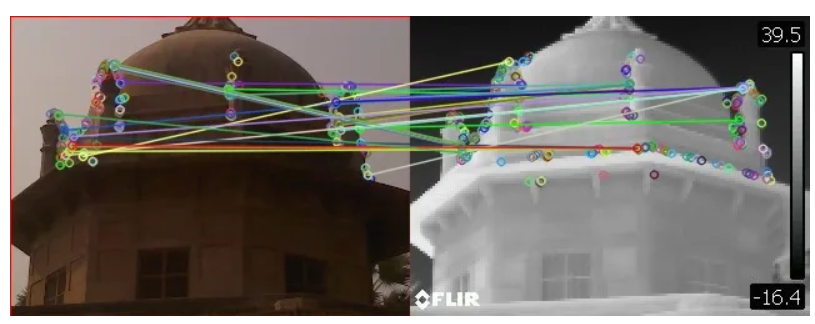
图3 热成像到可见光图像配准
一旦我们执行了配准,如果匹配正确,我们将获得具有配准图像的输出,如下图所示。
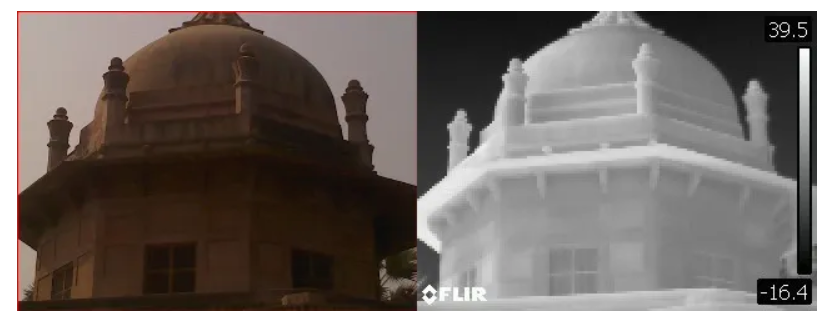
图4 最终输出结果
我对 400 张图像的数据集执行了此操作,获得的结果非常好。 错误数量很少,请参考下面的代码,看看一切是如何完成的。
-
- from __future__ import print_function
- import numpy as np
- import argparse
- import glob
- import cv2
- import os
-
- MAX_FEATURES = 500
- GOOD_MATCH_PERCENT = 0.15
-
- #function to align the thermal and visible image, it returns the homography matrix
- def alignImages(im1, im2,filename):
-
- # Convert images to grayscale
- im1Gray = cv2.cvtColor(im1, cv2.COLOR_BGR2GRAY)
- im2Gray = cv2.cvtColor(im2, cv2.COLOR_BGR2GRAY)
-
- # Detect ORB features and compute descriptors.
- orb = cv2.ORB_create(MAX_FEATURES)
- keypoints1, descriptors1 = orb.detectAndCompute(im1Gray, None)
- keypoints2, descriptors2 = orb.detectAndCompute(im2Gray, None)
-
- # Match features.
- matcher = cv2.DescriptorMatcher_create(cv2.DESCRIPTOR_MATCHER_BRUTEFORCE_HAMMING)
- matches = matcher.match(descriptors1, descriptors2, None)
-
- # Sort matches by score
- matches.sort(key=lambda x: x.distance, reverse=False)
-
- # Remove not so good matches
- numGoodMatches = int(len(matches) * GOOD_MATCH_PERCENT)
- matches = matches[:numGoodMatches]
-
- # Draw top matches
- imMatches = cv2.drawMatches(im1, keypoints1, im2, keypoints2, matches, None)
- if os.path.exists(os.path.join(args["output"],"registration")):
- pass
- else:
- os.mkdir(os.path.join(args["output"],"registration"))
- cv2.imwrite(os.path.join(args["output"],"registration",filename), imMatches)
-
- # Extract location of good matches
- points1 = np.zeros((len(matches), 2), dtype=np.float32)
- points2 = np.zeros((len(matches), 2), dtype=np.float32)
-
- for i, match in enumerate(matches):
- points1[i, :] = keypoints1[match.queryIdx].pt
- points2[i, :] = keypoints2[match.trainIdx].pt
-
- # Find homography
- h, mask = cv2.findHomography(points1, points2, cv2.RANSAC)
-
- # Use homography
- height, width, channels = im2.shape
- im1Reg = cv2.warpPerspective(im1, h, (width, height))
-
- return im1Reg, h
-
- # construct the argument parser and parse the arguments
- # run the file with python registration.py --image filename
- ap = argparse.ArgumentParser()
- # ap.add_argument("-t", "--template", required=True, help="Path to template image")
- ap.add_argument("-i", "--image", required=False,default=r"热红外图像的路径",
- help="Path to images where thermal template will be matched")
- ap.add_argument("-v", "--visualize",required=False,default=r"真彩色影像的路径")
- ap.add_argument("-o", "--output",required=False,default=r"保存路径")
- args = vars(ap.parse_args())
-
- # put the thermal image in a folder named thermal and the visible image in a folder named visible with the same name
- # load the image image, convert it to grayscale, and detect edges
- template = cv2.imread(args["image"])
- template = cv2.cvtColor(template, cv2.COLOR_BGR2GRAY)
- template = cv2.Canny(template, 50, 200)
- (tH, tW) = template.shape[:2]
- cv2.imshow("Template", template)
- #cv2.waitKey(0)
-
- # loop over the images to find the template in
-
- # load the image, convert it to grayscale, and initialize the
- # bookkeeping variable to keep track of the matched region
- image = cv2.imread(args["visualize"])
- gray = cv2.cvtColor(image, cv2.COLOR_BGR2GRAY)
- found = None
-
- # loop over the scales of the image
- for scale in np.linspace(0.2, 1.0, 20)[::-1]:
- # resize the image according to the scale, and keep track
- # of the ratio of the resizing
- resized = cv2.resize(gray, (int(gray.shape[1] * scale),int(gray.shape[0] * scale)))
- r = gray.shape[1] / float(resized.shape[1])
-
- # if the resized image is smaller than the template, then break
- # from the loop
- if resized.shape[0] < tH or resized.shape[1] < tW:
- break
-
- # detect edges in the resized, grayscale image and apply template
- # matching to find the template in the image
- edged = cv2.Canny(resized, 50, 200)
- result = cv2.matchTemplate(edged, template, cv2.TM_CCOEFF)
- (_, maxVal, _, maxLoc) = cv2.minMaxLoc(result)
-
- # check to see if the iteration should be visualized
- if True:
- # draw a bounding box around the detected region
- clone = np.dstack([edged, edged, edged])
- cv2.rectangle(clone, (maxLoc[0], maxLoc[1]),
- (maxLoc[0] + tW, maxLoc[1] + tH), (0, 0, 255), 2)
- cv2.imshow("Visualize", clone)
- #cv2.waitKey(0)
-
- # if we have found a new maximum correlation value, then update
- # the bookkeeping variable
- if found is None or maxVal > found[0]:
- found = (maxVal, maxLoc, r)
-
- # unpack the bookkeeping variable and compute the (x, y) coordinates
- # of the bounding box based on the resized ratio
- (_, maxLoc, r) = found
- (startX, startY) = (int(maxLoc[0] * r), int(maxLoc[1] * r))
- (endX, endY) = (int((maxLoc[0] + tW) * r), int((maxLoc[1] + tH) * r))
-
- # draw a bounding box around the detected result and display the image
- cv2.rectangle(image, (startX, startY), (endX, endY), (0, 0, 255), 2)
- crop_img = image[startY:endY, startX:endX]
- #cv2.imshow("Image", image)
- cv2.imshow("Crop Image", crop_img)
- #cv2.waitKey(0)
-
- #name = r"E:\temp\data5/thermal/"+args["image"]+'.JPG'
- thermal_image = cv2.imread(args["image"], cv2.IMREAD_COLOR)
-
- #cropping out the matched part of the thermal image
- crop_img = cv2.resize(crop_img, (thermal_image.shape[1], thermal_image.shape[0]))
-
- #cropped image will be saved in a folder named output
- if os.path.exists(os.path.join(args["output"],"process")):
- pass
- else:
- os.mkdir(os.path.join(args["output"],"process"))
- cv2.imwrite(os.path.join(args["output"],"process", os.path.basename(args["visualize"])),crop_img)
-
- #both images are concatenated and saved in a folder named results
- final = np.concatenate((crop_img, thermal_image), axis = 1)
- if os.path.exists(os.path.join(args["output"],"results")):
- pass
- else:
- os.mkdir(os.path.join(args["output"],"results"))
- cv2.imwrite(os.path.join(args["output"],"results", os.path.basename(args["visualize"])),final)
-
- #cv2.waitKey(0)
- # Registration
- # Read reference image
- refFilename = args["image"]
- print("Reading reference image : ", refFilename)
- imReference = cv2.imread(refFilename, cv2.IMREAD_COLOR)
-
- # Read image to be aligned
- imFilename = os.path.join(args["output"],"process", os.path.basename(args["visualize"]))
- print("Reading image to align : ", imFilename);
- im = cv2.imread(imFilename, cv2.IMREAD_COLOR)
- file_name=os.path.basename(args["image"])+'_registration.JPG'
- imReg, h = alignImages(im,imReference,file_name)
- cv2.imwrite(os.path.join(args["output"],"results", os.path.basename(args["image"])+'_result.JPG'),imReg)
- print("Estimated homography : \n", h)

我们已经成功地进行了热到可见图像配准。你可以用你的数据集来尝试一下,然后看看结果。
后续:
因opencv版本问题做了修改,最终结果可以在registration和result保存路径下查看,其中opencv原因需要英文路径,调用使用方法如下:
python .\main.py -i “热红外影像路径” -v “真彩色影像路径” -o “保存路径”