- 1Jenkins+Allure+Pytest的持续集成
- 2.sh文件
- 3uniapp如何定义全局变量?
- 4解决no tracked branch的问题,并详说远程分支、远程跟踪分支和跟踪分支【本地分支】_has no tracked branch
- 5【Wi-Fi】802.11/802.11b/802.11g/802.11n/802.11a/802.11ac/802.11ax/802.11be_wifi速率对照表
- 6SpringBoot-集成Shiro(登录注册、权限控制、分布式Session、登录验证码)
- 7Linux CentOS 7常见命令_linux撤回cp
- 82021-07-28_hardwarebuffer和galloc
- 9在keras中使用gpu加速训练模型;安装cuda;cudnn;cudnn_cnn_infer64_8.dll 不在path中;device_lib.list_local_devices无gpu;挂掉_keras cuda
- 10ubuntu gedit主题更改
Vue3-Composition-API(二)
赞
踩
一、computed函数使用
1.computed
在前面我们讲解过计算属性computed:当我们的某些属性是依赖其他状态时,我们可以使用计算属性来处理
-
在前面的Options API中,我们是使用computed选项来完成的;
-
在Composition API中,我们可以在 setup 函数中使用 computed 方法来编写一个计算属性;
如何使用computed呢?
- 方式一:接收一个
getter函数,并为 getter 函数返回的值,返回一个不变的 ref 对象; - 方式二:接收一个具有
get 和 set的对象,返回一个可变的(可读写)ref 对象;
const fullName = computed(() => {
    return firstName.value + " " + lastName.value
})
- 1
- 2
- 3
const fullName = computed({
    get: () => {
        return firstName.value + " " + lastName.value
    },
    set: newValue => {
        const names = newValue.split(" ")
        firstName.value = names[0]
        lastName.value = names[1]
    }
})
- 1
- 2
- 3
- 4
- 5
- 6
- 7
- 8
- 9
- 10
2.setup中使用ref
在setup中如何使用ref获取元素或者组件?
- 其实非常简单,我们只需要定义一个ref对象,绑定到元素或者组件的ref属性上即可;
<template>
  <!-- 1.获取元素 -->
  <h2 ref="titleRef">我是标题</h2>
  <button ref="btnRef">按钮</button>

  <!-- 2.获取组件实例 -->
  <show-info ref="showInfoRef"></show-info>

  <button @click="getElements">获取元素</button>
</template>

<script>
  import { ref, onMounted } from 'vue'
  import ShowInfo from './ShowInfo.vue'

  export default {
    components: {
      ShowInfo
    },
    setup() {
      const titleRef = ref()
      const btnRef = ref()
      const showInfoRef = ref()

      // mounted的生命周期函数
      onMounted(() => {
        console.log(titleRef.value)
        console.log(btnRef.value)
        console.log(showInfoRef.value)

        showInfoRef.value.showInfoFoo()
      })

      function getElements() {
        console.log(titleRef.value)
      }

      return {
        titleRef,
        btnRef,
        showInfoRef,
        getElements
      }
    }
  }
</script>

<style scoped>
</style>

- 1
- 2
- 3
- 4
- 5
- 6
- 7
- 8
- 9
- 10
- 11
- 12
- 13
- 14
- 15
- 16
- 17
- 18
- 19
- 20
- 21
- 22
- 23
- 24
- 25
- 26
- 27
- 28
- 29
- 30
- 31
- 32
- 33
- 34
- 35
- 36
- 37
- 38
- 39
- 40
- 41
- 42
- 43
- 44
- 45
- 46
- 47
- 48
- 49
二、组件的生命周期函数
1.生命周期钩子
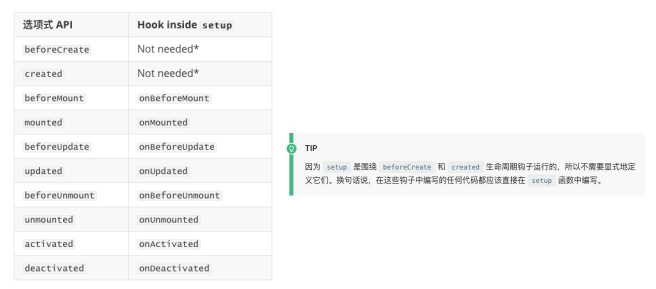
我们前面说过 setup 可以用来替代 data 、 methods 、 computed 等等这些选项,也可以替代生命周期钩子。
那么setup中如何使用生命周期函数呢?
- 可以使用直接导入的 onX 函数注册生命周期钩子;
<template>
  <div>AppContent</div>
</template>

<script>
  import { onMounted, onUpdated, onUnmounted } from 'vue'

  export default {
    beforeCreate() {

    },
    // created() {

    // },
    // beforeMount() {

    // },
    // mounted() {

    // },
    // beforeUpdate() {

    // },
    // updated() {

    // }
    setup() {
      // 在执行setup函数的过程中, 你需要注册别的生命周期函数
      onMounted(() => {
        console.log("onmounted")
      })
    }
  }
</script>

<style scoped>
</style>
- 1
- 2
- 3
- 4
- 5
- 6
- 7
- 8
- 9
- 10
- 11
- 12
- 13
- 14
- 15
- 16
- 17
- 18
- 19
- 20
- 21
- 22
- 23
- 24
- 25
- 26
- 27
- 28
- 29
- 30
- 31
- 32
- 33
- 34
- 35
- 36
- 37
三、Provide/lnject使用
1.Provide函数
事实上我们之前还学习过Provide和Inject,Composition API也可以替代之前的 Provide 和 Inject 的选项。
我们可以通过 provide来提供数据:
- 可以通过 provide 方法来定义每个 Property;
provide可以传入两个参数:
- name:提供的属性名称;
- value:提供的属性值;
let counter = 100
let info = {
    name: 'www',
    age: 10
}
provide("counter", counter)
provide("info", info)
- 1
- 2
- 3
- 4
- 5
- 6
- 7
2.Inject函数
在后代组件中可以通过 inject 来注入需要的属性和对应的值:
- 可以通过
inject来注入需要的内容;
inject可以传入两个参数:
- 要 inject 的 property 的 name;
- 默认值;
const counter = inject("counter")
const info = inject("info")
- 1
- 2
3.数据的响应式
为了增加 provide 值和 inject 值之间的响应性,我们可以在 provide 值时使用 ref 和 reactive。
let counter = ref(100)
let info = reactive({
    name: 'www',
    age: 10
})
provide("counter", counter)
provide("info", info)
- 1
- 2
- 3
- 4
- 5
- 6
- 7
四、watch/watchEffect
1.侦听数据的变化
在前面的Options API中,我们可以通过watch选项来侦听data或者props的数据变化,当数据变化时执行某一些操作。
在Composition API中,我们可以使用watchEffect和watch来完成响应式数据的侦听;
- watchEffect:用于自动收集响应式数据的依赖;
- watch:需要手动指定侦听的数据源;
2.Watch的使用
watch的API完全等同于组件watch选项的Property:
- watch需要
侦听特定的数据源,并且执行其回调函数; - 默认情况下它是惰性的,只有当被侦听的源发生变化时才会执行回调;
const name = ref('kobe')
watch(name, (newValue, oldValue) +> {
    console.log(newValue, oldValue)
})

const changeName = () => {
    name.value = "james"
}
- 1
- 2
- 3
- 4
- 5
- 6
- 7
- 8
3.侦听多个数据源
侦听器还可以使用数组同时侦听多个源:
const name = ref('kobe')
const age = ref(10)
watch([name,age], (newValue, oldValue) +> {
    console.log(newValue, oldValue)
})

const changeName = () => {
    name.value = "james"
}
- 1
- 2
- 3
- 4
- 5
- 6
- 7
- 8
- 9
4.watch的选项
如果我们希望侦听一个深层的侦听,那么依然需要设置 deep 为true:
- 也可以传入 immediate 立即执行;
// 1.定义数据
const message = ref("Hello World")
const info = reactive({
    name: "why",
    age: 18,
    friend: {
        name: "kobe"
    }
})

// 2.侦听数据的变化
watch(message, (newValue, oldValue) => {
    console.log(newValue, oldValue)
})
watch(info, (newValue, oldValue) => {
    console.log(newValue, oldValue)
    console.log(newValue === oldValue)
}, {
    immediate: true
})

// 3.监听reactive数据变化后, 获取普通对象
watch(() => ({ ...info }), (newValue, oldValue) => {
    console.log(newValue, oldValue)
}, {
    immediate: true,
    deep: true
})
- 1
- 2
- 3
- 4
- 5
- 6
- 7
- 8
- 9
- 10
- 11
- 12
- 13
- 14
- 15
- 16
- 17
- 18
- 19
- 20
- 21
- 22
- 23
- 24
- 25
- 26
- 27
- 28
5.watchEffect
当侦听到某些响应式数据变化时,我们希望执行某些操作,这个时候可以使用 watchEffect。
我们来看一个案例:
- 首先,watchEffect传入的函数会被立即执行一次,并且在执行的过程中会收集依赖;
- 其次,只有收集的依赖发生变化时,watchEffect传入的函数才会再次执行;
const name = ref("abc")
const age = ref(18)

watchEffect(() => {
    console.log("watchEffect执行~")
})
- 1
- 2
- 3
- 4
- 5
- 6
6.watchEffect的停止侦听
如果在发生某些情况下,我们希望停止侦听,这个时候我们可以获取watchEffect的返回值函数,调用该函数即可。
比如在上面的案例中,我们age达到20的时候就停止侦听:
<template>
  <div>
    <h2>当前计数: {{ counter }}</h2>
    <button @click="counter++">+1</button>
    <button @click="name = 'kobe'">修改name</button>
  </div>
</template>

<script>
  import { watchEffect, watch, ref } from 'vue'

  export default {
    setup() {
      const counter = ref(0)
      const name = ref("why")

      // watch(counter, (newValue, oldValue) => {})

      // 1.watchEffect传入的函数默认会直接被执行
      // 2.在执行的过程中, 会自动的收集依赖(依赖哪些响应式的数据)
      const stopWatch = watchEffect(() => {
        console.log("-------", counter.value, name.value)

        // 判断counter.value > 10
        if (counter.value >= 10) {
          stopWatch()
        }
      })

      return {
        counter,
        name
      }
    }
  }
</script>

<style scoped>
</style>
- 1
- 2
- 3
- 4
- 5
- 6
- 7
- 8
- 9
- 10
- 11
- 12
- 13
- 14
- 15
- 16
- 17
- 18
- 19
- 20
- 21
- 22
- 23
- 24
- 25
- 26
- 27
- 28
- 29
- 30
- 31
- 32
- 33
- 34
- 35
- 36
- 37
- 38
- 39
五、自定义Hook练习
1.useCounter
我们先来对之前的counter逻辑进行抽取:
import { ref, onMounted } from 'vue'

export default function useCounter() {
  const counter = ref(0)
  function increment() {
    counter.value++
  }
  function decrement() {
    counter.value--
  }
  onMounted(() => {
    setTimeout(() => {
      counter.value = 989
    }, 1000);
  })

  return {
    counter,
    increment,
    decrement
  }
}
- 1
- 2
- 3
- 4
- 5
- 6
- 7
- 8
- 9
- 10
- 11
- 12
- 13
- 14
- 15
- 16
- 17
- 18
- 19
- 20
- 21
- 22
2.useTitle
我们编写一个修改title的Hook:
import { ref, watch } from "vue";

export default function useTitle(titleValue) {
  // document.title = title

  // 定义ref的引入数据
  const title = ref(titleValue)

  // 监听title的改变
  watch(title, (newValue) => {
    document.title = newValue
  }, {
    immediate: true
  })

  // 返回ref值
  return {
    title
  }
}
- 1
- 2
- 3
- 4
- 5
- 6
- 7
- 8
- 9
- 10
- 11
- 12
- 13
- 14
- 15
- 16
- 17
- 18
- 19
- 20
3.useScrollPosition
我们来完成一个监听界面滚动位置的Hook:
import { reactive } from 'vue'

export default function useScrollPosition() {
  // 1.使用reative记录位置
  const scrollPosition = reactive({
    x: 0,
    y: 0
  })

  // 2.监听滚动
  document.addEventListener("scroll", () => {
    scrollPosition.x = window.scrollX
    scrollPosition.y = window.scrollY
  })


  return {
    scrollPosition
  }
}
- 1
- 2
- 3
- 4
- 5
- 6
- 7
- 8
- 9
- 10
- 11
- 12
- 13
- 14
- 15
- 16
- 17
- 18
- 19
- 20
4.Hook练习
App.vue
<template>
  <div>AppContent</div>
  <button @click="changeTitle">修改title</button>

  <!-- 1.计数器 -->
  <!-- <hr>
  <home></home>
  <hr>
  <about></about> -->

  <!-- 2.home和about页面的切换 -->
  <button @click="currentPage = 'home'">home</button>
  <button @click="currentPage = 'about'">about</button>

  <component :is="currentPage"></component>

  <div class="content"></div>

  <br><br><br><br><br><br>
  <br><br><br><br><br><br>
  <br><br><br><br><br><br>
  <br><br><br><br><br><br>
  <br><br><br><br><br><br>
  <br><br><br><br><br><br>
  <br><br><br><br><br><br>
  <br><br><br><br><br><br>
  <br><br><br><br><br><br>
  <br><br><br><br><br><br>
  <br><br><br><br><br><br>
</template>

<script>
  import { ref } from 'vue'
  import Home from './views/Home.vue'
  import About from './views/About.vue'

  import useTitle from './hooks/useTitle'

  export default {
    components: {
      Home,
      About
    },
    setup() {
      const currentPage = ref("home")

      function changeTitle() {
        useTitle("app title")
      }

      return {
        changeTitle,
        currentPage
      }
    }
  }
</script>

<style scoped>
  .content {
    width: 3000px;
    height: 100px;
    background-color: orange;
  }
</style>
- 1
- 2
- 3
- 4
- 5
- 6
- 7
- 8
- 9
- 10
- 11
- 12
- 13
- 14
- 15
- 16
- 17
- 18
- 19
- 20
- 21
- 22
- 23
- 24
- 25
- 26
- 27
- 28
- 29
- 30
- 31
- 32
- 33
- 34
- 35
- 36
- 37
- 38
- 39
- 40
- 41
- 42
- 43
- 44
- 45
- 46
- 47
- 48
- 49
- 50
- 51
- 52
- 53
- 54
- 55
- 56
- 57
- 58
- 59
- 60
- 61
- 62
- 63
- 64
- 65
views/About.vue
<template>
  <h2>About计数: {{ counter }}</h2>
  <button @click="increment">+1</button>
  <button @clcik="decrement">-1</button>
</template>

<script>
  import { onActivated } from 'vue'
  import useCounter from '../hooks/useCounter'
  import useTitle from '../hooks/useTitle'

  export default {
    setup() {

      // 切换标题
      useTitle("关于")

      return {
        ...useCounter()
      }
    }
  }
</script>

<style scoped>
</style>
- 1
- 2
- 3
- 4
- 5
- 6
- 7
- 8
- 9
- 10
- 11
- 12
- 13
- 14
- 15
- 16
- 17
- 18
- 19
- 20
- 21
- 22
- 23
- 24
- 25
- 26
views/Home.vue
<template>
  <h2>Home计数: {{ counter }}</h2>
  <button @click="increment">+1</button>
  <button @click="decrement">-1</button>

  <button @click="popularClick">首页-流行</button>
  <button @click="hotClick">首页-热门</button>
  <button @click="songClick">首页-歌单</button>

  <div class="scroll">
    <h2>x: {{ scrollPosition.x }}</h2>
    <h2>y: {{ scrollPosition.y }}</h2>
  </div>
</template>

<script>
  import { onMounted, ref } from 'vue'
  import useCounter from '../hooks/useCounter'
  import useTitle from '../hooks/useTitle'
  import useScrollPosition from '../hooks/useScrollPosition'

  export default {
    setup() {
      // 1.counter逻辑
      const { counter, increment, decrement } = useCounter()

      // 2.修改标题
      const { title } = useTitle("首页")

      // 3.监听按钮的点击
      function popularClick() {
        title.value = "首页-流行"
      }
      function hotClick() {
        title.value = "首页-热门"
      }
      function songClick() {
        title.value = "首页-歌单"
      }

      // 4.获取滚动位置
      const { scrollPosition } = useScrollPosition()
      console.log(scrollPosition)

      return {
        counter,
        increment,
        decrement,
        popularClick,
        hotClick,
        songClick,
        scrollPosition
      }
    }
  }
</script>

<style scoped>
</style>
- 1
- 2
- 3
- 4
- 5
- 6
- 7
- 8
- 9
- 10
- 11
- 12
- 13
- 14
- 15
- 16
- 17
- 18
- 19
- 20
- 21
- 22
- 23
- 24
- 25
- 26
- 27
- 28
- 29
- 30
- 31
- 32
- 33
- 34
- 35
- 36
- 37
- 38
- 39
- 40
- 41
- 42
- 43
- 44
- 45
- 46
- 47
- 48
- 49
- 50
- 51
- 52
- 53
- 54
- 55
- 56
- 57
- 58
- 59
六、script setup语法糖
1.script setup语法
<script setup>是在单文件组件 (SFC) 中使用组合式 API 的编译时语法糖,当同时使用 SFC 与组合式 API 时则推荐该语法。
- 更少的样板内容,更简洁的代码;
- 能够使用纯 Typescript 声明 prop 和抛出事件;
- 更好的运行时性能 ;
- 更好的 IDE 类型推断性能 ;
使用这个语法,需要将 setup attribute 添加到 <script> 代码块上:
<script setup>
    console.log(11)
</script>
- 1
- 2
- 3
里面的代码会被编译成组件 setup() 函数的内容:
- 这意味着与普通的
<script>只在组件被首次引入的时候执行一次不同; <script setup>中的代码会在每次组件实例被创建的时候执行。
2.顶层的绑定会被暴露给模板
当使用 <script setup> 的时候,任何在 <script setup> 声明的顶层的绑定 (包括变量,函数声明,以及 import 引入的内容) 都能在模板中直接使用:
<script setup>
    const message = ref(111)
</script>
<template>
    message: {{ message }}
</template>
- 1
- 2
- 3
- 4
- 5
- 6
响应式数据需要通过ref、reactive来创建。
3.导入的组件直接使用
<script setup>范围里的值也能被直接作为自定义组件的标签名使用:
<script setup>
    import ShowInfo from './ShowInfo.vue'
</script>
<template>
    <ShowInfo></ShowInfo>
</template>
- 1
- 2
- 3
- 4
- 5
- 6
4.defineProps() 和 defineEmits()
为了在声明 props 和 emits 选项时获得完整的类型推断支持,我们可以使用 defineProps 和 defineEmits API,它们将自动地在 <script setup>可用
<template>
  <div>ShowInfo: {{ name }}-{{ age }}</div>
  <button @click="showInfoBtnClick">showInfoButton</button>
</template>

<script setup>

// 定义props
const props = defineProps({
  name: {
    type: String,
    default: "默认值"
  },
  age: {
    type: Number,
    default: 0
  }
})

// 绑定函数, 并且发出事件
const emits = defineEmits(["infoBtnClick"])
function showInfoBtnClick() {
  emits("infoBtnClick", "showInfo内部发生了点击")
}

// 定义foo的函数
function foo() {
  console.log("foo function")
}
defineExpose({
  foo
})

</script>

<style scoped>
</style>
- 1
- 2
- 3
- 4
- 5
- 6
- 7
- 8
- 9
- 10
- 11
- 12
- 13
- 14
- 15
- 16
- 17
- 18
- 19
- 20
- 21
- 22
- 23
- 24
- 25
- 26
- 27
- 28
- 29
- 30
- 31
- 32
- 33
- 34
- 35
- 36
- 37
5.defineExpose()
使用 <script setup> 的组件是默认关闭的:
- 通过模板 ref 或者 $parent 链获取到的组件的公开实例,不会暴露任何在
<script setup>中声明的绑定;
通过 defineExpose 编译器宏来显式指定在 <script setup> 组件中要暴露出去的 property:
ShowInfo.vue
function foo() {
    log("foo function")
}

defineExpose({
    foo
})
- 1
- 2
- 3
- 4
- 5
- 6
- 7
App.vue
const showInfoRef = ref(null)
function callShowInfoRef() {
    showInfoRef.value.foo()
}
- 1
- 2
- 3
- 4