
- 1python贵州贵阳旅游景点数据可视化大屏全屏系统设计与实现(django框架)_旅游景点可视化数据分析
- 2关于python pip 安装提示Microsoft Visual C++ 14.0报错的解决方法_no microsoft visual c++ version found
- 37个银行的软件测试项目实战,别再说简历项目不知道怎么写了_软件测试银行项目
- 4面试官:Spring中用了哪些设计模式?_(5条消息) 面试官:spring中用了哪些设计模式?_from zero to all的博客-cs
- 5Python玫瑰花
- 6[Linux]查看虚拟内存占用情况
- 7余弦相似度的计算方法_余弦相似度算法
- 8Web3.0的五大趋势,你是否已经了解?
- 9Mac M1/M2/M3 芯片环境配置以及常用软件安装-前端_mac m3芯片电脑安装citrix workplace
- 10Bootstrap_bootstrap link
Linux CentOS 7常见命令_linux撤回cp
赞
踩
目录
4、文件操作
1、cd
切换当前目录 即 current directory
例如
- cd /home/shaofa/example
- cd ~/example
- cd ../hello
- cd /home/shaofa/example #按TAB键可以自动补全
- cd ~/example #其中 ~ 特指用户的主目录
- cd #回到用户目录 (主目录) 位置
- cd #(不带参数时,表示回到主目录 )
- [root@k8s-master-136 samve]# cd
- [root@k8s-master-136 ~]# pwd
- /root
2、pwd
显示当前目录,即 pring working directory
列出文件和文件夹,即list
3、ls
- -a:显示所有文件,包含以 . 开头的隐藏文件以及特殊目录
- -A:显示所有文件,包含以 . 开头的隐藏文件,但不显示特殊文件 . 和 ..
- -l:用长格式显示当前目录下文件的详细信息
- -d:显示目录文件本身的信息
- -h:在显示文件详细信息时,使用 -h 可以让文件大小按照适合人类读取习惯的方式显示{即合理的单位显示文件大小}
- -i:显示文件时,同时显示文件的 索引节点号(inode号)
- -s:显示每个文件占用的硬盘空间大小
- -F:显示文件列表时,为每一个特殊文件在文件名结尾处追加一个符号,用来表示具体某种文件类型
[-a] 选项
长短格式对照:[-a] == [--all]
显示所有文件,包含以 . 开头的隐藏文件以及特殊目录
- [root@k8s-master-136 ~]# ll -a
- 总用量 7032
- dr-xr-x---. 10 root root 4096 11月 5 16:50 .
- dr-xr-xr-x. 17 root root 256 11月 4 22:11 ..
- drwxr-xr-x 3 root root 21 11月 5 16:48 a
- -rw-r--r-- 1 root root 5375 11月 5 16:50 a.tar.gz
- -rw-------. 1 root root 9125 11月 5 10:50 .bash_history
- -rw-r--r--. 1 root root 18 5月 11 2019 .bash_logout
- -rw-r--r--. 1 root root 176 5月 11 2019 .bash_profile
- -rw-r--r--. 1 root root 176 5月 11 2019 .bashrc
- -rw-r--r-- 1 root root 0 11月 5 16:11 b.txt
- drwx------. 4 root root 31 10月 12 21:36 .cache
- -rw-r--r-- 1 root root 2523 8月 4 2022 Centos-7.repo
- drwxr-xr-x 3 root root 18 10月 12 21:36 .config
- -rw-r--r--. 1 root root 100 5月 11 2019 .cshrc
- drwx------. 3 root root 25 1月 27 2023 .dbus
- -rw-r--r--. 1 root root 1428 1月 27 2023 initial-setup-ks.cfg
- drwxr-xr-x 3 root root 33 1月 26 2023 .kube
- drwxr-xr-x 4 root root 93 10月 15 21:47 nginx-chart
- -rw-r--r-- 1 root root 55 11月 4 22:11 null
- drwxr-xr-x 145 root root 8192 11月 5 16:08 profile
- -rw-r--r-- 1 root root 7096607 11月 5 16:42 profile.tar.gz
- drwx------ 2 root root 57 11月 2 21:43 .ssh
- -rw-r--r--. 1 root root 129 5月 11 2019 .tcshrc
- -rw------- 1 root root 12288 11月 5 15:47 .viminfo
- -rw-r--r-- 1 root root 12288 9月 23 16:16 .volume-hostpath.yaml.swp
- -rw------- 1 root root 116 6月 28 09:20 .xauth8HuAAE
- -rw------- 1 root root 116 9月 11 21:26 .xauthuhGLf1

[-A] 选项
长短格式对照:[-A] == [--almost-all]
显示所有文件,包含以 . 开头的隐藏文件,但不显示特殊文件 . 和 ..
- [root@k8s-master-136 ~]# ll -A
- 总用量 7028
- drwxr-xr-x 3 root root 21 11月 5 16:48 a
- -rw-r--r-- 1 root root 5375 11月 5 16:50 a.tar.gz
- -rw-------. 1 root root 9125 11月 5 10:50 .bash_history
- -rw-r--r--. 1 root root 18 5月 11 2019 .bash_logout
- -rw-r--r--. 1 root root 176 5月 11 2019 .bash_profile
- -rw-r--r--. 1 root root 176 5月 11 2019 .bashrc
- -rw-r--r-- 1 root root 0 11月 5 16:11 b.txt
- drwx------. 4 root root 31 10月 12 21:36 .cache
- -rw-r--r-- 1 root root 2523 8月 4 2022 Centos-7.repo
- drwxr-xr-x 3 root root 18 10月 12 21:36 .config
- -rw-r--r--. 1 root root 100 5月 11 2019 .cshrc
- drwx------. 3 root root 25 1月 27 2023 .dbus
- -rw-r--r--. 1 root root 1428 1月 27 2023 initial-setup-ks.cfg
- drwxr-xr-x 3 root root 33 1月 26 2023 .kube
- drwxr-xr-x 4 root root 93 10月 15 21:47 nginx-chart
- -rw-r--r-- 1 root root 55 11月 4 22:11 null
- drwxr-xr-x 145 root root 8192 11月 5 16:08 profile
- -rw-r--r-- 1 root root 7096607 11月 5 16:42 profile.tar.gz
- drwx------ 2 root root 57 11月 2 21:43 .ssh
- -rw-r--r--. 1 root root 129 5月 11 2019 .tcshrc
- -rw------- 1 root root 12288 11月 5 15:47 .viminfo
- -rw-r--r-- 1 root root 12288 9月 23 16:16 .volume-hostpath.yaml.swp
- -rw------- 1 root root 116 6月 28 09:20 .xauth8HuAAE
- -rw------- 1 root root 116 9月 11 21:26 .xauthuhGLf1
[-l] 选项
长短格式对照:[-l] == [--format=long]
用长格式显示当前目录下文件的详细信息
显示内容中总共分为七列信息,分别是:
第一列:用来表示文件类型和文件权限
第二列:意为引用计数
普通文件的引用计数大于1时,代表该文件存在硬链接
目录文件的引用计数至少是2,代表目录内存在几个子目录(.和..特殊目录也是目录)
第三列:文件所有者的权限(属主权限)
第四列:文件所属组的权限(属组权限)
第五列:文件大小,默认以字节为单位显示,可以结合 -h 选项用较合适的单位显示
第六列:文件创建时间或者最近一次访问时间,时间比较近时显示顺序为{月 日 时间},时间较远时,则仅显示年份
第七列:文件名
- [root@k8s-master-136 ~]# ls -l
- 总用量 6964
- drwxr-xr-x 3 root root 21 11月 5 16:48 a
- -rw-r--r-- 1 root root 5375 11月 5 16:50 a.tar.gz
- -rw-r--r-- 1 root root 0 11月 5 16:11 b.txt
- -rw-r--r-- 1 root root 2523 8月 4 2022 Centos-7.repo
- -rw-r--r--. 1 root root 1428 1月 27 2023 initial-setup-ks.cfg
- drwxr-xr-x 4 root root 93 10月 15 21:47 nginx-chart
- -rw-r--r-- 1 root root 55 11月 4 22:11 null
- drwxr-xr-x 145 root root 8192 11月 5 16:08 profile
- -rw-r--r-- 1 root root 7096607 11月 5 16:42 profile.tar.gz
[-d] 选项
长短格式对照:[-d] == [--directory]
显示目录文件本身的信息,不在显示目录内的文件列表,一般结合-l使用
- [root@k8s-master-136 ~]# ll -d
- dr-xr-x---. 10 root root 4096 11月 5 16:50 .
[-h] 选项
长短格式对照:[-h] == [--human-readable]
在显示文件详细信息时,使用 -h 可以让文件大小按照适合人类读取习惯的方式显示{即合理的单位显示文件大小}
- [root@k8s-master-136 ~]# ll -h
- 总用量 6.9M
- drwxr-xr-x 3 root root 21 11月 5 16:48 a
- -rw-r--r-- 1 root root 5.3K 11月 5 16:50 a.tar.gz
- -rw-r--r-- 1 root root 0 11月 5 16:11 b.txt
- -rw-r--r-- 1 root root 2.5K 8月 4 2022 Centos-7.repo
- -rw-r--r--. 1 root root 1.4K 1月 27 2023 initial-setup-ks.cfg
- drwxr-xr-x 4 root root 93 10月 15 21:47 nginx-chart
- -rw-r--r-- 1 root root 55 11月 4 22:11 null
- drwxr-xr-x 145 root root 8.0K 11月 5 16:08 profile
- -rw-r--r-- 1 root root 6.8M 11月 5 16:42 profile.tar.gz
[-i] 选项
长短格式对照:[-i] == [--inode]
显示文件时,同时显示文件的 索引节点号(inode号)
每个文件前边的数字即为文件的索引节点号(inode号),每一个 inode号代表一个文件
- [root@k8s-master-136 ~]# ll -i
- 总用量 6964
- 104178816 drwxr-xr-x 3 root root 21 11月 5 16:48 a
- 68501621 -rw-r--r-- 1 root root 5375 11月 5 16:50 a.tar.gz
- 68494397 -rw-r--r-- 1 root root 0 11月 5 16:11 b.txt
- 68494389 -rw-r--r-- 1 root root 2523 8月 4 2022 Centos-7.repo
- 68040322 -rw-r--r--. 1 root root 1428 1月 27 2023 initial-setup-ks.cfg
- 104163791 drwxr-xr-x 4 root root 93 10月 15 21:47 nginx-chart
- 68366820 -rw-r--r-- 1 root root 55 11月 4 22:11 null
- 102278934 drwxr-xr-x 145 root root 8192 11月 5 16:08 profile
- 68040332 -rw-r--r-- 1 root root 7096607 11月 5 16:42 profile.tar.gz
[-s] 选项
长短格式对照:[-s] == [--size]
显示每个文件占用的硬盘空间大小
由于 Linux 系统中绝大多数分区的 data block 都是 4k ,而且 data block 块具有独占性,导致一个文件的大小和改文件实际占用的硬盘是有区别的。
- [root@k8s-master-136 ~]# ll -s
- 总用量 6964
- 0 drwxr-xr-x 3 root root 21 11月 5 16:48 a
- 8 -rw-r--r-- 1 root root 5375 11月 5 16:50 a.tar.gz
- 0 -rw-r--r-- 1 root root 0 11月 5 16:11 b.txt
- 4 -rw-r--r-- 1 root root 2523 8月 4 2022 Centos-7.repo
- 4 -rw-r--r--. 1 root root 1428 1月 27 2023 initial-setup-ks.cfg
- 0 drwxr-xr-x 4 root root 93 10月 15 21:47 nginx-chart
- 4 -rw-r--r-- 1 root root 55 11月 4 22:11 null
- 12 drwxr-xr-x 145 root root 8192 11月 5 16:08 profile
- 6932 -rw-r--r-- 1 root root 7096607 11月 5 16:42 profile.tar.gz
[-F] 选项
长短格式对照:[-F] == [--classify]
显示文件列表时,为每一个特殊文件在文件名结尾处追加一个符号,用来表示具体某种文件类型。
* 代表具有可执行权限的普通文件
/ 代表目录文件
@ 代表符号链接文件(软链接)
| 代表管道符文件
= 代表socket套接字文件
啥也没标记代表普通文件
- [root@k8s-master-136 ~]# ll -F
- 总用量 6964
- drwxr-xr-x 3 root root 21 11月 5 16:48 a/
- -rw-r--r-- 1 root root 5375 11月 5 16:50 a.tar.gz
- -rw-r--r-- 1 root root 0 11月 5 16:11 b.txt
- -rw-r--r-- 1 root root 2523 8月 4 2022 Centos-7.repo
- -rw-r--r--. 1 root root 1428 1月 27 2023 initial-setup-ks.cfg
- drwxr-xr-x 4 root root 93 10月 15 21:47 nginx-chart/
- -rw-r--r-- 1 root root 55 11月 4 22:11 null
- drwxr-xr-x 145 root root 8192 11月 5 16:08 profile/
- -rw-r--r-- 1 root root 7096607 11月 5 16:42 profile.tar.gz
ls 命令结合通配符实现包含匹配显示
常见通配符含义:
* 匹配任意长度的任意字符(包含空)
? 匹配长度为一的任意字符(即匹配一个任意字符)
[] 匹配括号内的任意一个字符,不连续的的字符串可以写在一起,连续的字符串需要用 - 作为连接符,比如 [a-f] 代表匹配 a 到 f 之间的任意一个字符。
总结
ls 命令的大部分选项在混合使用时是没有先后排列顺序要求的,但如果选项后面可以跟其他参数时,选项要单独声明,例如:ls --color=auto
还可以使用别名完成命令和选项的合体,形成新的别名命令,减少使用难度,提高使用效率。
列出当前目录下的所有项
ls -l <=> ll列出当前目录下的所有项,其中,-l 参数表示详细模式
ls -l /home/shaofa/example列出 /home/shaofa/example 下所有项,以详细方式列出
ls -ld /opt其中,-ld 表示列出一个目录本身,而非目录下的子项
ls -la <=> ll -a显示隐藏文件
4、mkdir
创建目录,即make directory
- mkdir abc
- mkdir -p abc/123/test
使用 -p 参数,可以将路径的层次目录全部创建
使用{}可以同时并列创建多个文件夹
- [root@k8s-master-136 samve]# mkdir new
- [root@k8s-master-136 samve]# cd new
- [root@k8s-master-136 new]# mkdir -p a{b,c,d}
- [root@k8s-master-136 new]# ll
- 总用量 0
- drwxr-xr-x 2 root root 6 10月 21 16:44 ab
- drwxr-xr-x 2 root root 6 10月 21 16:44 ac
- drwxr-xr-x 2 root root 6 10月 21 16:44 ad
- [root@k8s-master-136 new]# mkdir -p 1/{1,2,3}
- [root@k8s-master-136 new]# ll
- 总用量 0
- drwxr-xr-x 5 root root 33 10月 21 16:45 1
- drwxr-xr-x 2 root root 6 10月 21 16:44 ab
- drwxr-xr-x 2 root root 6 10月 21 16:44 ac
- drwxr-xr-x 2 root root 6 10月 21 16:44 ad
- [root@k8s-master-136 new]# cd 1
- [root@k8s-master-136 1]# ll
- 总用量 0
- drwxr-xr-x 2 root root 6 10月 21 16:45 1
- drwxr-xr-x 2 root root 6 10月 21 16:45 2
- drwxr-xr-x 2 root root 6 10月 21 16:45 3
5、rmdir
删除一个空目录,即 remove directory
rmdir abc如果目录非空,则删除失败。一般来说,我们会使用 rm 命令来删除。
6、rm
删除文件或者目录,即 remove
rm -rf abc删除abc目录,和子项一并删除
其中, r 表示 recursive , f 表示 force
- [root@k8s-master-136 samve]# rm a.txt
- rm:是否删除普通文件 'a.txt'?y
- [root@k8s-master-136 samve]# rm -f b.txt
rm -rf abc/* 删除 abc目录下的所有子项
一个程序员界的玩笑: rm -rf /* 删库跑路
7、cp
复制文件或者目录,即 copy
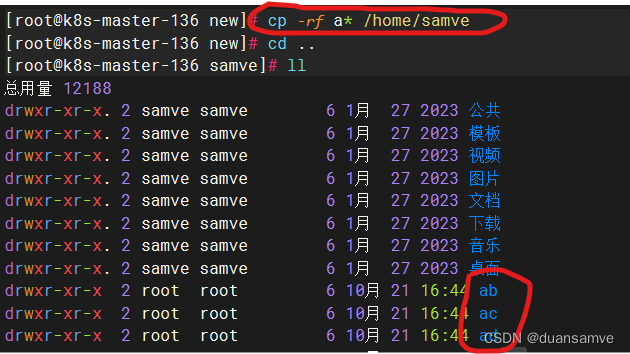
cp -rf example example2- [root@k8s-master-136 new]# cp -rf a* /home/samve
- [root@k8s-master-136 new]# cd ..
- [root@k8s-master-136 samve]# ll
- 总用量 12188
- drwxr-xr-x. 2 samve samve 6 1月 27 2023 公共
- drwxr-xr-x. 2 samve samve 6 1月 27 2023 模板
- drwxr-xr-x. 2 samve samve 6 1月 27 2023 视频
- drwxr-xr-x. 2 samve samve 6 1月 27 2023 图片
- drwxr-xr-x. 2 samve samve 6 1月 27 2023 文档
- drwxr-xr-x. 2 samve samve 6 1月 27 2023 下载
- drwxr-xr-x. 2 samve samve 6 1月 27 2023 音乐
- drwxr-xr-x. 2 samve samve 6 1月 27 2023 桌面
- drwxr-xr-x 2 root root 6 10月 21 16:44 ab
- drwxr-xr-x 2 root root 6 10月 21 16:44 ac
- drwxr-xr-x 2 root root 6 10月 21 16:44 ad
- -rw-r--r-- 1 root root 64265 10月 20 22:35 a.txt
- -rw-r--r-- 1 root root 18 10月 20 22:39 b.txt
- -rw-r--r-- 1 root root 345 10月 10 22:46 deployment.yaml
- -rw-r--r-- 1 root root 4 10月 20 22:06 f.txt
- -rw-r--r-- 1 root root 12378363 4月 14 2021 helm-v3.5.4-linux-amd64.tar.gz
- drwxr-xr-x 2 3434 3434 50 4月 15 2021 linux-amd64
- drwxr-xr-x 4 root root 111 10月 15 18:31 mychart
- drwxr-xr-x 6 root root 45 10月 21 16:45 new
- drwxr-xr-x 4 root root 93 10月 17 22:48 nginx-chart
- -rw-r--r-- 1 root root 1308 9月 19 21:29 nginxpod.yaml
- -rw-r--r-- 1 root root 357 10月 9 22:46 pc-deployment.yaml
- -rw-r--r-- 1 root root 299 10月 10 21:15 pc-replicaset.yaml
- -rw-r--r-- 1 root root 715 10月 11 21:47 volume-emptydir.yaml
- -rw-r--r-- 1 root root 568 10月 11 22:07 volume-hostpath.yaml
8、mv
移动文件或目录 (重命名),即 move
mv hello helloworld9、tar
档案打包,即 tape archive
(1) 创建档案包
tar -cvf example.tar example其中,
- -c: 建立压缩档案
- -x:解压
- -z:有gzip属性的
- -v:显示所有过程
- -f: 使用档案名字,切记,这个参数是最后一个参数,后面只能接档案名
也可以多个目录打包 tar -cvf xxx.tar file1 file2 file3
(2) 还原档案包
- tar -xvf example.tar
- tar -xvf example.tar -C outdir
其中,-C 参数指定目标目录,默认解到当前目录下
(3) 创建档案并压缩
先前的tar格式并没有压缩,体积较大
并档并压缩
tar -czvf example.tar.gz example解压缩
- tar -xzvf example.tar.gz
-
- tar -xzvf example.tar.gz -C outdir
通常我们所见的,都是 *.tar.gz 这种格式
10、man
查看外部命令的帮助文档,即 manual
man tar查看 tar 命令的帮助 。一般来说,用百度搜寻一下帮助更方便一些。
su可以切换用户, 即 switch user
11、su
- su shaofa
- su root
默认地,如果不带参数则表示切换到root账户
12、exit
表示退出至上一级。例如
- $ su
- ... 做一些事情 ...
- # exit
13、useradd
添加用户。必须以root执行。
useradd xiaoming添加一个名为 xiaoming 的账户
14、passwd
修改用户的密码。
passwd xiaoming修改用户xiaoming的密码
passwd不加用户名时,表示修改自己的密码
15、userdel
删除用户。必须以root执行。
userdel xiaoming16、groupadd
创建组
groupadd boys创建一个名为boys的组
useradd -g boys ming其中,-g表示在添加用户,同时将用户加到boys组
修改现有用户到新的组
usermod -g boys shaofa其中,usermod表示修改用户信息
cat /etc/group查看组信息
cat /etc/passwd查看用户信息
17、groupdel
删除组
groupdel boys 删除名为 boys 的组。如果组中有用户,则必须事先删除里面的用户。
18、cat
一次性显示整个文件
如:查看/etc/initab文件,可以使用命令:
cat /etc/inittab查找文件中的内容,| 是管道符,用于把| 前的输出作为后面命令的输入
cat lile.txt | grep cc #查找文件中的cc内容从键盘创建一个文件,如:命令:cat >five.txt,然后就输入些文字信息,退出直接可以Ctrl+C
cat >five.txt将几个文件合并为一个文件
cat five.txt six.txt>fivesix.txt把一个文件的内容复制到另一个文件中
cat file1.txt > file3.txt #例如把文件1复制到文件319、Linux的系统进程
进程信息
- UID PID PPID C STIME TTYOTIME CMD
- UID 所属用户
- PID 当前进程编号
- PPID 当前进程编号的父进程编号
ps -ef #查看进程ps -ef >> a #将进程记录保存到a文件ps -ef | grep redisps -aux #所有信息ps -aux --sort -pcputop #当前服务器内存使用率后台进程
只需要在命令的后面添加一个 & 符号
ping www.baidu.com >> baidu.txt &- jobs
- jobs -l
可以查看当前的后台进程
但是只有当前用户界面可以获取到
nohup 可以防止后台进程被挂起
nohup ping www.baidu.com >> baidu 2>&1 &20、kill
杀死进程最安全的方法是单纯使用kill命令。
首先使用ps -ef命令确定要杀死进程的PID,然后输入以下命令:
kill -pid注释:标准的kill命令通常都能达到目的。终止有问题的进程,并把进程的资源释放给系统。然而,如果进程启动了子进程,只杀死父进程,子进程仍在运行,因此仍消耗资源。
为了防止这些所谓的“僵尸进程”,应确保在杀死父进程之前,先杀死其所有的子进程。
*确定要杀死进程的PID或PPID
ps -ef | grep httpd*以优雅的方式结束进程
kill -l PID-l选项告诉kill命令用好像启动进程的用户已注销的方式结束进程。当使用该选项时,kill命令也试图杀死所留下的子进程。
但这个命令也不是总能成功--或许仍然需要先手工杀死子进程,然后再杀死父进程。
*TERM信号
给父进程发送一个TERM信号,试图杀死它和它的子进程。
kill -TERM PPIDkillall命令
killall命令杀死同一进程组内的所有进程。其允许指定要终止的进程的名称,而非PID。
killall httpd停止和重启进程,如下:
kill -HUP PID该命令让Linux温柔的执行进程关闭,然后立即重启。
在配置应用程序的时候,这个命令很方便,在对配置文件修改后需要重启时可以执行此命令(例如重启nginx经常用到这个命令)。
*必杀技 kill -9 PID
kill -9 PID当使用此命令时,一定要通过ps -ef确认没有剩下任何僵尸进程。只能通过终止父进程来消除僵尸进程。如果僵尸进程被init收养,问题就比较严重了。杀死init进程意味着关闭系统。
如果系统中有僵尸进程,并且其父进程是init,而且僵尸进程占用了大量的系统资源,那么就需要在某个时候重启机器以清除进程表了。
21、touch
用于更新文件时间和创建文件命令
语法结构:
touch [参数选项] 文件名说明:
- 使用touch时,文件不存在则创建文件
- 如果文件存在,则更新文件的时间属性,包括存取时间和更改时间
- 也可以使用该命令更改目录时间属性。
22、vim
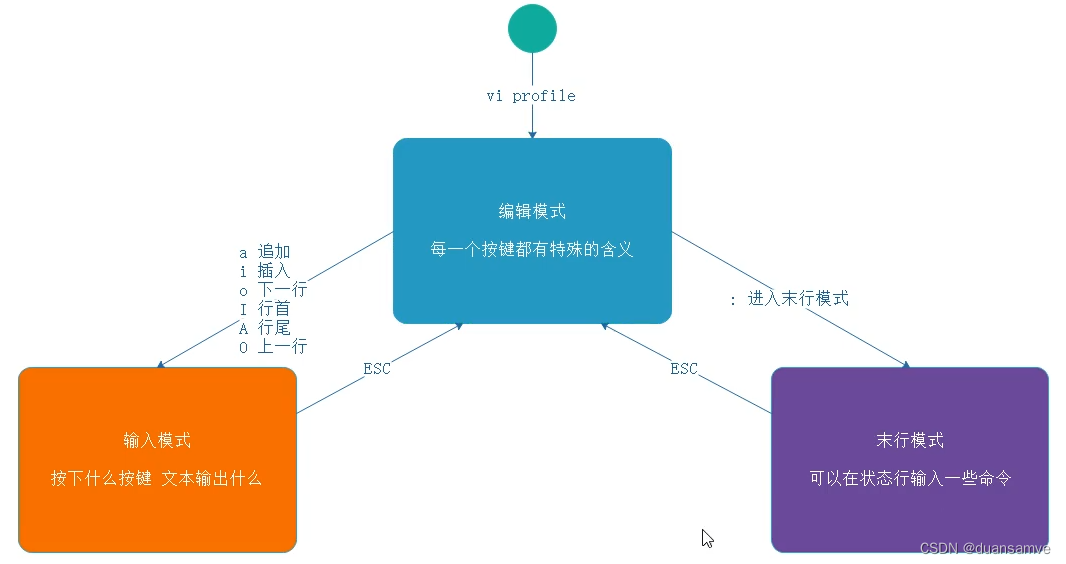
编辑模式:
- G:最后一行
- gg:跳转到第一行
- 数字gg:跳转到第数字行
- w :下个单词
- 数字w:下n个单词
- dw:删除一个单词
- 3dw:删除三个单词
- dd:删除一行
- 3dd:删除三行
- :%d:清除所有行
- u:回退到前面的操作
- .:回退u执行的操作
- yw:复制一个单词
- 3yw:复制三个单词
- yy:复制一行
- 3yy:复制三行
- p:粘贴
- 6p:粘贴6次
- x:剪切
- 3x:剪切三个字符
- r:替换,然后输入一个字符替换
- 3r:替换三个
- hjkl:方向键
末行模式
- /pattern:搜索指定的字符串
- /pattern:n,向下查找;N,逆向查找
- s/p1/p2:替换当前字符串
- s/p1/p2/g:g替换当前行所有,否则只替换当前行第一个
- 查找指定行:38s/abc/lucky/g
- 替换全文::g/abc/s//if/g( 替换每一行中所有 abc为 if)
- 显示行号::set nu
- 取消显示行号::set nonu
输入模式
- i:开始输入
- esc键:修改完成
- :wr:保存
- :q:退出
- :wq:保存+退出
- !:强制操作,:q!为强制退出,:wq!为强制保存+退出
23、echo
echo 参数>输出重定向用法:echo 参数 > 输出文件
echo "hello">hello.txt:将hello输入到指定文件中(若没有,系统会自动创建)
echo 参数>>输出追加重定向如果重定向的文件存在,追加之。
二者区别:>符是清空后新增内容,>>是在文件末尾追加字符串。
24、whereis
只能用于程序名的搜索
参数 -b 只搜索二进制文件、参数 -m 只搜索man说明文件、参数 -s 搜索源代码文件,如果省略参数,则返回所有信息。
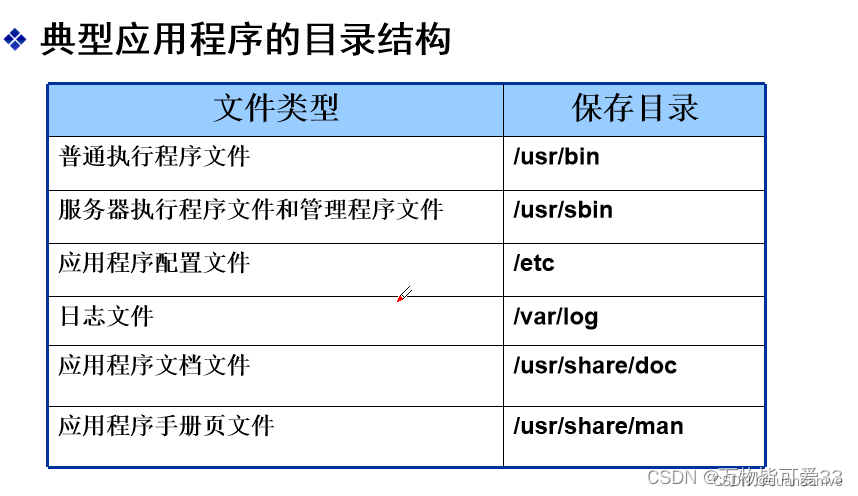
- [root@k8s-master-136 ~]# whereis ping
- ping: /usr/bin/ping /usr/sbin/ping /usr/share/man/man8/ping.8.gz
-
- [root@k8s-master-136 ~]# whereis cd
- cd: /usr/bin/cd /usr/share/man/man1/cd.1.gz /usr/share/man/man1p/cd.1p.gz
25、grep
grep是一种非常强大的文本搜索工具,它能够在文件或输入流中查找特定的字符串,并返回包含这些字符串的行。
在Linux中,grep命令是一种非常常见和重要的工具,因为它可以帮助我们快速地查找和过滤文件中的内容,以及进行文本分析和处理。
grep命令的基本语法如下:
grep [options] pattern [file(s)]
其中,pattern表示要查找的模式,file(s)表示要查找的文件,如果不指定文件,则默认从标准输入中读取数据。
常用选项
grep命令有很多选项,下面是一些常用的选项:
- -i:忽略大小写
- -v:只显示不匹配的行
- -n:显示匹配行的行号
- -c:统计匹配的行数
- -r:递归搜索子目录
- -E:使用扩展正则表达式
- -F:禁用正则表达式,使用固定字符串匹配
- -w:只匹配整个单词,而不是单词的一部分
- -A:显示匹配行之后的若干行
- -B:显示匹配行之前的若干行
- -C:显示匹配行前后的若干行
查找单个文件中的内容
grep "pattern" filename这个命令将在filename文件中查找包含"pattern"字符串的行,并将其打印出来。
查找多个文件中的内容
grep "pattern" file1 file2 file3这个命令将在file1、file2和file3文件中查找包含"pattern"字符串的行,并将它们打印出来。
递归查找目录中的文件
grep -r "pattern" directory这个命令将在目录directory及其子目录中查找包含"pattern"字符串的文件,并将它们打印出来。
统计匹配的行数
grep -c "pattern" filename这个命令将在filename文件中查找包含"pattern"字符串的行,并返回匹配的行数。
显示匹配行的行号
grep -n "pattern" filename这个命令将在filename文件中查找包含"pattern"字符串的行,并返回匹配行的行号。
反向匹配
grep -v "pattern" filename这个命令将在filename文件中查找不包含"pattern"字符串的行,并将其打印出来。
使用扩展正则表达式
grep -E "pattern" filename这个命令将在filename文件中使用扩展正则表达式查找包含"pattern"字符串的行,并将其打印出来。
只匹配整个单词
grep -w "pattern" filename这个命令将在filename文件中查找包含"pattern"整个单词的行,并将其打印出来。
显示匹配行之前的若干行
grep -B 2 "pattern" filename这个命令将在filename文件中查找包含"pattern"字符串的行,并显示匹配行之前的2行。
显示匹配行之后的若干行
grep -A 2 "pattern" filename这个命令将在filename文件中查找包含"pattern"字符串的行,并显示匹配行之后的2行。
显示匹配行前后的若干行
grep -C 2 "pattern" filename这个命令将在filename文件中查找包含"pattern"字符串的行,并显示匹配行前后的2行。
grep是一种非常强大和灵活的文本搜索工具,它可以帮助我们快速地查找和过滤文件中的内容,以及进行文本分析和处理。虽然grep命令有很多选项和参数,但是只要掌握了基本语法和常用选项,就可以轻松地使用grep命令来满足我们的需求。
- ps -ef | grep firewalld //查找指定的进程
- ps -ef | grep firewalld -c //查找指定进程个数
- grep -E 'insert|update' /try8/test.log //在 test.log 中显示包含 insert 或者 update 字符的内容行
26、wc
统计指定的文件中字节数、字数、行数,并将统计结果输出,格式为:wc [option] file..,参数 -c 统计字节数。
-l:只显示行数
-w:只显示字数
-c:只显示字节数
wc /try8/test.log //查找文件的 行数 单词数 字节数 文件名,按空格区分
27、chmod
命令权限
27.1 chmod a+x 文件名
- a 所有用户(all)
- u 文件所有者,即创建文件的人(owner)
- g 和文件所有者相同组的用户(group)
- o 非文件所有者和相同group的用户(other)
- + 给指定的用户授权指定的权限
- - 撤销指定用户的某个权限
- = 将指定用户的指定权限重新设置
- r 可读权限 4
- w 可写权限 2
- x 可执行权限 1
- 没有赋予权限 -
- 所有用户所有权限777
27.2 chmod 777 文件名
777表示用八进制数来指定权限,使所有用户(ugo)都拥有读、写、执行(rwx)权限
对于xxx文件,用户、群组、其他用户全是rwx权限,第一个7为用户权限,第二个7为群组权限,第三个7为其他用户权限。
28、clear
清除控制台
29、关机 (系统的关机、重启以及登出 ) 的命令
- shutdown -h now:关闭系统(1)
- init 0:关闭系统(2)
- telinit 0:关闭系统(3)
- shutdown -h hours:minutes &:按预定时间关闭系统
- shutdown -c:取消按预定时间关闭系统
- shutdown -r now:重启(1)
- reboot:重启(2)
- logout:注销
30、查看系统信息的命令
- arch:显示机器的处理器架构(1)
- uname -m:显示机器的处理器架构(2)
- uname -r:显示正在使用的内核版本
- uname -a:查看内核信息
- dmidecode -q:显示硬件系统部件 - (SMBIOS / DMI)
- hdparm -i /dev/hda:罗列一个磁盘的架构特性
- hdparm -tT /dev/sda:在磁盘上执行测试性读取操作
- cat /proc/cpuinfo:显示CPU info的信息
- cat /proc/interrupts:显示中断
- cat /proc/meminfo:校验内存使用
- cat /proc/swaps:显示哪些swap被使用
- cat /proc/version:显示内核的版本
- cat /proc/net/dev:显示网络适配器及统计
- cat /proc/mounts:显示已加载的文件系统
- lspci -tv:罗列 PCI 设备
- lsusb -tv:显示 USB 设备
- date:显示系统日期
- cal 2007:显示2007年的日历表
- date 041217002007.00:设置日期和时间 - 月日时分年.秒
- clock -w:将时间修改保存到 BIOS
31、防火墙
防火墙技术是通过有机结合各类用于安全管理与筛选的软件和硬件设备,帮助计算机网络于其内、外网之间构建一道相对隔绝的保护屏障,以保护用户资料与信息安全性的一种技术。
在centos7+中使用firewalld代替以前的 iptables 。
查看是否有防火墙服务,没有则安装
yum install iptables-services #安装iptables(防火墙服务)systemctl使用
- systemctl unmask firewalld #执行命令,即可实现取消服务的锁定
- systemctl mask firewalld # 下次需要锁定该服务时执行
- systemctl start firewalld.service #启动防火墙
- systemctl stop firewalld.service #停止防火墙
- systemctl reload firewalld.service #重载配置
- systemctl restart firewalld.service #重启服务
- systemctl status firewalld.service #显示服务的状态
- systemctl enable firewalld.service #在开机时启用服务
- systemctl disable firewalld.service #在开机时禁用服务
- systemctl is-enabled firewalld.service #查看服务是否开机启动
- systemctl list-unit-files|grep enabled #查看已启动的服务列表
- systemctl --failed #查看启动失败的服务列表
firewall-cmd使用
- firewall-cmd --list-all #列出当前防火墙的规则
- firewall-cmd --list-ports #查看已经开放的端口
- firewall-cmd --query-port=8080/tcp # 查询端口是否开放
-
-
- firewall-cmd --get-services ##列出支持的服务,在列表中的服务是放行的
- firewall-cmd --query-service ftp ##查看ftp服务是否支持,返回yes或者no
- firewall-cmd --add-service=ftp ##临时开放ftp服务
- firewall-cmd --add-service=ftp --permanent ##永久开放ftp服务
- firewall-cmd --remove-service=ftp --permanent ##永久移除ftp服务
- firewall-cmd --add-port=80/tcp --permanent #永久添加80端口例外(全局)
- firewall-cmd --remove-port=80/tcp --permanent #永久删除80端口例外(全局)
- firewall-cmd --add-port=65001-65010/tcp --permanent #永久增加65001-65010例外(全局)
- firewall-cmd --zone=public --add-port=80/tcp --permanent #永久添加80端口例外(区域public)
- firewall-cmd --zone=public --remove-port=80/tcp --permanent #永久删除80端口例外(区域public)
- firewall-cmd --zone=public --add-port=65001-65010/tcp --permanent #永久增加65001-65010例外(区域public)
- firewall-cmd --state ##查看防火墙状态,是否是running
- firewall-cmd --reload ##重新载入配置,比如添加规则之后,需要执行此命令
- firewall-cmd --get-zones ##列出支持的zone
开启一个端口的正确操作:
- firewa11-cmd --zone=public --add-port=80/tcp --permanent #添加
- firewa11-cmd --reload #重新载入
- firewa11-cmd --zone=plblic --query-port=80/tcp #查看
- firewa11-cmd --zone=public --remove-port=80/tcp --permanent #删除
修改配置后重启防火墙,否则配置可能不会生效
firewall-cmd --reload #重启防火墙(修改配置后要重启防火墙)32、wget
wget命令是Linux系统用于从Web下载文件的命令行工具,支持 HTTP、HTTPS及FTP协议下载文件,而且wget还提供了很多选项,例如下载多个文件、后台下载,使用代理等等,使用非常方便。接下来就介绍一下wget的使用方法。
wget [options] [url]例如,使用wget下载redis的tar.gz文件:
wget https://download.redis.io/releases/redis-6.0.8.tar.gz该命令会下载文件到当前工作目录中,在下载过程中,会显示进度条、文件大小、下载速度等。接下来介绍几个常用的选项参数。
32.1 使用 -O 选项以其他名称保存下载的文件
要以其他名称保存下载的文件,使用-O选项,后跟指定名称即可:
wget -O redis.tar.gz https://download.redis.io/releases/redis-6.0.8.tar.gz32.2 使用 -P 选项将文件下载到指定目录
默认情况下,wget将下载的文件保存在当前工作目录中,使用-P选项可以将文件保存到指定目录下,例如,下面将将文件下载到/usr/software目录下:
wget -P /usr/software https://download.redis.io/releases/redis-6.0.8.tar.gz32.3 使用 -c 选项断点续传
当我们下载一个大文件时,如果中途网络断开导致没有下载完成,我们就可以使用命令的-c选项恢复下载,让下载从断点续传,无需从头下载。
wget -c https://download.redis.io/releases/redis-6.0.8.tar.gz32.4 使用 -b 选项在后台下载
我们可以使用-b选项在后台下载文件:
wget -b https://download.redis.io/releases/redis-6.0.8.tar.gz默认情况下,下载过程日志重定向到当前目录中的wget-log文件中,要查看下载状态,可以使用tail -f wget-log查看。
32.5 使用 -i 选项下载多个文件
如果先要一次下载多个文件,首先需要创建一个文本文件,并将所有的url添加到该文件中,每个url都必须是单独的一行。
vim download_list.txt32.6 然后使用-i选项,后跟该文本文件
wget -i download_list.txt32.7 使用 --limit-rate 选项限制下载速度
默认情况下,wget命令会以全速下载,但是有时下载一个非常大的资源的话,可能会占用大量的可用带宽,影响其他使用网络的任务,这时就要限制下载速度,可以使用--limit-rate选项。例如,以下命令将下载速度限制为1m/s:
wget --limit-rate=1m https://download.redis.io/releases/redis-6.0.8.tar.gz32.8 使用 -U 选项设定模拟下载
如果远程服务器阻止wget下载资源,我们可以通过-U选项模拟浏览器进行下载,例如下面模拟谷歌浏览器下载。
wget -U 'Mozilla/5.0 (Windows NT 10.0; Win64; x64) AppleWebKit/537.36 (KHTML, like Gecko) Chrome/81.0.4044.43 Safari/537.36' https://download.redis.io/releases/redis-6.0.8.tar.gz32.9 使用 --tries 选项增加重试次数
如果网络有问题或下载一个大文件有可能会下载失败,wget默认重试20次,我们可以使用-tries选项来增加重试次数。
wget --tries=40 https://download.redis.io/releases/redis-6.0.8.tar.gz通过FTP下载如果要从受密码保护的FTP服务器下载文件,需要指定用户名和密码,格式如下:
wget --ftp-user=<username> --ftp-password=<password> url33、设置/查看主机名
临时修改:
hostname 主机名hostnamectl set-hostname master1 #设置主机名长久修改:
vi /etc/hostnamehostname #查看主机名34、tail
tail 命令可用于查看文件的内容,有一个常用的参数 -f,常用于查阅正在改变的日志文件。
tail -f filename 会把 filename 文件里的最尾部的内容显示在屏幕上,并且不断刷新,只要 filename 更新就可以看到最新的文件内容。
命令格式:
tail [参数] [文件] 参数:
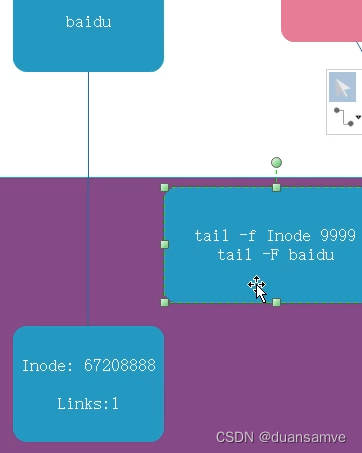
- -f 循环读取:监控的是文件对应inode
- -F 循环读取:监控的是文件名
- -q:不显示处理信息
- -v:显示详细的处理信息
- -c<数目>:显示的字节数
- -n<行数>:显示文件的尾部 n 行内容
- --pid=PID:与-f合用,表示在进程ID,PID死掉之后结束
- -q, --quiet, --silent:从不输出给出文件名的首部
- -s, --sleep-interval=S:与-f合用,表示在每次反复的间隔休眠S秒
注意:-F和-f的区别
- [root@k8s-master-136 samve]# tail -8 profile #显示后面8行
- if [ -n "${BASH_VERSION-}" ] ; then
- if [ -f /etc/bashrc ] ; then
- # Bash login shells run only /etc/profile
- # Bash non-login shells run only /etc/bashrc
- # Check for double sourcing is done in /etc/bashrc.
- . /etc/bashrc
- fi
- fi
head:
把 filename 文件里的最开始的内容显示在屏幕上
- [root@k8s-master-136 samve]# head -8 profile #显示前面8行
- # /etc/profile
-
- # System wide environment and startup programs, for login setup
- # Functions and aliases go in /etc/bashrc
-
- # It's NOT a good idea to change this file unless you know what you
- # are doing. It's much better to create a custom.sh shell script in
- # /etc/profile.d/ to make custom changes to your environment, as this
- [root@k8s-master-136 samve]# tail -8 profile
- if [ -n "${BASH_VERSION-}" ] ; then
- if [ -f /etc/bashrc ] ; then
- # Bash login shells run only /etc/profile
- # Bash non-login shells run only /etc/bashrc
- # Check for double sourcing is done in /etc/bashrc.
- . /etc/bashrc
- fi
- fi
- [root@k8s-master-136 samve]# head -8 profile | head -1
- # /etc/profile
- [root@k8s-master-136 samve]# head -8 profile | tail -1
- # /etc/profile.d/ to make custom changes to your environment, as this
35、more/less
类似cat命令,会以一页一页的显示,方便使用者逐页阅读。
命令格式:
more [-dlfpcsu ] [-num ] [+/ pattern] [+ linenum] [file ... ]
命令功能:
more命令和cat的功能一样都是查看文件里的内容,不同的是more按页来查看文件的内容,还支持直接跳转行等功能。
命令参数:
- +n:从笫n行开始显示
- -n:定义一页(一次)大小为n行
- +/pattern:在每个档案显示前搜寻该字串(pattern),然后从该字串前两行之后开始显示
- -c:从顶部清屏,然后显示
- -d:提示“Press space to continue,’q’ to quit(按空格键继续,按q键退出)”,禁用响铃功能
- -l:忽略Ctrl+l(换页)字符
- -p:通过清除窗口而不是滚屏来对文件进行换页,与-c选项相似
- -s:把连续的多个空行显示为一行
- -u:把文件内容中的下画线去掉
常用操作(键盘按键)命令:
- Enter:向下n行,可定义定义。默认为1行
- Ctrl+F:向下滚动一屏
- 空格键:向下滚动一屏
- Ctrl+B:返回上一屏
- =:输出当前行的行号
- :f:输出文件名和当前行的行号
- V:调用vi编辑器
- ! :命令, 调用Shell,并执行命令
- q:退出more
36、file
查看文件的类型
- [root@k8s-master-136 ~]# whereis cd
- cd: /usr/bin/cd /usr/share/man/man1/cd.1.gz /usr/share/man/man1p/cd.1p.gz
- [root@k8s-master-136 ~]# file /usr/bin/cd
- /usr/bin/cd: POSIX shell script, ASCII text executable
37、uname -a
查看内核信息
- [root@k8s-master-136 ~]# uname -a
- Linux k8s-master-136 4.18.0-408.el8.x86_64 #1 SMP Mon Jul 18 17:42:52 UTC 2022 x86_64 x86_64 x86_64 GNU/Linux
38、history
- history #查看历史命令
- history -c #清除历史命令
39、type
type cd #查看命令类型40、~
当前账户的家目录,每种类型账户家目录是不一样的,root账户在系统根目录下,其它账户是: /home/用户名为家目录。
41、help
查看内置命令的帮助文档
42、who
查看系统在线用户
- [root@k8s-master-136 ~]# who
- samve seat0 2023-10-21 15:26 (login screen)
- samve tty2 2023-10-21 15:26 (tty2)
- root pts/0 2023-10-21 15:26 (192.168.85.1)
43、whoami
我是谁?
- [root@k8s-master-136 ~]# whoami
- root
44、点
如果文件以点开头,说明这个是一个隐藏文件
- [root@k8s-master-136 ~]# ll -a
- 总用量 156
- dr-xr-x---. 7 root root 4096 10月 17 22:48 .
- dr-xr-xr-x. 17 root root 244 1月 26 2023 ..
- -rw-------. 1 root root 1201 1月 27 2023 anaconda-ks.cfg
- -rw-------. 1 root root 7319 8月 20 18:27 .bash_history
- -rw-r--r--. 1 root root 18 5月 11 2019 .bash_logout
- -rw-r--r--. 1 root root 176 5月 11 2019 .bash_profile
- -rw-r--r--. 1 root root 176 5月 11 2019 .bashrc
- drwx------. 4 root root 31 10月 12 21:36 .cache
- drwxr-xr-x 3 root root 18 10月 12 21:36 .config
- -rw-r--r--. 1 root root 100 5月 11 2019 .cshrc
- drwx------. 3 root root 25 1月 27 2023 .dbus
- -rw-r--r-- 1 root root 345 9月 22 22:09 deployment.yaml
- -rw-r--r--. 1 root root 1428 1月 27 2023 initial-setup-ks.cfg
- drwxr-xr-x 3 root root 33 1月 26 2023 .kube
- drwxr-xr-x 4 root root 93 10月 15 21:47 nginx-chart
- -rw-r--r-- 1 root root 297 9月 20 21:39 pc-command.yaml
- -rw-r--r-- 1 root root 302 9月 21 21:39 pc-deployment.yaml
- -rw-r--r-- 1 root root 299 9月 21 22:14 pc-replicaset.yaml
- -rw-r--r-- 1 root root 197 9月 20 21:20 pod-base.yaml
- -rw-r--r-- 1 root root 339 9月 20 21:45 pod-env.yaml
- -rw-r--r-- 1 root root 242 9月 20 21:26 pod-imagepullpolicy.yaml
- -rw-r--r-- 1 root root 311 9月 20 22:26 pod-liveness-exec.yaml
- -rw-r--r-- 1 root root 398 9月 20 22:32 pod-liveness-httpget.yaml
- -rw-r--r-- 1 root root 282 9月 20 22:29 pod-liveness-tcpsocket.yaml
- -rw-r--r-- 1 root root 183 9月 20 22:47 pod-nodename.yaml
- -rw-r--r-- 1 root root 225 9月 20 22:56 pod-nodeselector.yaml
- -rw-r--r-- 1 root root 244 9月 20 21:53 pod-port.yaml
- -rw-r--r-- 1 root root 423 9月 20 22:05 pod-resources.yaml
- -rw-r--r-- 1 root root 341 9月 20 22:41 pod-restartpolicy.yaml
- -rw-r--r-- 1 root root 297 9月 22 22:16 service-clusterip.yaml
- -rw-r--r-- 1 root root 318 9月 22 22:43 service-nodeport.yaml
- -rw-r--r--. 1 root root 129 5月 11 2019 .tcshrc
- -rw------- 1 root root 18254 10月 17 22:48 .viminfo
- -rw-r--r-- 1 root root 715 8月 20 16:08 volume-emptydir.yaml
- -rw-r--r-- 1 root root 568 8月 20 16:18 volume-hostpath.yaml
- -rw-r--r-- 1 root root 12288 9月 23 16:16 .volume-hostpath.yaml.swp
- -rw------- 1 root root 116 6月 28 09:20 .xauth8HuAAE
- -rw------- 1 root root 116 9月 11 21:26 .xauthuhGLf1
- [root@k8s-master-136 ~]# ll
- 总用量 84
- -rw-------. 1 root root 1201 1月 27 2023 anaconda-ks.cfg
- -rw-r--r-- 1 root root 345 9月 22 22:09 deployment.yaml
- -rw-r--r--. 1 root root 1428 1月 27 2023 initial-setup-ks.cfg
- drwxr-xr-x 4 root root 93 10月 15 21:47 nginx-chart
- -rw-r--r-- 1 root root 297 9月 20 21:39 pc-command.yaml
- -rw-r--r-- 1 root root 302 9月 21 21:39 pc-deployment.yaml
- -rw-r--r-- 1 root root 299 9月 21 22:14 pc-replicaset.yaml
- -rw-r--r-- 1 root root 197 9月 20 21:20 pod-base.yaml
- -rw-r--r-- 1 root root 339 9月 20 21:45 pod-env.yaml
- -rw-r--r-- 1 root root 242 9月 20 21:26 pod-imagepullpolicy.yaml
- -rw-r--r-- 1 root root 311 9月 20 22:26 pod-liveness-exec.yaml
- -rw-r--r-- 1 root root 398 9月 20 22:32 pod-liveness-httpget.yaml
- -rw-r--r-- 1 root root 282 9月 20 22:29 pod-liveness-tcpsocket.yaml
- -rw-r--r-- 1 root root 183 9月 20 22:47 pod-nodename.yaml
- -rw-r--r-- 1 root root 225 9月 20 22:56 pod-nodeselector.yaml
- -rw-r--r-- 1 root root 244 9月 20 21:53 pod-port.yaml
- -rw-r--r-- 1 root root 423 9月 20 22:05 pod-resources.yaml
- -rw-r--r-- 1 root root 341 9月 20 22:41 pod-restartpolicy.yaml
- -rw-r--r-- 1 root root 297 9月 22 22:16 service-clusterip.yaml
- -rw-r--r-- 1 root root 318 9月 22 22:43 service-nodeport.yaml
- -rw-r--r-- 1 root root 715 8月 20 16:08 volume-emptydir.yaml
- -rw-r--r-- 1 root root 568 8月 20 16:18 volume-hostpath.yaml
45、$
表示一个变量
- [root@k8s-master-136 ~]# name=Samve
- [root@k8s-master-136 ~]# echo name
- name
- [root@k8s-master-136 ~]# echo $name
- Samve
46、*
通配符
- [root@k8s-master-136 samve]# ll
- 总用量 12188
- drwxr-xr-x. 2 samve samve 6 1月 27 2023 公共
- drwxr-xr-x. 2 samve samve 6 1月 27 2023 模板
- drwxr-xr-x. 2 samve samve 6 1月 27 2023 视频
- drwxr-xr-x. 2 samve samve 6 1月 27 2023 图片
- drwxr-xr-x. 2 samve samve 6 1月 27 2023 文档
- drwxr-xr-x. 2 samve samve 6 1月 27 2023 下载
- drwxr-xr-x. 2 samve samve 6 1月 27 2023 音乐
- drwxr-xr-x. 2 samve samve 6 1月 27 2023 桌面
- -rw-r--r-- 1 root root 64265 10月 20 22:35 a.txt
- -rw-r--r-- 1 root root 18 10月 20 22:39 b.txt
- -rw-r--r-- 1 root root 345 10月 10 22:46 deployment.yaml
- -rw-r--r-- 1 root root 4 10月 20 22:06 f.txt
- -rw-r--r-- 1 root root 12378363 4月 14 2021 helm-v3.5.4-linux-amd64.tar.gz
- drwxr-xr-x 2 3434 3434 50 4月 15 2021 linux-amd64
- drwxr-xr-x 4 root root 111 10月 15 18:31 mychart
- drwxr-xr-x 4 root root 93 10月 17 22:48 nginx-chart
- -rw-r--r-- 1 root root 1308 9月 19 21:29 nginxpod.yaml
- -rw-r--r-- 1 root root 357 10月 9 22:46 pc-deployment.yaml
- -rw-r--r-- 1 root root 299 10月 10 21:15 pc-replicaset.yaml
- -rw-r--r-- 1 root root 715 10月 11 21:47 volume-emptydir.yaml
- -rw-r--r-- 1 root root 568 10月 11 22:07 volume-hostpath.yaml
- [root@k8s-master-136 samve]# ll p*
- -rw-r--r-- 1 root root 357 10月 9 22:46 pc-deployment.yaml
- -rw-r--r-- 1 root root 299 10月 10 21:15 pc-replicaset.yaml
47、命令的参数:
如果是单词一般加:--
如果是字母或缩写一般加:-
48、stat
查看文件属性
- [root@k8s-master-136 samve]# touch a.txt
- [root@k8s-master-136 samve]# stat a.txt
- 文件:a.txt
- 大小:0 块:0 IO 块:4096 普通空文件
- 设备:fd00h/64768d Inode:3197792 硬链接:1
- 权限:(0644/-rw-r--r--) Uid:( 0/ root) Gid:( 0/ root)
- 最近访问:2023-10-21 17:17:55.483811286 +0800
- 最近更改:2023-10-21 17:17:55.483811286 +0800
- 最近改动:2023-10-21 17:17:55.483811286 +0800
- 创建时间:2023-10-21 17:17:55.483811286 +0800
- [root@k8s-master-136 samve]# chmod a+x a.txt
- [root@k8s-master-136 samve]# stat a.txt
- 文件:a.txt
- 大小:0 块:0 IO 块:4096 普通空文件
- 设备:fd00h/64768d Inode:3197792 硬链接:1
- 权限:(0755/-rwxr-xr-x) Uid:( 0/ root) Gid:( 0/ root)
- 最近访问:2023-10-21 17:17:55.483811286 +0800
- 最近更改:2023-10-21 17:17:55.483811286 +0800
- 最近改动:2023-10-21 17:18:28.801939456 +0800
- 创建时间:2023-10-21 17:17:55.483811286 +0800
- [root@k8s-master-136 samve]# vi a.txt
- [root@k8s-master-136 samve]# stat a.txt
- 文件:a.txt
- 大小:0 块:0 IO 块:4096 普通空文件
- 设备:fd00h/64768d Inode:3197792 硬链接:1
- 权限:(0755/-rwxr-xr-x) Uid:( 0/ root) Gid:( 0/ root)
- 最近访问:2023-10-21 17:19:07.247087321 +0800
- 最近更改:2023-10-21 17:17:55.483811286 +0800
- 最近改动:2023-10-21 17:18:28.801939456 +0800
- 创建时间:2023-10-21 17:17:55.483811286 +0800
- [root@k8s-master-136 samve]# vi a.txt
- [root@k8s-master-136 samve]# stat a.txt
- 文件:a.txt
- 大小:2 块:8 IO 块:4096 普通文件
- 设备:fd00h/64768d Inode:3226962 硬链接:1
- 权限:(0755/-rwxr-xr-x) Uid:( 0/ root) Gid:( 0/ root)
- 最近访问:2023-10-21 17:19:40.203214061 +0800
- 最近更改:2023-10-21 17:19:40.203214061 +0800
- 最近改动:2023-10-21 17:19:40.203214061 +0800
- 创建时间:2023-10-21 17:19:40.203214061 +0800
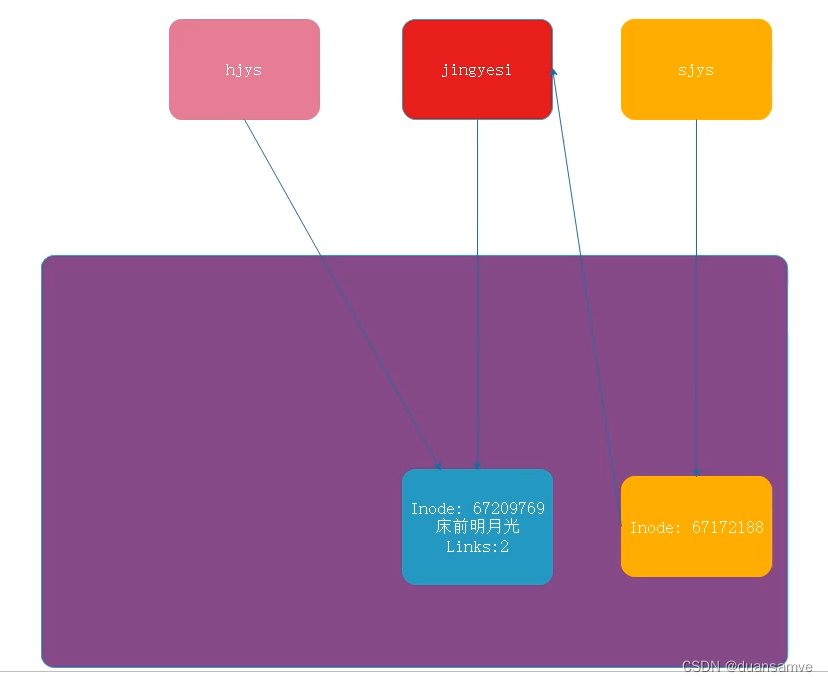
49、ln
- ln -s a.txt sa.txt #给a.txt创建一个软连接sa.txt
- ln a.txt ha.txt #给a.txt创建一个硬连接sa.txt
- [root@k8s-master-136 samve]# pwd
- /home/samve
- [root@k8s-master-136 samve]# ln a.txt ha.txt
- [root@k8s-master-136 samve]# ll
- 总用量 12128
- drwxr-xr-x. 2 samve samve 6 1月 27 2023 公共
- drwxr-xr-x. 2 samve samve 6 1月 27 2023 模板
- drwxr-xr-x. 2 samve samve 6 1月 27 2023 视频
- drwxr-xr-x. 2 samve samve 6 1月 27 2023 图片
- drwxr-xr-x. 2 samve samve 6 1月 27 2023 文档
- drwxr-xr-x. 2 samve samve 6 1月 27 2023 下载
- drwxr-xr-x. 2 samve samve 6 1月 27 2023 音乐
- drwxr-xr-x. 2 samve samve 6 1月 27 2023 桌面
- drwxr-xr-x 2 root root 6 10月 21 16:44 ab
- drwxr-xr-x 2 root root 6 10月 21 16:44 ac
- drwxr-xr-x 2 root root 6 10月 21 16:44 ad
- -rwxr-xr-x 2 root root 2 10月 21 17:19 a.txt
- -rw-r--r-- 1 root root 345 10月 10 22:46 deployment.yaml
- -rw-r--r-- 1 root root 4 10月 20 22:06 f.txt
- -rwxr-xr-x 2 root root 2 10月 21 17:19 ha.txt
- -rw-r--r-- 1 root root 12378363 4月 14 2021 helm-v3.5.4-linux-amd64.tar.gz
- drwxr-xr-x 2 3434 3434 50 4月 15 2021 linux-amd64
- drwxr-xr-x 4 root root 111 10月 15 18:31 mychart
- drwxr-xr-x 6 root root 45 10月 21 16:45 new
- drwxr-xr-x 4 root root 93 10月 17 22:48 nginx-chart
- -rw-r--r-- 1 root root 1308 9月 19 21:29 nginxpod.yaml
- -rw-r--r-- 1 root root 357 10月 9 22:46 pc-deployment.yaml
- -rw-r--r-- 1 root root 299 10月 10 21:15 pc-replicaset.yaml
- -rw-r--r-- 1 root root 715 10月 11 21:47 volume-emptydir.yaml
- -rw-r--r-- 1 root root 568 10月 11 22:07 volume-hostpath.yaml
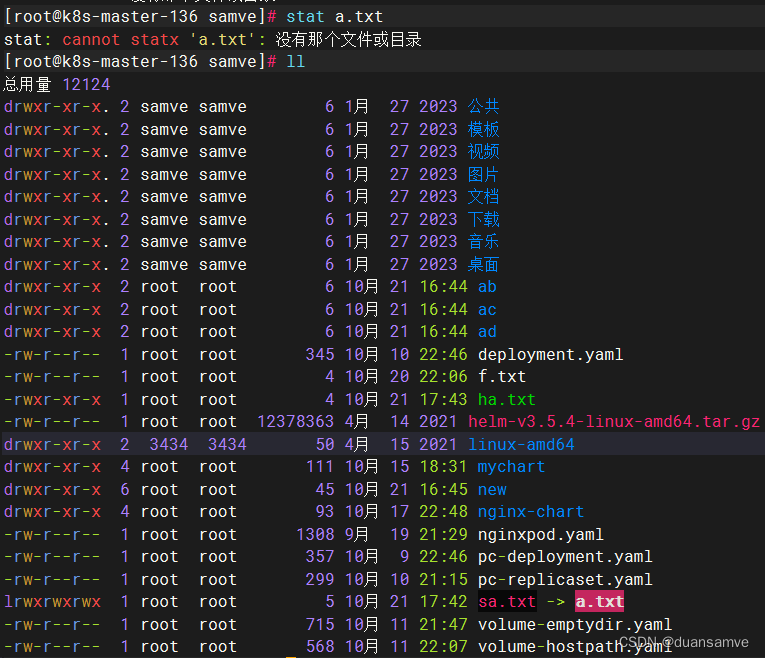
- [root@k8s-master-136 samve]# ln -s a.txt sa.txt
- [root@k8s-master-136 samve]# ll
- 总用量 12128
- drwxr-xr-x. 2 samve samve 6 1月 27 2023 公共
- drwxr-xr-x. 2 samve samve 6 1月 27 2023 模板
- drwxr-xr-x. 2 samve samve 6 1月 27 2023 视频
- drwxr-xr-x. 2 samve samve 6 1月 27 2023 图片
- drwxr-xr-x. 2 samve samve 6 1月 27 2023 文档
- drwxr-xr-x. 2 samve samve 6 1月 27 2023 下载
- drwxr-xr-x. 2 samve samve 6 1月 27 2023 音乐
- drwxr-xr-x. 2 samve samve 6 1月 27 2023 桌面
- drwxr-xr-x 2 root root 6 10月 21 16:44 ab
- drwxr-xr-x 2 root root 6 10月 21 16:44 ac
- drwxr-xr-x 2 root root 6 10月 21 16:44 ad
- -rwxr-xr-x 2 root root 2 10月 21 17:19 a.txt
- -rw-r--r-- 1 root root 345 10月 10 22:46 deployment.yaml
- -rw-r--r-- 1 root root 4 10月 20 22:06 f.txt
- -rwxr-xr-x 2 root root 2 10月 21 17:19 ha.txt
- -rw-r--r-- 1 root root 12378363 4月 14 2021 helm-v3.5.4-linux-amd64.tar.gz
- drwxr-xr-x 2 3434 3434 50 4月 15 2021 linux-amd64
- drwxr-xr-x 4 root root 111 10月 15 18:31 mychart
- drwxr-xr-x 6 root root 45 10月 21 16:45 new
- drwxr-xr-x 4 root root 93 10月 17 22:48 nginx-chart
- -rw-r--r-- 1 root root 1308 9月 19 21:29 nginxpod.yaml
- -rw-r--r-- 1 root root 357 10月 9 22:46 pc-deployment.yaml
- -rw-r--r-- 1 root root 299 10月 10 21:15 pc-replicaset.yaml
- lrwxrwxrwx 1 root root 5 10月 21 17:42 sa.txt -> a.txt
- -rw-r--r-- 1 root root 715 10月 11 21:47 volume-emptydir.yaml
- -rw-r--r-- 1 root root 568 10月 11 22:07 volume-hostpath.yaml
- [root@k8s-master-136 samve]# stat a.txt
- 文件:a.txt
- 大小:2 块:8 IO 块:4096 普通文件
- 设备:fd00h/64768d Inode:3226962 硬链接:2
- 权限:(0755/-rwxr-xr-x) Uid:( 0/ root) Gid:( 0/ root)
- 最近访问:2023-10-21 17:19:40.203214061 +0800
- 最近更改:2023-10-21 17:19:40.203214061 +0800
- 最近改动:2023-10-21 17:42:01.014343183 +0800
- 创建时间:2023-10-21 17:19:40.203214061 +0800
- [root@k8s-master-136 samve]# stat ha.txt
- 文件:ha.txt
- 大小:2 块:8 IO 块:4096 普通文件
- 设备:fd00h/64768d Inode:3226962 硬链接:2
- 权限:(0755/-rwxr-xr-x) Uid:( 0/ root) Gid:( 0/ root)
- 最近访问:2023-10-21 17:19:40.203214061 +0800
- 最近更改:2023-10-21 17:19:40.203214061 +0800
- 最近改动:2023-10-21 17:42:01.014343183 +0800
- 创建时间:2023-10-21 17:19:40.203214061 +0800
- [root@k8s-master-136 samve]# stat sa.txt
- 文件:sa.txt -> a.txt
- 大小:5 块:0 IO 块:4096 符号链接
- 设备:fd00h/64768d Inode:2175718 硬链接:1
- 权限:(0777/lrwxrwxrwx) Uid:( 0/ root) Gid:( 0/ root)
- 最近访问:2023-10-21 17:42:20.522417429 +0800
- 最近更改:2023-10-21 17:42:19.310412816 +0800
- 最近改动:2023-10-21 17:42:19.310412816 +0800
- 创建时间:2023-10-21 17:42:19.310412816 +0800
- [root@k8s-master-136 samve]# cat a.txt
- a
- [root@k8s-master-136 samve]# cat ha.txt
- a
- [root@k8s-master-136 samve]# cat sa.txt
- a
- [root@k8s-master-136 samve]# echo "b">> ha.txt
- [root@k8s-master-136 samve]# cat ha.txt
- a
- b
- [root@k8s-master-136 samve]# cat a.txt
- a
- b
- [root@k8s-master-136 samve]# cat sa.txt
- a
- b
- [root@k8s-master-136 samve]# rm a.txt
- rm:是否删除普通文件 'a.txt'?y
- [root@k8s-master-136 samve]# cat ha.txt
- a
- b
- [root@k8s-master-136 samve]# cat sa.txt
- cat: sa.txt: 没有那个文件或目录
原理说明:
50、find
搜索
- [root@k8s-master-136 /]# find / -name *.yaml
- /etc/kubernetes/manifests/kube-apiserver.yaml
- /etc/kubernetes/manifests/kube-controller-manager.yaml
51、计算机间的数据传输
51.1 Windows->Linux
lrzsz:
yum install lrzsz -yrz:将文件从Windows->Linux
sz:将文件从Linux->Windows
51.2 Linux- >Linux
scp 源数据地址 目标数据地址将文件f.txt从192.168.85.136拷贝到 192.168.85.137,192.168.85.136上操作过程:
- [root@k8s-master-136 samve]# scp f.txt root@192.168.85.137:/home/samve
- The authenticity of host '192.168.85.137 (192.168.85.137)' can't be established.
- ECDSA key fingerprint is SHA256:kz4YAzgy9Ej/McFTQmPzfHwpUxgdB4aDQp0O+e9VJMU.
- Are you sure you want to continue connecting (yes/no/[fingerprint])? yes
- Warning: Permanently added '192.168.85.137' (ECDSA) to the list of known hosts.
- root@192.168.85.137's password:
- Permission denied, please try again.
- root@192.168.85.137's password:
- f.txt
将文件FiddlerRoot.cer从192.168.85.136拷贝到 192.168.85.137,192.168.85.137上操作过程:
- [root@k8s-node-137 samve]# scp root@192.168.85.136:/home/samve/FiddlerRoot.cer /home/samve
- The authenticity of host '192.168.85.136 (192.168.85.136)' can't be established.
- ECDSA key fingerprint is SHA256:U+0AJ7z3gpLApC8fKVSvoow4UXYbB83voSxtts2QrnY.
- Are you sure you want to continue connecting (yes/no/[fingerprint])? yes
- Warning: Permanently added '192.168.85.136' (ECDSA) to the list of known hosts.
- root@192.168.85.136's password:
- FiddlerRoot.cer
52、文件大小:
分区信息:
df -h指定文件/目录大小:
du -h --max-depth=1 /- [root@k8s-master-136 samve]# du -h --max-depth=1 /
- 219M /boot
- 0 /dev
- du: 无法访问'/proc/106251/task/106251/fd/3': 没有那个文件或目录
- du: 无法访问'/proc/106251/task/106251/fdinfo/3': 没有那个文件或目录
- du: 无法访问'/proc/106251/fd/4': 没有那个文件或目录
- du: 无法访问'/proc/106251/fdinfo/4': 没有那个文件或目录
- 0 /proc
- du: 无法访问'/run/user/1000/gvfs': 权限不够
- 11G /run
- 0 /sys
- 32M /etc
- 13M /root
- 3.3G /var
- 5.0G /usr
- 65M /home
- 0 /media
- 0 /mnt
- 222M /opt
- 0 /srv
- 12K /tmp
- 20G /
- [root@k8s-master-136 samve]# du -h --max-depth=1 /home
- 65M /home/samve
- 65M /home
53、 zip和unzip:
安装:
yum install zip unzip -y压缩:
zip -r tomcat.zip apache-tomcat-7.0.61解压缩:
unzip tomcat.zip54、DNS解析
修改主机域名
vi /etc/hosts- vi /etc/hosts
-
- 127.0.0.1 localhost localhost.localdomain localhost4 localhost4.localdomain4
- ::1 localhost localhost.localdomain localhost6 localhost6.localdomain6
-
- 192.168.85.135 k8s-node-135
- 192.168.85.136 k8s-master-136
- 192.168.85.137 k8s-node-137
55、tree
以树状格式列出目录的内容, 查看文件系统的结构。
参数说明:
- -a :显示所有文件和目录(包括隐藏文件和文件夹)
- -d :仅显示目录(不包括隐藏目录)
- -l :如遇到性质为符号连接的目录,直接列出该连接所指向的原始目录
- -f :在每个文件或目录之前,显示完整的相对路径名称(即相对于当前路径的完整路径)
- -L level :限制目录显示层级。
- -p :列出文件权限标示
- -s :列出文件和目录大小
- -h :用更易懂的方式列出文件和目录大小
- -D :列出文件或目录的更改时间
统计文件和目录的数量,这里不包括隐藏的文件和目录
tree统计文件和目录的数量,这是包括了隐藏的文件和目录的(因为 -a 选项)
tree -a如果只想获取当前目录中的文件数,而不需要计算子目录,可以设置级别 1
- [root@k8s-master-136 ~]# tree -a -L 1
- .
- ├── a
- ├── a.tar.gz
- ├── .bash_history
- ├── .bash_logout
- ├── .bash_profile
- ├── .bashrc
- ├── b.txt
- ├── .cache
- ├── Centos-7.repo
- ├── .config
- ├── .cshrc
- ├── .dbus
- ├── initial-setup-ks.cfg
- ├── .kube
- ├── nginx-chart
- ├── null
- ├── profile
- ├── profile.tar.gz
- ├── .ssh
- ├── .tcshrc
- ├── .viminfo
- ├── .volume-hostpath.yaml.swp
- ├── .xauth8HuAAE
- └── .xauthuhGLf1
-
- 8 directories, 16 files
统计文件和目录数的其它方法
使用ls命令和wc命令
使用ls命令的-l选项和管道操作符|结合wc命令来统计文件数量:
ls -l | grep "^-" | wc -l这个命令将列出文件夹中的所有文件和子文件夹,并使用grep命令过滤出以-开头的行(表示文件),然后使用wc -l命令统计行数,即文件数量。
使用ls命令和grep命令
使用ls命令的-p选项和管道操作符|结合grep命令来统计文件数量:
ls -p | grep -v / | wc -l这个命令将列出文件夹中的所有文件和子文件夹,并使用grep -v /命令过滤掉以/结尾的行(表示子文件夹),然后使用wc -l命令统计行数,即文件数量。
57、网络相关命令
57.1 ifconfig:
查看当前网卡的配置信息;
这个命令属于 net-tools中的一个命令,但是Centos7中minimal版并没有集成这个包;
所以7的时候需要自己手动安装;
如果没有ifconfig,可以使用ip addr l临时代替。
57.2 netstat:
查看当前网络的状态信息;
一个机器默认有65536个端口号[0,65535];
这是一个逻辑的概念,将来我们需要使用程序监听指定的端口,等待别人的访问;
一个端口只能被一个程序所监听,端口已经被占用。
- netstat -anp
- netstat -r 核心路由表 == route
57.3 ping:
查看与目标IP地址是否能够连通
57.4 telnet:
查看与目标IP的指定端口是否能够连通
- yum install telnet -y
- telnet 192.168.31.44 22
57.5 curl:
在Linux系统中curl是一个利用URL规则在命令行下工作的文件传输工具,是一款强大的http命令行工具。它支持文件的上传和下载,是综合传输工具。
curl 是常用的命令行工具,用来请求 Web 服务器。它的名字就是客户端(client)的 URL 工具的意思。
如果熟练的话,完全可以取代 Postman 这一类的图形界面工具。
语法结构:
curl [option] [url]常见参数:
- -A/--user-agent <string> 设置用户代理发送给服务器
- -b/--cookie <name=string/file> cookie字符串或文件读取位置
- -c/--cookie-jar <file> 操作结束后把cookie写入到这个文件中
- -C/--continue-at <offset> 断点续转
- -D/--dump-header <file> 把header信息写入到该文件中
- -e/--referer 来源网址
- -f/--fail 连接失败时不显示http错误
- -o/--output 把输出写到该文件中
- -O/--remote-name 把输出写到该文件中,保留远程文件的文件名
- -r/--range <range> 检索来自HTTP/1.1或FTP服务器字节范围
- -s/--silent 静音模式。不输出任何东西
- -T/--upload-file <file> 上传文件
- -u/--user <user[:password]> 设置服务器的用户和密码
- -w/--write-out [format] 什么输出完成后
- -x/--proxy <host[:port]> 在给定的端口上使用HTTP代理
- -#/--progress-bar 进度条显示当前的传送状态
curl参数用法:
不带有任何参数时,curl 就是发出 GET 请求。
curl https://www.baidu.com-i:打印出服务器回应的 HTTP 标头。
- [root@k8s-master-136 ~]# curl -i https://www.baidu.com
- HTTP/1.1 200 OK
- Accept-Ranges: bytes
- Cache-Control: private, no-cache, no-store, proxy-revalidate, no-transform
- Connection: keep-alive
- Content-Length: 2443
- Content-Type: text/html
- Date: Sat, 04 Nov 2023 14:26:41 GMT
- Etag: "58860401-98b"
- Last-Modified: Mon, 23 Jan 2017 13:24:17 GMT
- Pragma: no-cache
- Server: bfe/1.0.8.18
- Set-Cookie: BDORZ=27315; max-age=86400; domain=.baidu.com; path=/
-
- <!DOCTYPE html>
- <!--STATUS OK--><html> <head><meta http-equiv=content-type content=text/html;charset=utf-8><meta http-equiv=X-UA-Compatible content=IE=Edge><meta content=always name=referrer><link rel=stylesheet type=text/css href=https://ss1.bdstatic.com/5eN1bjq8AAUYm2zgoY3K/r/www/cache/bdorz/baidu.min.css><title>百度一下,你就知道</title></head> <body link=#0000cc> <div id=wrapper> <div id=head> <div class=head_wrapper> <div class=s_form> <div class=s_form_wrapper> <div id=lg> <img hidefocus=true src=//www.baidu.com/img/bd_logo1.png width=270 height=129> </div> <form id=form name=f action=//www.baidu.com/s class=fm> <input type=hidden name=bdorz_come value=1> <input type=hidden name=ie value=utf-8> <input type=hidden name=f value=8> <input type=hidden name=rsv_bp value=1> <input type=hidden name=rsv_idx value=1> <input type=hidden name=tn value=baidu><span class="bg s_ipt_wr"><input id=kw name=wd class=s_ipt value maxlength=255 autocomplete=off autofocus=autofocus></span><span class="bg s_btn_wr"><input type=submit id=su value=百度一下 class="bg s_btn" autofocus></span> </form> </div> </div> <div id=u1> <a href=http://news.baidu.com name=tj_trnews class=mnav>新闻</a> <a href=https://www.hao123.com name=tj_trhao123 class=mnav>hao123</a> <a href=http://map.baidu.com name=tj_trmap class=mnav>地图</a> <a href=http://v.baidu.com name=tj_trvideo class=mnav>视频</a> <a href=http://tieba.baidu.com name=tj_trtieba class=mnav>贴吧</a> <noscript> <a href=http://www.baidu.com/bdorz/login.gif?login&tpl=mn&u=http%3A%2F%2Fwww.baidu.com%2f%3fbdorz_come%3d1 name=tj_login class=lb>登录</a> </noscript> <script>document.write('<a href="http://www.baidu.com/bdorz/login.gif?login&tpl=mn&u='+ encodeURIComponent(window.location.href+ (window.location.search === "" ? "?" : "&")+ "bdorz_come=1")+ '" name="tj_login" class="lb">登录</a>');
- </script> <a href=//www.baidu.com/more/ name=tj_briicon class=bri style="display: block;">更多产品</a> </div> </div> </div> <div id=ftCon> <div id=ftConw> <p id=lh> <a href=http://home.baidu.com>关于百度</a> <a href=http://ir.baidu.com>About Baidu</a> </p> <p id=cp>©2017 Baidu <a href=http://www.baidu.com/duty/>使用百度前必读</a> <a href=http://jianyi.baidu.com/ class=cp-feedback>意见反馈</a> 京ICP证030173号 <img src=//www.baidu.com/img/gs.gif> </p> </div> </div> </div> </body> </html>
- [root@k8s-master-136 ~]# curl www.baidu.com
- <!DOCTYPE html>
- <!--STATUS OK--><html> <head><meta http-equiv=content-type content=text/html;charset=utf-8><meta http-equiv=X-UA-Compatible content=IE=Edge><meta content=always name=referrer><link rel=stylesheet type=text/css href=http://s1.bdstatic.com/r/www/cache/bdorz/baidu.min.css><title>百度一下,你就知道</title></head> <body link=#0000cc> <div id=wrapper> <div id=head> <div class=head_wrapper> <div class=s_form> <div class=s_form_wrapper> <div id=lg> <img hidefocus=true src=//www.baidu.com/img/bd_logo1.png width=270 height=129> </div> <form id=form name=f action=//www.baidu.com/s class=fm> <input type=hidden name=bdorz_come value=1> <input type=hidden name=ie value=utf-8> <input type=hidden name=f value=8> <input type=hidden name=rsv_bp value=1> <input type=hidden name=rsv_idx value=1> <input type=hidden name=tn value=baidu><span class="bg s_ipt_wr"><input id=kw name=wd class=s_ipt value maxlength=255 autocomplete=off autofocus></span><span class="bg s_btn_wr"><input type=submit id=su value=百度一下 class="bg s_btn"></span> </form> </div> </div> <div id=u1> <a href=http://news.baidu.com name=tj_trnews class=mnav>新闻</a> <a href=http://www.hao123.com name=tj_trhao123 class=mnav>hao123</a> <a href=http://map.baidu.com name=tj_trmap class=mnav>地图</a> <a href=http://v.baidu.com name=tj_trvideo class=mnav>视频</a> <a href=http://tieba.baidu.com name=tj_trtieba class=mnav>贴吧</a> <noscript> <a href=http://www.baidu.com/bdorz/login.gif?login&tpl=mn&u=http%3A%2F%2Fwww.baidu.com%2f%3fbdorz_come%3d1 name=tj_login class=lb>登录</a> </noscript> <script>document.write('<a href="http://www.baidu.com/bdorz/login.gif?login&tpl=mn&u='+ encodeURIComponent(window.location.href+ (window.location.search === "" ? "?" : "&")+ "bdorz_come=1")+ '" name="tj_login" class="lb">登录</a>');</script> <a href=//www.baidu.com/more/ name=tj_briicon class=bri style="display: block;">更多产品</a> </div> </div> </div> <div id=ftCon> <div id=ftConw> <p id=lh> <a href=http://home.baidu.com>关于百度</a> <a href=http://ir.baidu.com>About Baidu</a> </p> <p id=cp>©2017 Baidu <a href=http://www.baidu.com/duty/>使用百度前必读</a> <a href=http://jianyi.baidu.com/ class=cp-feedback>意见反馈</a> 京ICP证030173号 <img src=//www.baidu.com/img/gs.gif> </p> </div> </div> </div> </body> </html>
-I:向服务器发出 HEAD 请求,然会将服务器返回的 HTTP 标头打印出来。
- [root@k8s-master-136 ~]# curl -I https://www.baidu.com
- HTTP/1.1 200 OK
- Accept-Ranges: bytes
- Cache-Control: private, no-cache, no-store, proxy-revalidate, no-transform
- Connection: keep-alive
- Content-Length: 277
- Content-Type: text/html
- Date: Sat, 04 Nov 2023 14:27:31 GMT
- Etag: "575e1f71-115"
- Last-Modified: Mon, 13 Jun 2016 02:50:25 GMT
- Pragma: no-cache
- Server: bfe/1.0.8.18
--head参数等同于-I。
-k:指定跳过 SSL 检测。
- [root@k8s-master-136 ~]# curl -k https://www.baidu.com
- <!DOCTYPE html>
- <!--STATUS OK--><html> <head><meta http-equiv=content-type content=text/html;charset=utf-8><meta http-equiv=X-UA-Compatible content=IE=Edge><meta content=always name=referrer><link rel=stylesheet type=text/css href=https://ss1.bdstatic.com/5eN1bjq8AAUYm2zgoY3K/r/www/cache/bdorz/baidu.min.css><title>百度一下,你就知道</title></head> <body link=#0000cc> <div id=wrapper> <div id=head> <div class=head_wrapper> <div class=s_form> <div class=s_form_wrapper> <div id=lg> <img hidefocus=true src=//www.baidu.com/img/bd_logo1.png width=270 height=129> </div> <form id=form name=f action=//www.baidu.com/s class=fm> <input type=hidden name=bdorz_come value=1> <input type=hidden name=ie value=utf-8> <input type=hidden name=f value=8> <input type=hidden name=rsv_bp value=1> <input type=hidden name=rsv_idx value=1> <input type=hidden name=tn value=baidu><span class="bg s_ipt_wr"><input id=kw name=wd class=s_ipt value maxlength=255 autocomplete=off autofocus=autofocus></span><span class="bg s_btn_wr"><input type=submit id=su value=百度一下 class="bg s_btn" autofocus></span> </form> </div> </div> <div id=u1> <a href=http://news.baidu.com name=tj_trnews class=mnav>新闻</a> <a href=https://www.hao123.com name=tj_trhao123 class=mnav>hao123</a> <a href=http://map.baidu.com name=tj_trmap class=mnav>地图</a> <a href=http://v.baidu.com name=tj_trvideo class=mnav>视频</a> <a href=http://tieba.baidu.com name=tj_trtieba class=mnav>贴吧</a> <noscript> <a href=http://www.baidu.com/bdorz/login.gif?login&tpl=mn&u=http%3A%2F%2Fwww.baidu.com%2f%3fbdorz_come%3d1 name=tj_login class=lb>登录</a> </noscript> <script>document.write('<a href="http://www.baidu.com/bdorz/login.gif?login&tpl=mn&u='+ encodeURIComponent(window.location.href+ (window.location.search === "" ? "?" : "&")+ "bdorz_come=1")+ '" name="tj_login" class="lb">登录</a>');
- </script> <a href=//www.baidu.com/more/ name=tj_briicon class=bri style="display: block;">更多产品</a> </div> </div> </div> <div id=ftCon> <div id=ftConw> <p id=lh> <a href=http://home.baidu.com>关于百度</a> <a href=http://ir.baidu.com>About Baidu</a> </p> <p id=cp>©2017 Baidu <a href=http://www.baidu.com/duty/>使用百度前必读</a> <a href=http://jianyi.baidu.com/ class=cp-feedback>意见反馈</a> 京ICP证030173号 <img src=//www.baidu.com/img/gs.gif> </p> </div> </div> </div> </body> </html>
-o:将服务器的回应保存成文件,等同于wget命令。
- [root@k8s-master-136 ~]# curl -o baidu.html http://www.baidu.com
- % Total % Received % Xferd Average Speed Time Time Time Current
- Dload Upload Total Spent Left Speed
- 100 2381 100 2381 0 0 23574 0 --:--:-- --:--:-- --:--:-- 23574
O 下载文件:
-O参数将服务器回应保存成文件,并将 URL 的最后部分当作文件名。
curl -O https://www.example.com/foo/bar.html上面命令将服务器回应保存成文件,文件名为bar.html。
-s:将不输出错误和进度信息。
-S:指定只输出错误信息,通常与-s一起使用。
-v:输出通信的整个过程,用于调试。
- [root@k8s-master-136 ~]# curl -v www.baidu.com
- * Rebuilt URL to: www.baidu.com/
- * Trying 14.119.104.254...
- * TCP_NODELAY set
- * Connected to www.baidu.com (14.119.104.254) port 80 (#0)
- > GET / HTTP/1.1
- > Host: www.baidu.com
- > User-Agent: curl/7.61.1
- > Accept: */*
- >
- < HTTP/1.1 200 OK
- < Accept-Ranges: bytes
- < Cache-Control: private, no-cache, no-store, proxy-revalidate, no-transform
- < Connection: keep-alive
- < Content-Length: 2381
- < Content-Type: text/html
- < Date: Sat, 04 Nov 2023 14:35:13 GMT
- < Etag: "588604dc-94d"
- < Last-Modified: Mon, 23 Jan 2017 13:27:56 GMT
- < Pragma: no-cache
- < Server: bfe/1.0.8.18
- < Set-Cookie: BDORZ=27315; max-age=86400; domain=.baidu.com; path=/
- <
- <!DOCTYPE html>
- <!--STATUS OK--><html> <head><meta http-equiv=content-type content=text/html;charset=utf-8><meta http-equiv=X-UA-Compatible content=IE=Edge><meta content=always name=referrer><link rel=stylesheet type=text/css href=http://s1.bdstatic.com/r/www/cache/bdorz/baidu.min.css><title>百度一下,你就知道</title></head> <body link=#0000cc> <div id=wrapper> <div id=head> <div class=head_wrapper> <div class=s_form> <div class=s_form_wrapper> <div id=lg> <img hidefocus=true src=//www.baidu.com/img/bd_logo1.png width=270 height=129> </div> <form id=form name=f action=//www.baidu.com/s class=fm> <input type=hidden name=bdorz_come value=1> <input type=hidden name=ie value=utf-8> <input type=hidden name=f value=8> <input type=hidden name=rsv_bp value=1> <input type=hidden name=rsv_idx value=1> <input type=hidden name=tn value=baidu><span class="bg s_ipt_wr"><input id=kw name=wd class=s_ipt value maxlength=255 autocomplete=off autofocus></span><span class="bg s_btn_wr"><input type=submit id=su value=百度一下 class="bg s_btn"></span> </form> </div> </div> <div id=u1> <a href=http://news.baidu.com name=tj_trnews class=mnav>新闻</a> <a href=http://www.hao123.com name=tj_trhao123 class=mnav>hao123</a> <a href=http://map.baidu.com name=tj_trmap class=mnav>地图</a> <a href=http://v.baidu.com name=tj_trvideo class=mnav>视频</a> <a href=http://tieba.baidu.com name=tj_trtieba class=mnav>贴吧</a> <noscript> <a href=http://www.baidu.com/bdorz/login.gif?login&tpl=mn&u=http%3A%2F%2Fwww.baidu.com%2f%3fbdorz_come%3d1 name=tj_login class=lb>登录</a> </noscript> <script>document.write('<a href="http://www.baidu.com/bdorz/login.gif?login&tpl=mn&u='+ encodeURIComponent(window.location.href+ (window.location.search === "" ? "?" : "&")+ "bdorz_come=1")+ '" name="tj_login" class="lb">登录</a>');</script> <a href=//www.baidu.com/more/ name=tj_briicon class=bri style="display: block;">更多产品</a> </div> </div> </div> <div id=ftCon> <div id=ftConw> <p id=lh> <a href=http://home.baidu.com>关于百度</a> <a href=http://ir.baidu.com>About Baidu</a> </p> <p id=cp>©2017 Baidu <a href=http://www.baidu.com/duty/>使用百度前必读</a> <a href=http://jianyi.baidu.com/ class=cp-feedback>意见反馈</a> 京ICP证030173号 <img src=//www.baidu.com/img/gs.gif> </p> </div> </div> </div> </body> </html>
- * Connection #0 to host www.baidu.com left intact
--trace参数也可以用于调试,还会输出原始的二进制数据。
-X参数:指定 HTTP 请求的方法。
curl -X GET http://www.baidu.com上面命令对https://www.baidu.com发出 GET请求。
58、主机间的相互免秘钥
可以通过ssh命令免秘钥连接到其他的主机
如果是第一次建立连接,需要输入yes
- 在 -/.ssh/known hosts 文件记录了以前访问地址(ip hostname)的信息
- 在访问地址的时候如果没有收录到known hosts文件中,就需要输入yes
- 如果以前收录到known hosts中,直接输入密码即可
需要输入密码
生成秘钥
ssh-keygen -t rsa -P " -f ~/.ssh/id_rsa- [root@k8s-master-136 ~]# ssh-keygen -t rsa -P '' -f ~/.ssh/id_rsa
- Generating public/private rsa key pair.
- Your identification has been saved in /root/.ssh/id_rsa.
- Your public key has been saved in /root/.ssh/id_rsa.pub.
- The key fingerprint is:
- SHA256:SCks+FsMNORuXC4A2ktWt5UAz9UatM2NNQjejmaqYXU root@k8s-master-136
- The key's randomart image is:
- +---[RSA 3072]----+
- |..+ o.oo=+ .o |
- |o= + + *o=o+ . |
- |+ B + * oo= . |
- | B B o ..o |
- | B + o E . |
- | . + . = |
- | . o . |
- | . o |
- | . |
- +----[SHA256]-----+
如果你想免秘钥登录谁,只需要把自己的公钥传递给对方主机即可
- [root@k8s-node-137 ~]# ssh-copy-id -i ~/.ssh/id_rsa.pub root@192.168.85.137
-
- /usr/bin/ssh-copy-id: INFO: Source of key(s) to be installed: "/root/.ssh/id_rsa.pub"
- /usr/bin/ssh-copy-id: INFO: attempting to log in with the new key(s), to filter out any that are already installed
- /usr/bin/ssh-copy-id: INFO: 1 key(s) remain to be installed -- if you are prompted now it is to install the new keys
- root@192.168.85.137's password:
- Permission denied, please try again.
- root@192.168.85.137's password:
- Permission denied, please try again.
- root@192.168.85.137's password:
- Number of key(s) added: 1
- Now try logging into the machine, with: "ssh 'root@192.168.85.137'"
- and check to make sure that only the key(s) you wanted were added.
- [root@k8s-node-137 ~]# ssh 192.168.85.137
- Activate the web console with: systemctl enable --now cockpit.socket
- Last login: Thu Nov 2 22:00:44 2023 from 192.168.85.137
- [root@k8s-master-136 ~]# cat ~/.ssh/id_rsa.pub
- ssh-rsa AAAAB3NzaC1yc2EAAAADAQABAAABgQDa+H9jLJxhMPmXdQlacURJEG1WUay+hvR80W9NkIBtdGAdjqD1zcstV7JwdkasLYbyC1N2aPEt7HahDCiWr2U5CxJRfTBhsF82nzKG7/fqxBtNaIexy94wYVZxlfLNJUIomahwnGs1eyBRIvKVQRHz/JYmeluv6alEO8ovK8AMgXj8nl8p69gumj/G9W5kDDRqMgsnyRE9opLTtr/KWK3jpolBAKssKZYll/9FzhwzkG1eiXyR6XX0yFB0xe1uzljLQIckbjfiNjF4lYcMlgYdu6NMMZ13vDbw7d/xesfRwb3isIthLKJkO72lb2bIy8EMnHI30ddp/e7YDzAtYRzAhBwK2/yarqK5E7NdA/W5lyHS+VJtcxbHmL/8/dOIge1LG3AhU966IijQ1a8H+bTOZ1q5TI1Dvo3+gK3lyTd3AhMugTbuvYZxAckpqYwhdlhOnCLMa9BmJn+NzA0l3M5dKg+wVwklQiN/InrqZzRsCaudlg8ikCpAmWu2KNRhMN8= root@k8s-master-136
- [root@k8s-master-136 ~]# ssh-copy-id -i ~/.ssh/id_rsa.pub root@192.168.85.137
- /usr/bin/ssh-copy-id: INFO: Source of key(s) to be installed: "/root/.ssh/id_rsa.pub"
- /usr/bin/ssh-copy-id: INFO: attempting to log in with the new key(s), to filter out any that are already installed
-
- /usr/bin/ssh-copy-id: WARNING: All keys were skipped because they already exist on the remote system.
- (if you think this is a mistake, you may want to use -f option)
这个秘钥要放在 -/.ssh/authorized_keys
- [root@k8s-node-137 .ssh]# cat ~/.ssh/authorized_keys
- ssh-rsa AAAAB3NzaC1yc2EAAAADAQABAAABgQDa+H9jLJxhMPmXdQlacURJEG1WUay+hvR80W9NkIBtdGAdjqD1zcstV7JwdkasLYbyC1N2aPEt7HahDCiWr2U5CxJRfTBhsF82nzKG7/fqxBtNaIexy94wYVZxlfLNJUIomahwnGs1eyBRIvKVQRHz/JYmeluv6alEO8ovK8AMgXj8nl8p69gumj/G9W5kDDRqMgsnyRE9opLTtr/KWK3jpolBAKssKZYll/9FzhwzkG1eiXyR6XX0yFB0xe1uzljLQIckbjfiNjF4lYcMlgYdu6NMMZ13vDbw7d/xesfRwb3isIthLKJkO72lb2bIy8EMnHI30ddp/e7YDzAtYRzAhBwK2/yarqK5E7NdA/W5lyHS+VJtcxbHmL/8/dOIge1LG3AhU966IijQ1a8H+bTOZ1q5TI1Dvo3+gK3lyTd3AhMugTbuvYZxAckpqYwhdlhOnCLMa9BmJn+NzA0l3M5dKg+wVwklQiN/InrqZzRsCaudlg8ikCpAmWu2KNRhMN8= root@k8s-master-136
59、主机名与Host校验
- [root@k8s-master-136 ~]# ssh k8s-node-137
- The authenticity of host 'k8s-node-137 (192.168.85.137)' can't be established.
- ECDSA key fingerprint is SHA256:kz4YAzgy9Ej/McFTQmPzfHwpUxgdB4aDQp0O+e9VJMU.
- Are you sure you want to continue connecting (yes/no/[fingerprint])? yes
- Warning: Permanently added 'k8s-node-137' (ECDSA) to the list of known hosts.
- Activate the web console with: systemctl enable --now cockpit.socket
-
- Last failed login: Thu Nov 2 21:39:15 CST 2023 from 192.168.85.136 on ssh:notty
- There was 1 failed login attempt since the last successful login.
- Last login: Thu Nov 2 21:33:25 2023 from 192.168.85.136
错误原因:Cannot determine realm for numeric host
解决方案1:本次
ssh -V -O GSSAPIAuthentication=no root@192.168.85.137解决方案2:所有
修改/etc/ssh/ssh_config文件的配置,以后则不会再出现此问题
最后面添加:
- StrictHostKevChecking no
- UserKnownHostsFile /dev/null
60、日期时间:
60.1 时间命令
date:查看当前系统时间
cal :查看日历
cal 202060.2 修改时间:
- date -s 11:11:11
- date -s 2019-11-11
- date -s'2019-11-11 11:11:11
60.3 日期自动同步
自动同步时间
- yum install ntp -y
- ntpdate cn.ntp.org.cn
60.4 本地搭建NTP服务
开启本地NTP服务器
service ntpd start# vi /etc/ntp:conf60.5 客户端同步时间
ntpdate 192.168.85.13761、管道与重定向:
61.1 管道
将前面命令的结果作为参数传递给后面的命令
grep
强大的文本搜索工具
- cat profile grep if
- ls / grep ^t
61.2 重定向
改变数据输出的位置,方向
0 in 1 out 2 err
- ll ~ > a.txt
- ls / 1> lucky #标准输出
- ls / > lucky #标准输出,1可以省略
- ls abcd 2> lucky #错误输出
> 换 >>追加
- ls / 1>> lucky
- ls / 1> lucky
结合使用
- ls /etc/abc > lucky 2>&1
- ls /etc/abc >> lucky 2>&1
信息黑洞
- ls /etc/abc >> /dev/null 2>&1
- ls /etc/abc > /dev/null 2>&1
62、环境变量:
当我们执行一个命令的时候,默认从当前路径开始查找,如果当前路径找不到对应的命令文件,从环境变量$PATH查找。
$PATH的配置文件在 /etc/profile(系统环境变量)
window 路径与路径之间用:(分号)连接;
Linux路径与路径之间用: (冒号) 连接;
Linux每次修改完成之后,需要重新加载文件:source /etc/profile;
查看用户环境变量:.bash_profile
- [root@k8s-master-136 /]# cd ~
- [root@k8s-master-136 ~]# ll -a
- 总用量 156
- dr-xr-x---. 8 root root 4096 10月 22 09:52 .
- dr-xr-xr-x. 17 root root 244 1月 26 2023 ..
- -rw-------. 1 root root 1201 1月 27 2023 anaconda-ks.cfg
- -rw-------. 1 root root 8033 11月 4 10:48 .bash_history
- -rw-r--r--. 1 root root 18 5月 11 2019 .bash_logout
- -rw-r--r--. 1 root root 176 5月 11 2019 .bash_profile
- -rw-r--r--. 1 root root 176 5月 11 2019 .bashrc
- drwx------. 4 root root 31 10月 12 21:36 .cache
- drwxr-xr-x 3 root root 18 10月 12 21:36 .config
- -rw-r--r--. 1 root root 100 5月 11 2019 .cshrc
- drwx------. 3 root root 25 1月 27 2023 .dbus
- -rw-r--r--. 1 root root 1428 1月 27 2023 initial-setup-ks.cfg
- drwxr-xr-x 3 root root 33 1月 26 2023 .kube
- drwx------ 2 root root 57 11月 2 21:43 .ssh
- -rw-r--r--. 1 root root 129 5月 11 2019 .tcshrc
- -rw------- 1 root root 18018 10月 22 09:39 .viminfo
- -rw------- 1 root root 116 6月 28 09:20 .xauth8HuAAE
- -rw------- 1 root root 116 9月 11 21:26 .xauthuhGLf1
63、Linux软件安装的几种方式
63.1 rpm安装
63.1.1 rpm介绍
什么是rpm呢?
rpm也就是red hat package manager,是红帽公司出品的软件包管理工具,能进行软件包的安装,卸载,升级,查询
rpm 是centos/redhat系统里软件安装管理的命令,比yum要底层,yum底层就是调用rpm去安装软件的。
rpm包管理机制的系统:
centos,redhat,opensuse,oracle linux,fedora等红帽系。
63.1.2 rpm包
rpm包其实就是redhat系列的Linux系统里的软件包,是别人制作好的可以直接安装使用的软件包,类似于windows里的.exe。rpm包的来源是自己或者公司、第三方。
63.1.3 哪里可以下载rpm包?
1 镜像文件,centos或者redhat公司制作,使用方法如下:
挂载镜像:
请将镜像文件放入光驱;
使用mount命令挂载:mount /dev/cdrom /mnt;
使用;
2 官方网站
3 第三方平台:Rpmfind mirror
4 自己制作
63.1.4 使用rpm的缺点:
不能自动解决软件包之间的依赖关系,缺乏自动化以及智能化
63.1.5 rpm命令详解:
查询类:
- -q:--query 查询
- -qa:查询系统里已经安装了的所有的软件
- -qi :查询命令的详细信息
- -ql :查询已经安装的软件的路径,也就是安装到了哪里
- -qc :查询配置文件的路径
- -qf :查询已经安装的命令或者是文件是通过哪个软件包安装过来的
- -qd :显示文档文件列表
- -qpl :查询没有安装的一个软件包,它会安装到哪里
- -qpi :查询没有安装的一个软件包,它的信息
安装类:
- rpm -i 需要安装的包文件
- rpm -iv 需要安装的包文件(显示安装详情)
- rpm -ivh 需要安装的包文件(显示安装详情及进度)
卸载类:
rpm -e 需要卸载的软件包升级类:
- rpm -U 需要升级的包文件
- rpm -Uvh 需要升级的包文件(显示升级详情及进度)
查看已安装
rpm -qa查看指定包
rpm -qa | grep "软件或者包的名字"63.2 yum安装
63.2.1 什么是yum?
yum是基于rpm但更胜于rpm的软件管理工具
yum的优点:
更方便的管理rpm软件包;
自动解决rpm包的依赖关系,可以配置多个资源仓库。
yum是python编写的一个软件管理的工具。
安装一个软件包,可以得到很多的命令,也有可能得到一个命令,rpm/yum 软件安装的过程,本质上就是解压文件,然后拷贝文件到某些目录下的过程。
63.2.2 仓库文件目录
1 仓库配置文件目录:/etc/yum.repos.d/
Yum Repository yum仓库
2 仓库文件:都是以.repo结尾的,前面叫什么名字不重要,只是识别
3 如何获得仓库文件:
- 自己vim一个 grafana
- 下载rpm包安装
- 下载repo文件 docker
4 阿里云的仓库文件:centos-7.9.2009-os-x86_64-Packages安装包下载_开源镜像站-阿里云
63.2.3 缓存目录:
/var/cache/yum/x86_64/7
63.2.4 元数据:
元数据就是解决依赖关系的数据:安装一条命令有哪些软件,每个软件依赖哪些软件等
63.2.5 源:
- 官方源:包括centos的官方,或者是某个软件的官方(例如nginx)
- 第三方:epel-release
yum install epel-release,安装好后会存放在 /etc/yum.repos.d/epel.repo
- 可以自己制作源
63.2.6 如何禁用某个源:
- enableed=0
- 删除repo文件
- 修改repo文件的后缀名
- sudo yum-config-manager --enable docker-ce-nightly
yum-config-manager --disable docker-ce-nightly
63.2.7 命令详解:
安装
yum install 软件升级
yum update 软件删除
yum remove 软件查看
yum info 软件搜索软件
yum search 软件查看依赖关系
yum deplist 软件查看已安装软件
yum list installded升级
- yum upgrade
- yum upgrade 软件名 #指定软件升级
清空软件包缓存
yum clean 软件名/all把服务器的包信息下载到本地电脑缓存起来
yum makecache执行完 yum makecache之后,你可以用
yum search subversion
和
yum -C search subversion
试下,看看二者速度差别有多大。二者差别挺明显的,前者明显比后者慢。
配合yum -C search xxx使用,不用上网检索就能查找软件信息
yum 命令参数列表:
- -e:静默执行
- -t:忽略错误
- -R[分钟]:设置等待时间
- -y:自动应答yes
- --skip-broken:忽略依赖问题
- --nogpgcheck:忽略GPG验证
- check-update:检查可更新的包
- clean all:清除全部
- clean packages:清除临时包文件(/var/cache/yum 下文件)
- clean headers:清除rpm头文件
- clean oldheaders:清除旧的rpm头文件
- deplist:列出包的依赖
- list:可安装和可更新的RPM包
- list installed:已安装的包
- list extras:已安装且不在资源库的包
- info:可安装和可更新的RPM包 信息
- info installed:已安装包的信息(-qa 参数相似)
- install[RPM包]:安装包
- localinstall:安装本地的 RPM包
- update[RPM包]:更新包
- upgrade:升级系统
- search[关键词]:搜索包
- provides[关键词]:搜索特定包文件名
- reinstall[RPM包]:重新安装包
- repolist:显示资源库的配置
- resolvedep:指定依赖
- remove[RPM包]:卸载包
63.2.8 修改yum源:
63.2.8.1 修改yum源一般原因
1 修改为国内yum源原因
1.1 直接使用国外官网yum源,大部分情况下网速很慢;有些情况下,连接不上国外yum源服务器。
1.2 使用国内yum源,大部分情况下网速快,而且对普通用户开放。
1.3 国内yum源,一般是有实力的单位,把国外yum源同步一份到国内服务器。同步频率比较及时,同步量比较完整。并且免费对普通用户开放。一般是互联网大厂,比如阿里云;或者院校机构,比如中科大,清华大学等
1.4 国内yum源,在大厂和院校机构加持下,yum源仓库的包相对完整且相对安全,省去了普通用户直接连接国外yum源遇到各种麻烦。
1.5 感谢大厂和院校机构,让互联网资源共享与起飞。
2 修改为本地yum源原因
2.1 有些场景下,机器不让连接互联网,无法使用公网的yum源安装软件,因此必须搭建本地yum源。
2.2 在内网集群,把国内公网的yum源同步到本地,或者使用rpm包等方式制作本地yum源,构建本地仓库,只需搭建并维护一份,集群共享,公司内部共享。
2.3 内网搭建一份指定范围版本yum源,统一资源管理,做到源头一致性。
63.2.8.2 修改为阿里云yum源
1 阿里云镜像网站
1.1 镜像仓库官网
地址:https://mirrors.aliyun.com/
1.2 yum源配置文件
地址:https://mirrors.aliyun.com/repo/
2 使用wget下载yum源配置文件
2.1 备份本地yum源配置文件
备份命令:
mv /etc/yum.repos.d/CentOS-Base.repo /etc/yum.repos.d/CentOS-Base.repo.bak2.2 下载yum源配置文件到本地
下载命令:
wget -O /etc/yum.repos.d/CentOS-Base.repo https://mirrors.aliyun.com/repo/Centos-7.repo2.3 清空并更新缓存
命令:
yum clean all && yum makecache3 使用curl下载yum源配置文件
3.1 备份本地yum源配置文件
备份命令:
mv /etc/yum.repos.d/CentOS-Base.repo /etc/yum.repos.d/CentOS-Base.repo.bak3.2 下载yum源配置文件到本地
下载命令:
curl -o /etc/yum.repos.d/CentOS-Base.repo https://mirrors.aliyun.com/repo/Centos-7.repo3.3 清空并更新缓存
命令:
yum clean all && yum makecache4 使用vi修改添加yum源配置文件
4.1 备份本地yum源配置文件
备份命令:
mv /etc/yum.repos.d/CentOS-Base.repo /etc/yum.repos.d/CentOS-Base.repo.bak4.2 在官网找到相关配置
在官网:https://mirrors.aliyun.com/repo/,找到配置文件:Centos-7.repo
4.3 使用vi编辑添加内容
把Centos-7.repo内容添加到/etc/yum.repos.d/的同名文件或指定文件中。
4.4 清空并更新缓存
命令:
yum clean all && yum makecache总结:
1、查看文件内容
一次性显示整个文件:
cat
显示最尾部内容:
tail
显示最尾部的内容显示在屏幕上,并且不断刷新:
tail -f filename
把文件里的最开始的内容显示在屏幕上:
head
按页显示内容:
more
less
2、给文件添加内容
echo 参数>输出重定向
echo 参数>>输出重定向
3、编辑文件
vi
vim
4、文件操作
创建文件:
touch
从键盘创建一个文件,如:命令:cat >five.txt,然后就输入些文字信息,退出直接可以Ctrl+C:
cat >five.txt
将几个文件合并为一个文件:
cat five.txt six.txt>fivesix.txt
把一个文件的内容复制到另一个文件中:
cat file1.txt > file3.txt #例如把文件1复制到文件3

