- 1随机森林代码注释(C++版本)_c++随机森林
- 2用python写一个倒计时(while 和for循环)_while语句实现倒计时15s
- 3消息认证码(MAC)的实现原理_文件消息认证码生成过程
- 4Docker Desktop 配置阿里云镜像服务_docker desktop配置阿里云
- 5spring boot2.x版本学习笔记之使用mybatis的xml配置方式配合DruidDataSource数据源访问MySQL数据库_druiddatasource 和 mybatis xml如何对应
- 6使用Idea进行java应用的远程调试(Remote debugging)_idea java remote debug
- 7AIGC|AGI究竟是什么?为什么大家都在争先入场?
- 8GitHub图床&Typora&PicGo相关配置
- 9RuoYi后台系统权限管理解析_若依 权限管理
- 10aes128 cmac java,C语言实现AES-128 CMAC算法
windows子系统wsl_适用于Linux的Windows子系统(WSL)安装和使用教程,并带有示例...
赞
踩

windows子系统wsl
Windows Subsystem For Linux is a Windows hosting container technology used to run Linux distributions on a Windows Nt Kernel. In this tutorial, we will learn what is Windows Subsystem for Linux, How To Enable/Install WSL and how to install and run different Linux distributions?
Windows Linux子系统是一种Windows托管容器技术,用于在Windows Nt内核上运行Linux发行版。 在本教程中,我们将学习什么是Linux的Windows子系统,如何启用/安装WSL以及如何安装和运行不同Linux发行版?
什么是Linux的Windows子系统? (What Is Windows Subsystem For Linux?)
Windows Subsystem for Linux aka WSL is a container system that can be used to run Linux distributions on a Windows operating system. This makes us run Linux commands on a Windows operating system container. WSL is used by the system administrator to test some features and especially by developers in order to run and test different tools, frameworks and programming languages.
Linux的Windows子系统(又名WSL)是一个容器系统,可用于在Windows操作系统上运行Linux发行版。 这使我们在Windows操作系统容器上运行Linux命令。 系统管理员(特别是开发人员)使用WSL测试某些功能,以运行和测试不同的工具,框架和编程语言。
从Windows功能启用WSL (Enable WSL From Windows Features)
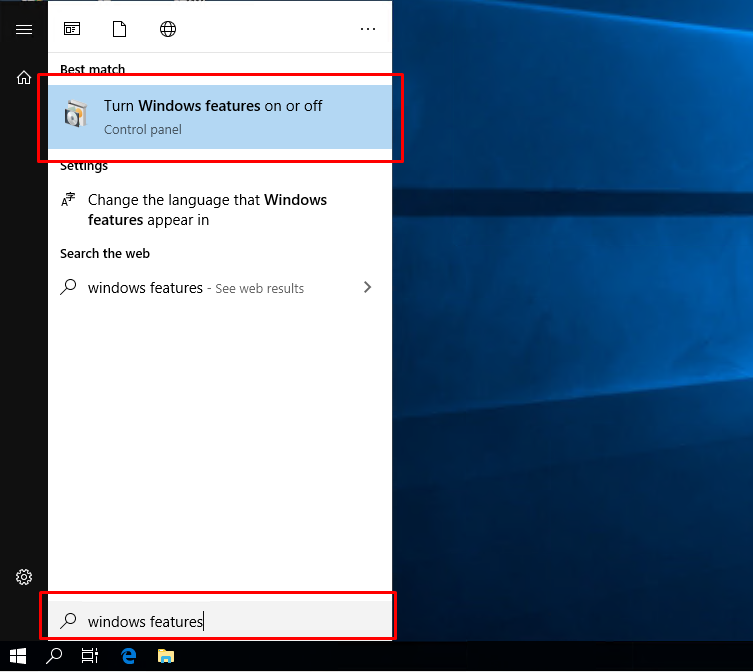
We can enable or install the WSL from the Windows Features menu. Windows Features windows can be opened in different ways where typing Windows Features into the Start Menu search box is like below.
我们可以从Windows Features菜单启用或安装WSL。 Windows功能窗口可以通过以下不同方式打开,在“ Start Menu搜索框中键入Windows Features如下所示。
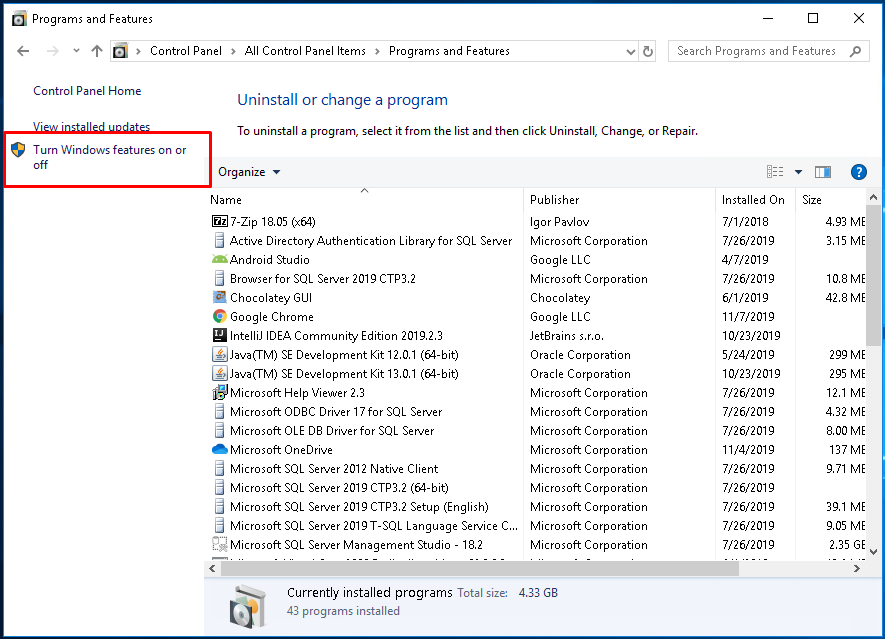
Alternatively, we can access the Windows Features windows from Control Panel->Programs and Features from the left panel `Turn Windows features on or off.
或者,我们可以从“ Control Panel ->“ Programs and Features ”从左面板访问“ Windows功能”窗口,打开或关闭Windows功能。
We will see the following screen about Windows Features. We will find the Windows Subsystem for Linux elements and select the checkbox and then click to the OK
我们将看到有关Windows功能的以下屏幕。 我们将找到Windows Subsystem for Linux的Windows Subsystem for Linux元素,并选中该复选框,然后单击OK
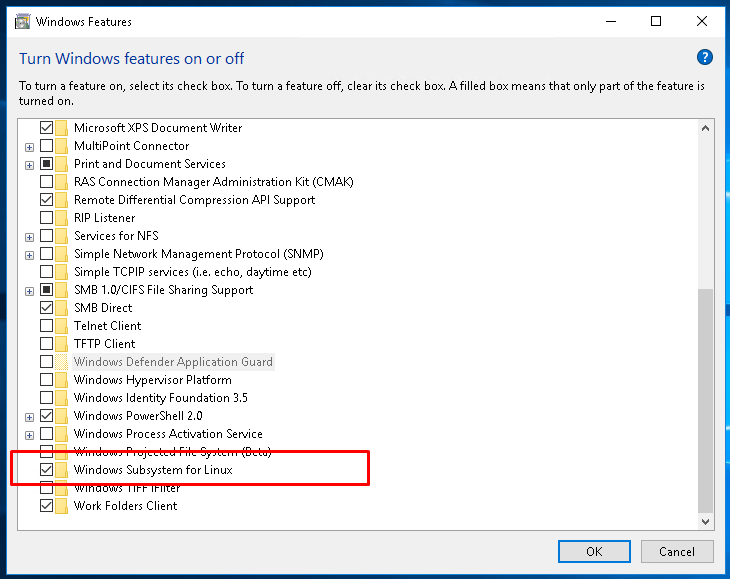
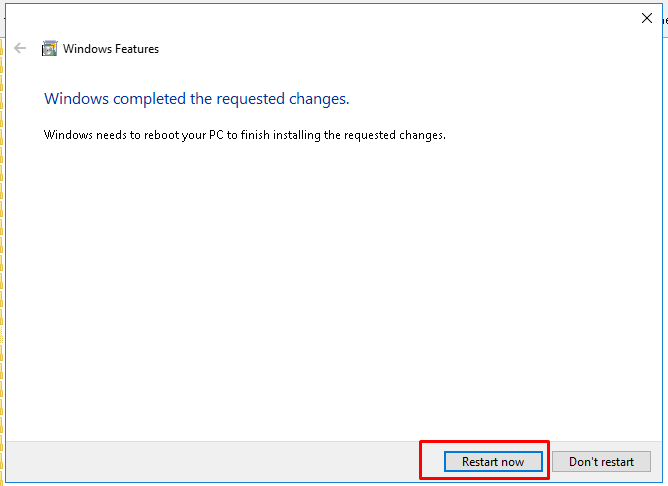
The WSL feature will be automatically installed. After the installation is complete we will see the following screen which will request us to restart the system in order to complete the WSL installation. We will click to the Restart now button which will reboot the system.
WSL功能将自动安装。 安装完成后,我们将看到以下屏幕,该屏幕将要求我们重新启动系统以完成WSL安装。 我们将单击“立即Restart now按钮,它将重启系统。
从PowerShell启用WSL(Enable WSL From PowerShell)
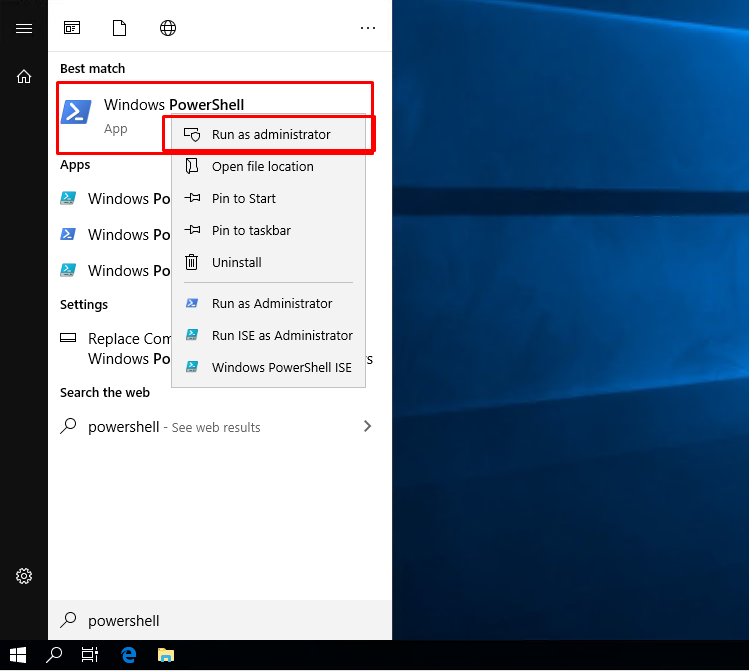
We can also install WSL from the PowerShell command line. We will use the Enable-WindowsOptionalFeature command. As this installation is an administrative task we need to have Administrator rights while using PowerShell. From the Start Menu we will type PowerShell which will list PowerShell shell. We will right-click to the Windows PowerShell app and click to the Run as administrator like below.
我们还可以从PowerShell命令行安装WSL。 我们将使用Enable-WindowsOptionalFeature命令。 由于此安装是一项管理任务,因此在使用PowerShell时,我们需要具有管理员权限。 在Start Menu我们将键入PowerShell ,它将列出PowerShell Shell。 我们将右键单击Windows PowerShell应用,然后单击Run as administrator身份Run as administrator如下所示。
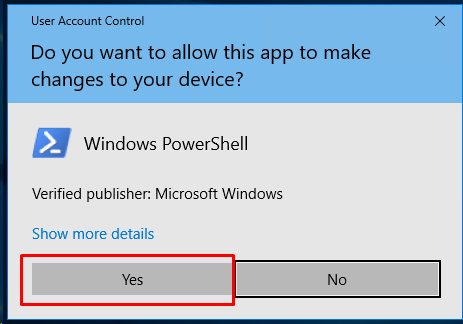
We will be asked to provide Administrative rights to the Windows PowerShell like below.
我们将被要求提供Windows PowerShell的管理权限,如下所示。
We will run the following command with the following options in order to install the feature named Microsoft-Windows-Subsystem-Linux with the -FeatureName option.
我们将使用以下选项运行以下命令,以便使用-FeatureName选项安装名为Microsoft-Windows-Subsystem-Linux的-FeatureName 。
PS> Enable-WindowsOptionalFeature -Online -FeatureName Microsoft-Windows-Subsystem-Linux
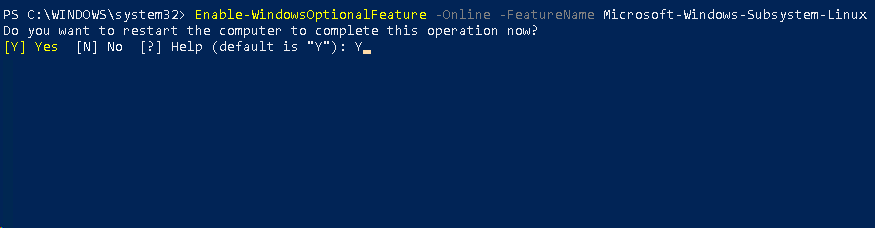
We will be asked to restart the system. We can type Y and press enter which will be rebooting the system in order to enable the WSL feature.
我们将被要求重启系统。 我们可以键入Y并按Enter,它将重新启动系统以启用WSL功能。
检查WSL安装 (Check WSL Installation)
After the installation is complete we can check the WSL installation just typing the wsl command to a command-line interface MSDOS or PowerShell. Both will work without a problem. In the following example, we will use the PowerShell interface and after entered the wsl we will run the help command which will show help information.
安装完成后,我们只需在命令行界面MSDOS或PowerShell中键入wsl命令即可检查WSL安装。 两者都可以正常工作。 在以下示例中,我们将使用PowerShell界面,输入wsl后,我们将运行help命令,其中将显示帮助信息。
- PS> wsl
-
- $ help

选择,下载并安装Linux发行版 (Select, Download and Install A Linux Distribution)
Now we have the WSL but we need to download and install a Linux distribution or tool. WSL supports popular Linux distributions and tools.
现在我们有了WSL,但是我们需要下载并安装Linux发行版或工具。 WSL支持流行Linux发行版和工具。
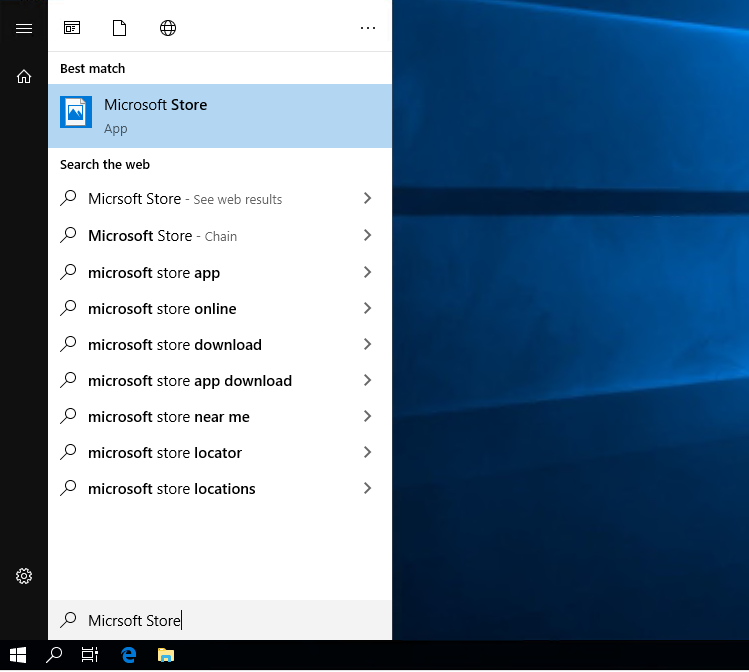
We can use the Microsoft Store in order to list, select and download WSL Linux distribution. Open the Microsoft Store from the start menu like below.
我们可以使用Microsoft Store来列出,选择和下载WSL Linux发行版。 从开始菜单打开Microsoft Store ,如下所示。
We will type linux to the Microsoft Store search box like below. Then we will press enter which will show the search results.
我们将在Microsoft Store搜索框中键入linux ,如下所示。 然后,我们将按Enter键将显示搜索结果。
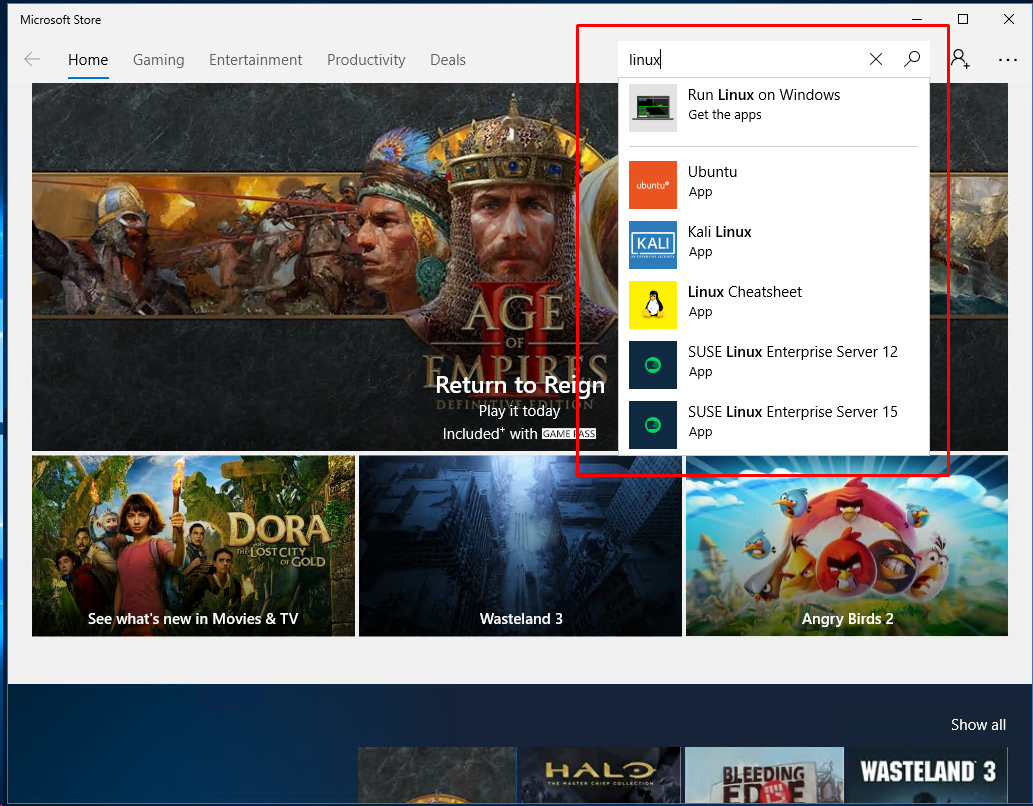
The available Linux distributions which can be used with WSL will be listed below. We can select the Linux distribution we want to download and install. We will click on our selection.
可以与WSL一起使用的可用Linux发行版将在下面列出。 我们可以选择我们要下载并安装Linux发行版。 我们将点击我们的选择。
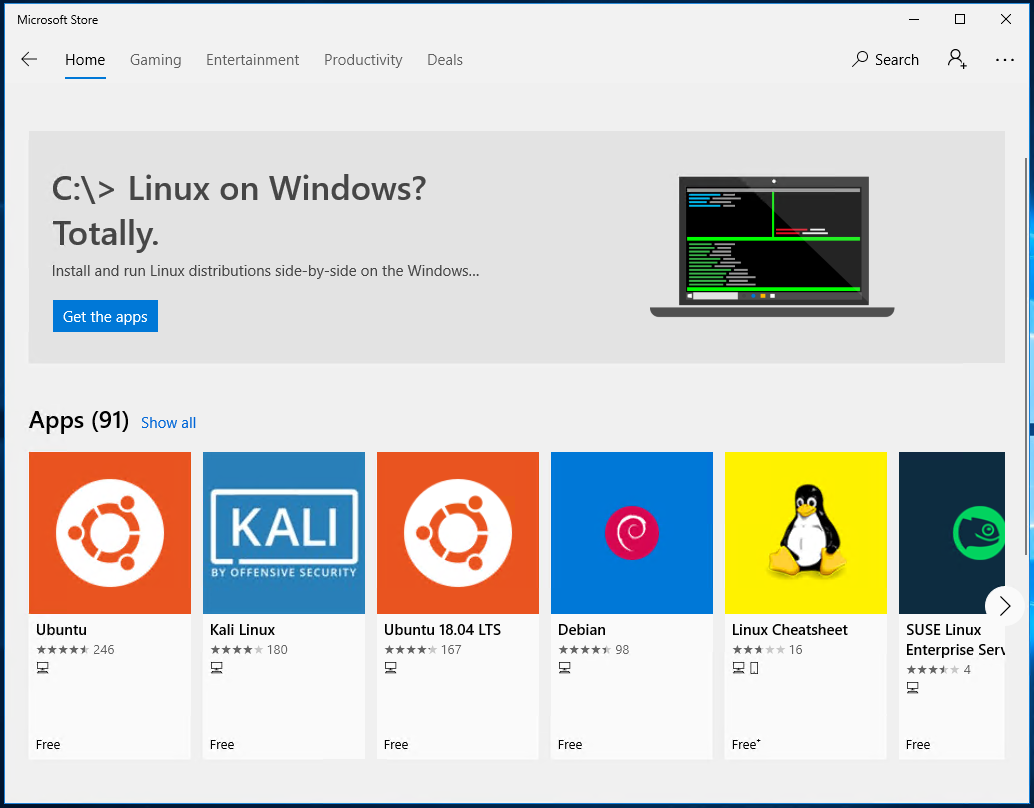
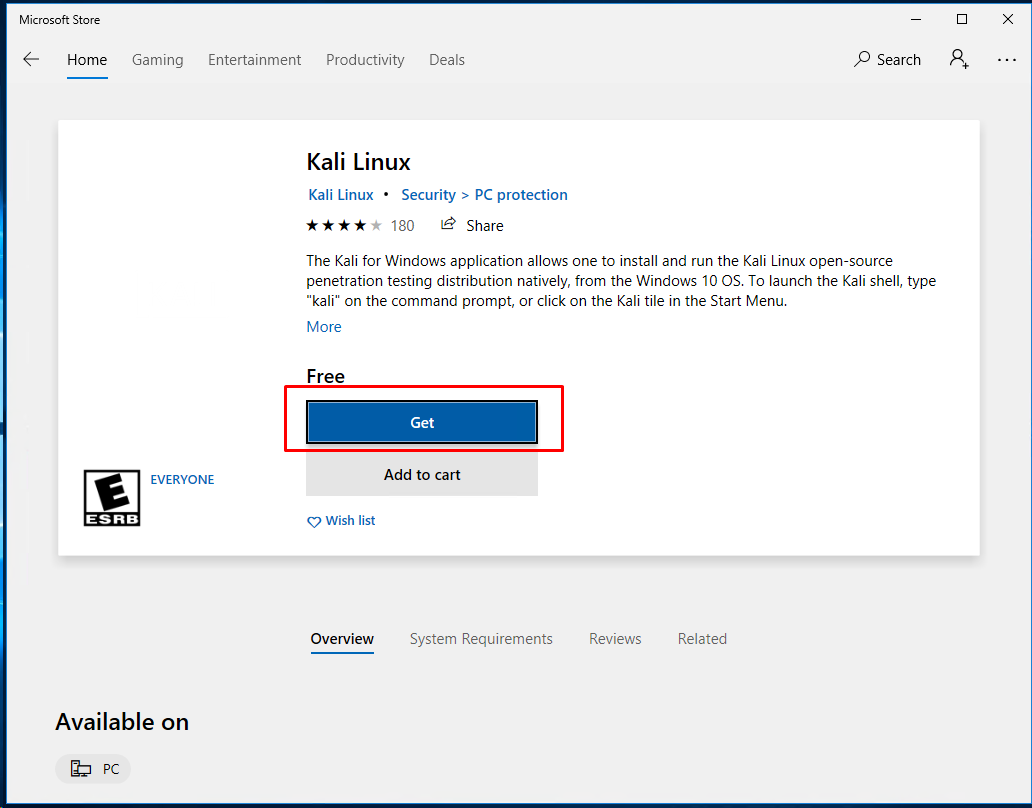
In this case, we select the Kali Linux distribution. The following screen provides information about the Kali Linux. We can start download by clicking the Get button like below.
在这种情况下,我们选择Kali Linux发行版。 以下屏幕提供有关Kali Linux的信息。 我们可以通过单击如下所示的“ Get按钮来开始下载。
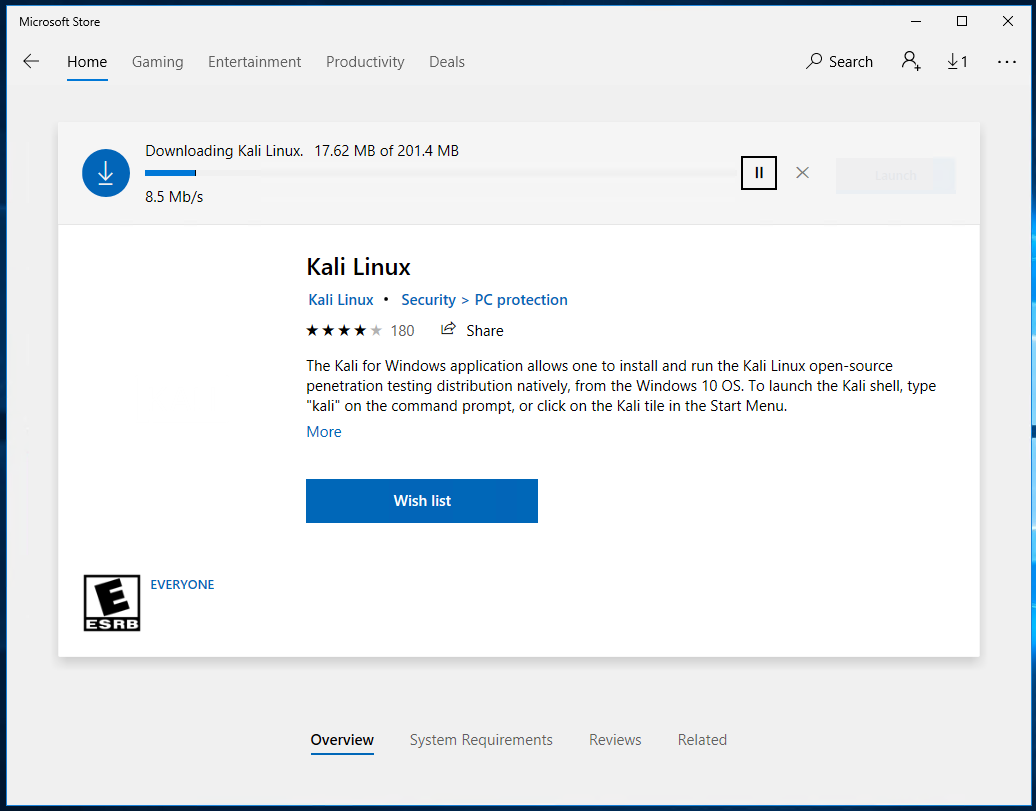
During the download, the download speed and the size of the Kali Linux will be listed below. In the following screen, Kali Linux size is about 201 MB and the download speed is about 8.4 Mb/s.
在下载过程中,下面将列出Kali Linux的下载速度和大小。 在以下屏幕中,Kali Linux大小约为201 MB,下载速度约为8.4 Mb/s 。
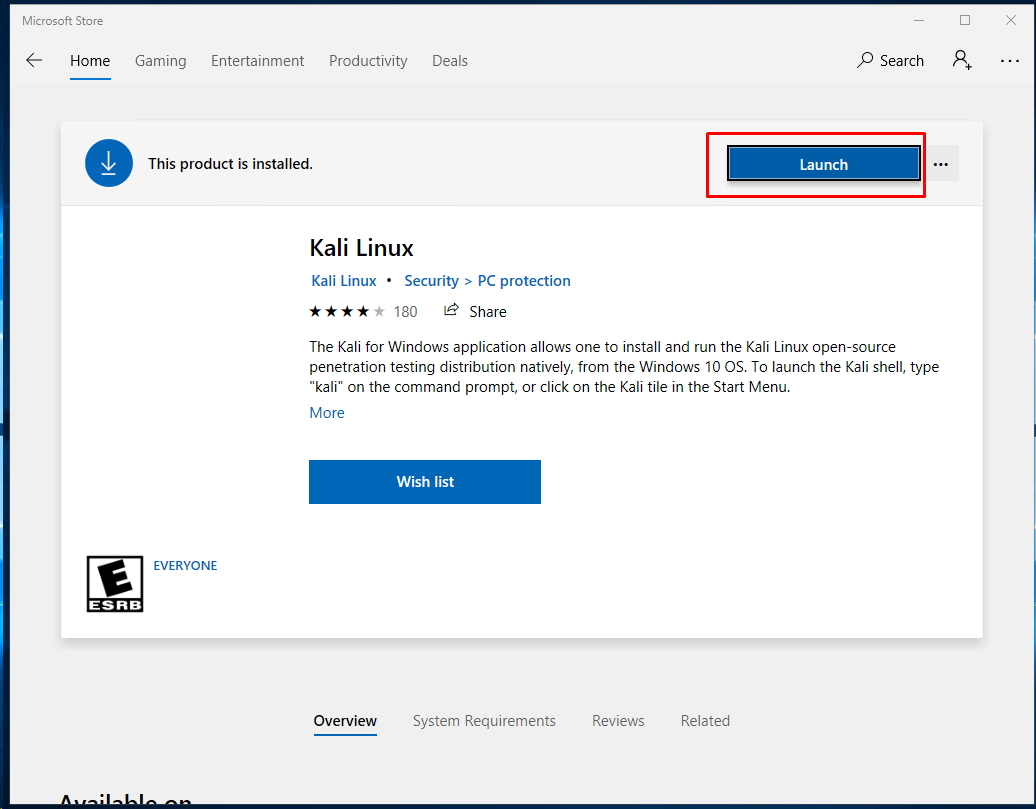
We can launch the Kali Linux image for WSL by clicking to the Launch button like below.
我们可以通过单击如下所示的Launch按钮来Launch WSL的Kali Linux映像。
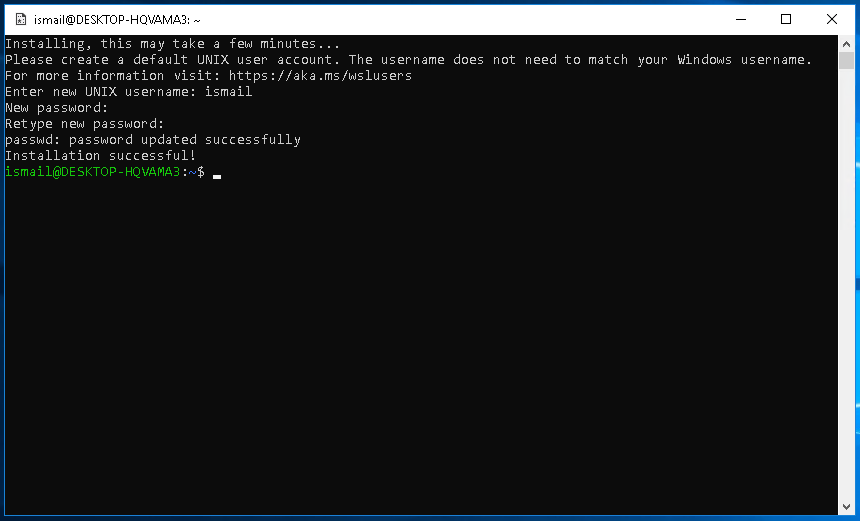
For the first time, we will be asked for a user name and password in order to create on the Kali Linux and use it. We will provide ismail as the user name and password.
首次要求我们提供用户名和密码,以便在Kali Linux上创建并使用它。 我们将提供ismail作为用户名和密码。
使用WSL启动Kali Linux(Start Kali Linux with WSL)
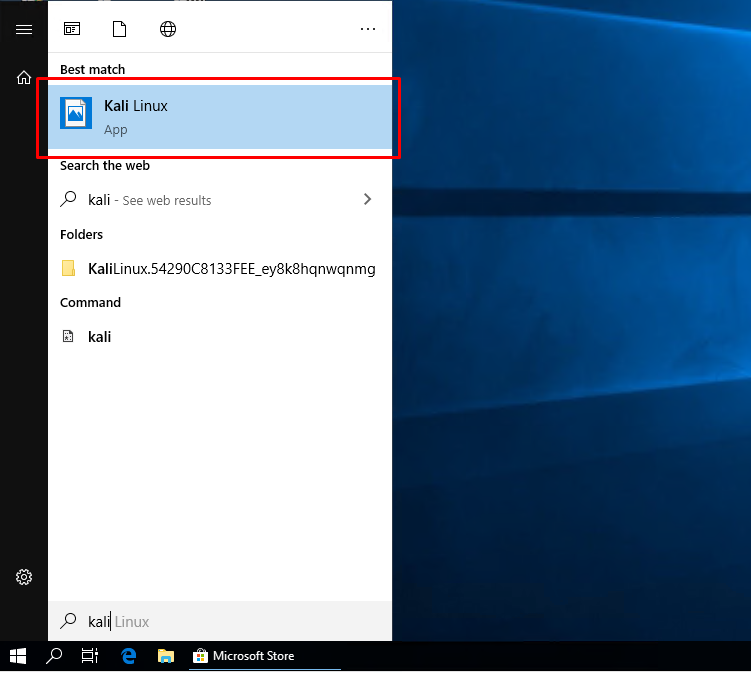
We can start the downloaded and installed Linux distribution from the Start Menu too. We will just type the distribution name and it will be listed as an application like below. In this case, we will search for the Kali Linux as below.
我们也可以从“ Start Menu开始下载并安装Linux发行版。 我们只需要输入发行名称,它就会像下面的应用程序一样列出。 在这种情况下,我们将搜索以下Kali Linux 。
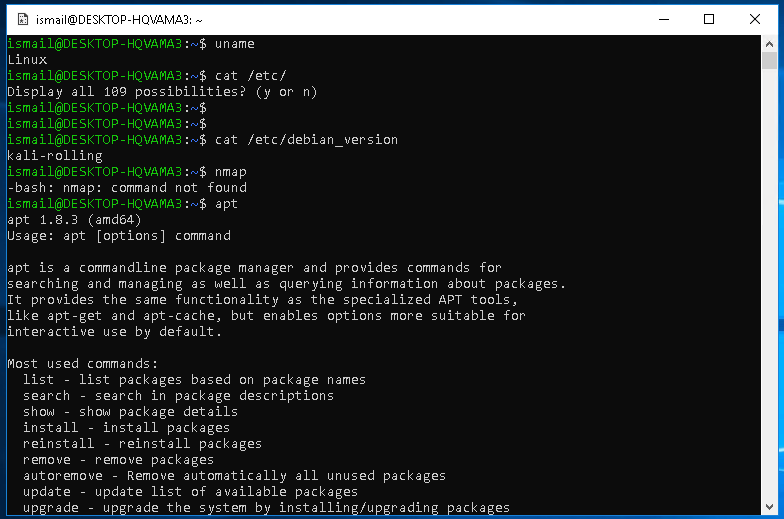
We will see the following screen where we will list the distributions name with the following command.
我们将看到以下屏幕,其中将使用以下命令列出发行版名称。
$ cat /etc/debian_version
windows子系统wsl