
热门标签
热门文章
- 1Unity shader Reflect 取反问题_shader取相反
- 2vue脚手架在vue.config.js文件中配置scss全局变量_vue.config.js scss
- 3狂神说Docker进阶版_k8s 狂神
- 4ScheduledThreadPoolExecutor源码解读(二)——ScheduledFutureTask时间调度执行任务(延迟执行、周期性执行)_delayedexecute
- 5linux terminal 命令--chown&chgrp&chmod_terminal chmod
- 6后端开发实践:Spring Boot项目模板_springboot项目模板
- 7解读大模型的微调
- 8素数距离问题--以为存储素数表会更快,结果sqrt更快
- 9【Linux从入门到精通】Linux常用基础指令(上)
- 10为 Ubuntu22.04 系统添加中文输入法_ubuntu22.04中文输入法
当前位置: article > 正文
Mac系统docker安装配置及基本使用_mac安装docker
作者:程序自动化专家 | 2024-01-30 19:58:20
赞
踩
mac安装docker
1、下载并安装
地址:https://hub.docker.com/editions/community/docker-ce-desktop-mac/
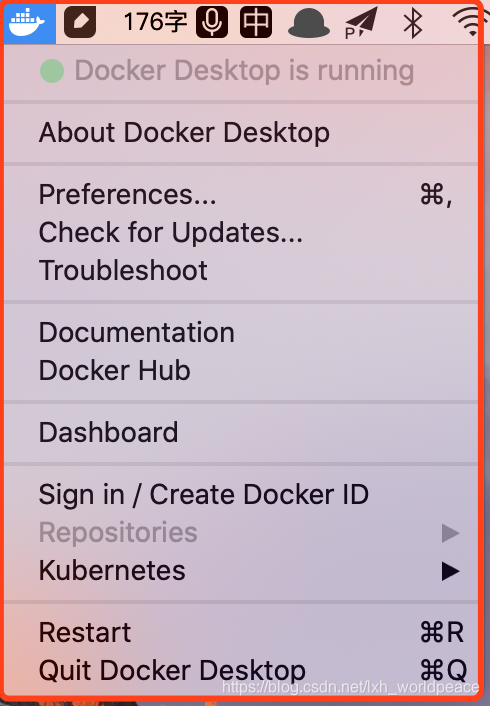
安装完成后,启动Docker,点击鲸鱼图标可显示docker的相关操作,如下图。
2、配置镜像加速
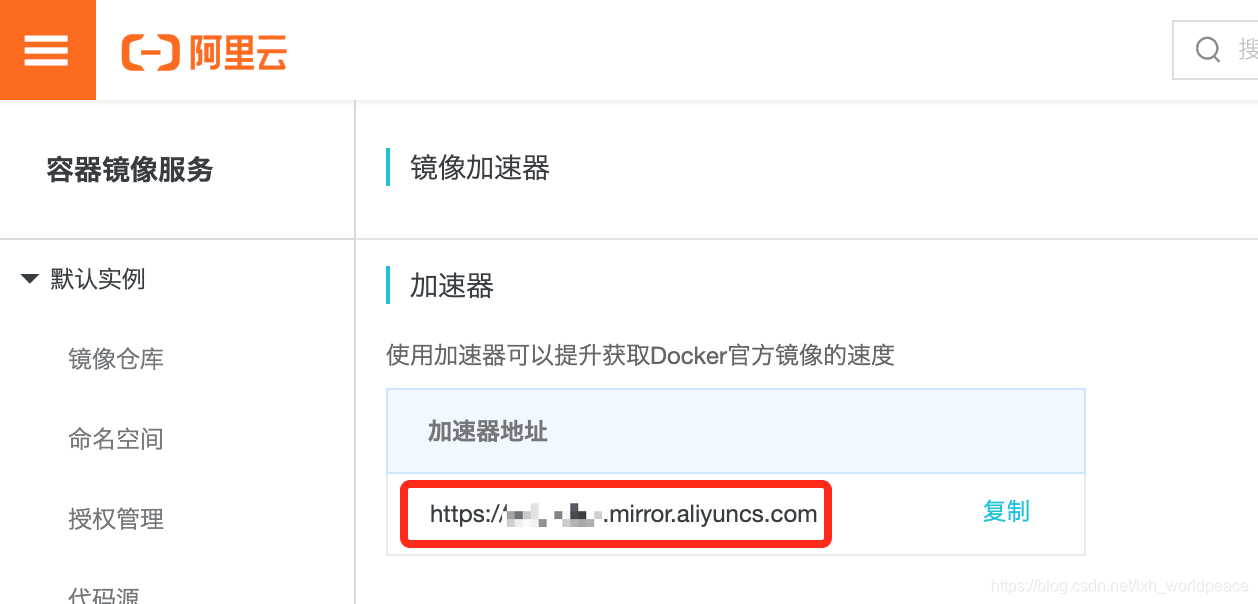
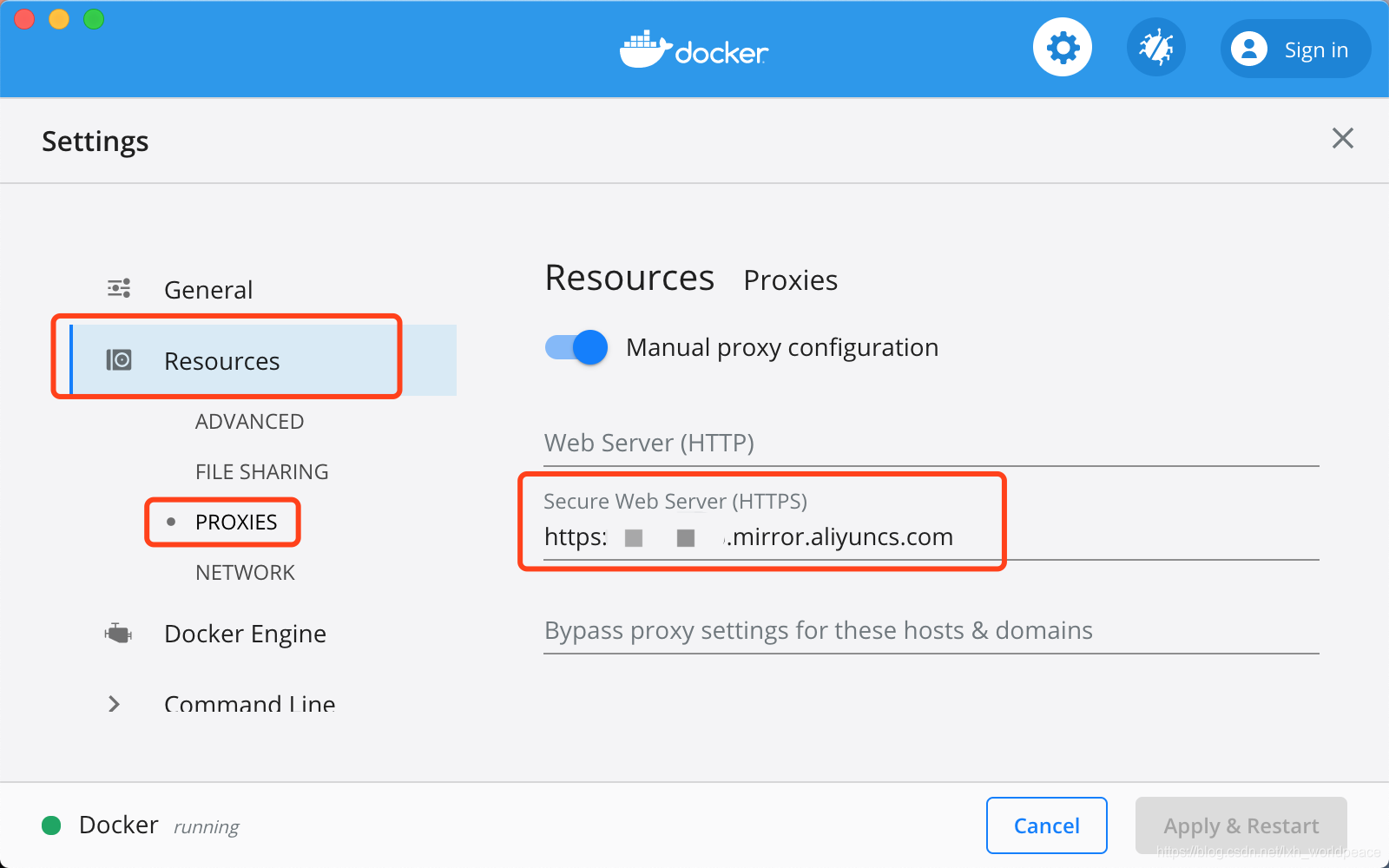
在国内访问默认的官方镜像速度较慢,可使用阿里云的镜像加速,注册阿里账号并申请容器服务之后,可在 这里 查看分配的镜像加速地址。然后在Docker的Preferences中配置加速地址。
3、注册Docker ID
完成上面两个步骤就可以正常使用docker,注册Docker ID是为了便于管理自己的镜像,注册地址:https://hub.docker.com/。
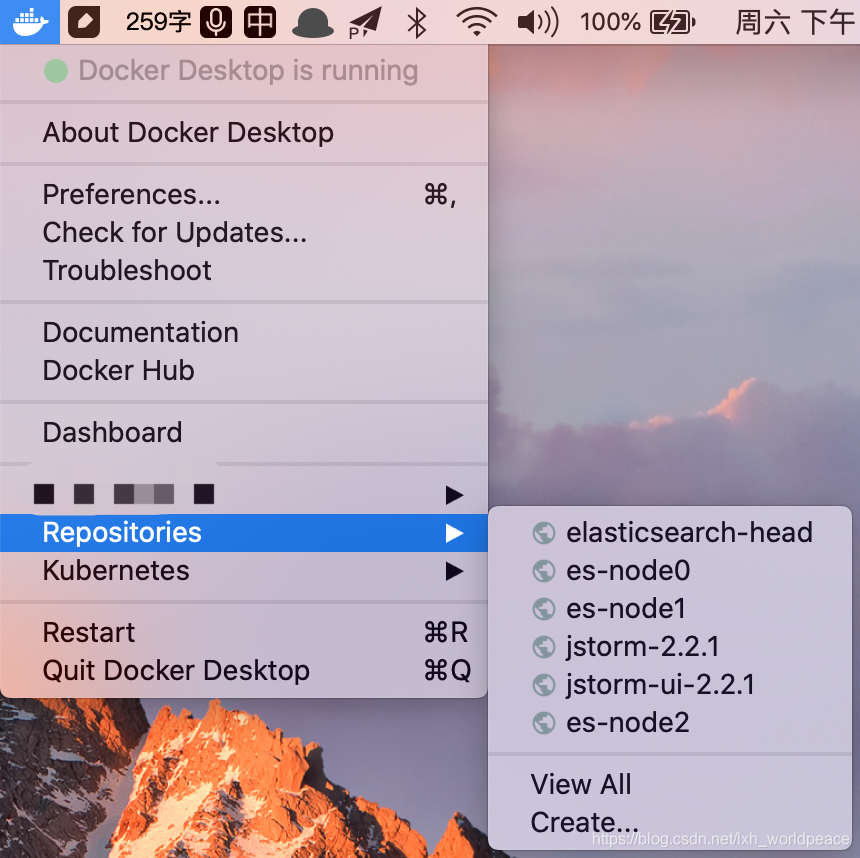
注册完成后可在Mac版Docker桌面工具中登录,并查看自己已有的镜像。

4、基本使用
4.1 docker命令
进入终端,输入docker回车,可查看docker支持的命令,如下
- Usage: docker [OPTIONS] COMMAND
-
- A self-sufficient runtime for containers
-
- Options:
- --config string Location of client config files (default "/Users/crane/.docker")
- -c, --context string Name of the context to use to connect to the daemon (overrides DOCKER_HOST env var and default context set with "docker context use")
- -D, --debug Enable debug mode
- -H, --host list Daemon socket(s) to connect to
- -l, --log-level string Set the logging level ("debug"|"info"|"warn"|"error"|"fatal") (default "info")
- --tls Use TLS; implied by --tlsverify
- --tlscacert string Trust certs signed only by this CA (default "/Users/crane/.docker/ca.pem")
- --tlscert string Path to TLS certificate file (default "/Users/crane/.docker/cert.pem")
- --tlskey string Path to TLS key file (default "/Users/crane/.docker/key.pem")
- --tlsverify Use TLS and verify the remote
- -v, --version Print version information and quit
-
- Management Commands:
- app* Docker Application (Docker Inc., v0.8.0)
- builder Manage builds
- buildx* Build with BuildKit (Docker Inc., v0.3.1-tp-docker)
- checkpoint Manage checkpoints
- config Manage Docker configs
- container Manage containers
- context Manage contexts
- image Manage images
- manifest Manage Docker image manifests and manifest lists
- network Manage networks
- node Manage Swarm nodes
- plugin Manage plugins
- secret Manage Docker secrets
- service Manage services
- stack Manage Docker stacks
- swarm Manage Swarm
- system Manage Docker
- trust Manage trust on Docker images
- volume Manage volumes
-
- Commands:
- attach Attach local standard input, output, and error streams to a running container
- build Build an image from a Dockerfile
- commit Create a new image from a container's changes
- cp Copy files/folders between a container and the local filesystem
- create Create a new container
- deploy Deploy a new stack or update an existing stack
- diff Inspect changes to files or directories on a container's filesystem
- events Get real time events from the server
- exec Run a command in a running container
- export Export a container's filesystem as a tar archive
- history Show the history of an image
- images List images
- import Import the contents from a tarball to create a filesystem image
- info Display system-wide information
- inspect Return low-level information on Docker objects
- kill Kill one or more running containers
- load Load an image from a tar archive or STDIN
- login Log in to a Docker registry
- logout Log out from a Docker registry
- logs Fetch the logs of a container
- pause Pause all processes within one or more containers
- port List port mappings or a specific mapping for the container
- ps List containers
- pull Pull an image or a repository from a registry
- push Push an image or a repository to a registry
- rename Rename a container
- restart Restart one or more containers
- rm Remove one or more containers
- rmi Remove one or more images
- run Run a command in a new container
- save Save one or more images to a tar archive (streamed to STDOUT by default)
- search Search the Docker Hub for images
- start Start one or more stopped containers
- stats Display a live stream of container(s) resource usage statistics
- stop Stop one or more running containers
- tag Create a tag TARGET_IMAGE that refers to SOURCE_IMAGE
- top Display the running processes of a container
- unpause Unpause all processes within one or more containers
- update Update configuration of one or more containers
- version Show the Docker version information
- wait Block until one or more containers stop, then print their exit codes
- Run 'docker COMMAND --help' for more information on a command.

4.2 搜索镜像
比如我们搜索nginx镜像,命令如下,搜索结果中标记“OFFICIAL”的为官方镜像,其他为用户自定义镜像,可根据实际需要选择。
docker search nginx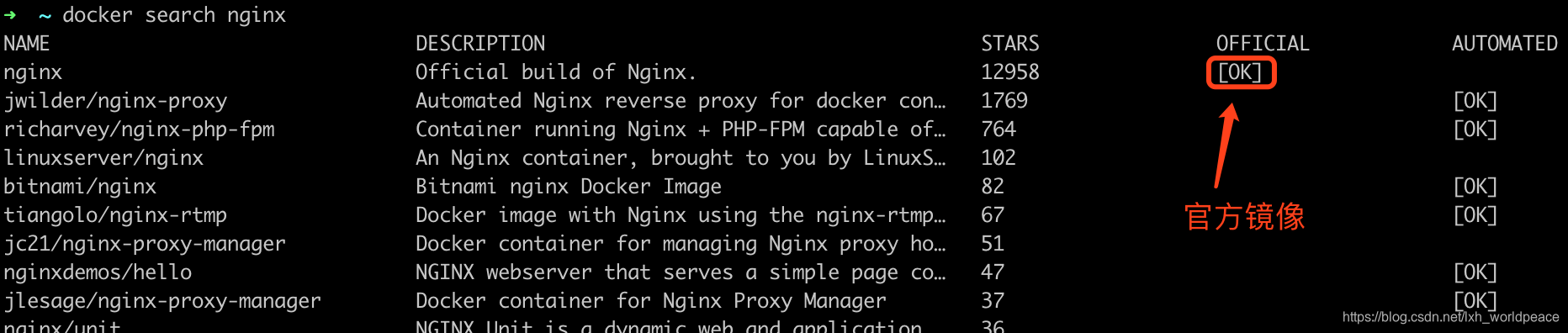
4.3 获取镜像
搜索到了需要的镜像之后可使用如下命令将镜像拉取到本地,类似于git拉取代码。
- # 拉取指定版本xxx镜像
- # docker pull nginx:xxx
-
- # 拉取最新版本镜像 等价于docker pull nginx:latest
- docker pull nginx

4.4 创建并启动容器
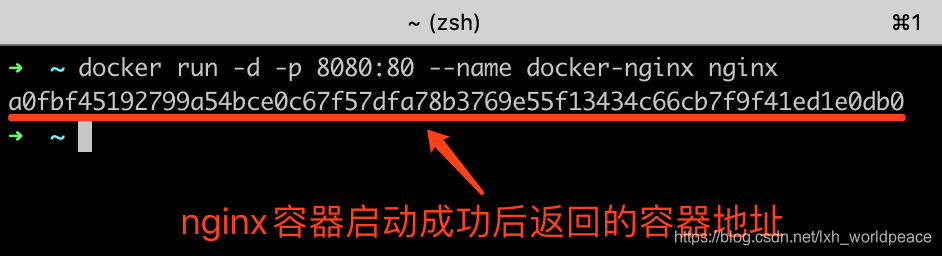
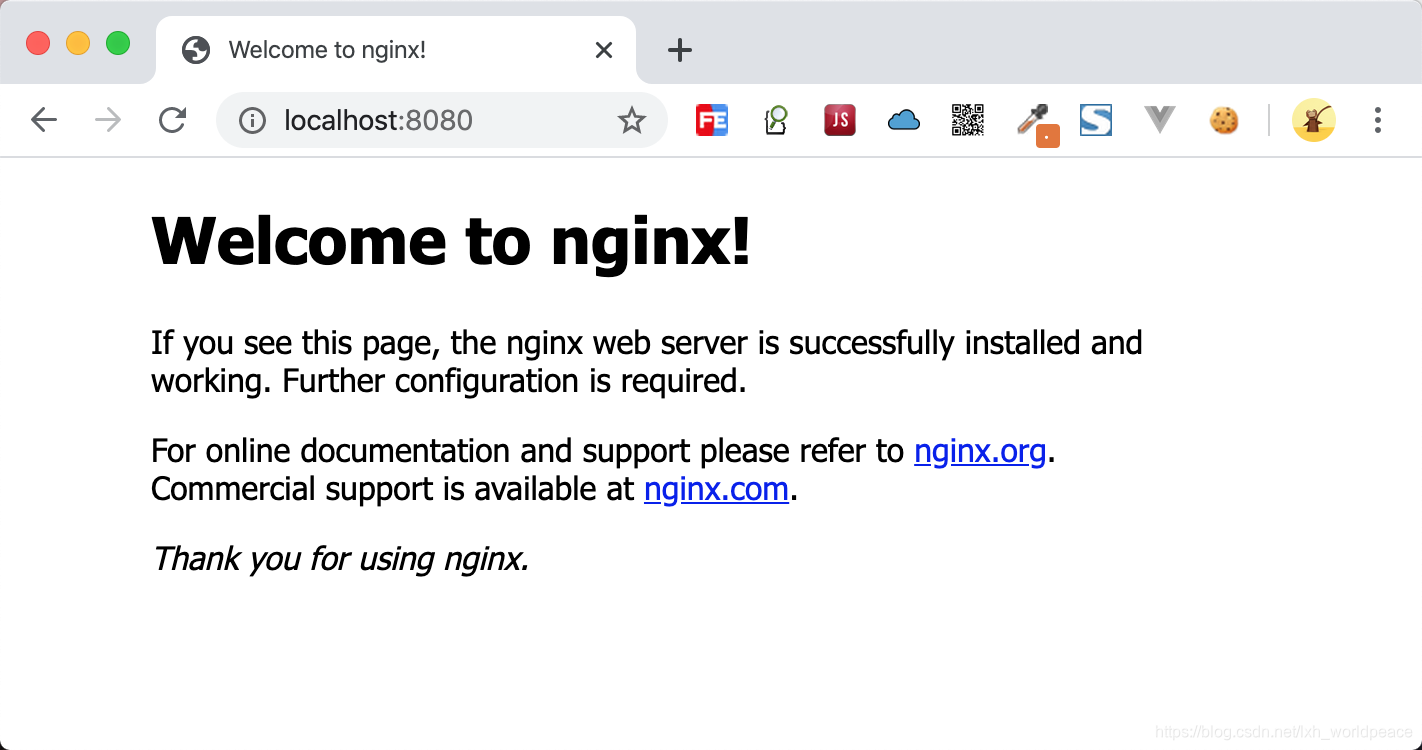
镜像拉取成功后,使用下面的命令启动nginx容器,容器内部的80端口已经映射到了本机的8080端口,所以启动成功后可以使用http://localhost:8080/访问docker容器内部nginx80端口映射的地址。
- # -d 后台运行
- # -p 8080:80 宿主机的8080端口映射到docker内部的80端口
- # --name docker-nginx 启动后的容器名称为docker-nginx
- docker run -d -p 8080:80 --name docker-nginx nginx
4.5 查看及停止容器
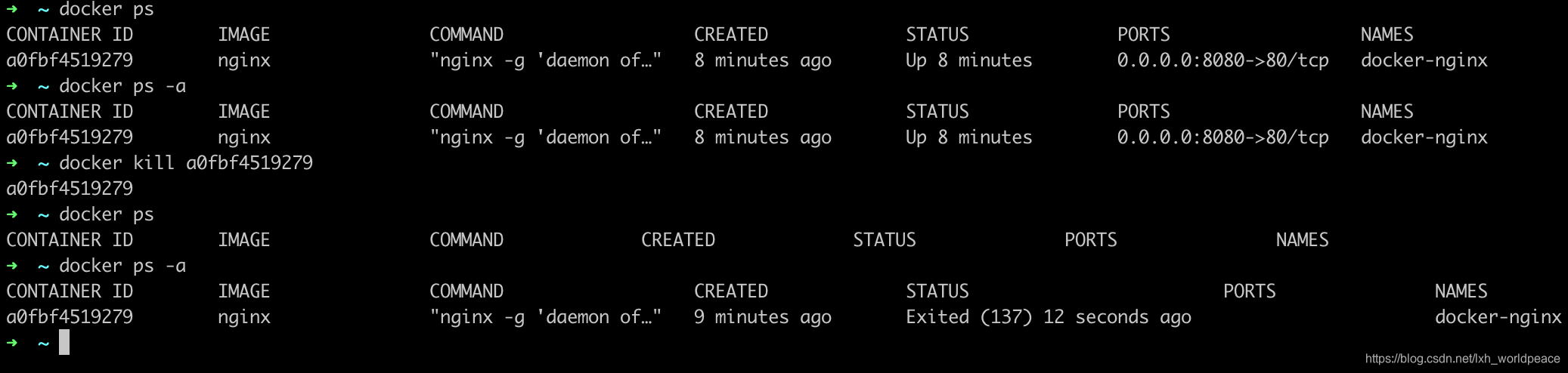
查看容器基本命令如下
- # 查看运行中的容器
- docker ps
-
- # 查看所有容器 包括正在运行和已经停止运行的
- docker ps -a
停止容器命令如下
- # 通过id直接关闭容器
- # docker kill a0fbf4519279
- # 通过容器名称直接关闭容器
- docker kill docker-nginx
-
-
- # 通过id直接容器 默认等待十秒 超时强制关闭
- # docker stop a0fbf4519279
- # 通过容器名称关闭容器 默认等待十秒 超时强制关闭 等价于 docker stop -t=10 docker-nginx
- docker stop docker-nginx
4.6 启动停止的容器
命令如下
- # 启动容器可通过容器id或者容器名称
- # 通过容器名称启动容器,如果已启动则忽略
- docker start docker-nginx
-
- # 通过容器名称重新启动容器,如果未启动则直接启动,如果已启动则关闭再启动
- # docker restart docker-nginx
声明:本文内容由网友自发贡献,不代表【wpsshop博客】立场,版权归原作者所有,本站不承担相应法律责任。如您发现有侵权的内容,请联系我们。转载请注明出处:https://www.wpsshop.cn/article/detail/48932
推荐阅读


相关标签

