- 1网络安全--防御保护02
- 2【深度学习】深度学习模型训练的tricks总结_cosine learning rate decay
- 3Java B组蓝桥杯第十届国赛:平方拆分_蓝桥杯国赛题 平方拆分 动态规划
- 4使用PowerShell命令行,批量修改文件编码
- 5【JaveWeb教程】(15) SpringBootWeb之 响应 详细代码示例讲解
- 6umask函数_umask 系统函数
- 7【vue】Vue-Router报错:Uncaught (in promise)Error: Navigation cancelled from “/“ to “/1“ with a new navig_vue-router.esm.js:2046 uncaught (in promise) error
- 8volatile 关键字理解一(保证可见性)_volatile保证可见性
- 9计算机网络 应用层
- 10重看Mysql联想到数据库连接池DruidDataSource_druid datasource keeplive
MacOS Docker 安装和运行原理
赞
踩
本文讲述主要是基于Mac电脑安装教程,使用的是homebrew安装,未安装homebrew的请先自行安装下
一、使用 Homebrew 安装
macOS 我们可以使用 Homebrew 来安装 Docker。Homebrew 的 Cask 已经支持 Docker for Mac,因此可以很方便的使用 Homebrew Cask 来进行安装。
1. 输入安装命令如下:
- brew install --cask --appdir=/Applications docker # 1.输入安装命令
-
- ==> Creating Caskroom at /usr/local/Caskroom
- ==> We'll set permissions properly so we won't need sudo in the future
- Password: # 2.输入你的macOS 密码
- ==> Satisfying dependencies
- ==> Downloading https://download.docker.com/mac/stable/21090/Docker.dmg
- #################################################################### 100.0%
- ==> Verifying checksum for Cask docker
- ==> Installing Cask docker
- ==> Moving App 'Docker.app' to '/Applications/Docker.app'.
- 🍺 docker was successfully installed!
最后如果提示了successfully installed! 字样就表示安装成功了

2. 安装完毕后,从应用中找到Docker 图标点击运行。可能会询问 macOS 登陆密码,输入即可

3. 打开终端,输入命令显示docker的版本信息
- wpf@B-L0Q0JHD2-2029 ~ % docker --version # 1.该命令仅显示安装版本
- Docker version 20.10.22, build 3a2c30b
-
- wpf@B-L0Q0JHD2-2029 ~ % docker version # 2.该命令显示docker具体版本信息
- Client: # 客户端信息
- Cloud integration: v1.0.29
- Version: 20.10.22
- API version: 1.41
- Go version: go1.18.9
- Git commit: 3a2c30b
- Built: Thu Dec 15 22:28:41 2022
- OS/Arch: darwin/amd64
- Context: default
- Experimental: true
-
- Server: Docker Desktop 4.16.1 (95567) # 服务器信息
- Engine:
- Version: 20.10.22
- API version: 1.41 (minimum version 1.12)
- Go version: go1.18.9
- Git commit: 42c8b31
- Built: Thu Dec 15 22:26:14 2022
- OS/Arch: linux/amd64
- Experimental: false
- containerd:
- Version: 1.6.14
- GitCommit: 9ba4b250366a5ddde94bb7c9d1def331423aa323
- runc:
- Version: 1.1.4
- GitCommit: v1.1.4-0-g5fd4c4d
- docker-init:
- Version: 0.19.0
- GitCommit: de40ad0
- wpf@B-L0Q0JHD2-2029 ~ %


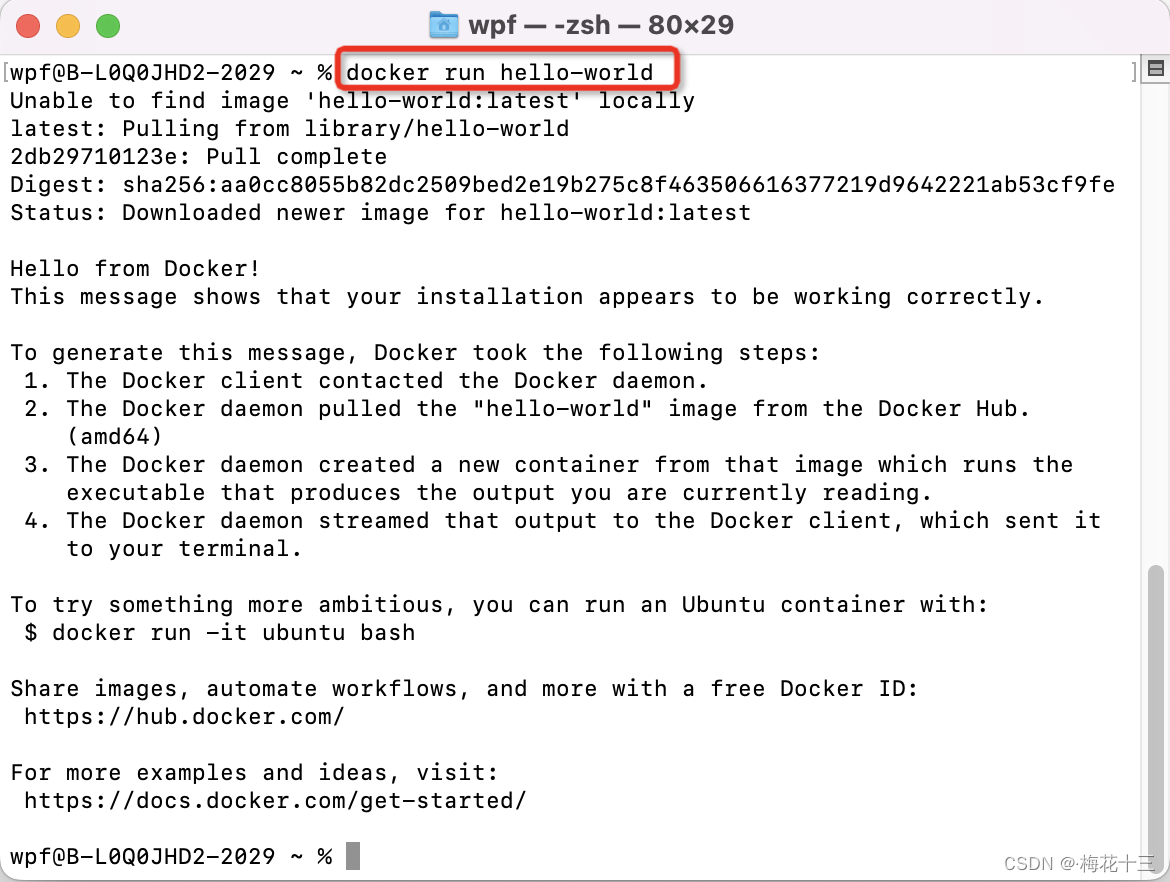
4. 试运行docker,使用docker run 运行 hello-world镜像
- doker 拉取hello-world镜像:docker pull hello-world
- 运行拉取hello-world镜像:docker run hello-world
译:当运行容器时,使用的镜像如果在本地中不存在,docker 就会自动从 docker 镜像仓库中下载,默认是从 Docker Hub 公共镜像源下载。
- wpf@B-L0Q0JHD2-2029 ~ % docker run hello-world # 运行hello-world
- Unable to find image 'hello-world:latest' locally # 提示未找到hello-world镜像
- latest: Pulling from library/hello-world # 尝试拉取远程官方library下的h-w镜像
- 2db29710123e: Pull complete # 拉取完毕了,后面是签名信息
- Digest: sha256:aa0cc8055b82dc2509bed2e19b275c8f463506616377219d9642221ab53cf9fe
- Status: Downloaded newer image for hello-world:latest
-
- Hello from Docker! # 显示这句话说明docker安装成功了
- This message shows that your installation appears to be working correctly.
-
- To generate this message, Docker took the following steps:
- 1. The Docker client contacted the Docker daemon.
- 2. The Docker daemon pulled the "hello-world" image from the Docker Hub.
- (amd64)
- 3. The Docker daemon created a new container from that image which runs the
- executable that produces the output you are currently reading.
- 4. The Docker daemon streamed that output to the Docker client, which sent it
- to your terminal.
-
- To try something more ambitious, you can run an Ubuntu container with:
- $ docker run -it ubuntu bash
-
- Share images, automate workflows, and more with a free Docker ID:
- https://hub.docker.com/
-
- For more examples and ideas, visit:
- https://docs.docker.com/get-started/
-
- wpf@B-L0Q0JHD2-2029 ~ %
5. 我们可以使用 docker images 命令来列出本地主机上的镜像。

或者直接打开Docker Desktop应用 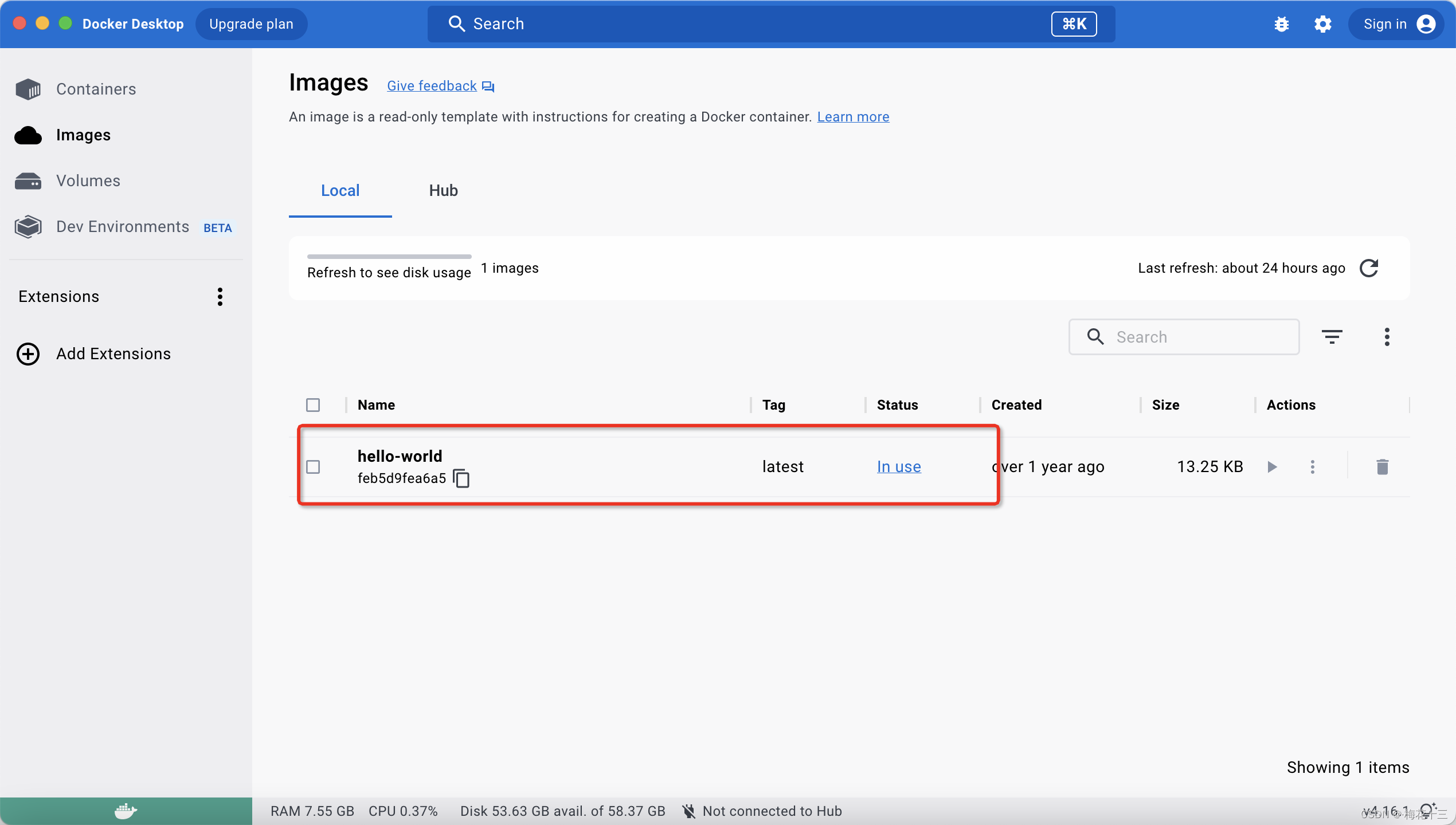
二、Docker底层运行原理
docker 是一个c/s结构的系统(client客户端/server服务端)。
Docker的守护进程运行在宿主主机上,通过socket从客户端访问。DockerServer 接收到 Docker-Client的指令,就会执行这个指令。
Docker会以root权限运行它的守护进程,来处理普通Linux用户无法完成的操作(如挂载文件系统等操作)
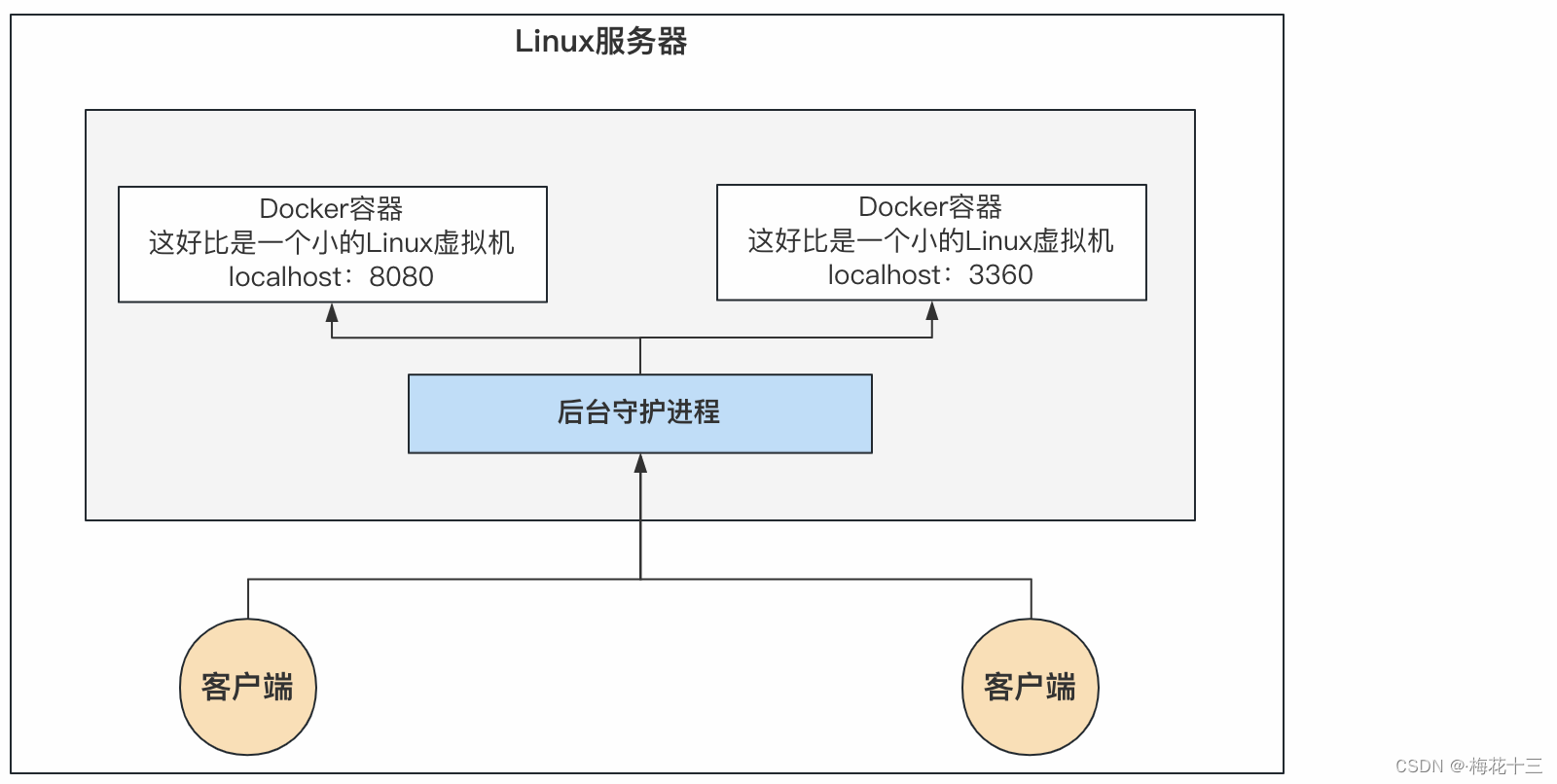
➳ 说明:8080和3306两个容器外部是访问不到的,是属于容器内的,容器就好比一个小的虚拟机,容器之间互相隔离;容器与外部大的Linux服务器也是互相隔离的,一个容器占用的进程资源是非常小的
❥ Docker执行run命令的流程如下:
- Dockers引擎会在本地查找镜像
- 本地找到镜像 然后启动镜像
- 本地未找到镜像,然后根据Docker引擎配置的仓库地址,远程去查找镜像。
- 远程查询到镜像,把镜像下载到本地,然后启动镜像
- 远程查询到镜像,Docker返回错误,提示镜像远程未找到。
- 运行中的镜像支持:停止、启动、重启、删除(先停止才可以删除)操作。