
热门标签
热门文章
- 1SpringBoot进行自然语言处理,利用Hanlp进行文本情感分析
- 2Python代码雨
- 3yolov7改进系列_改进yolo
- 4鸿蒙OS2.0添加加密门禁卡进入卡包_鸿蒙系统新建空白门禁卡
- 52023 亚马逊云科技 re:lnvent 大会探秘: Amazon Connect 全渠道云联络中心
- 6Windows server——部署web服务_windows一键部署web环境
- 7大数据与云计算——部署Hadoop集群并运行MapReduce集群案例(超级详细!)_在hadoop上运行mapreduce
- 8【软考-中级】系统集成项目管理工程师-计算题_系统集成项目管理工程师计算题
- 9VOC/YOLO/COCO数据集格式转换及LabelImg/Labelme/精灵标注助手Colabeler标注工具介绍_coco数据集标注工具
- 10Ubuntu如何使用宝塔面板部署开源论坛HadSky并结合内网穿透远程访问?
当前位置: article > 正文
docker-desktop windows支持挂载hostpath_docker desktop 挂载windows目录到容器
作者:itrstu | 2024-01-30 19:11:05
赞
踩
docker desktop 挂载windows目录到容器
docker-desktop在windows系统中支持容器方案主要采用两种方式
- Hyper-V
- WSL(Windows Subsystem for Linux)
Hyper-V模式
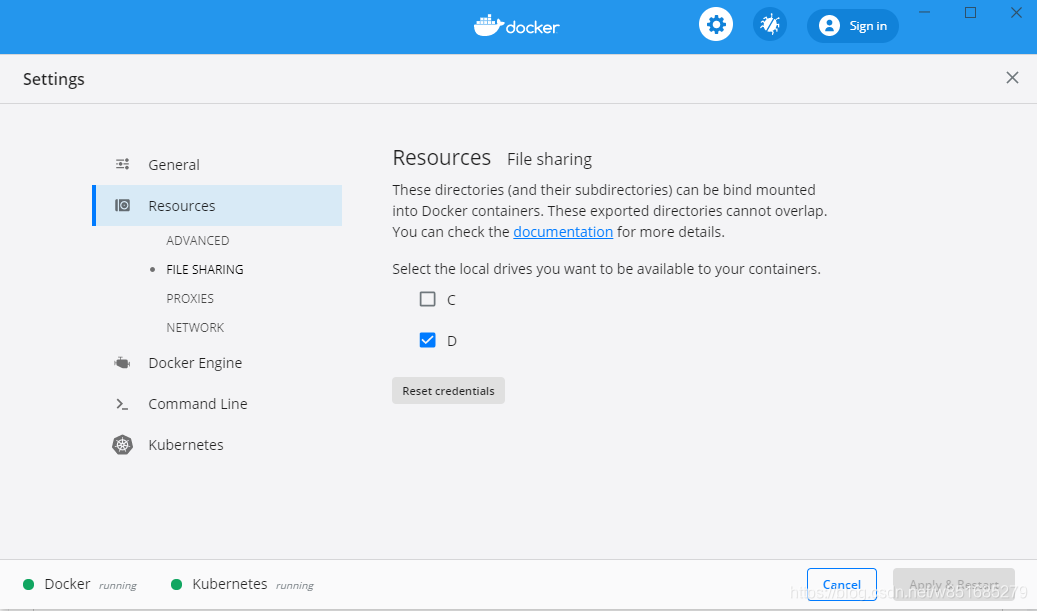
点击Docker Desktop -> Settings->Resources->FILE SHARING,选择你要挂载的分区,点击 Apply&Restart
“文件共享”选项卡仅在Hyper-V模式下可用,因为在WSL 2模式和Windows容器模式下,Windows将自动共享所有文件。
使用示例:
apiVersion: v1
kind: Pod
metadata:
  name: test-local-vol
spec:
  containers:
  - name: test-local-vol
    image: library/busybox
    command: ["/bin/sh"]
    args: ["-c", "while true; do echo hello >> /root/ccc.log; sleep 10;done"]
    volumeMounts:
    - mountPath: /root/
      name: local-vol
  volumes:
  - name: local-vol
    hostPath:
      path: /d/test-data/nginx/html # 要挂载的路径,/d 表示windows下的D盘
      type: DirectoryOrCreate

- 1
- 2
- 3
- 4
- 5
- 6
- 7
- 8
- 9
- 10
- 11
- 12
- 13
- 14
- 15
- 16
- 17
- 18
WSL模式
进入wsl模式,查看相关挂载点: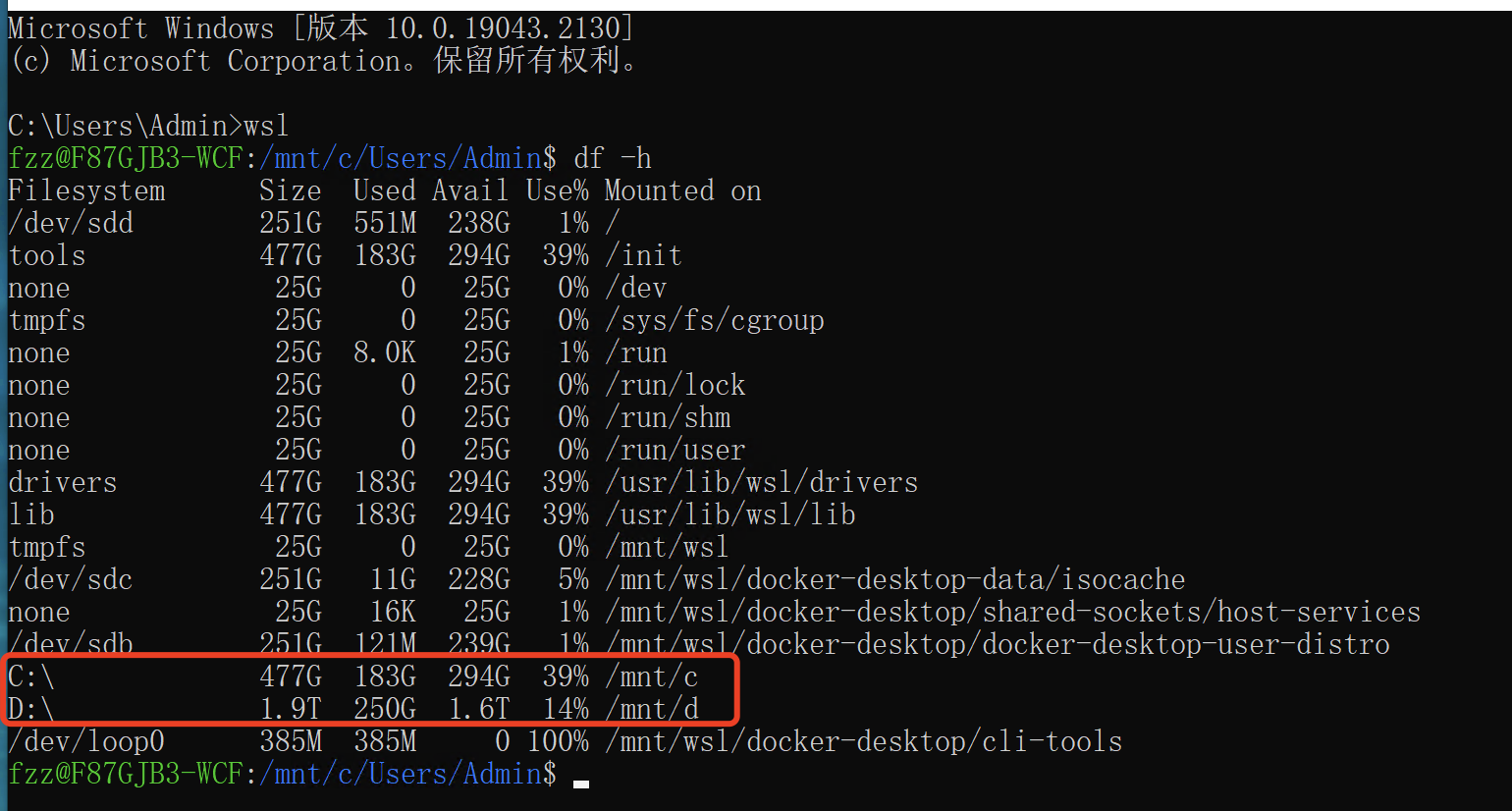
其路径映射关系如下图所示:

测试yaml
apiVersion: v1
kind: Pod
metadata:
  name: test-local-vol
spec:
  containers:
  - name: test-local-vol
    image: centos:7
    command: ["/bin/sh"]
    args: ["-c", "while true; do echo hello >> /root/ccc.log; sleep 10;done"]
    volumeMounts:
    - mountPath: /root/test/
      name: local-vol
  volumes:
  - name: local-vol
    hostPath:
      path: /run/desktop/mnt/host/d/test # 要挂载的路径,/d 表示windows下的D盘
- 1
- 2
- 3
- 4
- 5
- 6
- 7
- 8
- 9
- 10
- 11
- 12
- 13
- 14
- 15
- 16
- 17
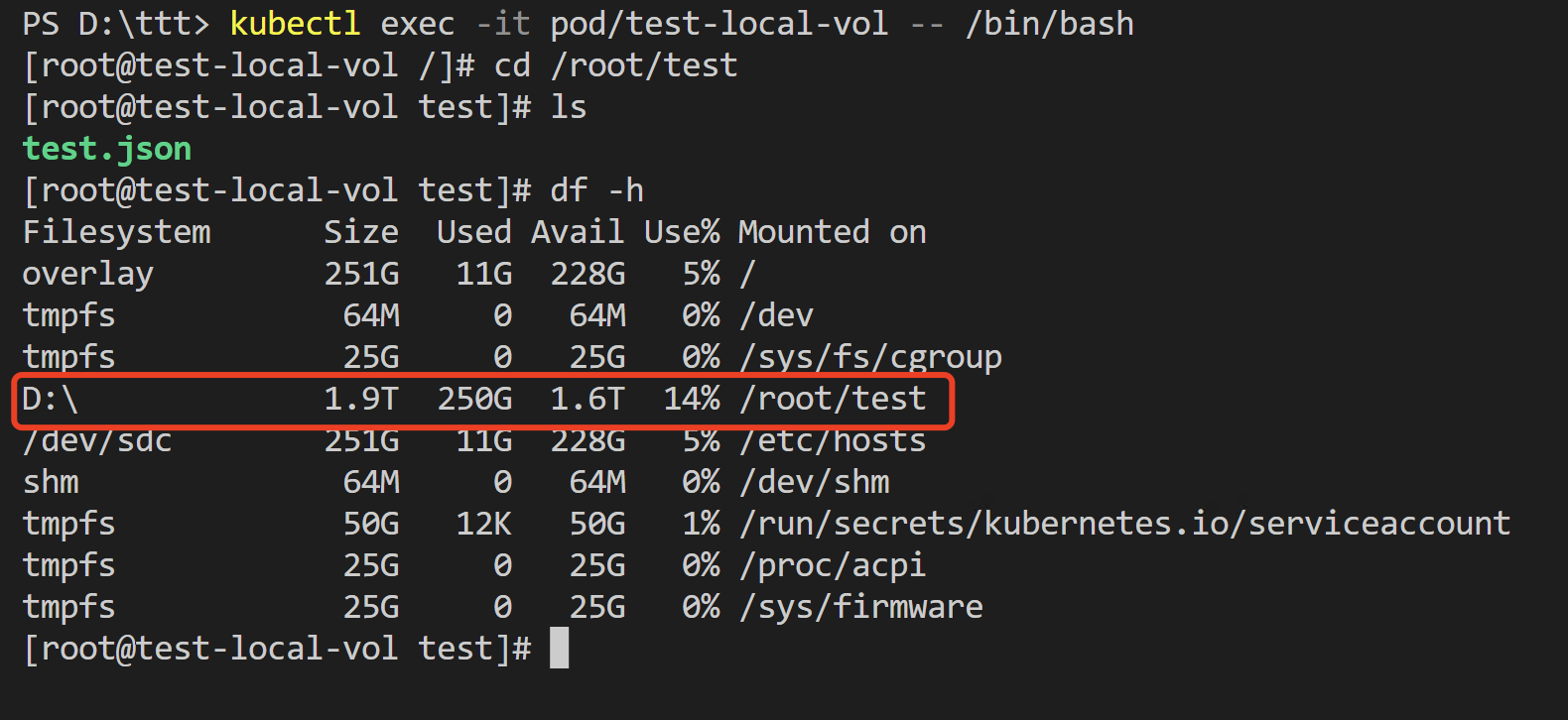
进入pod验证:
参考
本文内容由网友自发贡献,转载请注明出处:【wpsshop博客】
推荐阅读

相关标签

