
- 1【HarmonyOS】HarmonyOS应用开发者高级认证96分_端云一体化当前支持最低的鸿蒙api版本是
- 2【Linux下基本指令 —— 2】
- 3软件测试面试问答
- 4LabelImg(目标检测标注工具)的安装与使用教程_安装labelimg
- 5[segment-anything]使用onnxruntime部署sam模型,速度提高30倍!
- 6摄影入门 | 相机的基本原理_相机原理
- 7C++ Qt开发:SqlRelationalTable关联表组件
- 8HarmonyOS的新功能:实现高效的多端数据协同和跨端迁移!_系统多端协同访问
- 9STM32 HAL库函数——HAL_TIM_Base_Start_IT()详解
- 10pygame学习(一)——pygame库的导包、初始化、窗口的设置、打印文字
Linux搭建及使用可道云文件服务器(全网最详细)_kodcloud linux
赞
踩
一、获取所需基本资源及资源获取
详细见绑定资源
二、开始安装
1.辅助工具安装:
1.传输工具lrzsz
yum install -y lrzsz
2.安装压缩工具
yum install -y unzip zip
- 1
- 2
- 3
- 4
- 输入
rz命令,将文件上传到服务器

2.开始安装
1.添加xmapp可执行权限
chmod +x xampp-linux-x64-7.4.7-0-installer.run
2.运行可执行文件
./xampp-linux-x64-7.4.7-0-installer.run
3.创建安装目录
mkdir kodexplorer
4.将安装文件中的kodexplorer4.40.zip解压
unzip kodexplorer4.40.zip -d ./kodexplorer
5.添加权限
cd ./kodexplorer
chmod -Rf 777 ./*
6.后续操作
cp -r ../kodexplorer/ /opt/lampp/htdocs/
cd /opt/lampp/htdocs
chmod 777 kodexplorer
chmod -R 777 kodexplorer/data/

- 1
- 2
- 3
- 4
- 5
- 6
- 7
- 8
- 9
- 10
- 11
- 12
- 13
- 14
- 15
- 16
- 替换配置文件
cd /opt/lampp/etc/
// 将压缩包中的php.ini,httpd.conf文件替换至该目录下
- 1
- 2
3.关于php.ini,httpd.conf文件说明
1.php.ini主要是可道云基本配置,无需修改
2.httpd.conf主要是网络请求相关配置,可修改其中的Listen 85修改访问端口
4.防火墙相关配置,开放对应端口使其可以被访问
1.查看防火墙状态 systemctl status firewalld
- 1
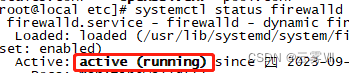
其中如图所示为防火墙开启状态,如果你已经关闭防火墙,并且设置开机不启动,并对防火请无使用需求,可跳过防火墙配置步骤 */
2.开启防火墙 systemctl start firewalld
3.关闭防火墙 systemctl stop firewalld
- 1
- 2
查看指定端口是否已开:firewall-cmd --query-port=85/tcp
添加指定需要开放的端口:firewall-cmd --add-port=85/tcp --permanent
重载入添加的端口:firewall-cmd --reload
查询指定端口是否开启成功:firewall-cmd --query-port=85/tcp
移除指定端口:firewall-cmd --permanent --remove-port=85/tcp


5.启动服务及启动报错处理
1.启动: /opt/lampp/xampp start
2.停止: /opt/lampp/xampp stop
3.启动: /opt/lampp/xampp restart
- 1
- 2
- 3
问题报错:
httpd: Syntax error on line 522 of /opt/lampp/etc/httpd.conf: Syntax error on line 13 of /opt/lampp/etc/extra/httpd-xampp.conf: Cannot load modules/mod_perl.so into server: libnsl.so.1: cannot open shared object file: No such file or directory
问题解决:
安装缺失模块命令
sudo yum install libnsl.x86_64
问题报错
libc.so.6: cannot open shared object file: No such file or directory
问题解决
vi /opt/lampp/lampp
export LD_ASSUME_KERNEL=2.8.0
如果在安装的过程中出现上述问题,修改lampp文件,如上位置即可
重启启动,显示启动成功
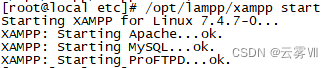
6.服务地址及官方API
服务地址:IP + `:Listen端口(85)` + /kodexplorer -----> http://192.168.72.128:85/kodexplorer
- 1
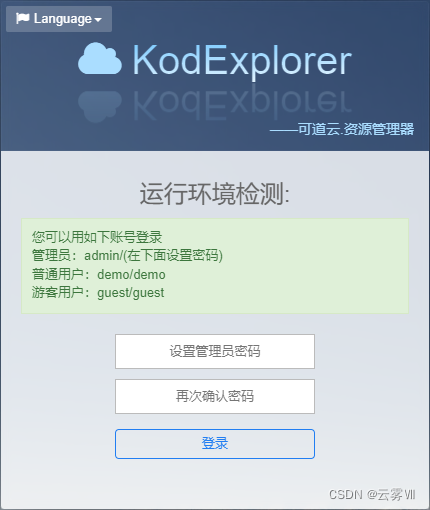
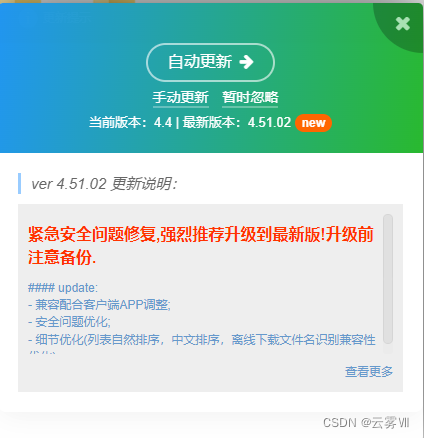
提示更新,点击自动更新,按照提示操作即可
- 1
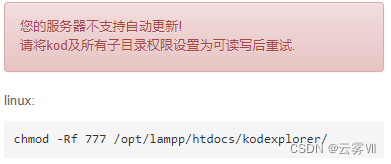
chmod -Rf 777 /opt/lampp/htdocs/kodexplorer/
- 1
官方API:http://doc.kodcloud.com/#/api/file
7.程序使用示例
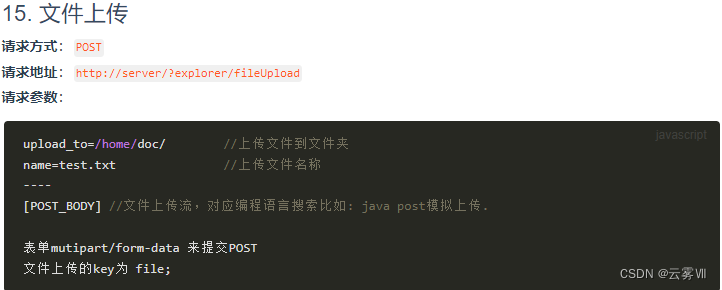
// 已文件上传为示例
1.获取token

public class File {
   @Autowired
   private RestTemplate restTemplate;

   @Value("${file.url}")String Url;//http://192.168.72.128:85/kodexplorer/?user/loginSubmit&isAjax=1&getToken=1&name=admin&password=admin

   @RequestMapping(value = "/getToken",method={RequestMethod.GET})
   private ApiResult getToken() throws Exception {
       HttpHeaders headers = new HttpHeaders();
       MediaType type = MediaType.parseMediaType("application/json; charset=UTF-8");
       headers.setContentType(type);
       headers.add("Accept", MediaType.APPLICATION_JSON.toString());
       HttpEntity<String> requestEntity = new HttpEntity<String>(null, headers);
       ResponseEntity<String> result = restTemplate.exchange(Url,HttpMethod.GET,requestEntity,String.class);
       String token = result.getBody();
       JSONObject token _json = JSONUtil.parseObj(token);// token
       return ApiResult.success(token _json);
   }
}
2.文件上传

<el-upload
   class="upload-demo"
   :action="upload"
   :file-list="fileList"
   :on-error="fileError"
   :on-preview="fileDownload"
   :on-remove="fileRemove"
   :on-success="fileSuccess"
   :on-change="handleChange"
   ref="upload"
   v-model="value">
   upload: http://192.168.72.128:85/kodexplorer/?explorer/fileUpload&accessToken=token&upload_to=path;//opt/lampp/htdocs/kodexplorer/data/User/admin/home/...
- 1
- 2
- 3
- 4
- 5
- 6
- 7
- 8
- 9
- 10
- 11
- 12
- 13
- 14
- 15
- 16
- 17
- 18
- 19
- 20
- 21
- 22
- 23
- 24
- 25
- 26
- 27
- 28
- 29
- 30
- 31
- 32
- 33
- 34
- 35
- 36
到此,上述内容为Linux搭建及使用可道云文件服务器,感谢阅览!

