- 1(整理)手机上一些常用的url_url大全
- 2【毅力挑战】PCIe 每日一问一答(2022.02 归档)_modified compliance pattern
- 3Android的前后端分离尝试——基于springboot和okhttp3_android后台能用spring吗
- 4redis持久化
- 5《智能家居系统》6_gec6818划屏算法
- 6Zookeeper集群搭建_zookeeper.request.timeout
- 7No route info of this topic, RMQ_SYS_TRACE_TOPIC 解决方案
- 8【pytorch】nn.linear 中为什么是y=xA^T+b
- 9adb 常用命令记录_adb保存日志到本地
- 10git分布式版本控制工具_分布式版本控制 fork clone update push commit
Kconfig 基本笔录_kconfig-frontends
赞
踩
kconfig-frontends
Kconfig文件的配置, 可以用命令行形式的kconfig-conf, 也可以使用界面配置的.
界面的显示至少有两种.
一种是kconfig-mconf KConfig, 直接在终端里面显示, 类似 make menuconfig 那样的显示效果, 当然做RT Thread的也熟悉这个界面
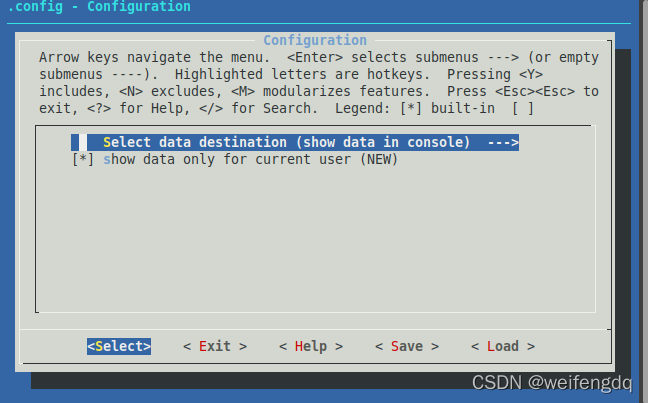
另一种 kconfig-qconf KConfig, 用qt风格的
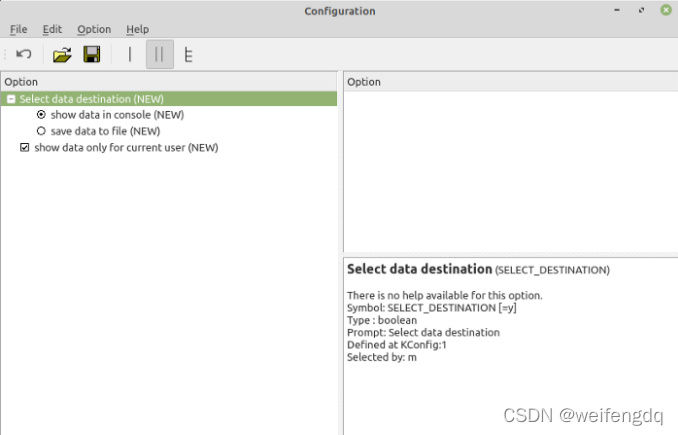
图片源自 Using kconfig for own projects. kconfig makes it easy to create… | by boozlachu | Medium
第一种图形界面的显示最常用. 本篇在Ubuntu18中操练, 不像Ubuntu20那样直接apt安装来的方便
先装前端
# Ubuntu各版本代号Code name参考: https://wiki.ubuntu.com/Releases, 如Ubuntu20是Focal, Ubuntu18是Bionic
# 查看 kconfig-frontends 在Ubuntu 中的发布历史
# https://launchpad.net/ubuntu/+source/kconfig-frontends/+publishinghistory
# Target中并没有bionic, 但有Focal

# Ubuntu 20及以后可以直接
$ sudo apt install kconfig-frontends

# 下面是 Ubuntu 18的安装方法
# 这个很久没更新了
# https://github.com/jameswalmsley/kconfig-frontends
# 那就参考 Nuttx 开发中的 kconfig-frontends 安装
# https://nuttx.apache.org/docs/latest/quickstart/install.html

# 可能需要安装的依赖
$ sudo apt install \
bison flex gettext texinfo libncurses5-dev libncursesw5-dev \
gperf automake libtool pkg-config build-essential gperf genromfs \
libgmp-dev libmpc-dev libmpfr-dev libisl-dev binutils-dev libelf-dev \
libexpat-dev gcc-multilib g++-multilib picocom u-boot-tools util-linux

$ git clone https://bitbucket.org/nuttx/tools.git
$ cd tools/kconfig-frontends
$ ./configure --enable-mconf
$ make
$ sudo make install
# 提示
# Libraries被放到了: /usr/local/lib
# 应用放到了 /usr/local/bin
# echo $PATH 中只有 /usr/local/bin, 没有/usr/local/lib
# 不慌, 可以把/usr/local/lib加入环境变量? 也可以把几个.so挪到/usr/lib里
$ sudo cp /usr/local/lib/libkconfig* /usr/lib

- 1
- 2
- 3
- 4
- 5
- 6
- 7
- 8
- 9
- 10
- 11
- 12
- 13
- 14
- 15
- 16
- 17
- 18
- 19
- 20
- 21
- 22
- 23
- 24
- 25
- 26
- 27
- 28
- 29
- 30
- 31
- 32
kconfig-mconf KConfig界面中提示的一些快捷键, 主要是SPACE, ESC, ENTER 还有用于搜索的 /
Arrow keys navigate the menu.
<Enter> selects submenus ---> (or empty submenus ----).
Highlighted letters are hotkeys.
Pressing <Y> includes, <N> excludes, <M> modularizes features.
Press <Esc><Esc> to exit, <?> for Help, </> for Search.
Legend: [*] built-in  [ ] excluded  <M> module  < > module capable
- 1
- 2
- 3
- 4
- 5
- 6
Kconfig文档
官方文档: https://www.kernel.org/doc/Documentation/kbuild/kconfig-language.txt
翻译参考: Kconfig-language翻译 | 唯客工作室 (vinshell.cc)
Hello
$ mkdir playground && cd $_

# 新建文件 Kconfig, 一般叫这个名字的在VScode中用插件可以渲染出来
# config: 启动一个新的配置条目
# ABC: 符号名Symbol
# 合起来就是 CONFIG_ABC
$ vi Kconfig
config ABC
	tristate "Hello ABC"

# 进入配置界面
$ kconfig-mconf Kconfig
- 1
- 2
- 3
- 4
- 5
- 6
- 7
- 8
- 9
- 10
- 11
- 12
终端就出现界面
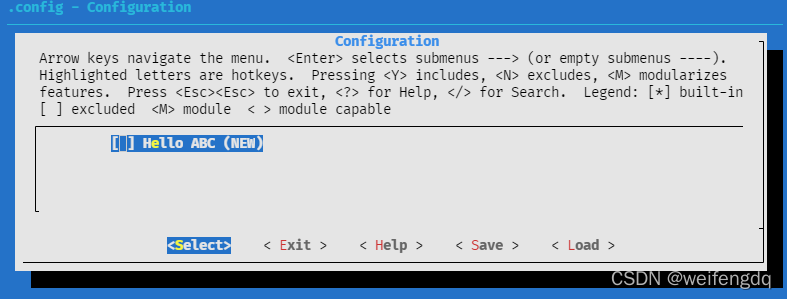
按空格或者Y选中, 让它变成*号, 然后直接按两下ESC, 退出
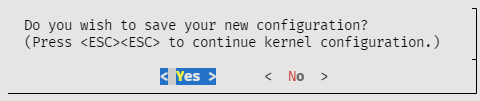
默认Yes, 回车, 就退出界面, 此时命令行提示写入了 .config 文件
$ kconfig-mconf Kconfig
configuration written to .config

*** End of the configuration.
*** Execute 'make' to start the build or try 'make help'.

$ cat .config
#
# Automatically generated file; DO NOT EDIT.
# Configuration
#
CONFIG_ABC=y
- 1
- 2
- 3
- 4
- 5
- 6
- 7
- 8
- 9
- 10
- 11
- 12
还是用图片来形象的说明一下吧
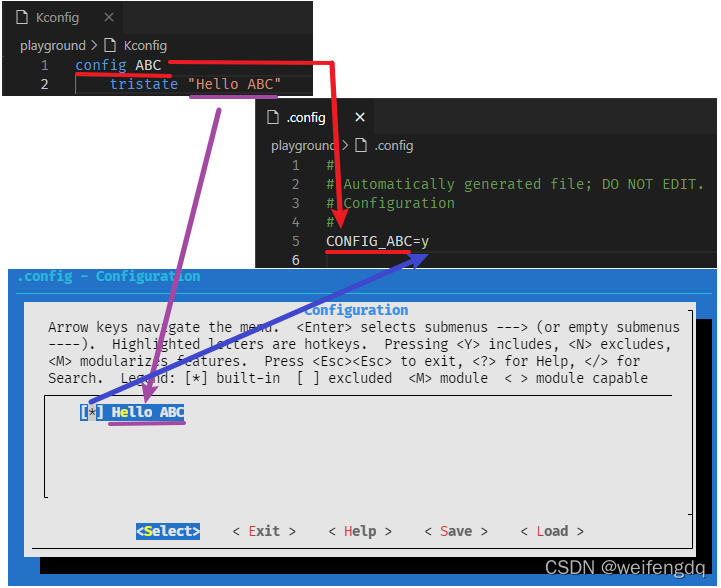
其中:
config ABC创建新条目(entry), 大写加下划线就变成了.config文件中的CONFIG_ABCtristate和string是两大基本类型, 前者选中为y, 默认不选中n, 还有一种m代表module, string的前缀是(), 可以输入字符串. 类型定义还有bool/hex/intHello ABC是输入提示(prompt, 每个entry最多一个prompt)
string & comment
继续加码
$ vi Kconfig
# two entrys and one comment

config ABC
	tristate "Hello ABC"
	default y
	help
	  display Hello ABC

config XYZ
	string "Hello XYZ"
	default "Please Enter"
	help
	  user input will display in ()

comment "it's a comment"
- 1
- 2
- 3
- 4
- 5
- 6
- 7
- 8
- 9
- 10
- 11
- 12
- 13
- 14
- 15
- 16
其中:
#开头表示注释CONFIG_ABC默认值是y, help后面是帮助信息display Hello ABCCONFIG_XYZ默认值是Please Enter- comment 是注释, 后面的文本在界面中会显示出来, 被
*** ***包裹
运行kconfig-mconf Kconfig, 显示
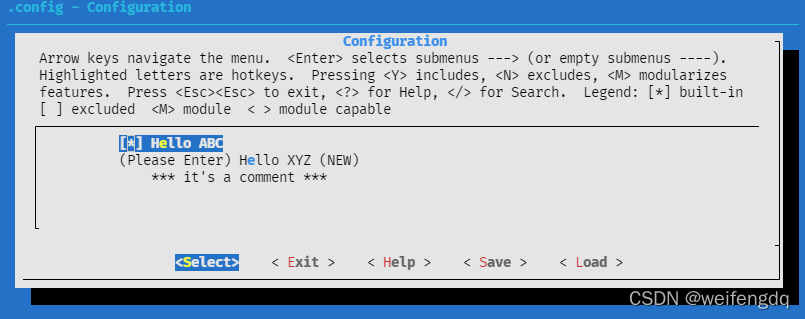
其中:
- 第一个条目默认选中
- 第二个条目因为是新增的, 后面会显示
(NEW), 保存配置下次就不显示了 - 第三行为注释的文本
进入第二个条目, 可以删掉默认的Please Enter字样, 删掉, 随便输入一些文本, 回车
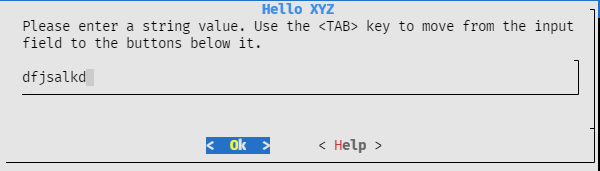
界面就变成了输入的字样:
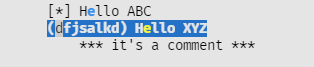
方向键移到条目, 可以按下?(也就是Shift+/)查看该条目的help, 如Hello XYZ条目的help:
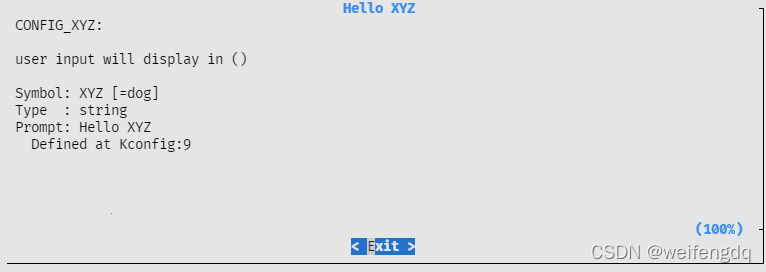
退出后, 按两下ESC, 回车保存退出, 看下.config文件
$ cat .config
#
# Automatically generated file; DO NOT EDIT.
# Configuration
#
CONFIG_ABC=y
CONFIG_XYZ="dfjsalkd"

#
# it's a comment
#
- 1
- 2
- 3
- 4
- 5
- 6
- 7
- 8
- 9
- 10
- 11
.config.old
经过上面的操作后, 发现多了 .config.old 文件
$ tree -a
.
├── .config
├── .config.old
└── Kconfig

0 directories, 3 files

$ cat .config.old
#
# Automatically generated file; DO NOT EDIT.
# Configuration
#
CONFIG_ABC=y
- 1
- 2
- 3
- 4
- 5
- 6
- 7
- 8
- 9
- 10
- 11
- 12
- 13
- 14
.config.old其实保存的是上次的配置, 可以用于回滚等
反向操作
.config文件中提示DO NOT EDIT, 但我们还是痛下狠手, 看下直接修改.config会不会影响界面
$ vi .config
#
# Automatically generated file; DO NOT EDIT.
# Configuration
#
CONFIG_ABC=n
CONFIG_XYZ="dog"

#
# it's a comment
#
- 1
- 2
- 3
- 4
- 5
- 6
- 7
- 8
- 9
- 10
- 11
打开配置界面 kconfig-mconf Kconfig, 如我们所愿, 它变了
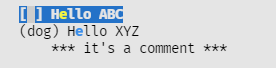
所以, 可以不通过界面, 直接修改.config文件, 仍然会使配置项生效, 但是不会更新.config.old, 这有时会有些危险
$ cat .config.old
#
# Automatically generated file; DO NOT EDIT.
# Configuration
#
CONFIG_ABC=y
- 1
- 2
- 3
- 4
- 5
- 6
界面勿小
把终端窗口缩小, 进入配置
$ kconfig-mconf Kconfig
Your display is too small to run Menuconfig!
It must be at least 19 lines by 80 columns.
- 1
- 2
- 3
提示至少需要19行. 80列
menu
类似于界面操作中常见的一级菜单二级菜单, 我们可以把一些条目用 menu和endmenu包起来
$ vi Kconfig
# two entrys and one comment

menu "it's a menu"

config ABC
	tristate "Hello ABC"
	default y
	help
	  display Hello ABC

config XYZ
	string "Hello XYZ"
	default "Please Enter"
	help
	  user input will display in ()

endmenu

comment "it's a comment"
- 1
- 2
- 3
- 4
- 5
- 6
- 7
- 8
- 9
- 10
- 11
- 12
- 13
- 14
- 15
- 16
- 17
- 18
- 19
- 20
进入配置面 kconfig-mconf Kconfig
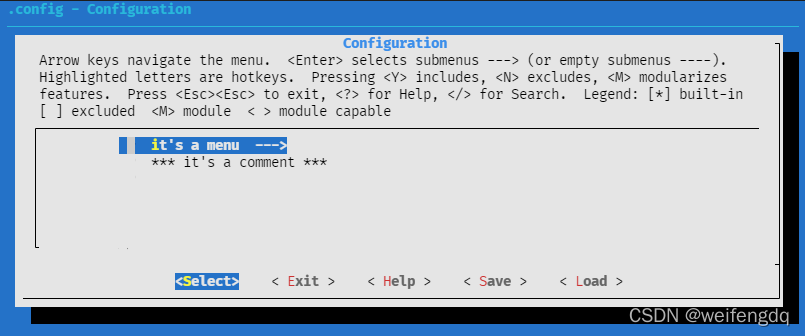
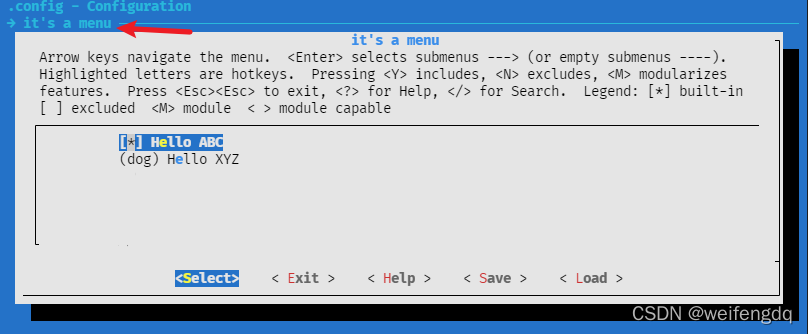
可以按Enter进入这个菜单, 那这两个条目确实是进来了
source 多个Kconfig
关键字source用于读取指定的配置文件, 可以用source把多个Kconfig串起来, 就像代码展开一样
我们新建一个test文件夹, 里面也放一个Kconfig
$ tree -a
.
├── .config
├── .config.old
├── Kconfig
└── test
    └── Kconfig

1 directory, 4 files

$ cat test/Kconfig
config TEST
	tristate "Hello TEST"
	help
	  display Hello TEST

$ cat Kconfig
menu "it's a menu"

config ABC
	tristate "Hello ABC"
	default y
	help
	  display Hello ABC

config XYZ
	string "Hello XYZ"
	default "Please Enter"
	help
	  user input will display in ()

endmenu

source "test/Kconfig"

comment "it's a comment"
- 1
- 2
- 3
- 4
- 5
- 6
- 7
- 8
- 9
- 10
- 11
- 12
- 13
- 14
- 15
- 16
- 17
- 18
- 19
- 20
- 21
- 22
- 23
- 24
- 25
- 26
- 27
- 28
- 29
- 30
- 31
- 32
- 33
- 34
- 35
- 36
Kconfig中source放在了menu和comment中间, 进入配置kconfig-mconf Kconfig看看效果
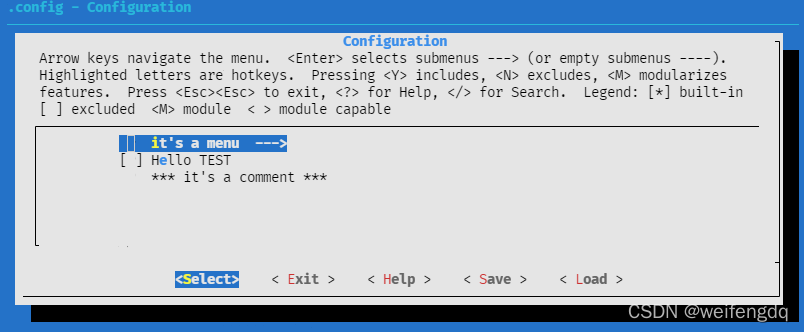
发现 test/Kconfig 的配置条目Hello Test被插进去了, 选中它保存退出
$ tree -a
.
├── .config
├── .config.old
├── Kconfig
└── test
    └── Kconfig

1 directory, 4 files

$ cat .config
#
# Automatically generated file; DO NOT EDIT.
# Configuration
#

#
# it's a menu
#
CONFIG_ABC=y
CONFIG_XYZ="dog"
CONFIG_TEST=y

#
# it's a comment
#
- 1
- 2
- 3
- 4
- 5
- 6
- 7
- 8
- 9
- 10
- 11
- 12
- 13
- 14
- 15
- 16
- 17
- 18
- 19
- 20
- 21
- 22
- 23
- 24
- 25
- 26
test文件夹下并没有.config, 是因为我们没有进去test文件夹kconfig-mconf Kconfig
外面的.config确实是有CONFIG_TEST的配置项
备忘
几大关键字的用法这里就不展开一一测试了
- config
- menuconfig
- choice/endchoice
- comment
- menu/endmenu
- if/endif
- source
- 1
- 2
- 3
- 4
- 5
- 6
- 7
更多信息和用法可以参考官方的 Kconfig 文档, 或者直接去看linux内核源码中的Kconfig
还有一些kconfig-开头的常用命令
$ kconfig-
kconfig-conf     kconfig-diff     kconfig-gettext  kconfig-mconf    kconfig-merge    kconfig-nconf    kconfig-tweak

# 一行一行命令的方式配置: kconfig-conf Kconfig
# 比较两个.config的差异: kconfig-diff .config .config.old
# 查看配置?: kconfig-gettext Kconfig
# merge操作: kconfig-merge
# 更朴素的界面形式: kconfig-nconf Kconfig
# 微调?: kconfig-tweak
- 1
- 2
- 3
- 4
- 5
- 6
- 7
- 8
- 9
欢迎扫描二维码关注微信公众号, 及时获取最新文章: