- 1【人工智能】聊聊Transformer,深度学习的一股清流(13)
- 2win10 python 脚本开机自启_python 电脑定时开机并打开软件
- 3配置一个简单的传统SSM项目_简单ssm项目
- 4vue+element-ui实现表格里嵌套表格_vue多条表单数据,点击哪行,哪行增加一个table表格
- 5pandas使用chunksize分块处理大型csv文件_pandas chunksize
- 6视频无损放大修复工具Topaz Video AI 新手入门教程
- 7【蓝桥杯选拔赛真题23】C++计算24 第十二届蓝桥杯青少年创意编程大赛C++编程选拔赛真题解析_c++创客大赛题目
- 8Flink:Flink-SQL开发_flink sql
- 9解决【v-show 有时失效】问题_v-show 失效
- 10GPU版PyTorch对应安装教程_pytorch gpu版本
【记录】vue-cli+element-ui 制作一个侧边栏组件(抽屉Drawer)_vue3+抽屉
赞
踩
用到的组件
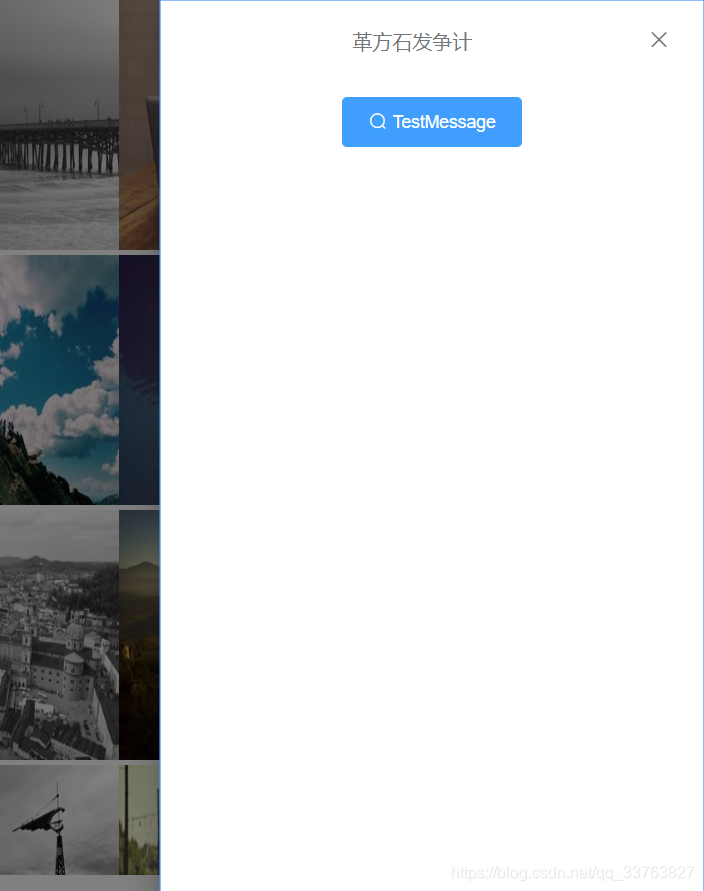
el-drawer抽屉、el-button按钮
测试还用到了输入框等组件
功能
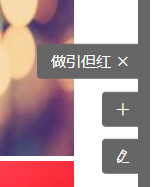
1.自由添加按钮,并可使按钮居中
2.抽屉里的内容由<slot>插入,用的具名插槽
3.鼠标悬停在按钮时出现文字
4.可指定侧边栏距离窗口最右侧的距离
效果图

实现代码
//vue单组件文件
<template>
  <div class="bar__index">
    <div class="bar__side-bar-bg" :style="{ right: this.barRight }"></div>
      <div :class="bar__btn-list" :style="{ right: this.barRight }">
        <div
          :class="bar__btn"
          @mouseover="item.btnText = item.title"
          @mouseout="item.btnText = ''"
          v-for="(item, index) in this.btnInfo"
          :key="index"
          prop="btnInfo"
        >
          <el-button
            type="primary"
            size="mini"
            @click="isShow ? isShow(item, index) : ''"
          >
            {{ item.btnText }}
            <i :class="item.iconClass"></i>
          </el-button>
        </div>
      </div>
      <el-drawer
        :title="title"
        :visible.sync="drawerShow"
        :before-close="handleClose"
        :size="drawerSize"
      >
        <slot :name="slotName"></slot>
      </el-drawer>
  </div>
</template>

<script>
import create from "../../core/create";

export default create({
  name: "sidebar",
  props: {
    option: {
      type: Object,
      default: () => {
        return {};
      },
    },
  },
  computed: {
    btnInfo: function () {
      return this.option.btnInfo || [];
    },
  },
  data() {
    return {
      drawerShow: false,
      title: "",
      drawerSize: "",
      slotName: "",
      isShow: this.option.isShow,
      barRight: this.option.barRight || "",
    };
  },
  methods: {
    handleClose(done) {
      this.$confirm("确认离开提交页面?")
        .then((_) => {
          done();
        })
        .catch((_) => {});
    },
  },
});
</script>

<style scoped lang="scss">
$bg-color: #666666;
@mixin position{
  position: fixed;
  z-index: 999;
}
.bar {
  &__index {
    >>> .el-drawer__header > :first-child {
      text-align: center;
    }
  }
  &__side-bar-bg {
    @include position();
    height: 100%;
    width: 10px;
    background-color: $bg-color;
  }
  &__btn-list {
    @include position();
    top: 50%;
    transform: translate(0, -50%);
  }
  &__btn {
    width: 100px;
    display: flex;
    justify-content: flex-end;
    margin-top: 10px;
    >>> .el-button--primary {
      background-color: $bg-color;
      border-color: $bg-color;
      padding-left: 10px;
      padding-right: 15px;
    }
  }
}
</style>

- 1
- 2
- 3
- 4
- 5
- 6
- 7
- 8
- 9
- 10
- 11
- 12
- 13
- 14
- 15
- 16
- 17
- 18
- 19
- 20
- 21
- 22
- 23
- 24
- 25
- 26
- 27
- 28
- 29
- 30
- 31
- 32
- 33
- 34
- 35
- 36
- 37
- 38
- 39
- 40
- 41
- 42
- 43
- 44
- 45
- 46
- 47
- 48
- 49
- 50
- 51
- 52
- 53
- 54
- 55
- 56
- 57
- 58
- 59
- 60
- 61
- 62
- 63
- 64
- 65
- 66
- 67
- 68
- 69
- 70
- 71
- 72
- 73
- 74
- 75
- 76
- 77
- 78
- 79
- 80
- 81
- 82
- 83
- 84
- 85
- 86
- 87
- 88
- 89
- 90
- 91
- 92
- 93
- 94
- 95
- 96
- 97
- 98
- 99
- 100
- 101
- 102
- 103
- 104
- 105
- 106
- 107
- 108
- 109
- 110
生成测试的数据代码(用的mock.js)
<script>
    //开始生成测试数据
    const demoData = [];
    const demoDataNum = Mock.mock("@integer(1, 8)");
    const iconClass = [
      "el-icon-plus",
      "el-icon-edit",
      "el-icon-close"
    ];
    const slotName = ["btn1", "btn2", "btn3"];
    for (let i = 0; i < demoDataNum; i++) {
      demoData.push({
        title: Mock.mock("@cword(4, 7)"),
        btnText: "",
        iconClass: iconClass[Mock.mock("@integer(0, 2)")],
        drawerSize: Mock.mock("@integer(400, 500)").toString() + "px",
        slotName: slotName[Mock.mock("@integer(0, 2)")],
      });
    }
    new Vue({
      el: "#app",
      data() {
        return {
          datas: demoDataImage,
          value: true,
          textarea: "",
          Msg: "TestMessage",
          option: {
            barRight: "7px",
            btnInfo: demoData,
            isShow: function (item, index) {
              this.drawerShow = true;
              this.title = item.title;
              this.drawerSize = item.drawerSize;
              this.slotName = item.slotName;
            },
          },
        };
      },
      methods: {
      },
    });
  </script>
- 1
- 2
- 3
- 4
- 5
- 6
- 7
- 8
- 9
- 10
- 11
- 12
- 13
- 14
- 15
- 16
- 17
- 18
- 19
- 20
- 21
- 22
- 23
- 24
- 25
- 26
- 27
- 28
- 29
- 30
- 31
- 32
- 33
- 34
- 35
- 36
- 37
- 38
- 39
- 40
- 41
- 42
- 43
插入drawer内容的代码例子,主要在slot="name"上
```javascript
     <sidebar :option="option">
        <template slot="btn1">
          <el-button type="primary" icon="el-icon-search">{{Msg}}</el-button>
        </template>
        <template slot="btn2">
          <el-input
            type="textarea"
            :autosize="{ minRows: 2, maxRows: 4}"
            :placeholder="Msg"
            v-model="textarea"
          >
          </el-input>
        </template>
        <template slot="btn3">
          <el-switch v-model="value" :active-text="Msg" :inactive-text="Msg">
          </el-switch>
        </template>
      </sidebar>
- 1
- 2
- 3
- 4
- 5
- 6
- 7
- 8
- 9
- 10
- 11
- 12
- 13
- 14
- 15
- 16
- 17
- 18
- 19
- 20
实现功能的关键代码
1.用内联样式来指定侧边栏距离窗口最右侧的距离
<div class="bar__side-bar-bg" :style="{ right: this.barRight }"></div>
      <div :class="bar__btn-list" :style="{ right: this.barRight }">
- 1
- 2
2.鼠标悬停出现文字提示
 @mouseover="item.btnText = item.title"
 @mouseout="item.btnText = ''"
- 1
- 2
这里会出现按钮浮动的情况所以还需要为按钮div添加样式,使按钮始终从右向左排列,默认的是靠左。关于flex可以去查阅CSS伸缩盒模型。
display: flex;
justify-content: flex-end;
- 1
- 2
3.使侧边栏始终保持在最上层(绝对定位+z-index)
@mixin position{
  position: fixed;
  z-index: 999;
}
- 1
- 2
- 3
- 4
4.无论多少个按钮都始终保持居中
绝对定位后,先使整个按钮div距离窗口顶部50%的距离,再通过一个translate减去自身元素高度的50%就可以实现
  &__btn-list {
    @include position();
    top: 50%;
    transform: translate(0, -50%);
  }
- 1
- 2
- 3
- 4
- 5
- 6
5.点击按钮出现el-drawer组件即抽屉
 @click="isShow ? isShow(item, index) : ''"

           isShow: function (item, index) {
              this.drawerShow = true;
              this.title = item.title;
              this.drawerSize = item.drawerSize;
              this.slotName = item.slotName;
            },
- 1
- 2
- 3
- 4
- 5
- 6
- 7
- 8
绑定按钮点击事件来改变el-drawer的:visible.sync值并且给drawer里的标题,盒子大小还有slot进行赋值
:visible.sync="drawerShow"
- 1
.sync修饰符双向绑定
========================================================
大致就是这样,为了使弹出画面更流畅,推荐对窗口使用el-scrollbar组件,这样就不会出现页面内容过多出现浏览器自带的滚动条从而使体验度下降的问题,关于el-scorllbar,element-ui官方文档没有给出组件说明,但是在github可以看到源码,使用方法百度上也有特别多的教程,因为组件修改了很多遍,最终版本并没有用到el-drawer又怕忘了这个方法,特此记录。
========================================================
建议:看懂代码再自己编写,因为此组件是在组件开发的框架下面写的,所以如果是直接拿来应用会有很多东西需要修改