
热门标签
热门文章
- 1win11出现安全中心空白和IT管理员已限制对此应用的某些区域的访问_win11被it管理员限制的原因
- 2Docker部署MinIO对象存储服务器结合内网穿透实现远程访问
- 3【愚公系列】2023年12月 Java教学课程 213-ElasticSearch(数据聚合、数据补全、数据同步)
- 4【2023 英特尔On技术创新大会直播 |我与英特尔的初次相遇】—— AIPC探索下一代的物联网时代
- 5计算机教师招聘笔试总结_大专计算机老师笔试
- 6基于Python的Selenium详细教程_pycharm安装selenium
- 7鸿蒙(HarmonyOS)应用开发——从网络获取数据(题目答案)_web组件onconfirm(callback: (event?: { url: string; m
- 8MacBook安装Golang Oracle数据库驱动程序_“libclntsh.dylib.19.1”不是来自app store的app。
- 9【记录】vue-cli+element-ui 制作一个侧边栏组件(抽屉Drawer)_vue3+抽屉
- 10基于Elasticsearch + Fluentd + Kibana(EFK)搭建日志收集管理系统_kibana fluentd
当前位置: article > 正文
Unity3D根据物体运动画出实体轨迹线_unity 绘制轨迹路线
作者:代码优化者 | 2023-12-29 18:40:04
赞
踩
unity 绘制轨迹路线
项目场景:
在Unity3D根据物体运动画出实体轨迹线
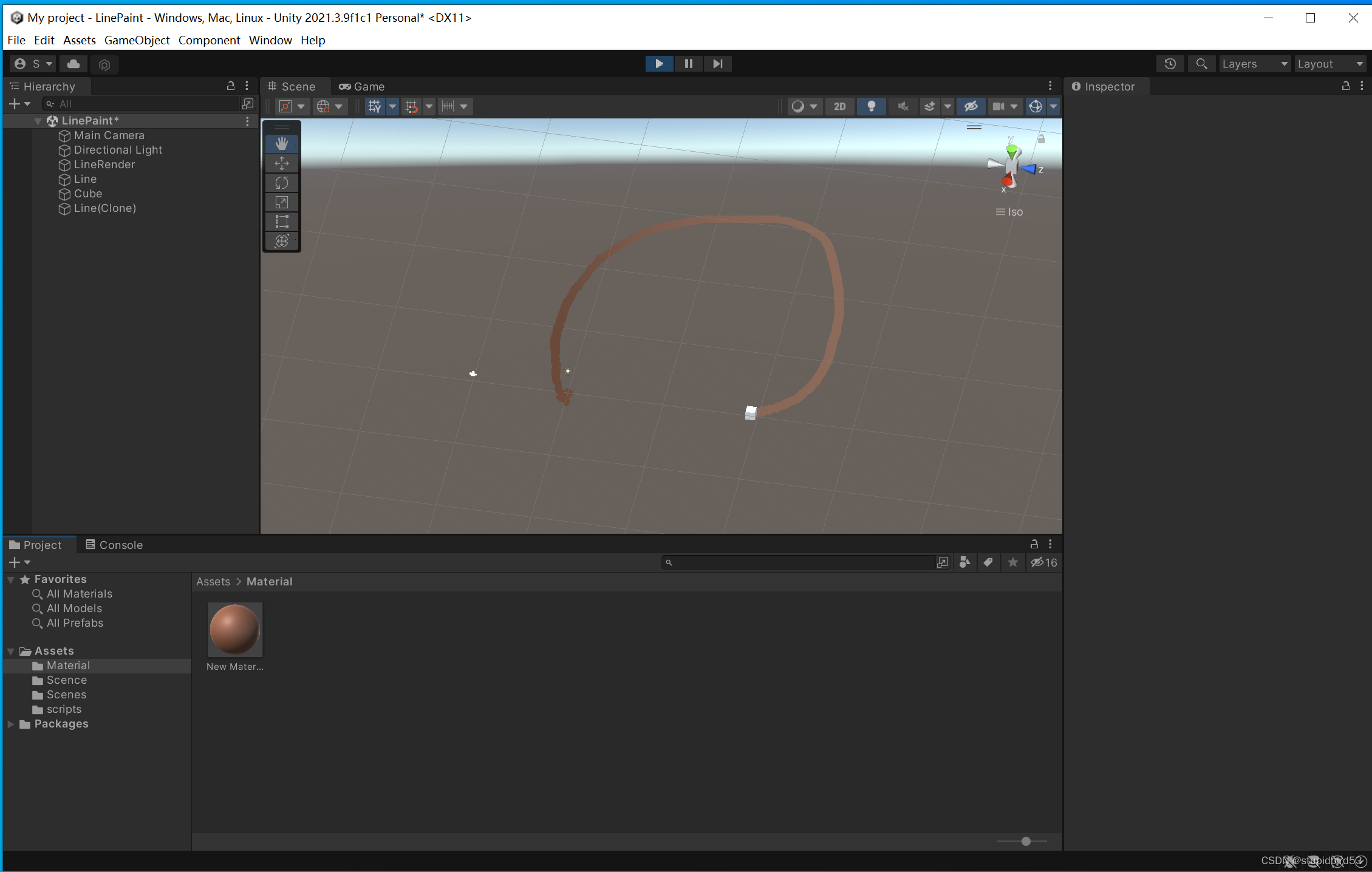
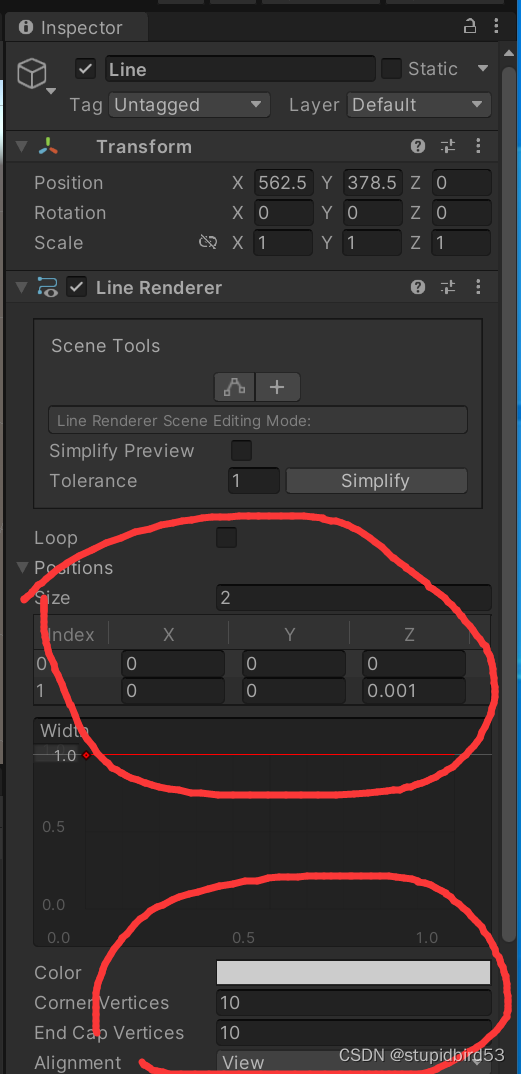
第一步,新建一个空物体Line
在Inspector里面添加组件LineRender,线条圆滑设置如下,
颜色可以新建材质直接拖上该物体上就行。
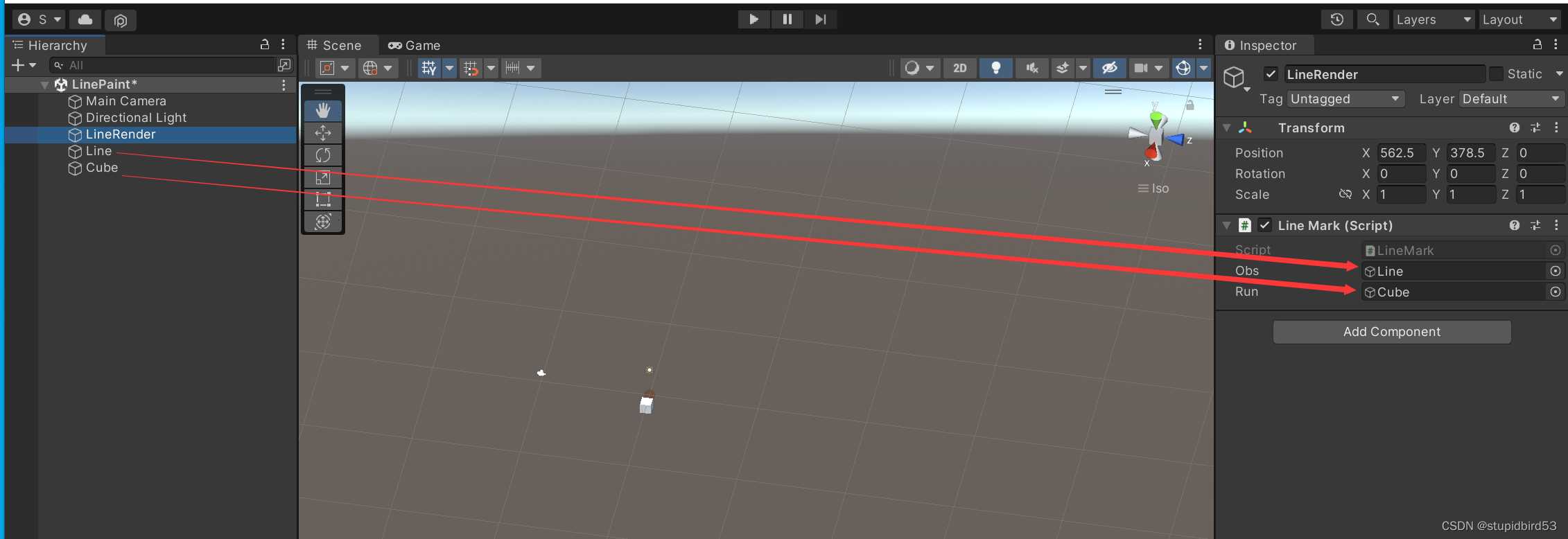
第二步,新建空物体LineRender
添加脚本LineMark
using System.Collections;
using System.Collections.Generic;
using UnityEngine;

public class LineMark : MonoBehaviour
{


	private GameObject clone;
	private LineRenderer line;
	private int i;
	public GameObject obs;
	public GameObject run;
	Vector3 RunStart;
	Vector3 RunNext;

	// Use this for initialization
	void Start()
	{
		RunStart = run.transform.position;
		clone = (GameObject)Instantiate(obs, run.transform.position, run.transform.rotation);//克隆一个带有LineRender的物体
		line = clone.GetComponent<LineRenderer>();//获得该物体上的LineRender组件
												  //		//line.SetColors(Color.blue, Color.red);//设置颜色
												  //		//line.SetWidth(0.2f, 0.1f);//设置宽度
		i = 0;
	}

	// Update is called once per frame
	void Update()
	{

		RunNext = run.transform.position;

		if (RunStart != RunNext)
		{
			i++;
			line.SetVertexCount(i);//设置顶点数
			line.SetPosition(i - 1, run.transform.position);

		}

		RunStart = RunNext;


		//		if (Input.GetMouseButtonDown(0))
		//		{
		//			clone = (GameObject)Instantiate(obs, obs.transform.position, transform.rotation);//克隆一个带有LineRender的物体
		//			line = clone.GetComponent<LineRenderer>();//获得该物体上的LineRender组件
		//			line.SetColors(Color.blue, Color.red);//设置颜色
		//			line.SetWidth(0.2f, 0.1f);//设置宽度
		//			i = 0;
		//			print ("GetMouseButtonDown");
		//		}
		//		if (Input.GetMouseButton(0))
		//		{
		//			i++;
		//			line.SetVertexCount(i);//设置顶点数
		//			line.SetPosition(i - 1, Camera.main.ScreenToWorldPoint(new Vector3(Input.mousePosition.x, Input.mousePosition.y, 15)));//设置顶点位置
		//			print ("GetMouseButton");
		//
		//		}


	}
}

- 1
- 2
- 3
- 4
- 5
- 6
- 7
- 8
- 9
- 10
- 11
- 12
- 13
- 14
- 15
- 16
- 17
- 18
- 19
- 20
- 21
- 22
- 23
- 24
- 25
- 26
- 27
- 28
- 29
- 30
- 31
- 32
- 33
- 34
- 35
- 36
- 37
- 38
- 39
- 40
- 41
- 42
- 43
- 44
- 45
- 46
- 47
- 48
- 49
- 50
- 51
- 52
- 53
- 54
- 55
- 56
- 57
- 58
- 59
- 60
- 61
- 62
- 63
- 64
- 65
- 66
- 67
- 68
- 69
将上面的Line放在OBS里面,对应需要画出的物体直接拖入右侧的
—
小技巧:想画出对应阶段的轨迹曲线可以通过启用和不启用脚本实现,或者改换透明材质。
声明:本文内容由网友自发贡献,不代表【wpsshop博客】立场,版权归原作者所有,本站不承担相应法律责任。如您发现有侵权的内容,请联系我们。转载请注明出处:https://www.wpsshop.cn/article/detail/36719?site
推荐阅读



相关标签

