
热门标签
热门文章
- 12023年软件测试就业现状分析,到底是卷还是润?_2023年软件测试就业趋势
- 2如何用Stable Diffusion模型生成个人专属创意名片?_使用stable-diffusion生成创意名片
- 3OC面向对象,面向过程_oc可以面向过程嘛?
- 4python批量计算cosine distance_cosine python
- 5MySql分表后如何进行分页查询_mysql分表后如何分页
- 65T的资源大礼包整合,总有你想要的!_vip aqdk300
- 7使用 Python 实现一个简单的智能聊天机器人(附完整代码)_python聊天机器人代码
- 8OKHttp从入门到放弃(自己编写测试服务端)_okhttp服务端
- 9STM32F4读写内部FLASH【使用库函数】_stm32f407 flash读写
- 10Grounding DINO:开放集目标检测,将基于Transformer的检测器DINO与真值预训练相结合
当前位置: article > 正文
【Jetson】通过操作 Rosmaster 使用 Python 语言快速熟悉并操作小车_python通过tcp协议与无人车小车建立通信rosmaster
作者:思考机器4 | 2024-01-31 16:12:32
赞
踩
python通过tcp协议与无人车小车建立通信rosmaster
最近又买了亚博智能的ROSMASTER X3,模样就是下边这样了。所给的资料也非常丰富。
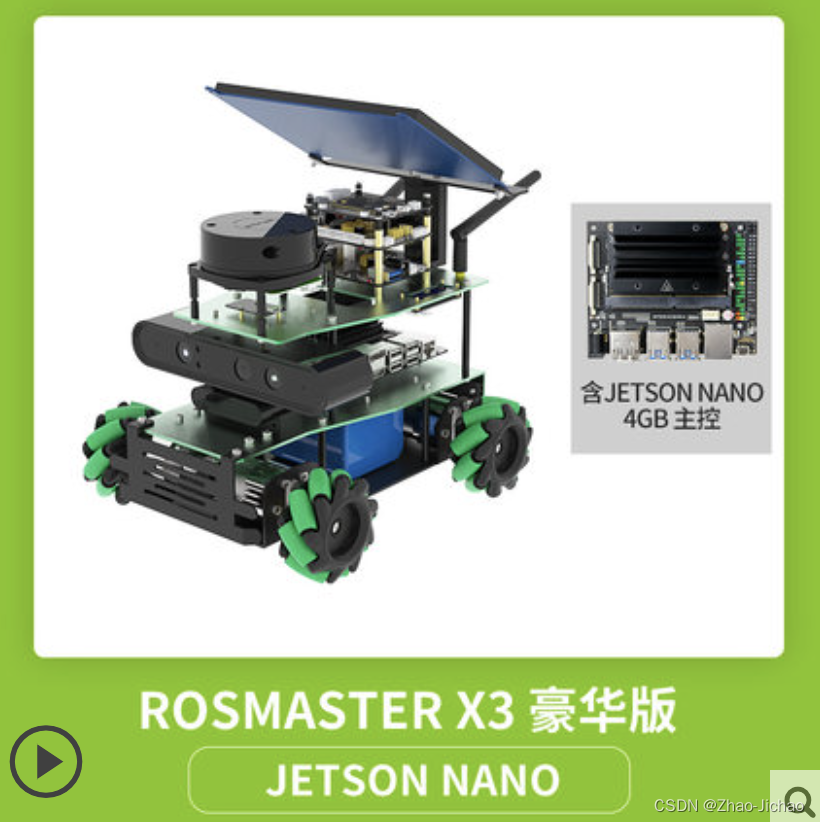
不过主要还是需要开发自己的小项目,因此花了几天时间把资料理了一下思路,然后重点跑一下自己需要用的部分。资料来源于:05、ROSMASTER基础控制教程。
这个教程就是通过使用 Rosmaster 库,利用 Python 语言快速操作小车的一些程序总结,同时包括自己在测试时遇到的 bug 问题。
给的教程是 jupyter 网页端直接测试,但是我还是更喜欢用 IDE 例如 VSCode 来直接写程序。因此,借助了教程 使用Visual Studio Code连接远程Linux服务器 从而使自己能远程操作小车。
3. test_rosmaster
#!/usr/bin/env python3
#coding=utf-8

# 导入Rosmaster驱动库  Import Rosmaster driver library
from Rosmaster_Lib import Rosmaster

# 创建Rosmaster对象 bot Create the Rosmaster object bot
bot = Rosmaster()
# help 能够打印bot的所有方法和备注内容。
# Help can print all the bot methods and remarks
help(bot)

# 启动接收数据,只能启动一次,所有读取数据的功能都是基于此方法
# Start to receive data, can only start once, all read data function is based on this method
bot.create_receive_threading()

# 读取版本号 Read version number
version = bot.get_version()
print(version)

# 读取电池电压值 Read the battery voltage
voltage = bot.get_battery_voltage()
print(voltage)

# 程序结束后请删除对象,避免在其他程序中使用Rosmaster库造成冲突
# Please delete the object after the program to avoid conflicts caused by Rosmaster library in other programs
del bot

- 1
- 2
- 3
- 4
- 5
- 6
- 7
- 8
- 9
- 10
- 11
- 12
- 13
- 14
- 15
- 16
- 17
- 18
- 19
- 20
- 21
- 22
- 23
- 24
- 25
- 26
- 27
3.1 BUG 电池电压返回0
我第一次使用时,电池电压返回了 0.0,这当然是不对的。
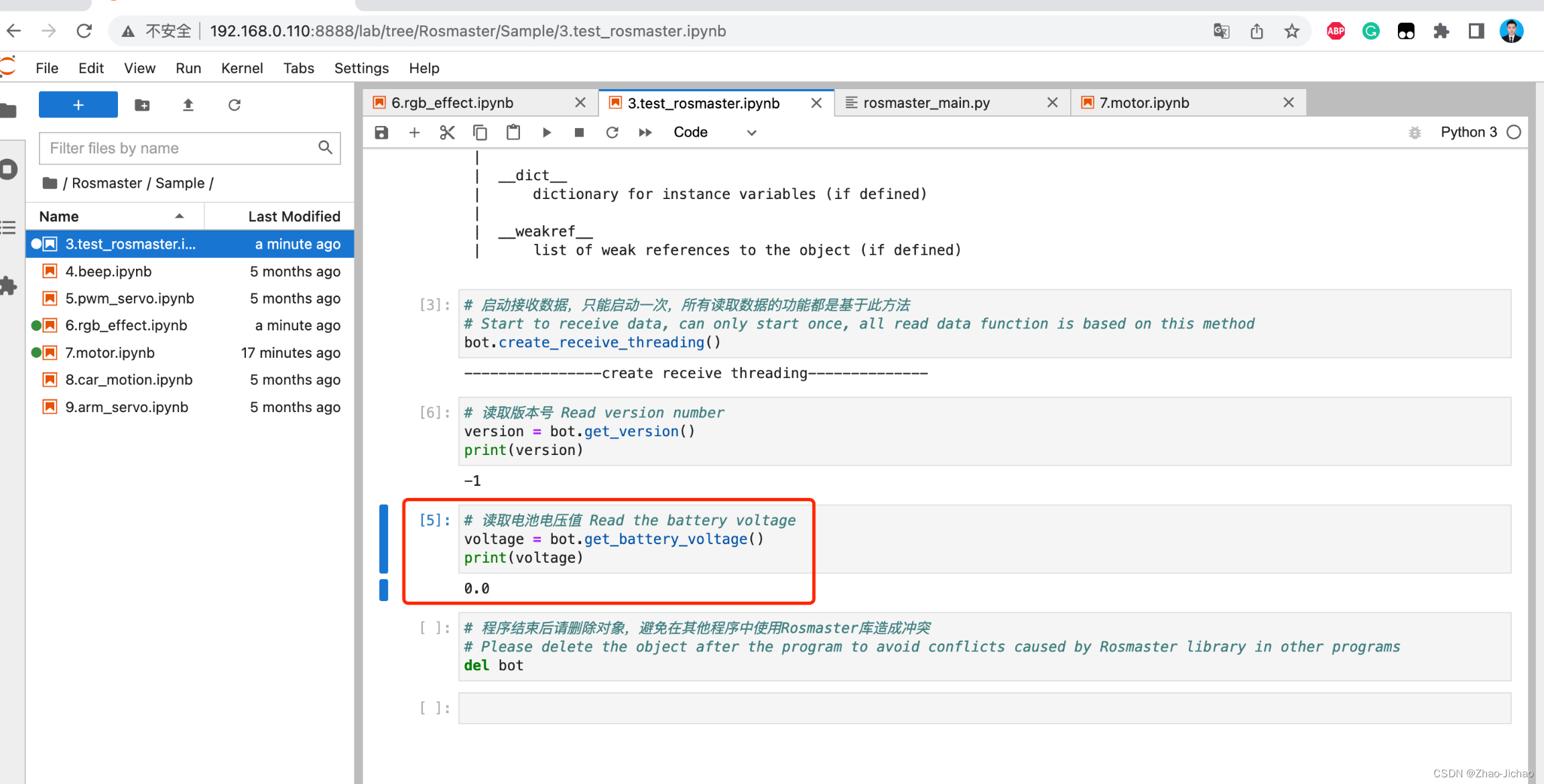
咨询客服后,发现是多USB接口混乱的问题。这是因为我的车上的 USB hub 模块,不仅连接了 Ros 扩展板,同时还接了语音模块,没有接雷达和相机。因此 Jetson 在识别时有可能识别错了 USB,也就是本来应该识别 Ros 扩展板,结果识别成了语音模块,那么返回的数据肯定就是错的了。
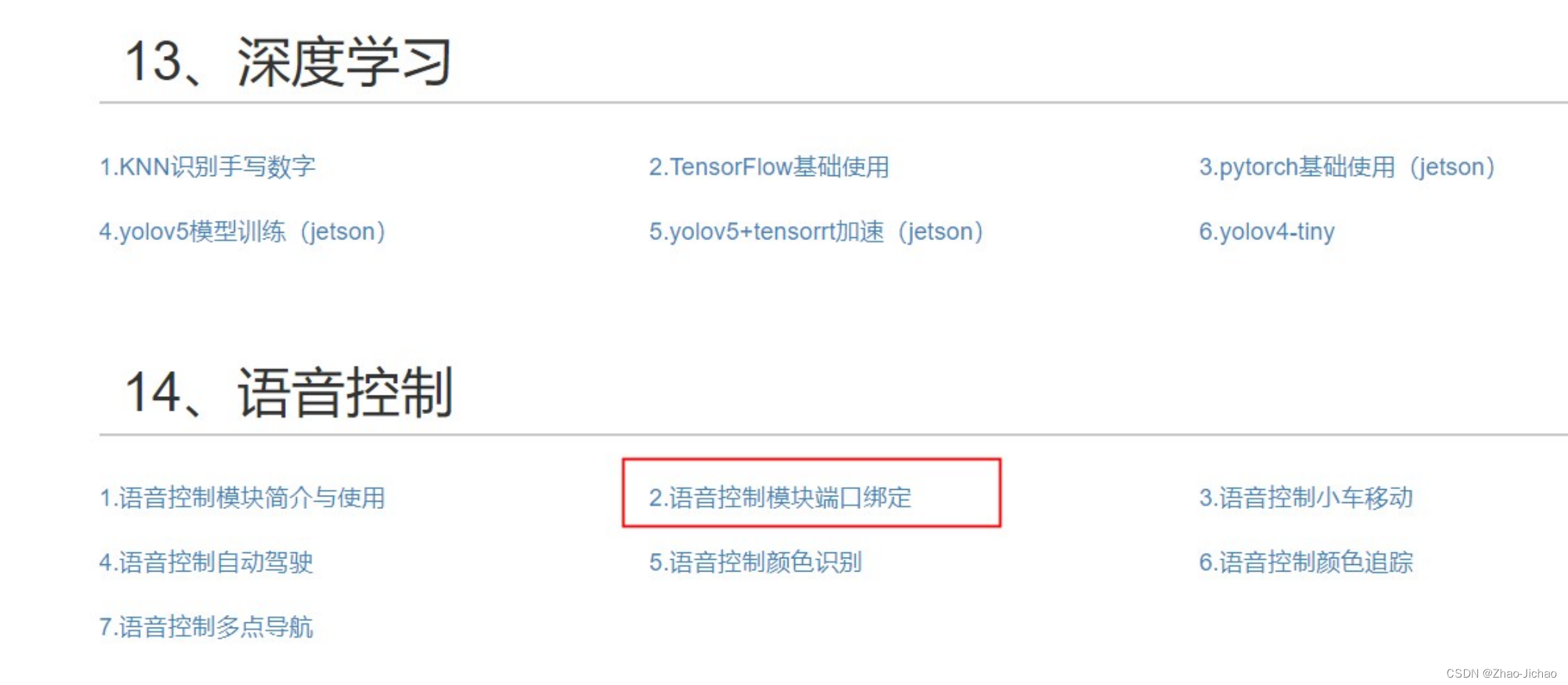
解决办法就是,如果需要连接语音板开机,需要按照这个教程 2.语音控制模块端口绑定
先绑定端口后接可以了。同时需要注意的是绑定端口后USB口的接线就不要随意更改了。
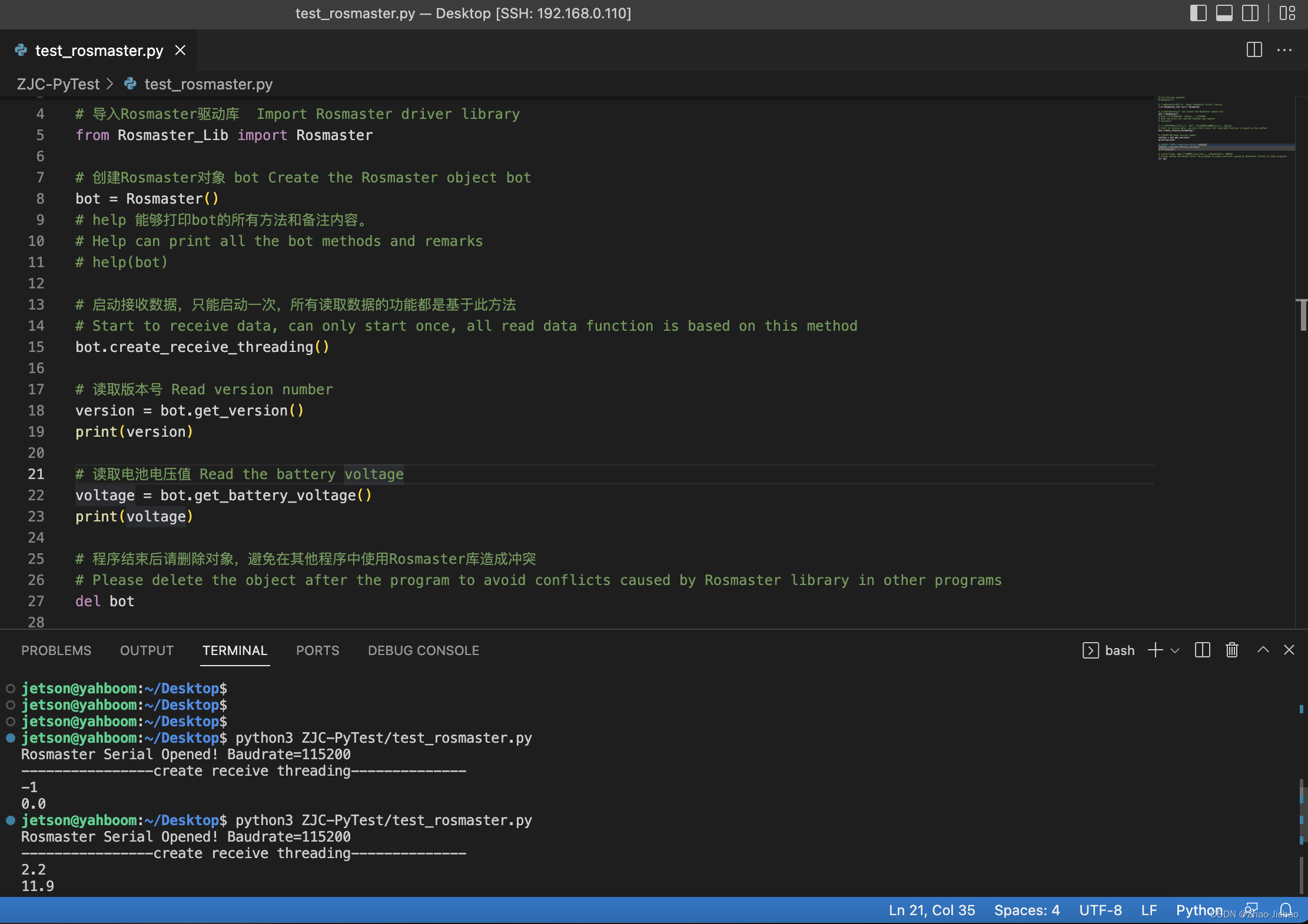
如果还是不行,可以尝试把 Ros 扩展板的 USB 接口线拔掉再重插一下。
4. beep
#!/usr/bin/env python3
#coding=utf-8
import time
from Rosmaster_Lib import Rosmaster

bot = Rosmaster()

# 蜂鸣器自动响100毫秒后关闭
# 蜂鸣器开关,on_time=0:关闭,on_time=1:一直响,
# on_time>=10:响xx毫秒后自动关闭(on_time是10的倍数)。
# The buzzer automatically beeps for 100 milliseconds before turning off
# Buzzer switch, on_time=0: off, on_time=1: keeps ringing
# On_time >=10: automatically closes after xx ms (on_time is a multiple of 10).
on_time = 100
bot.set_beep(on_time)
time.sleep(1) # 延迟退出cell

# 蜂鸣器自动响300毫秒后关闭
# 蜂鸣器开关,on_time=0:关闭,on_time=1:一直响,
# on_time>=10:响xx毫秒后自动关闭(on_time是10的倍数)。
# The buzzer automatically beeps for 300 milliseconds before turning off
# Buzzer switch, on_time=0: off, on_time=1: keeps ringing
# On_time >=10: automatically closes after xx ms (on_time is a multiple of 10).

on_time = 300
bot.set_beep(on_time)
time.sleep(1) # 延迟退出cell

# 蜂鸣器一直响
# 蜂鸣器开关,on_time=0:关闭,on_time=1:一直响,
# on_time>=10:响xx毫秒后自动关闭(on_time是10的倍数)。
# The buzzer kept going
# Buzzer switch, on_time=0: off, on_time=1: keeps ringing
# On_time >=10: automatically closes after xx ms (on_time is a multiple of 10).

on_time = 1
bot.set_beep(on_time)
time.sleep(1) # 延迟退出cell

# 蜂鸣器关闭
# 蜂鸣器开关,on_time=0:关闭,on_time=1:一直响,
# on_time>=10:响xx毫秒后自动关闭(on_time是10的倍数)。
# The buzzer is off
# Buzzer switch, on_time=0: off, on_time=1: keeps ringing
# On_time >=10: automatically closes after xx ms (on_time is a multiple of 10).

on_time = 0
bot.set_beep(on_time)
time.sleep(1) # 延迟退出cell

del bot
- 1
- 2
- 3
- 4
- 5
- 6
- 7
- 8
- 9
- 10
- 11
- 12
- 13
- 14
- 15
- 16
- 17
- 18
- 19
- 20
- 21
- 22
- 23
- 24
- 25
- 26
- 27
- 28
- 29
- 30
- 31
- 32
- 33
- 34
- 35
- 36
- 37
- 38
- 39
- 40
- 41
- 42
- 43
- 44
- 45
- 46
- 47
- 48
- 49
- 50
- 51
5. pwm_servo
- 1
6. rgb_effect
#!/usr/bin/env python3
#coding=utf-8
from Rosmaster_Lib import Rosmaster
import random

bot = Rosmaster()

# 控制RGB炫彩灯条的颜色 Controls the color of RGB dazzling light bar
bot.set_colorful_lamps(0xff, r, g, b)

# 随机生成一个颜色,拖动滑动条来改变其位置。
# Generate a random color and drag the slider to change its position
r = int(random.randint(1, 256))
g = int(random.randint(1, 256))
b = int(random.randint(1, 256))
x = 1	# positions 0~14
bot.set_colorful_lamps(x, r, g, b)

# 改变炫彩灯条的特效和速度。
# Change the special effects and speed of RGB dazzle lights
g_effect = 0
g_speed = 255

g_effect = 0	# "关闭特效"
bot.set_colorful_effect(0)
g_effect = 1	# "流水灯"
g_effect = 2	# "跑马灯"
g_effect = 3	# "呼吸灯"
g_effect = 4	# "渐变灯"
g_effect = 5	# "星光点点"
g_effect = 6	# "电量显示"
bot.set_colorful_effect(g_effect, g_speed)

# 控制灯效速度, speed=1为最快,speed=10为最慢
# Control the lamp effect speed, speed=1 is the fastest, speed=10 is the slowest
g_speed = 5
bot.set_colorful_effect(g_effect, g_speed)

# 呼吸灯特效切换颜色, parm=[0, 6] Breath lamp special effect switch color, parm=[0, 6]
parm = 4
bot.set_colorful_effect(3, 5, parm)

del bot
- 1
- 2
- 3
- 4
- 5
- 6
- 7
- 8
- 9
- 10
- 11
- 12
- 13
- 14
- 15
- 16
- 17
- 18
- 19
- 20
- 21
- 22
- 23
- 24
- 25
- 26
- 27
- 28
- 29
- 30
- 31
- 32
- 33
- 34
- 35
- 36
- 37
- 38
- 39
- 40
- 41
- 42
- 43
7. motor
#!/usr/bin/env python3
#coding=utf-8
import time
from Rosmaster_Lib import Rosmaster

bot = Rosmaster()

# 控制电机运动 Control motor movement
bot.set_motor(M1, M2, M3, M4)

# 停止运动 stop motion
bot.set_motor(0, 0, 0, 0)

del bot
- 1
- 2
- 3
- 4
- 5
- 6
- 7
- 8
- 9
- 10
- 11
- 12
- 13
- 14
8. car_motion
#!/usr/bin/env python3
#coding=utf-8
import time
from Rosmaster_Lib import Rosmaster

bot = Rosmaster()

# 启动接收数据,只能启动一次,所有读取数据的功能都是基于此方法
# Start to receive data, can only start once, all read data function is based on this method
bot.create_receive_threading()

# 开启自动发送数据
# enable=True,底层扩展板会每隔40毫秒发送一次数据。enable=False,则不发送。
# forever=True永久保存,=False临时作用。
# Enable automatic data sending
# If enable=True, the underlying expansion module sends data every 40 milliseconds.  If enable=False, the port is not sent.
# Forever =True for permanent, =False for temporary
enable = True
bot.set_auto_report_state(enable, forever=False)

# 关闭自动发送数据
# enable=True,底层扩展板会每隔40毫秒发送一次数据。enable=False,则不发送。
# forever=True永久保存,=False临时作用。
# Disable automatic data sending
# If enable=True, the underlying expansion module sends data every 40 milliseconds.  If enable=False, the port is not sent.
# Forever =True for permanent, =False for temporary
enable = False
bot.set_auto_report_state(enable, forever=False)

# 清除单片机自动发送过来的缓存数据 Clear the cache data automatically sent by the MCU
bot.clear_auto_report_data()

# 控制电机运动 Control motor movement
V_x = 0		# -10~10
V_y = 0		# -10~10
V_z = 0		# -50~50
speed_x = V_x / 10.0
speed_y = V_y / 10.0
speed_z = V_z / 10.0
bot.set_car_motion(speed_x, speed_y, speed_z)

# 停止运动 stop motion
bot.set_car_motion(0, 0, 0)

# 获取小车线速度和角速度数据
# Obtain the linear velocity and angular velocity data of the car
V_x, V_y, V_z = bot.get_motion_data()
print("speed:", V_x, V_y, V_z)
bot.clear_auto_report_data()
time.sleep(.1)

# PID 参数控制,会影响set_car_motion函数控制小车的运动速度变化情况。默认情况下可不调整。
# PID parameter control will affect the set_CAR_motion function to control the speed change of the car.  This parameter is optional by default
kp = 0.8
ki = 0.06
kd = 0.5
bot.set_pid_param(kp, ki, kd, forever=False)

# 获取 PID 参数
kp, ki, kd = bot.get_motion_pid()
print("PID:", kp, ki, kd)

# 恢复出厂配置 Restoring factory Settings
bot.reset_flash_value()

del bot
- 1
- 2
- 3
- 4
- 5
- 6
- 7
- 8
- 9
- 10
- 11
- 12
- 13
- 14
- 15
- 16
- 17
- 18
- 19
- 20
- 21
- 22
- 23
- 24
- 25
- 26
- 27
- 28
- 29
- 30
- 31
- 32
- 33
- 34
- 35
- 36
- 37
- 38
- 39
- 40
- 41
- 42
- 43
- 44
- 45
- 46
- 47
- 48
- 49
- 50
- 51
- 52
- 53
- 54
- 55
- 56
- 57
- 58
- 59
- 60
- 61
- 62
- 63
- 64
- 65
- 66
9. arm_servo
- 1
本文内容由网友自发贡献,转载请注明出处:https://www.wpsshop.cn/article/detail/51045
推荐阅读

相关标签

