
- 1Selenium 反反爬_selenium 报400
- 2微信小程序自定义组件/插件等解析
- 3CUDA Error: out of memory darknet: ./src/cuda.c:36: check_error: Assertion `0' failed. Aborted
- 4Java基于微信小程序的医院核酸检测服务系统,附源码
- 5unity导入的FBX格式模型动画无法移动_unity中导入模型为什么不能拖动
- 6【Python】数据分析案例:世界杯数据可视化 | 文末送书_世界杯数据可视化分析论文
- 7【从Python基础到深度学习】1. Python PyCharm安装及激活
- 8千兆以太网(1):接收——RGMII协议和IDDR原语
- 9解决uniapp中nvue事件冒泡的问题(stop失效问题)_uniapp中stop
- 10vue elementui动态增加列表表单_
qml中使用Font Awesome5_qml font
赞
踩
Font Awesome 是一套绝佳的图标字体库和css框架;
本文描述了如何在qml程序中使用Font Awesome5,参照了这篇博文
1、加载Font Awesome5字体
Font Awesome提供可缩放的矢量图标,加载Font Awesome字体后输入Unicode字符就可以显示图标。在Font Awesome5中文网可以下载最新的Font Awesome5字体,有web字体和desktop字体两种选择,下载如何一种都可以,两者仅后缀不一样,使用起来没有区别。以desktop版为例,下载后得到如下文件夹:
– fontawesome-free-5.11.2-desktop
– metadata
– otfs
– svgs
在otfs中找到三个以otf为后缀的文件,即为字体文件。
新建Fonts文件夹,将otf字体拷贝至该文件夹下,同时在该文件夹下新建Fonts.qml
// Fonts.qml
//加载fontawesome5 otf
pragma Singleton

import QtQuick 2.0

Item {
    id: fonts

    readonly property FontLoader fontAwesomeRegular: FontLoader {
        source: "./Font Awesome 5 Free-Regular-400.otf"
    }
    readonly property FontLoader fontAwesomeSolid: FontLoader {
        source: "./Font Awesome 5 Free-Solid-900.otf"
    }
    readonly property FontLoader fontAwesomeBrands: FontLoader {
        source: "./Font Awesome 5 Brands-Regular-400.otf"
    }
		//导出字体名,供外部使用
    readonly property string icons: fonts.fontAwesomeRegular.name
    readonly property string solid: fonts.fontAwesomeSolid.name
    readonly property string brands: fonts.fontAwesomeBrands.name
}

- 1
- 2
- 3
- 4
- 5
- 6
- 7
- 8
- 9
- 10
- 11
- 12
- 13
- 14
- 15
- 16
- 17
- 18
- 19
- 20
- 21
- 22
- 23
- 24
- 25
使用FontLoader加载字体,并导出。共有三种字体,Regular、Solid、Brands,其中Brands对应品牌图标,如:Apple公司的图标,Regular和Solid对应其他常用图标。
将Fonts声明为单例模式,保证整个程序中只有一个实例在运行。
在该目录下新建qmldir文件
singleton Fonts 1.0 Fonts.qml
- 1
2、使用Font Awesome5字体
新建一个Components文件件,在内部新建一个FontAwesomeToolButton.qml文件,import 刚才建立的Fonts文件夹
// FontAwesomeToolButton.qml

import QtQuick 2.9
import QtQuick.Controls 2.2
import "../Fonts"

ToolButton {
    id: button
    //iconName为特殊Unicode字符,button显示为对应图标
    property string iconName:button.text
    //有Bold和Light两种设置
    font.weight: Font.Bold
    //font.family在Regular、Solid、Brands三种模式下选择,其中Regular、Solid是一样的
    //font.family: Fonts.brands
    font.family: Fonts.icons
 }
- 1
- 2
- 3
- 4
- 5
- 6
- 7
- 8
- 9
- 10
- 11
- 12
- 13
- 14
- 15
- 16
- 17
- 18
在main.qml中使用FontAwesomeToolButton.qml,import 刚才新建的Components文件夹路径:
import QtQuick 2.12
import QtQuick.Window 2.12
import "./Fonts"
import "./Components"

Window {
    visible: true
    width: 640
    height: 480
    title: qsTr("FontAwesome")

    Grid {
        columns: 3

        FontAwesomeToolButton {
            iconName:  "\uf641"
            //fas_ad
        }
        FontAwesomeToolButton {
            iconName: "\uf2b9"
            //far_address_book
        }
        FontAwesomeToolButton {
            iconName: "\uf170"
//          fab_adn: "\uf170"
        }
       }
}
- 1
- 2
- 3
- 4
- 5
- 6
- 7
- 8
- 9
- 10
- 11
- 12
- 13
- 14
- 15
- 16
- 17
- 18
- 19
- 20
- 21
- 22
- 23
- 24
- 25
- 26
- 27
- 28
这里有三个图标,分别对应了Solid、Regular、Brands三种字体样式,这里发现前两种图标显示了出来Solid、Regular,而第三种brands样式的图标未显示,FontAwesomeToolButton.qml中的font.family设置为 Fonts.brands,则第三种图标显示,前两种图标不显示。
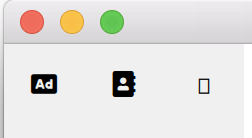
这里的特殊字符"\uf641",可在metadata文件夹下的icons.json文件中找到,比如图标名为”500px“的图标的unicode字符为”f26e",前面加上”\u“代表unicode字符。


3、使用图标名称
使用Unicode字符含义不明确,不如使用图标名称,icons.json中给出了对应的关系,并且json文件的”styles“支出了使用那种字体,参照官方给出的方法,使用如下的格式声明图标,fas、 far、 fab分别代表了solid、 regular 、brands三种字体。

使用python编写一个脚本,生成一个qml文件,内部实现了变量名与unicode字符的一一对应:
#fa_iconsjson2qml.py

#!/bin/env python3

"""
Convert FontAwesome's `icons.json` to QML.

This script creates a QML component which defines
constants for all FontAwesome icons listed in the file
`icons.json` in the FontAwesome package.
"""
import sys
def _changeInfix(name):
    try:
        while True:
            idx = name.index("-")
            pre = name[0:idx]
            middle="_"
            suf = name[idx + 1:]
            name=pre+middle+suf
    except ValueError:
        pass
    return name

def _main():
    import json
    pathIcons=input("path to icons.josn:")
    if(pathIcons!=""):
        with open(pathIcons, "r") as file:
            icons = json.load(file)
        lines = []
        lines.append("pragma Singleton")
        lines.append("import QtQuick 2.0")
        lines.append("")
        lines.append("QtObject {")
        prop = '    readonly property string {}: "{}"'
        for key in icons:
            styles = icons[key]["styles"]
            for style in styles:
                if "brands" ==style:
                    name="fab_" + key
                elif "solid" ==style:
                    name="fas_" + key
                elif "regular" == style:
                    name="far_" + key
                else:
                    name="fa_" + key
                name = _changeInfix(name)
                code = "\\u" + icons[key]["unicode"]
                line = prop.format(name, code)
                lines.append(line)
        lines.append("}")
        outName="IconsName.qml"
        outPath=pathIcons.replace("icons.json",outName)
        with open(outPath, "w") as file:
            file.write("\n".join(lines))
        msg = "转换完成,在Icons.json所在文件夹下生产IconsName.qml"
        print(msg)

    else:
        msg = "异常:未输入Icons.json文件所在路径"
        print(msg)
        sys.exit(1)

if __name__ == '__main__':
    _main()
- 1
- 2
- 3
- 4
- 5
- 6
- 7
- 8
- 9
- 10
- 11
- 12
- 13
- 14
- 15
- 16
- 17
- 18
- 19
- 20
- 21
- 22
- 23
- 24
- 25
- 26
- 27
- 28
- 29
- 30
- 31
- 32
- 33
- 34
- 35
- 36
- 37
- 38
- 39
- 40
- 41
- 42
- 43
- 44
- 45
- 46
- 47
- 48
- 49
- 50
- 51
- 52
- 53
- 54
- 55
- 56
- 57
- 58
- 59
- 60
- 61
- 62
- 63
- 64
- 65
- 66

生产的IconsName.qml的部分代码。
执行该Python文件后,将icons.json文件拖入terminal,则在icons.json同目录下生成IconsName.qml文件,将该文件拷贝至Fonts目录下,在qmldir文件中添加如下代码:
singleton Fonts 1.0 Fonts.qml
singleton IconsName 1.0 IconsName.qml
- 1
- 2
在FontAwesomeToolButton.qml文件中使用图标名:
// FontAwesomeToolButton.qml

import QtQuick 2.9
import QtQuick.Controls 2.2

// This must point to the directory where you placed
// the 'Fonts.qml' file. If all your sources are in the
// same directory, this can be '.' as well.
import "../Fonts"

ToolButton {
    id: button
    property string iconName
    property alias color: text.color
    property alias iconSize: text.font.pointSize
    onIconNameChanged:{
        if(iconName.substring(0,3)==="fab")
        {
          text.font.family=Fonts.brands
        }
        else if(iconName.substring(0,3)==="fas" || iconName.substring(0,3) === "far")
        {
          text.font.family=Fonts.icons
        }
        else
        {
            text.text=iconName
 //         此时无法判断字体风格
        }
    }
    contentItem: Text {
        id: text
        text: IconsName[iconName]
        font.family:Fonts.icons
        //有些图标需要设置Font.Bold才能显示
        font.weight: Font.Bold
//      font.weight: Font.Light

        horizontalAlignment:Text.AlignHCenter
        verticalAlignment:Text.AlignVCenter
    }
}
- 1
- 2
- 3
- 4
- 5
- 6
- 7
- 8
- 9
- 10
- 11
- 12
- 13
- 14
- 15
- 16
- 17
- 18
- 19
- 20
- 21
- 22
- 23
- 24
- 25
- 26
- 27
- 28
- 29
- 30
- 31
- 32
- 33
- 34
- 35
- 36
- 37
- 38
- 39
- 40
- 41
- 42
main.qml中使用图标名
import QtQuick 2.12
import QtQuick.Window 2.12
import "./Fonts"
import "./Components"

Window {
    visible: true
    width: 640
    height: 480
    title: qsTr("FontAwesome")

    Grid {
        columns: 3

        FontAwesomeToolButton {
            iconName:  "\uf641"
            //fas_ad
        }
        FontAwesomeToolButton {
            iconName: "\uf2b9"
            //far_address_book
        }
        FontAwesomeToolButton {
            iconName: "\uf170"
//          fab_adn: "\uf170"
        }
        FontAwesomeToolButton {
            iconName:  "fas_ad"
            //fas_ad
        }
        FontAwesomeToolButton {
            iconName: "far_address_book"
            //far_address_book
        }
        FontAwesomeToolButton {
            iconName: "fab_adn"
//          fab_adn:
        }

        FontAwesomeToolButton {
            iconName: "fas_arrow_alt_circle_down"
            color: "Tomato"
            iconSize: 16
        }

        FontAwesomeToolButton {
            iconName: "fab_apple_pay"
            color:"DeepSkyBlue"
            iconSize: 16
        }
    }
}
- 1
- 2
- 3
- 4
- 5
- 6
- 7
- 8
- 9
- 10
- 11
- 12
- 13
- 14
- 15
- 16
- 17
- 18
- 19
- 20
- 21
- 22
- 23
- 24
- 25
- 26
- 27
- 28
- 29
- 30
- 31
- 32
- 33
- 34
- 35
- 36
- 37
- 38
- 39
- 40
- 41
- 42
- 43
- 44
- 45
- 46
- 47
- 48
- 49
- 50
- 51
- 52
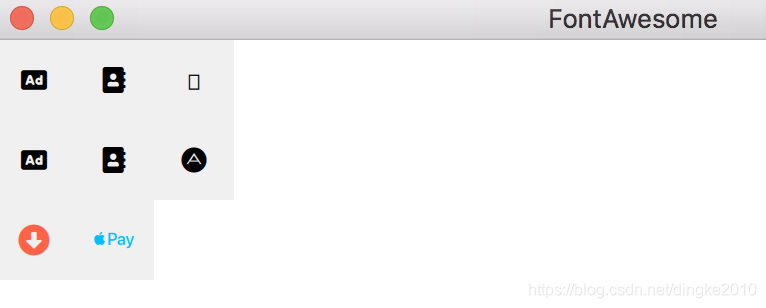
效果如下:
4、设置图标颜色及大小
图标是通过设置text属性设置的,改变图标颜色及大小可通过设置Text.color及font.pointsize或者font.pixelSize.这里需要用到子控件contentItem: Text。导出text的颜色及字体大小属性。

