- 1江科大stm32学习笔记3——LED闪烁_信息工程stm32
- 2蓝桥杯单片机零基础到国二经验分享_xmf393.com
- 3JS中的变量提升和函数提升_提高js函数优先级
- 4回归预测 | MATLAB实现LSTM-SVR(长短期记忆神经网络-支持向量机)多输入单输出
- 5计算机考研各科时间安排,计算机考研专业课复习全程的时间安排
- 6【AIGC】IP-Adapter:文本兼容图像提示适配器,用于文本到图像扩散模型
- 7零基础入门Jetson Nano——Yolov5+TensorRT+Deepstream_jetson yolov5
- 8python的迭代器、生成器与装饰器_python迭代器生成器装饰器
- 9CVE-2023-28432 MinIO 信息泄露漏洞--漏洞复现10_cve-2023-28432复现
- 10Spring Boot 整合SpringSecurity和JWT和Redis实现统一鉴权认证
python安装插件方法
赞
踩
Compiling Python 2.7 Modules on Windows 32 and 64 using MSVC++ 2008 Express
Hello,
On this post i will explain how to build, compile, install and distribute python modules on Windows using Microsoft Visual C++ Express Edition.
This post will be constantly updated to cover future updates of python, windows and msvc++ versions.
For this example i will use the PyCrypto – http://pycrypto.org because this is an example that don’t have packages for windows x64 on the web.
Observation: Don’t use Microsoft Visual C++ Express Edition 2010 to build python modules, because this will not work due to Python 2.7 was built using the 2008 version. This is an error that occurs when you try to build PyCrypto and Paramiko using the 2010 version and execute the import module:
- >>> import paramiko
- Traceback (most recent call last):
- File "<stdin>", line 1, in <module>
- File "C:\Python27\lib\site-packages\paramiko\__init__.py", line 69, in <module>
- from transport import SecurityOptions, Transport
- File "C:\Python27\lib\site-packages\paramiko\transport.py", line 32, in <module>
- from paramiko import util
- File "C:\Python27\lib\site-packages\paramiko\util.py", line 32, in <module>
- from paramiko.common import *
- File "C:\Python27\lib\site-packages\paramiko\common.py", line 98, in <module>
- from Crypto import Random
- File "C:\Python27\lib\site-packages\Crypto\Random\__init__.py", line 28, in <module>
- import OSRNG
- File "C:\Python27\lib\site-packages\Crypto\Random\OSRNG\__init__.py", line 34, in <module>
- from Crypto.Random.OSRNG.nt import new
- File "C:\Python27\lib\site-packages\Crypto\Random\OSRNG\nt.py", line 28, in <module>
- import winrandom
- ImportError: DLL load failed: The specified module could not be found.

1 – Building and Installing PyCrypto Module for Windows 7 64 bits:
1.1 - You must have installed the Python 64 bits version: http://www.python.org/ftp/python/2.7.1/python-2.7.1.amd64.msi
1.2 - You should install the C Compiler for Windows – Microsoft Visual C++ Express Edition 2008 : available here:http://www.microsoft.com/express/Downloads/#Visual_Studio_2008_Express_Downloads
ISO File to Download: http://www.microsoft.com/express/Downloads/#2008-All
1.3 - You should install the Microsoft Windows SDK for Windows 7 and .NET Framework 3.5 SP1 : available here:http://www.microsoft.com/downloads/en/details.aspx?FamilyID=c17ba869-9671-4330-a63e-1fd44e0e2505
ISO File To Download (64 bits): http://download.microsoft.com/download/2/E/9/2E911956-F90F-4BFB-8231-E292A7B6F287/GRMSDKX_EN_DVD.iso
This is required because the Express Edition 2008 C++ don’t contains the 64 bits compiler. This is required only for Windows 7 64 bits version.
Important: Don’t use the “Microsoft Windows SDK for Windows 7 and .NET Framework 4″ because it’s not compatible with msvc++ express 2008 edition.
1.4 - Install the Python Setup Tools available here: http://pypi.python.org/pypi/setuptools#downloads
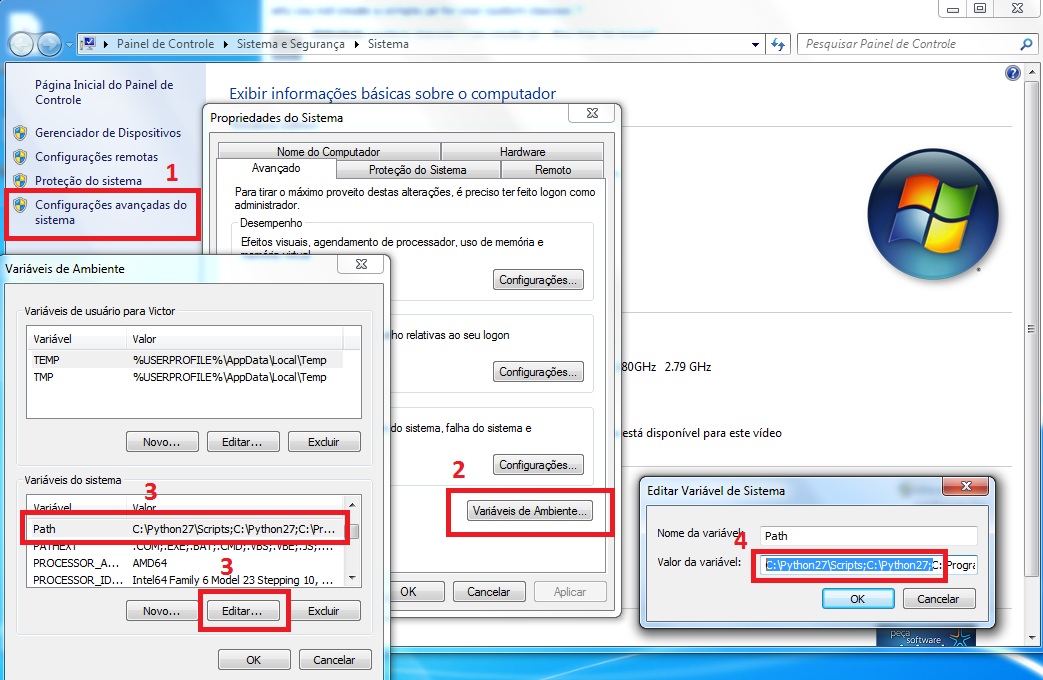
1.5 - Include in your Advanced Variables Environment the binaries of Python. Right click at “My Computer” icon -> Properties -> Advanced Environment and edit your Path Variable including this two directories there:
Path = C:\Python27\Scripts;C:\Python27; + Path
1) C:\Python27\Scripts
2) C:\Python27
1.6 - Copy this file:
C:\Program Files (x86)\Microsoft Visual Studio 9.0\VC\bin\vcvars64.bat
To this follow folder and rename the file (vcvars64.bat to vcvarsamd64.bat):
C:\Program Files (x86)\Microsoft Visual Studio 9.0\VC\bin\amd64\vcvarsamd64.bat
1.7 - Edit the file msvc9compiler.py inside of directory C:\Python27\Lib\distutils\msvc9compiler.py
After the line 651 approximately, find this line: – ld_args.append(‘/MANIFESTFILE:’ + temp_manifest)
Add the following line after the above line:
ld_args.append('/MANIFEST')
1.8 - Edit the file msvccompiler.py inside of directory C:\Python27\Lib\distutils\msvccompiler.py
At line 153 approximately, insert this line: return 9.0 , as following, in this piece of code:
- def get_build_version():
- """Return the version of MSVC that was used to build Python.
- For Python 2.3 and up, the version number is included in
- sys.version. For earlier versions, assume the compiler is MSVC 6.
- """
- return 9.0
- prefix = "MSC v."
- i = string.find(sys.version, prefix)
- if i == -1:
- return 6
1.9 - Certify that exists the follow environment variable in your system, if don’t exist create a new one:
Name: VS90COMNTOOLS
Value: C:\Program Files (x86)\Microsoft Visual Studio 9.0\Common7\Tools\
1.10 - Extract the file pycrypto-2.3.tar.gz that you downloaded before, open a dos command and access the pycrypto-2.3 folder
1.11 - Execute this command to compile, build and install the module:
python setup.py build --compiler msvc
python setup.py install
1.12 - Test if the package was generated successfully executing an import Crypto at Python shell.
1.13 - It’s finish. Optionally, you can distribute your compiled modules as an windows executable (.exe) file, executing this simple command on folder of your module, this case is pycrypto-2.3:
python setup.py bdist_wininst
As a result you will get a executable file with graphical interface created inside of folder “dist” and other people can install this executable file without to prepare a complex environment for build your own module. This is my result file of this process. http://arquivos.victorjabur.com/python/modules/pycrypto-2.3.win-amd64-py2.7.exe
2 – Building and Installing PyCrypto Module for Windows All Versions 32 bits:
2.1 - You must have installed the Python 32 bits version: http://www.python.org/ftp/python/2.7.1/python-2.7.1.msi
2.2 - You should install the C Compiler for Windows – Microsoft Visual C++ Express Edition 2008 : available here:http://www.microsoft.com/express/Downloads/#Visual_Studio_2008_Express_Downloads
ISO File to Download: http://www.microsoft.com/express/Downloads/#2008-All
2.3 - Install the Python Setup Tools available here: http://pypi.python.org/pypi/setuptools#downloads
2.4 - Include in your Advanced Variables Environment the binaries of Python. Right click at “My Computer” icon -> Properties -> Advanced Environment and edit your Path Variable including this two directories there:
Path = C:\Python27\Scripts;C:\Python27; + Path
1) C:\Python27\Scripts
2) C:\Python27
2.5 - Edit the file msvc9compiler.py inside of directory C:\Python27\Lib\distutils\msvc9compiler.py
After the line 651 approximately, find this line: – ld_args.append(‘/MANIFESTFILE:’ + temp_manifest)
Add the following line after the above line:
ld_args.append('/MANIFEST')
2.6 - Edit the file msvccompiler.py inside of directory C:\Python27\Lib\distutils\msvccompiler.py
At line 153 approximately, insert this line: return 9.0 , as following, in this piece of code:
- def get_build_version():
- """Return the version of MSVC that was used to build Python.
- For Python 2.3 and up, the version number is included in
- sys.version. For earlier versions, assume the compiler is MSVC 6.
- """
- return 9.0
- prefix = "MSC v."
- i = string.find(sys.version, prefix)
- if i == -1:
- return 6
2.7 - Certify that exists the follow environment variable in your system, if don’t exist create a new one:
Name: VS90COMNTOOLS
Value: C:\Program Files (x86)\Microsoft Visual Studio 9.0\Common7\Tools\
2.8 - Extract the file pycrypto-2.3.tar.gz that you downloaded before, open a dos command and access the pycrypto-2.3 folder
2.9 - Execute this command to compile, build and install the module:
python setup.py build --compiler msvc
python setup.py install
2.10 - Test if the package was generated successfully executing an import Crypto at Python shell.
2.11 - It’s finish. Optionally, you can distribute your compiled modules as an windows executable (.exe) file, executing this simple command on folder of your module, this case is pycrypto-2.3:
python setup.py bdist_wininst
As a result you will get a executable file with graphical interface created inside of folder “dist” and other people can install this executable file without to prepare a complex environment for build your own module. This is my result file of this process. http://arquivos.victorjabur.com/python/modules/pycrypto-2.3.win32-py2.7.exe
Credits and References to this post:
http://nukeit.org/compile-python-2-7-packages-with-visual-studio-2010-express/
http://yorickdowne.wordpress.com/2010/12/22/compiling-pycrypto-on-win7-64/
http://www.lfd.uci.edu/~gohlke/pythonlibs/
http://www.fuyun.org/2009/12/install-mysql-for-python-on-windows/
http://mattptr.net/2010/07/28/building-python-extensions-in-a-modern-windows-environment/
Good Bye.
Victor Jabur