- 1[TensorRT] TensorRT官方例程SampleOnnxMNIST代码完全解读!
- 2AES加密原理分部详解及c语言代码实现思路_用c语言实现分组加密算法aes
- 3C++二进制转十进制_c++二进制转化为十进制
- 4蓝桥杯基础练习 龟兔赛跑预测(简单循环)_输入文件formation.in只有一行,有5个用空格隔开的整数,为n,x,y,r,m,依次分别表示
- 5开发工具 之七 Visual Studio Code 中 C/C++ 调试配置详解_vscode调试c++代码
- 6Idea Git Review插件
- 7使用 Node 编写简单的 API 接口_nodejs 调用第三方接口
- 8产品经理校招20道常见面试题:问题拆解与回答思路
- 9分享63个最常见的前端面试题及其答案
- 10用c语言多种实现快速排序(有完整代码带注释)_c语言写一个函数快速排序并调用
【雕爷学编程】Arduino智能家居之使用IFTTT和Adafruit IO控制舵机角度
赞
踩

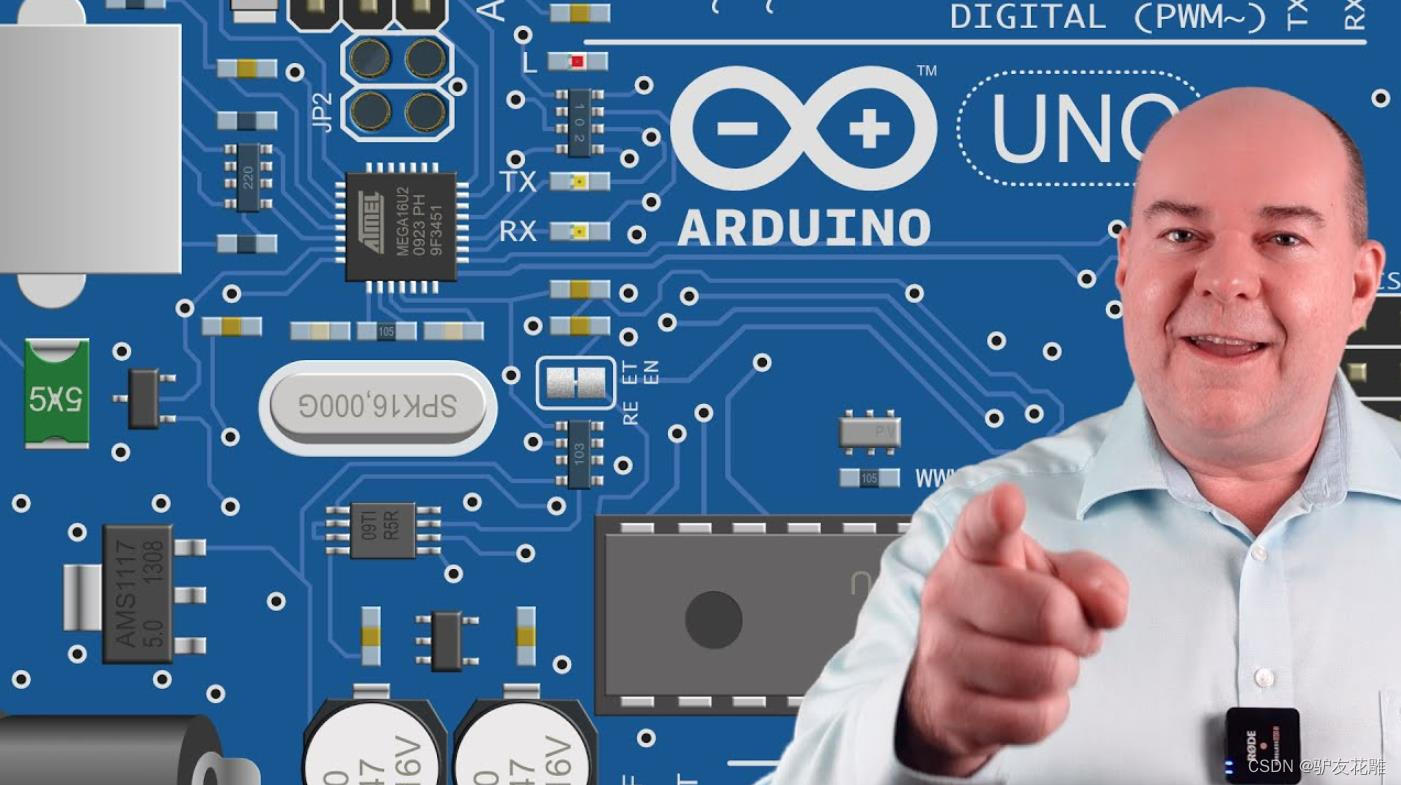
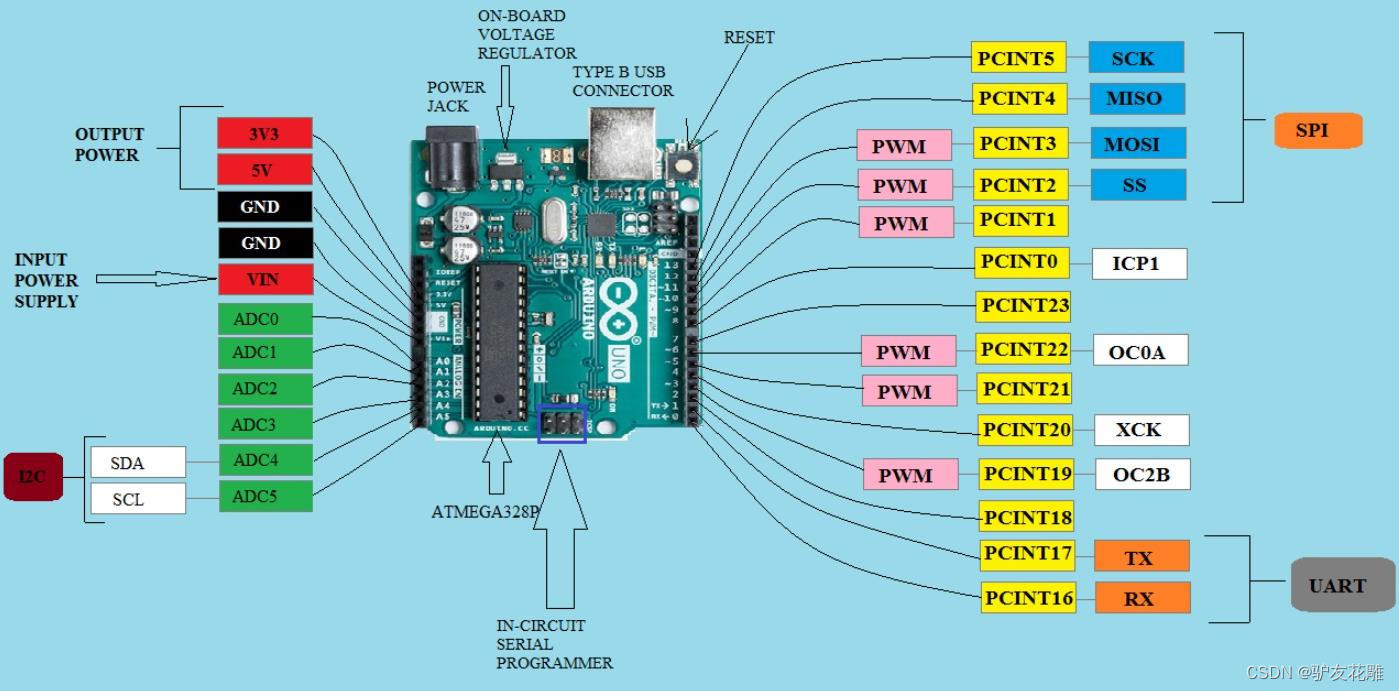
Arduino是一个开放源码的电子原型平台,它可以让你用简单的硬件和软件来创建各种互动的项目。Arduino的核心是一个微控制器板,它可以通过一系列的引脚来连接各种传感器、执行器、显示器等外部设备。Arduino的编程是基于C/C++语言的,你可以使用Arduino IDE(集成开发环境)来编写、编译和上传代码到Arduino板上。Arduino还有一个丰富的库和社区,你可以利用它们来扩展Arduino的功能和学习Arduino的知识。
Arduino的特点是:
开放源码:Arduino的硬件和软件都是开放源码的,你可以自由地修改、复制和分享它们。
易用:Arduino的硬件和软件都是为初学者和非专业人士设计的,你可以轻松地上手和使用它们。
便宜:Arduino的硬件和软件都是非常经济的,你可以用很低的成本来实现你的想法。
多样:Arduino有多种型号和版本,你可以根据你的需要和喜好来选择合适的Arduino板。
创新:Arduino可以让你用电子的方式来表达你的创意和想象,你可以用Arduino来制作各种有趣和有用的项目,如机器人、智能家居、艺术装置等。
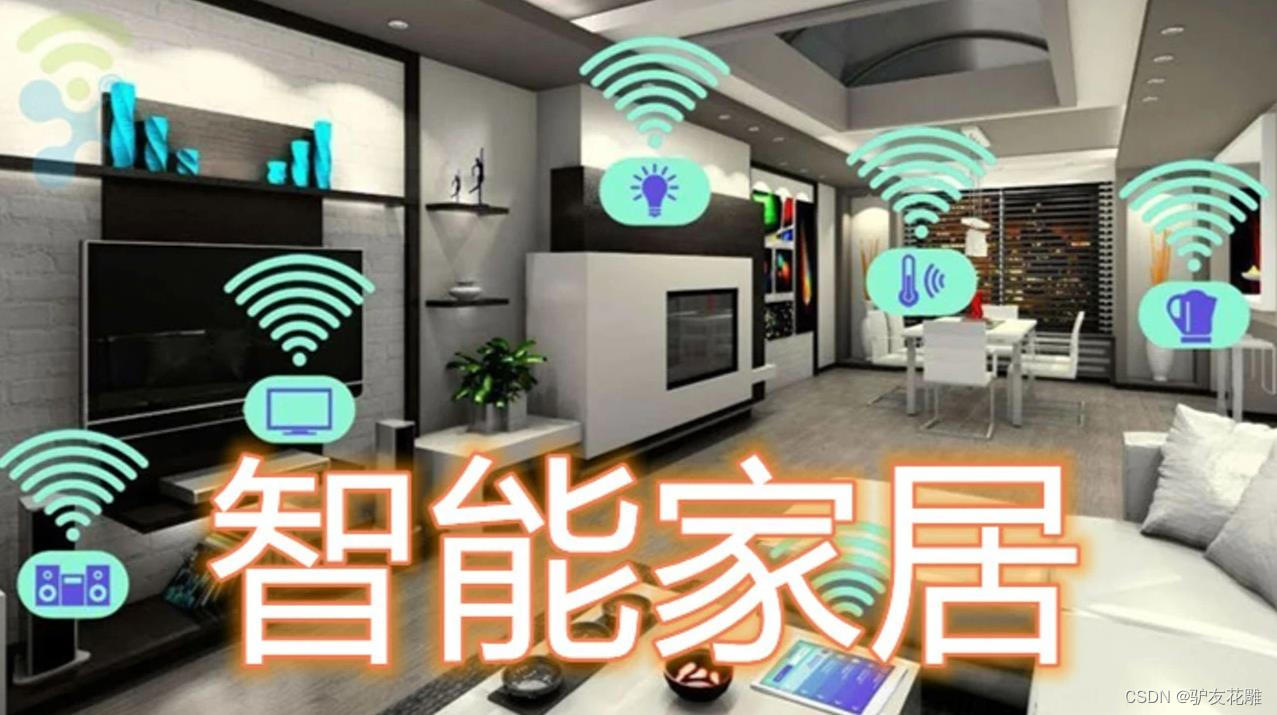
Arduino在智能家居领域的应用主要特点如下:
1、灵活可扩展:Arduino作为一个开源平台,具有丰富的周边生态系统,包括各种传感器、执行器和通信模块。这些组件可以轻松地与Arduino主板连接,使得智能家居系统的功能能够根据需求进行扩展和定制。
2、低成本:Arduino硬件价格相对较低,适合个人和小规模项目。它的低成本特性使得智能家居技术对更多人群变得可行和负担得起。
3、易于使用和编程:Arduino采用简单易学的编程语言和开发环境,使得非专业人士也能够快速上手。通过编写简单的代码,结合传感器和执行器的使用,可以实现智能家居系统的各种功能。
4、高度可定制化:Arduino的开源特性使得用户可以自由地访问和修改其硬件和软件。这意味着用户可以根据自己的需求和创意,自定义和定制智能家居系统的功能和外观。
Arduino在智能家居领域有广泛的应用场景,包括但不限于以下几个方面:
1、温度和湿度控制:通过连接温度传感器和湿度传感器,Arduino可以实时监测室内环境的温度和湿度,并通过控制空调、加热器或加湿器等执行器,实现室内温湿度的自动调节。
2、照明控制:Arduino可以与光照传感器结合使用,根据环境光照强度自动调节室内照明。此外,通过使用无线通信模块,可以实现远程控制灯光开关和调光。
3、安防监控:通过连接门磁传感器、人体红外传感器和摄像头等设备,Arduino可以实现家庭安防监控系统。当检测到异常情况时,可以触发警报或发送通知。
4、智能窗帘和门窗控制:通过连接电机和红外传感器,Arduino可以实现智能窗帘的自动控制,根据光照和时间等条件进行开关。此外,通过连接门窗传感器,可以实现门窗的状态监测和自动开关。
5、能源管理:Arduino可以与电能监测模块和智能插座等设备结合使用,实时监测家庭能源的使用情况,并通过自动控制电器设备的开关,实现能源的有效管理和节约。
在使用Arduino构建智能家居系统时,需要注意以下事项:
1、安全性:智能家居系统涉及到家庭安全和隐私,需要注意确保系统的安全性。合理设置访问权限、加密通信以及保护个人隐私的措施是必要的。
2、电源供应:智能家居系统中的设备和传感器需要稳定的电源供应。合理规划和选择适当的电源方案,确保系统的稳定运行。
3、可靠性:智能家居系统应具备良好的可靠性,避免系统故障或误操作带来的不便。对于关键功能,可以考虑冗余设计或备份措施。
4、通信技术:选择适合的通信技术对于智能家居系统至关重要。根据具体需求和场景,可以选择无线通信技术,如Wi-Fi、蓝牙、Zigbee或Z-Wave等,或有线通信技术,如以太网或RS485等。确保通信稳定性和覆盖范围的同时,还需要考虑设备之间的互操作性和兼容性。
5、用户体验:智能家居系统的用户体验是重要的考虑因素。设计用户友好的界面和操作方式,提供简单直观的控制和反馈机制,以及考虑用户习惯和需求,能够提升系统的整体用户体验。
总之,Arduino作为一个灵活可扩展、低成本、易于使用和定制的开源平台,在智能家居领域有着广泛的应用。在构建Arduino智能家居系统时,需要注意安全性、电源供应、可靠性、通信技术和用户体验等方面的问题。
要实现Arduino智能家居使用IFTTT和Adafruit IO控制舵机角度,下面将详细解释其主要特点、应用场景以及需要注意的事项。
主要特点:
IFTTT:IFTTT(If This Then That)是一种基于云服务的自动化工具,它允许用户创建简单的条件语句(触发器和操作),以实现不同服务之间的集成。通过与Arduino结合,可以使用IFTTT触发特定的事件来控制舵机角度。
Adafruit IO:Adafruit IO是一个基于云的物联网平台,它提供了一种简单的方式来与Arduino等设备进行通信和控制。通过Adafruit IO,可以实现从云端发送指令来控制舵机的角度。
舵机控制:舵机是一种电机,可以精确控制角度位置。通过连接舵机和Arduino,并结合IFTTT和Adafruit IO,可以实现远程控制舵机角度的功能。
应用场景:
智能家居自动化:结合传感器和舵机,可以实现智能家居的自动化控制。例如,当IFTTT检测到用户离开家时,通过Adafruit IO发送指令给Arduino,控制舵机将窗帘关闭,以实现自动化的窗帘控制。
远程控制:通过IFTTT和Adafruit IO,用户可以远程控制舵机的角度。例如,用户可以在手机上通过IFTTT的应用程序或Adafruit IO的控制面板发送指令,从而改变舵机的位置,如控制窗户的开合。
交互式装置:利用舵机的精确控制能力,可以创建交互式装置。例如,结合IFTTT和Adafruit IO,可以实现通过声音识别或其他触发条件来控制舵机角度,从而实现一种互动的装置。
需要注意的事项:
电源供应:舵机通常需要额外的电源供应,因为它们需要较高的电流来运行。确保为舵机提供足够的电源,并注意电源的稳定性和安全性。
通信协议:舵机与Arduino之间的通信通常使用PWM(脉冲宽度调制)信号。在编写代码时,确保正确配置和使用舵机的通信协议,以实现准确的角度控制。
安全性考虑:在使用IFTTT和Adafruit IO时,需要注意安全性问题。确保适当配置和保护IFTTT和Adafruit IO的访问权限,以防止未经授权的访问和操作。
综上所述,通过使用IFTTT和Adafruit IO控制舵机角度,可以实现远程控制和自动化控制的智能家居应用。它可以用于智能家居自动化、远程控制和交互式装置等场景。在应用时需要注意电源供应、通信协议和安全性的考虑。
案例1:使用IFTTT Webhooks和Adafruit IO控制舵机角度
#include <Servo.h>
#include <WiFi.h>

const char* ssid = "YourWiFiSSID";
const char* password = "YourWiFiPassword";

const char* server = "maker.ifttt.com";
const int httpsPort = 443;
const String event = "your_event_name";
const String iftttKey = "your_ifttt_key";
const String adafruitUsername = "your_adafruit_username";
const String adafruitKey = "your_adafruit_key";
const String feedName = "your_feed_name";

WiFiClientSecure client;
Servo servo;

void setup() {
  Serial.begin(115200);
  WiFi.begin(ssid, password);

  while (WiFi.status() != WL_CONNECTED) {
    delay(1000);
    Serial.println("Connecting to WiFi...");
  }

  Serial.println("Connected to WiFi");

  servo.attach(2); // 将舵机连接到引脚2
}

void loop() {
  if (WiFi.status() == WL_CONNECTED) {
    if (isServoOn()) {
      rotateServo(90); // 转动舵机到90度角
    } else {
      rotateServo(0); // 转动舵机到0度角
    }

    delay(5000); // 检查舵机状态的间隔时间
  }
}

bool isServoOn() {
  String url = "/trigger/" + event + "/with/key/" + iftttKey;
  client.connect(server, httpsPort);
  client.print(String("GET ") + url + " HTTP/1.1\r\n" +
               "Host: " + server + "\r\n" +
               "Connection: close\r\n\r\n");

  while (client.connected()) {
    if (client.available()) {
      String line = client.readStringUntil('\n');
      if (line == "\r") {
        // HTTP响应头结束
        break;
      }
    }
  }

  // 读取和处理HTTP响应体
  while (client.available()) {
    String response = client.readStringUntil('\n');
    if (response.indexOf("on") != -1) {
      return true;
    }
  }

  client.stop();
  return false;
}

void rotateServo(int angle) {
  servo.write(angle);
  delay(1000); // 等待舵机到达指定角度
}

- 1
- 2
- 3
- 4
- 5
- 6
- 7
- 8
- 9
- 10
- 11
- 12
- 13
- 14
- 15
- 16
- 17
- 18
- 19
- 20
- 21
- 22
- 23
- 24
- 25
- 26
- 27
- 28
- 29
- 30
- 31
- 32
- 33
- 34
- 35
- 36
- 37
- 38
- 39
- 40
- 41
- 42
- 43
- 44
- 45
- 46
- 47
- 48
- 49
- 50
- 51
- 52
- 53
- 54
- 55
- 56
- 57
- 58
- 59
- 60
- 61
- 62
- 63
- 64
- 65
- 66
- 67
- 68
- 69
- 70
- 71
- 72
- 73
- 74
- 75
- 76
要点解读:
使用WiFi库连接到你的WiFi网络。
使用Servo库控制舵机的角度。
使用IFTTT Webhooks和Adafruit IO进行舵机控制。
在setup()函数中,初始化串口通信和WiFi连接,并将舵机连接到Arduino的引脚2。
在loop()函数中,检查WiFi连接状态,如果连接正常,则通过调用isServoOn()函数检查舵机的状态,并根据状态调用rotateServo()函数控制舵机角度。
isServoOn()函数发送HTTP GET请求到IFTTT Webhooks触发器,并检查响应体中是否包含"on",以确定舵机的状态。
rotateServo()函数将舵机角度设置为指定的角度,并等待舵机到达目标角度。
请注意,上述示例中的"YourWiFiSSID"、“YourWiFiPassword”、“your_event_name”、“your_ifttt_key”、“your_adafruit_username”、"your_adafruit_key"和"your_feed_name"等字段需要替换为你自己的实际值。
示例2:使用Adafruit IO控制舵机角度
#include <Servo.h>
#include <WiFi.h>
#include "Adafruit_MQTT.h"
#include "Adafruit_MQTT_Client.h"

const char* ssid = "YourWiFiSSID";
const char* password = "YourWiFiPassword";
const char* adafruitUsername = "YourAdafruitUsername";
const char* adafruitKey = "YourAdafruitKey";
const char* feedName = "YourFeedName";

WiFiClientSecure wifiClient;
Adafruit_MQTT_Client mqttClient(&wifiClient, adafruitUsername, adafruitKey);

Servo servo;
int servoAngle;

void setup() {
  Serial.begin(```cpp
#include <Servo.h>
#include <WiFi.h>
#include "Adafruit_MQTT.h"
#include "Adafruit_MQTT_Client.h"

const char* ssid = "YourWiFiSSID";
const char* password = "YourWiFiPassword";
const char* adafruitUsername = "YourAdafruitUsername";
const char* adafruitKey = "YourAdafruitKey";
const char* feedName = "YourFeedName";

WiFiClientSecure wifiClient;
Adafruit_MQTT_Client mqttClient(&wifiClient, adafruitUsername, adafruitKey);

Servo servo;
int servoAngle;

void setup() {
  Serial.begin(115200);
  WiFi.begin(ssid, password);

  while (WiFi.status() != WL_CONNECTED) {
    delay(1000);
    Serial.println("Connecting to WiFi...");
  }

  Serial.println("Connected to WiFi");

  servo.attach(2); // 将舵机连接到引脚2

  mqttConnect();
}

void loop() {
  mqttClient.loop();

  if (mqttClient.connected()) {
    Adafruit_MQTT_Subscribe feed = Adafruit_MQTT_Subscribe(&mqttClient, adafruitUsername "/feeds/" feedName);
    mqttClient.subscribe(&feed);

    Adafruit_MQTT_Subscribe *subscription;
    while ((subscription = mqttClient.readSubscription())) {
      if (subscription == &feed) {
        servoAngle = atoi((char *)feed.lastread);
        rotateServo(servoAngle);
      }
    }
  }
}

void rotateServo(int angle) {
  servo.write(angle);
  delay(1000); // 等待舵机到达指定角度
}

void mqttConnect() {
  while (!mqttClient.connected()) {
    Serial.println("Connecting to Adafruit IO MQTT...");

    if (mqttClient.connect() == 0) {
      Serial.println("Failed to connect to Adafruit IO MQTT, retrying...");
      delay(2000);
    }
  }

  Serial.println("Connected to Adafruit IO MQTT");
}
- 1
- 2
- 3
- 4
- 5
- 6
- 7
- 8
- 9
- 10
- 11
- 12
- 13
- 14
- 15
- 16
- 17
- 18
- 19
- 20
- 21
- 22
- 23
- 24
- 25
- 26
- 27
- 28
- 29
- 30
- 31
- 32
- 33
- 34
- 35
- 36
- 37
- 38
- 39
- 40
- 41
- 42
- 43
- 44
- 45
- 46
- 47
- 48
- 49
- 50
- 51
- 52
- 53
- 54
- 55
- 56
- 57
- 58
- 59
- 60
- 61
- 62
- 63
- 64
- 65
- 66
- 67
- 68
- 69
- 70
- 71
- 72
- 73
- 74
- 75
- 76
- 77
- 78
- 79
- 80
- 81
- 82
- 83
- 84
- 85
- 86
要点解读:
使用WiFi库连接到你的WiFi网络。
使用Servo库控制舵机的角度。
使用Adafruit MQTT库连接到Adafruit IO并订阅舵机角度的Feed。
在setup()函数中,初始化串口通信和WiFi连接,并将舵机连接到Arduino的引脚2。
在setup()函数中,调用mqttConnect()函数连接到Adafruit IO MQTT,并在loop()函数中调用mqttClient.loop()处理MQTT通信。
在loop()函数中,检查WiFi连接状态和MQTT连接状态,如果连接正常,则订阅舵机角度的Feed,并在收到新的消息时调用rotateServo()函数控制舵机角度。
rotateServo()函数将舵机角度设置为指定的角度,并等待舵机到达目标角度。
mqttConnect()函数在循环中尝试连接到Adafruit IO MQTT,直到成功连接为止。
请注意,上述示例中的"YourWiFiSSID"、“YourWiFiPassword”、“YourAdafruitUsername”、"YourAdafruitKey"和"YourFeedName"等字段需要替换为你自己的实际值。
示例3:使用IFTTT Webhooks和Adafruit IO控制舵机角度
#include <Servo.h>
#include <WiFi.h>
#include <Adafruit_MQTT.h>
#include <Adafruit_MQTT_Client.h>

const char* ssid = "YourWiFiSSID";
const char* password = "YourWiFiPassword";

const char* adafruitUsername = "YourAdafruitUsername";
const char* adafruitKey = "YourAdafruitKey";
const char* feedName = "YourFeedName";

const char* server = "maker.ifttt.com";
const int httpsPort = 443;
const String event = "your_event_name";
const String iftttKey = "your_ifttt_key";

WiFiClientSecure client;
Servo servo;

void setup() {
  Serial.begin(115200);
  WiFi.begin(ssid, password);

  while (WiFi.status() != WL_CONNECTED) {
    delay(1000);
    Serial.println("Connecting to WiFi...");
  }

  Serial.println("Connected to WiFi");

  servo.attach(2); // 将舵机连接到引脚2
}

void loop() {
  if (WiFi.status() == WL_CONNECTED) {
    if (isServoOn()) {
      rotateServo(90); // 转动舵机到90度角
    } else {
      rotateServo(0); // 转动舵机到0度角
}

复制
delay(5000); // 检查舵机状态的间隔时间
}
}

bool isServoOn() {
String url = "/trigger/" + event + "/with/key/" + iftttKey;
client.connect(server, httpsPort);
client.print(String("GET ") + url + " HTTP/1.1\r\n" +
"Host: " + server + "\r\n" +
"Connection: close\r\n\r\n");

while (client.connected()) {
if (client.available()) {
String line = client.readStringUntil('\n');
if (line == "\r") {
// HTTP响应头结束
break;
}
}
}

// 读取和处理HTTP响应体
while (client.available()) {
String response = client.readStringUntil('\n');
if (response.indexOf("on") != -1) {
return true;
}
}

client.stop();
return false;
}

void rotateServo(int angle) {
servo.write(angle);
delay(1000); // 等待舵机到达指定角度
}
- 1
- 2
- 3
- 4
- 5
- 6
- 7
- 8
- 9
- 10
- 11
- 12
- 13
- 14
- 15
- 16
- 17
- 18
- 19
- 20
- 21
- 22
- 23
- 24
- 25
- 26
- 27
- 28
- 29
- 30
- 31
- 32
- 33
- 34
- 35
- 36
- 37
- 38
- 39
- 40
- 41
- 42
- 43
- 44
- 45
- 46
- 47
- 48
- 49
- 50
- 51
- 52
- 53
- 54
- 55
- 56
- 57
- 58
- 59
- 60
- 61
- 62
- 63
- 64
- 65
- 66
- 67
- 68
- 69
- 70
- 71
- 72
- 73
- 74
- 75
- 76
- 77
- 78
- 79
- 80
要点解读:
- 使用WiFi库连接到你的WiFi网络。
- 使用Servo库控制舵机的角度。
- 使用Adafruit MQTT库连接到Adafruit IO并订阅舵机角度的Feed。
- 使用IFTTT Webhooks触发器控制舵机的状态。
- 在
setup()函数中,初始化串口通信和WiFi连接,并将舵机连接到Arduino的引脚2。 - 在
loop()函数中,检查WiFi连接状态,如果连接正常,则通过调用isServoOn()函数检查舵机的状态,并根据状态调用rotateServo()函数控制舵机角度。 isServoOn()函数发送HTTP GET请求到IFTTT Webhooks触发器,并检查响应体中是否包含"on",以确定舵机的状态。rotateServo()函数将舵机角度设置为指定的角度,并等待舵机到达目标角度。
请注意,上述示例中的"YourWiFiSSID"、“YourWiFiPassword”、“YourAdafruitUsername”、“YourAdafruitKey”、“YourFeedName”、"your_event_name"和"your_ifttt_key"等字段需要替换为你自己的实际值。
这些示例代码提供了使用IFTTT和Adafruit IO控制舵机角度的基本框架,你可以根据自己的具体需求进行修改和扩展。
案例4:使用IFTTT Webhooks和Adafruit IO控制舵机角度
#include <Servo.h>
#include <WiFi.h>
#include <Adafruit_MQTT.h>
#include <Adafruit_MQTT_Client.h>

// WiFi信息
const char* ssid = "your_wifi_ssid";
const char* password = "your_wifi_password";

// Adafruit IO信息
#define AIO_SERVER      "io.adafruit.com"
#define AIO_SERVERPORT  1883
#define AIO_USERNAME    "your_adafruit_io_username"
#define AIO_KEY         "your_adafruit_io_key"

// 舵机信息
Servo servo;
int servoPin = 9;

// Adafruit IO舵机控制
Adafruit_MQTT_Client mqtt(&WiFiClient, AIO_SERVER, AIO_SERVERPORT, AIO_USERNAME, AIO_KEY);
Adafruit_MQTT_Subscribe servoSubscribe = Adafruit_MQTT_Subscribe(&mqtt, AIO_USERNAME "/feeds/servo");

void setup() {
  Serial.begin(115200);
  delay(10);

  // 连接WiFi网络
  WiFi.begin(ssid, password);
  while (WiFi.status() != WL_CONNECTED) {
    delay(1000);
    Serial.println("Connecting to WiFi...");
  }
  Serial.println("Connected to WiFi");

  // 连接Adafruit IO
  mqtt.subscribe(&servoSubscribe);

  // 初始化舵机
  servo.attach(servoPin);
  servo.write(90); // 初始角度为90度
}

void loop() {
  // 连接到Adafruit IO
  if (!mqtt.connected()) {
    Serial.println("Connecting to Adafruit IO...");
    connectToAdafruitIO();
  }
  mqtt.processPackets(10000);
  mqtt.ping();

  // 监听舵机控制消息
  Adafruit_MQTT_Subscribe *subscription;
  while ((subscription = mqtt.readSubscription(5000))) {
    if (subscription == &servoSubscribe) {
      int angle = atoi((char *)servoSubscribe.lastread);
      setServoAngle(angle);
    }
  }
}

void connectToAdafruitIO() {
  while (!mqtt.connect()) {
    Serial.print(".");
    delay(1000);
  }
  Serial.println("Connected to Adafruit IO");
}

void setServoAngle(int angle) {
  angle = constrain(angle, 0, 180);
  servo.write(angle);
  Serial.print("Set servo angle: ");
  Serial.println(angle);
}
- 1
- 2
- 3
- 4
- 5
- 6
- 7
- 8
- 9
- 10
- 11
- 12
- 13
- 14
- 15
- 16
- 17
- 18
- 19
- 20
- 21
- 22
- 23
- 24
- 25
- 26
- 27
- 28
- 29
- 30
- 31
- 32
- 33
- 34
- 35
- 36
- 37
- 38
- 39
- 40
- 41
- 42
- 43
- 44
- 45
- 46
- 47
- 48
- 49
- 50
- 51
- 52
- 53
- 54
- 55
- 56
- 57
- 58
- 59
- 60
- 61
- 62
- 63
- 64
- 65
- 66
- 67
- 68
- 69
- 70
- 71
- 72
- 73
- 74
- 75
- 76
要点解读:
该案例使用了Servo库来控制舵机角度。
使用IFTTT Webhooks和Adafruit IO来实现远程控制舵机角度的功能。
在Adafruit IO上创建了一个名为"servo"的Feed,用于接收舵机角度控制数据。
在setup()函数中,连接WiFi网络并连接到Adafruit IO。
在loop()函数中,通过订阅Adafruit IO的"servo" Feed来监听舵机控制消息。
当接收到舵机控制消息时,将消息中的角度值转换为整数,并调用setServoAngle()函数设置舵机的角度。
案例5:使用IFTTT Webhooks和Adafruit IO控制舵机角度(带有角度反馈)
#include <Servo.h>
#include <WiFi.h>
#include <Adafruit_MQTT.h>
#include <Adafruit_MQTT_Client.h>

// WiFi信息
const char* ssid = "your_wifi_ssid";
const char* password = "your_wifi_password";

// Adafruit IO信息
#define AIO_SERVER      "io.adafruit.com"
#define AIO_SERVERPORT  1883
#define AIO_USERNAME    "your_adafruit_io_username"
#define AIO_KEY         "your_adafruit_io_key"

// 舵机信息
Servo servo;
int servoPin = 9;

// Adafruit IO舵机控制
Adafruit_MQTT_Client mqtt(&WiFiClient, AIO_SERVER, AIO_SERVERPORT, AIO_USERNAME, AIO_KEY);
Adafruit_MQTT_Subscribe servoSubscribe = Adafruit_MQTT_Subscribe(&mqtt, AIO_USERNAME "/feeds/servo");
Adafruit_MQTT_PublishservoFeedback = Adafruit_MQTT_Publish(&mqtt, AIO_USERNAME "/feeds/servo-feedback");

void setup() {
  Serial.begin(115200);
  delay(10);

  // 连接WiFi网络
  WiFi.begin(ssid, password);
  while (WiFi.status() != WL_CONNECTED) {
    delay(1000);
    Serial.println("Connecting to WiFi...");
  }
  Serial.println("Connected to WiFi");

  // 连接Adafruit IO
  mqtt.subscribe(&servoSubscribe);

  // 初始化舵机
  servo.attach(servoPin);
  servo.write(90); // 初始角度为90度
}

void loop() {
  // 连接到Adafruit IO
  if (!mqtt.connected()) {
    Serial.println("Connecting to Adafruit IO...");
    connectToAdafruitIO();
  }
  mqtt.processPackets(10000);
  mqtt.ping();

  // 监听舵机控制消息
  Adafruit_MQTT_Subscribe *subscription;
  while ((subscription = mqtt.readSubscription(5000))) {
    if (subscription == &servoSubscribe) {
      int angle = atoi((char *)servoSubscribe.lastread);
      setServoAngle(angle);
      publishServoFeedback(angle);
    }
  }
}

void connectToAdafruitIO() {
  while (!mqtt.connect()) {
    Serial.print(".");
    delay(1000);
  }
  Serial.println("Connected to Adafruit IO");
}

void setServoAngle(int angle) {
  angle = constrain(angle, 0, 180);
  servo.write(angle);
  Serial.print("Set servo angle: ");
  Serial.println(angle);
}

void publishServoFeedback(int angle) {
  char angleString[6];
  sprintf(angleString, "%d", angle);
  servoFeedback.publish(angleString);
}
- 1
- 2
- 3
- 4
- 5
- 6
- 7
- 8
- 9
- 10
- 11
- 12
- 13
- 14
- 15
- 16
- 17
- 18
- 19
- 20
- 21
- 22
- 23
- 24
- 25
- 26
- 27
- 28
- 29
- 30
- 31
- 32
- 33
- 34
- 35
- 36
- 37
- 38
- 39
- 40
- 41
- 42
- 43
- 44
- 45
- 46
- 47
- 48
- 49
- 50
- 51
- 52
- 53
- 54
- 55
- 56
- 57
- 58
- 59
- 60
- 61
- 62
- 63
- 64
- 65
- 66
- 67
- 68
- 69
- 70
- 71
- 72
- 73
- 74
- 75
- 76
- 77
- 78
- 79
- 80
- 81
- 82
- 83
- 84
要点解读:
该案例在案例1的基础上增加了角度反馈功能,即在舵机角度改变后将角度值发布到Adafruit IO的"servo-feedback" Feed。
在setup()函数中,新增了Adafruit_MQTT_Publish对象servoFeedback,用于发布舵机角度反馈数据。
在loop()函数中,当接收到舵机控制消息时,除了调用setServoAngle()函数设置舵机角度外,还调用publishServoFeedback()函数发布角度反馈数据。
publishServoFeedback()函数将舵机角度转换为字符串,并通过servoFeedback.publish()方法发布到Adafruit IO的"servo-feedback" Feed。
案例6:使用Adafruit IO控制舵机角度
#include <Servo.h>
#include <WiFi.h>
#include <Adafruit_MQTT.h>
#include <Adafruit_MQTT_Client.h>

// WiFi信息
const char* ssid = "your_wifi_ssid";
const char* password = "your_wifi_password";

// Adafruit IO信息
#define AIO_SERVER      "io.adafruit.com"
#define AIO_SERVERPORT  1883
#define AIO_USERNAME    "your_adafruit_io_username"
#define AIO_KEY         "your_adafruit_io_key"

// 舵机信息
Servo servo;
int servoPin = 9;

// Adafruit IO舵机控制
Adafruit_MQTT_Client mqtt(&WiFiClient, AIO_SERVER, AIO_SERVERPORT, AIO_USERNAME, AIO_KEY);
Adafruit_MQTT_Subscribe servoSubscribe = Adafruit_MQTT_Subscribe(&mqtt, AIO_USERNAME "/feeds/servo");

void setup() {
  Serial.begin(115200);
  delay(10);

  // 连接WiFi网络
  WiFi.begin(ssid, password);
  while (WiFi.status() != WL_CONNECTED) {
    delay(1000);
    Serial.println("Connecting to WiFi...");
  }
  Serial.println("Connected to WiFi");

  // 连接Adafruit IO
  mqtt.subscribe(&servoSubscribe);

  // 初始化舵机
  servo.attach(servoPin);
  servo.write(90); // 初始角度为90度
}

void loop() {
  // 连接到Adafruit IO
  if (!mqtt.connected()) {
    Serial.println("Connecting to Adafruit IO...");
    connectToAdafruitIO();
  }
  mqtt.processPackets(10000);
  mqtt.ping();
}

void connectToAdafruitIO() {
  while (!mqtt.connect()) {
    Serial.print(".");
    delay(1000);
  }
  Serial.println("Connected to Adafruit IO");
}
void setServoAngle(int angle) {
  angle = constrain(angle, 0, 180);
  servo.write(angle);
  Serial.print("Set servo angle: ");
  Serial.println(angle);
}

void MQTTcallback(char *topic, byte *payload, unsigned int length) {
  String message = "";
  for (int i = 0; i < length; i++) {
    message += (char)payload[i];
  }
  int angle = message.toInt();
  setServoAngle(angle);
}

void setup() {
  Serial.begin(115200);
  delay(10);

  // 连接WiFi网络
  WiFi.begin(ssid, password);
  while (WiFi.status() != WL_CONNECTED) {
    delay(1000);
    Serial.println("Connecting to WiFi...");
  }
  Serial.println("Connected to WiFi");

  // 连接Adafruit IO
  mqtt.subscribe(&servoSubscribe);
  mqtt.setCallback(MQTTcallback);

  // 初始化舵机
  servo.attach(servoPin);
  servo.write(90); // 初始角度为90度
}

void loop() {
  // 连接到Adafruit IO
  if (!mqtt.connected()) {
    Serial.println("Connecting to Adafruit IO...");
    connectToAdafruitIO();
  }
  mqtt.loop();
}

void connectToAdafruitIO() {
  while (!mqtt.connect()) {
    Serial.print(".");
    delay(1000);
  }
  Serial.println("Connected to Adafruit IO");
  mqtt.subscribe(&servoSubscribe);
}
- 1
- 2
- 3
- 4
- 5
- 6
- 7
- 8
- 9
- 10
- 11
- 12
- 13
- 14
- 15
- 16
- 17
- 18
- 19
- 20
- 21
- 22
- 23
- 24
- 25
- 26
- 27
- 28
- 29
- 30
- 31
- 32
- 33
- 34
- 35
- 36
- 37
- 38
- 39
- 40
- 41
- 42
- 43
- 44
- 45
- 46
- 47
- 48
- 49
- 50
- 51
- 52
- 53
- 54
- 55
- 56
- 57
- 58
- 59
- 60
- 61
- 62
- 63
- 64
- 65
- 66
- 67
- 68
- 69
- 70
- 71
- 72
- 73
- 74
- 75
- 76
- 77
- 78
- 79
- 80
- 81
- 82
- 83
- 84
- 85
- 86
- 87
- 88
- 89
- 90
- 91
- 92
- 93
- 94
- 95
- 96
- 97
- 98
- 99
- 100
- 101
- 102
- 103
- 104
- 105
- 106
- 107
- 108
- 109
- 110
- 111
- 112
- 113
- 114
要点解读:
该案例通过Adafruit IO直接控制舵机角度,而无需使用IFTTT Webhooks。
在setup()函数中,定义了一个名为MQTTcallback的回调函数,用于处理接收到的Adafruit IO消息。
在setup()函数中,通过mqtt.setCallback()方法将回调函数与MQTT客户端关联。
在loop()函数中,使用mqtt.loop()方法来处理与Adafruit IO的通信。
当接收到舵机控制消息时,回调函数MQTTcallback会被调用,将接收到的消息转换为整数,并调用setServoAngle()函数设置舵机的角度。
这些案例展示了如何使用Arduino、IFTTT和Adafruit IO实现智能家居的舵机角度控制。您可以根据自己的需求和硬件设置进行适当的修改和调整。
注意,以上案例只是为了拓展思路,仅供参考。它们可能有错误、不适用或者无法编译。您的硬件平台、使用场景和Arduino版本可能影响使用方法的选择。实际编程时,您要根据自己的硬件配置、使用场景和具体需求进行调整,并多次实际测试。您还要正确连接硬件,了解所用传感器和设备的规范和特性。涉及硬件操作的代码,您要在使用前确认引脚和电平等参数的正确性和安全性。